
1. Introduction
The Green Cell PowerCore UPS (Uninterruptible Power Supply) is designed to provide reliable backup power and protection for your electronic devices. This unit features a 1200W / 2000VA capacity, pure sine wave output, Automatic Voltage Regulation (AVR), an intuitive LCD display, and requires an external 24V battery for operation. It safeguards connected equipment against power failures, voltage fluctuations, and surges, ensuring continuous and stable power delivery.
2. Safety Information
- Read all instructions before operating the UPS.
- This UPS requires an external 24V battery system. Ensure correct polarity when connecting batteries. Incorrect connection can cause damage to the unit and pose a safety hazard.
- Do not open the UPS casing. There are no user-serviceable parts inside. Refer all servicing to qualified personnel.
- Do not expose the UPS to rain, moisture, or excessive heat. Operate in a well-ventilated area.
- Ensure the total load of connected devices does not exceed the UPS's rated capacity (1200W).
- In case of fire, use a dry chemical extinguisher. Water can cause electrical shock.
- Disconnect the UPS from the AC power outlet before cleaning or performing any maintenance.
3. Product Overview
The Green Cell PowerCore UPS is designed for ease of use and robust performance. Below is a detailed look at its components.
3.1 Front Panel
This image displays the front panel of the Green Cell PowerCore UPS, highlighting the integrated LCD screen which provides real-time status information, and the prominent Green Cell branding.
3.2 Rear Panel and Connections

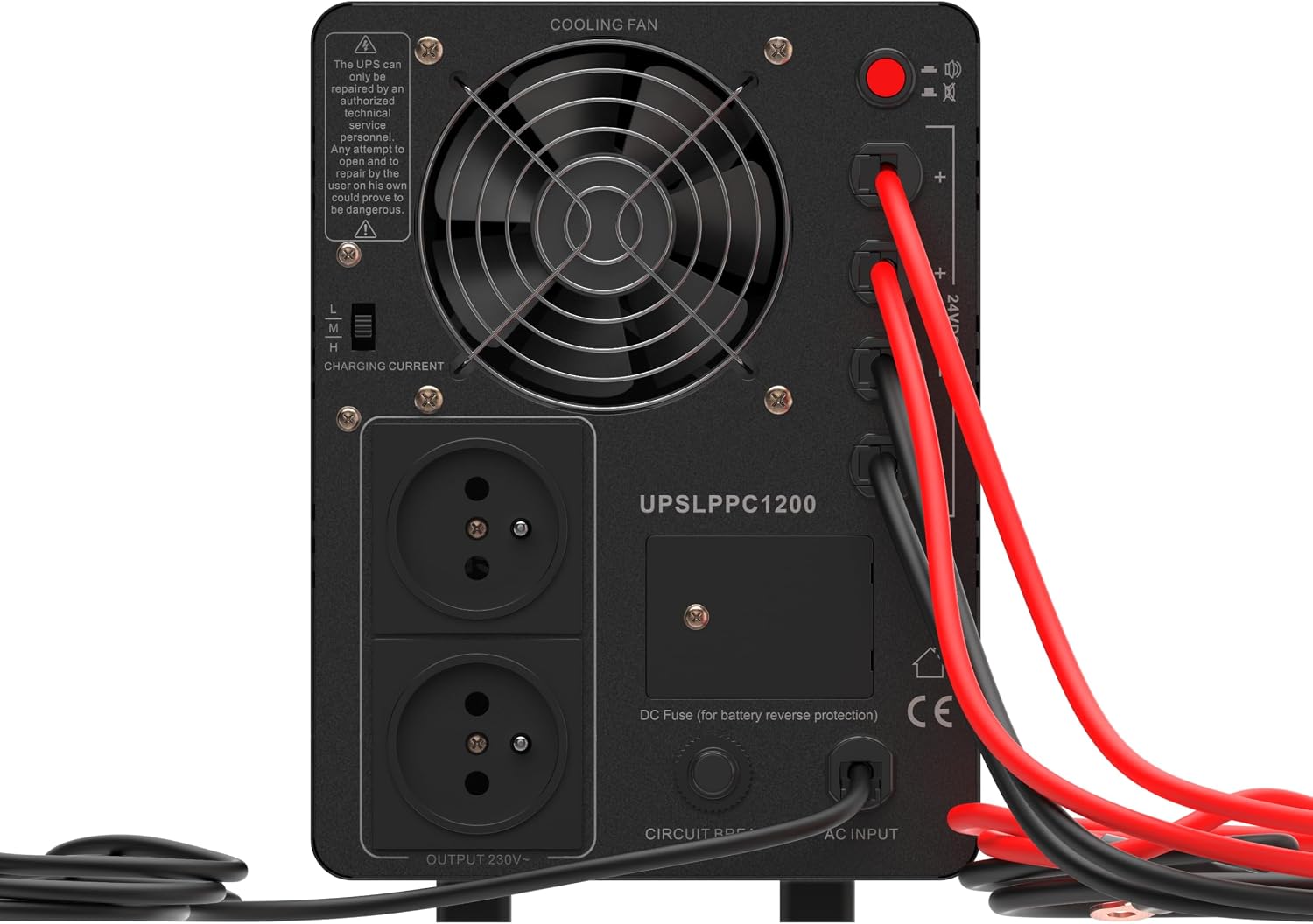
The rear panel of the UPS features two 230V Schuko outlets for connecting devices, DC terminals for external battery connection, a cooling fan, a charging current switch, and a circuit breaker.
3.3 Component Identification

This diagram illustrates the key components of the Green Cell PowerCore UPS. The front panel includes the charger indicator (1), LCD display (2), and audible alarm switch (3). The rear panel features 230V output sockets (4), a removable fuse (5), and DC battery cables (6).
- Charger Indicator: Indicates the status of the battery charging process.
- LCD Display: Shows real-time operational data such as input/output voltage, load level, and battery capacity.
- Audible Alarm Switch: Toggles the audible alarm on or off.
- 230V Output Sockets (Schuko): Connect your electronic devices here.
- Removable Fuse: Provides protection for the DC battery circuit.
- DC Battery Cables (+/-): Terminals for connecting the external 24V battery system.
4. Setup
Follow these steps to properly set up your Green Cell PowerCore UPS.
4.1 Unpacking
- Carefully remove the UPS from its packaging.
- Inspect the unit for any signs of damage. If damaged, do not use and contact your vendor.
- Retain packaging for future transport or storage.
4.2 External Battery Connection
This UPS requires an external 24V battery system. You will need two 12V lead-acid batteries connected in series to achieve 24V. The UPS will not function without a connected external battery.

An example of a compatible external AGM lead-acid battery (12V 7Ah). Two such 12V batteries are needed for a 24V system.
- Ensure the UPS is turned off and disconnected from the mains power.
- Connect two 12V batteries in series to create a 24V battery bank. Connect the positive terminal of the first battery to the negative terminal of the second battery.
- Connect the remaining positive terminal of the battery bank to the + (red) terminal on the rear of the UPS.
- Connect the remaining negative terminal of the battery bank to the - (black) terminal on the rear of the UPS.
- Double-check all connections for correct polarity and secure fastening.
4.3 Mains Power Connection
- Plug the UPS's input power cord into a grounded 230V AC wall outlet.
- The UPS will typically enter charging mode, indicated on the LCD.
4.4 Connecting Devices
- Plug your electronic devices (computer, monitor, router, etc.) into the 230V output sockets on the rear panel of the UPS.
- Ensure the total power consumption of all connected devices does not exceed 1200W.
5. Operation
5.1 Powering On/Off
- To Power On: Press and hold the power button on the front panel for approximately 3 seconds until the LCD illuminates and the UPS starts.
- To Power Off: Press and hold the power button for approximately 3 seconds until the LCD turns off.
5.2 LCD Display
The LCD provides real-time status information:
- Input Voltage: Displays the current voltage from the mains power supply.
- Output Voltage: Shows the voltage being supplied to connected devices.
- Load Level: Indicates the percentage of the UPS's capacity currently being used by connected devices.
- Battery Capacity: Shows the remaining charge level of the external battery.
- Status Indicators: Icons for Utility Line (mains power), Battery Mode, Overload, Fault, and Check.
5.3 Charging Current Adjustment
The rear panel features a three-level switch (Low/Medium/High) to adjust the battery charging current. Select the appropriate setting based on your external battery's specifications and charging requirements. A higher current will charge faster but may generate more heat.
5.4 Audible Alarm Control
The audible alarm switch on the front panel allows you to mute or enable the alarm sounds. This is useful for silencing alerts during power events if immediate attention is not required.
5.5 Pure Sine Wave Output
The PowerCore UPS provides a pure sine wave output, which is identical to the waveform of standard utility power. This ensures compatibility and safe operation for sensitive electronics, including active PFC power supplies found in modern computers, servers, and other critical equipment, preventing potential damage or operational issues.
6. Maintenance
6.1 Battery Care
- Regularly check the external battery terminals for corrosion and ensure connections are secure.
- Ensure the batteries are kept in a cool, dry, and well-ventilated area.
- Periodically allow the UPS to discharge the batteries under load to calibrate the battery meter and ensure optimal performance.
6.2 Cleaning
- Disconnect the UPS from all power sources before cleaning.
- Use a soft, dry cloth to wipe the exterior of the unit.
- Do not use liquid or aerosol cleaners.
- Keep the cooling fan vents clear of dust and obstructions to ensure proper airflow.
6.3 Fuse Replacement
The UPS features a removable DC fuse for battery reverse protection. If the fuse blows, disconnect the UPS from all power sources and the external battery. Replace the fuse with one of the same type and rating. Consult the specifications section for fuse details or contact support.
7. Troubleshooting
Refer to the following table for common issues and their solutions.
| Problem | Possible Cause | Solution |
|---|---|---|
| UPS does not power on. | No external battery connected or battery discharged. | Ensure external 24V battery is correctly connected and charged. |
| No output power to devices. | UPS in fault mode, overload, or battery discharged. | Check LCD for error codes. Reduce load. Recharge battery. |
| Audible alarm sounds continuously. | Overload, low battery, or fault condition. | Check LCD for specific alarm reason. Reduce load or allow battery to charge. |
| UPS not charging battery. | Mains power issue, charging current setting too low, or battery fault. | Verify mains power. Adjust charging current. Check battery health. |
8. Specifications
| Feature | Specification |
|---|---|
| Brand | Green Cell |
| Model Number | UPSLPPC1200 |
| Maximum Power | 1200 Watt |
| VA Rating | 2000 VA |
| Input Voltage | 230 Volts (AC) |
| Output Voltage | 230 Volts (AC) |
| Output Waveform | Pure Sine Wave |
| External Battery Voltage | 24 Volts DC (requires two 12V batteries in series) |
| Battery Composition | Lead Acid (external) |
| Amperage | 13 A |
| Color | Black |
| Material | Metal |
| Item Weight | 11 Kilograms |
| Form Factor | Stationary |
| Manufacturer | CSG S.A. |
| Country of Origin | China |
9. Warranty and Support
Green Cell products are designed for reliability and performance. For warranty information, technical support, or service inquiries, please refer to the official Green Cell website or contact your local distributor. Keep your purchase receipt as proof of purchase for warranty claims.
For further assistance, please visit: Green Cell Official Website


