
1. Introduction
Thank you for choosing the LEFFOT M1 Plus Android 14.0 TV Box. This device is designed to transform your television into a smart entertainment hub, offering stunning 4K UHD visuals, powerful performance, and a wide range of connectivity options. This manual provides detailed instructions for setting up, operating, and maintaining your TV box to ensure an optimal user experience.
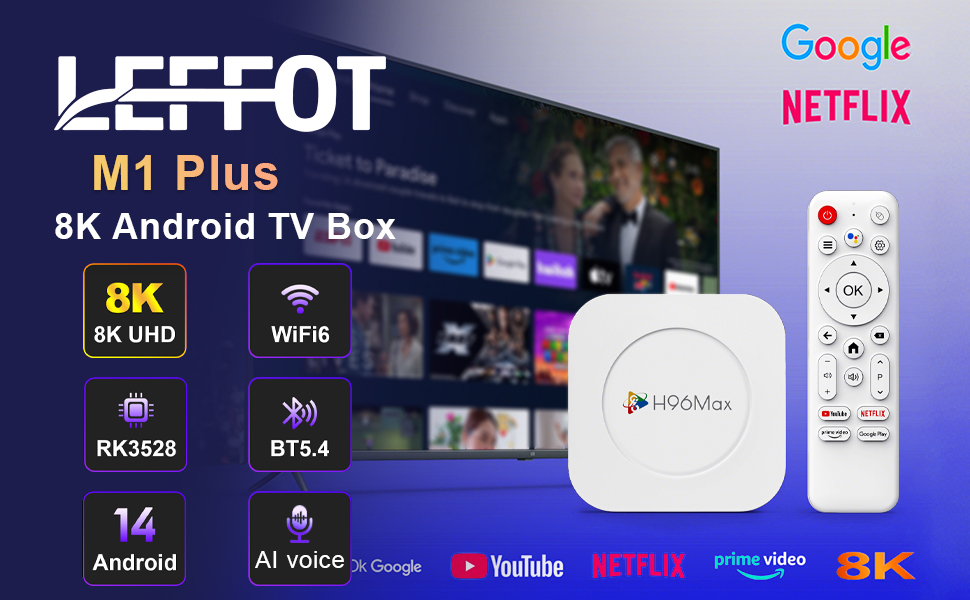
Image 1.1: Overview of the LEFFOT M1 Plus Android TV Box highlighting its core features like 8K UHD, WiFi 6, BT 5.4, Android 14, and AI voice control.
2. Safety Information
Please read all safety instructions carefully before using the device. Failure to follow these instructions may result in electric shock, fire, or damage to the device.
- Use only the provided power adapter.
- Do not expose the device to water, moisture, or extreme temperatures.
- Ensure proper ventilation around the device to prevent overheating.
- Do not attempt to disassemble or repair the device yourself. Contact qualified service personnel.
- Keep the device away from direct sunlight and heat sources.
3. Package Contents
Verify that all items are present in the package:
- LEFFOT M1 Plus Android TV Box
- Remote Control
- HDMI Cable
- Power Adapter
- User Manual (this document)
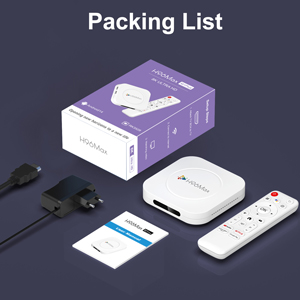
Image 3.1: The package contents including the TV box, remote control, power adapter, and HDMI cable.
4. Product Overview
Familiarize yourself with the components and ports of your LEFFOT M1 Plus TV Box.
4.1. Device and Remote

Image 4.1: The LEFFOT M1 Plus TV Box (left) and its accompanying remote control (right).
4.2. Ports and Interfaces
The TV box features various ports for connectivity:
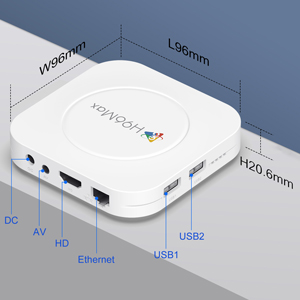
Image 4.2: Detailed view of the TV box's ports: DC (power), AV (audio/video out), HD (HDMI), Ethernet, USB1, and USB2.
- DC: Power input port.
- AV: Analog audio/video output (for older TVs).
- HD: HDMI output for connecting to your TV.
- Ethernet: RJ-45 port for wired network connection.
- USB1 & USB2: USB ports for connecting external devices like USB drives, keyboards, or mice.
5. Setup
Follow these steps to set up your LEFFOT M1 Plus TV Box:
- Connect to TV: Connect one end of the provided HDMI cable to the "HD" port on the TV box and the other end to an HDMI input port on your television. Note the HDMI input number (e.g., HDMI 1, HDMI 2) on your TV.
- Connect Power: Plug the power adapter into the "DC" port on the TV box, then plug the adapter into a wall outlet.
- Power On: The TV box should automatically power on. If not, press the power button on the remote control.
- Select TV Input: On your TV, use the remote control to select the corresponding HDMI input source you connected the TV box to.
- Initial Setup Wizard: Follow the on-screen instructions to complete the initial setup, including language selection, time zone, and network connection.
6. Operating Instructions
Navigate and use your TV box effectively.
6.1. Basic Navigation
- Use the directional (Up, Down, Left, Right) buttons on the remote to move between menu items and applications.
- Press the OK button to select an item or confirm an action.
- Press the Back button to return to the previous screen.
- Press the Home button to return to the main home screen.
6.2. Accessing Applications
From the home screen, you can access pre-installed applications or download new ones from the Google Play Store. Navigate to the desired app icon and press OK to launch it.

Image 6.1: The Android 14.0 TV Box home screen displaying popular streaming applications.
6.3. Voice Control
The LEFFOT M1 Plus supports voice control via Google Assistant. To use this feature:
- Ensure your remote control is paired and has working batteries.
- Press the Voice Assistant button (often a microphone icon) on your remote.
- Speak clearly into the remote's microphone. You can ask to open apps, search for content, or control playback.

Image 6.2: Demonstrating the convenient voice control feature using the remote and Google Assistant.
6.4. Media Playback and Display Features
Enjoy high-quality media with advanced features:
- 8K UHD: The device supports up to 8K*4K@23fps and 4Kx2K@60fps resolution with HDR10 for vibrant and detailed visuals.
- Airplay, DLNA, WiFidisplay: Easily cast content from your mobile devices to your TV screen.

Image 6.3: Experience crystal-clear 8K resolution with the LEFFOT M1 Plus.

Image 6.4: The TV box supports various connectivity options and display technologies like Airplay, DLNA, and WiFidisplay.
6.5. Usage Scenarios
The LEFFOT M1 Plus TV Box is versatile for various uses:
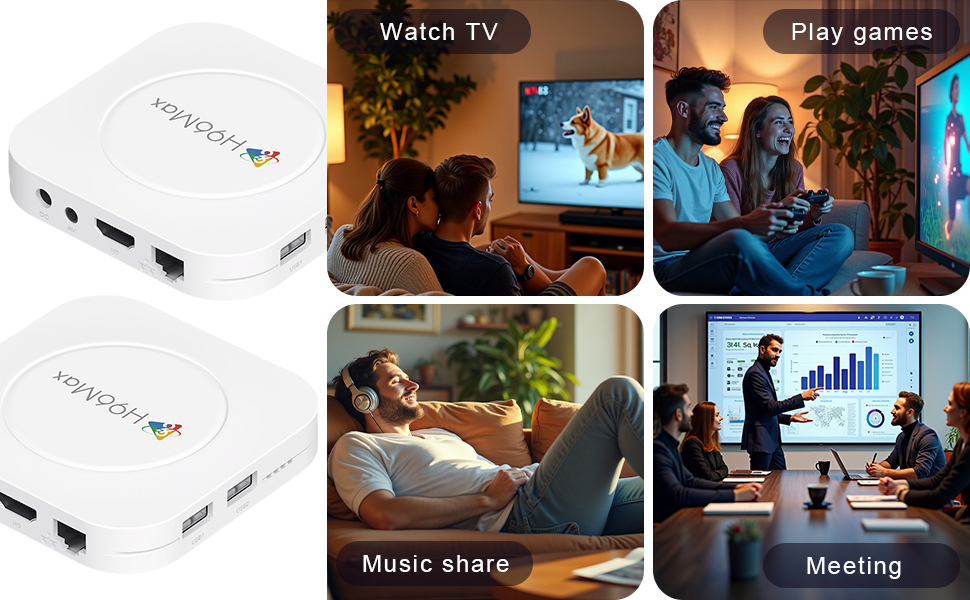
Image 6.5: The TV box can be used for watching TV, playing games, sharing music, and even for business presentations.
7. Connectivity
7.1. Wi-Fi Connection
The device supports 2.4G & 5G dual-band Wi-Fi 6 for fast and stable wireless internet.
- Go to Settings > Network & Internet.
- Turn on Wi-Fi.
- Select your Wi-Fi network from the list.
- Enter the password if prompted and select Connect.

Image 7.1: The TV box features advanced Wi-Fi 6 technology for faster and more reliable connections.
7.2. Ethernet Connection
For a wired connection, plug an Ethernet cable into the "Ethernet" port on the TV box and the other end into your router/modem.
7.3. Bluetooth Connection
The device supports Bluetooth 5.4 for connecting peripherals like headphones, game controllers, or speakers.
- Go to Settings > Connected Devices > Pair new device.
- Put your Bluetooth device into pairing mode.
- Select your device from the list and follow the on-screen prompts to pair.
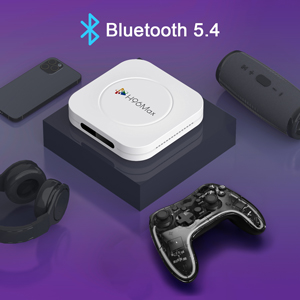
Image 7.2: The TV box supports Bluetooth 5.4 for seamless connection with various external devices.
8. Troubleshooting
Refer to this section for common issues and their solutions.
| Problem | Possible Cause | Solution |
|---|---|---|
| No power | Power adapter not connected or faulty. | Ensure power adapter is securely connected to the device and a working power outlet. Try a different outlet. |
| No signal on TV | Incorrect HDMI input selected on TV; HDMI cable loose or faulty. | Verify TV input matches the HDMI port used. Check HDMI cable connections. Try a different HDMI cable or port. |
| Wi-Fi connection issues | Incorrect password; router too far; interference. | Re-enter Wi-Fi password. Move device closer to router. Restart router and TV box. |
| Remote control not responding | Low batteries; remote not paired. | Replace batteries. Re-pair the remote control if it's a Bluetooth remote (refer to device settings). |
| Apps crashing or slow performance | Too many apps running; low storage; software glitch. | Close background apps. Clear app caches. Restart the TV box. Consider a factory reset if issues persist (data will be lost). |
9. Specifications
Key technical specifications of the LEFFOT M1 Plus Android TV Box:
- Operating System: Android 14.0
- CPU: RK3528 Quad Core ARM Cortex-A53
- GPU: Mali-450 MP2
- RAM: 4GB
- ROM: 32GB
- Video Output: Supports 4Kx2K@60fps, 8K*4K@23fps, HDR10
- Wi-Fi: 2.4G & 5G Dual-band Wi-Fi 6
- Ethernet: 100M
- Bluetooth: BT 5.4
- Ports: HDMI, USB (x2), DC, AV, Ethernet
- Special Features: Airplay, DLNA, WiFidisplay, Voice Control
- Dimensions: 3.78 x 3.78 x 0.81 inches (96 x 96 x 20.6 mm)
- Weight: 4.3 ounces (approx. 122g)
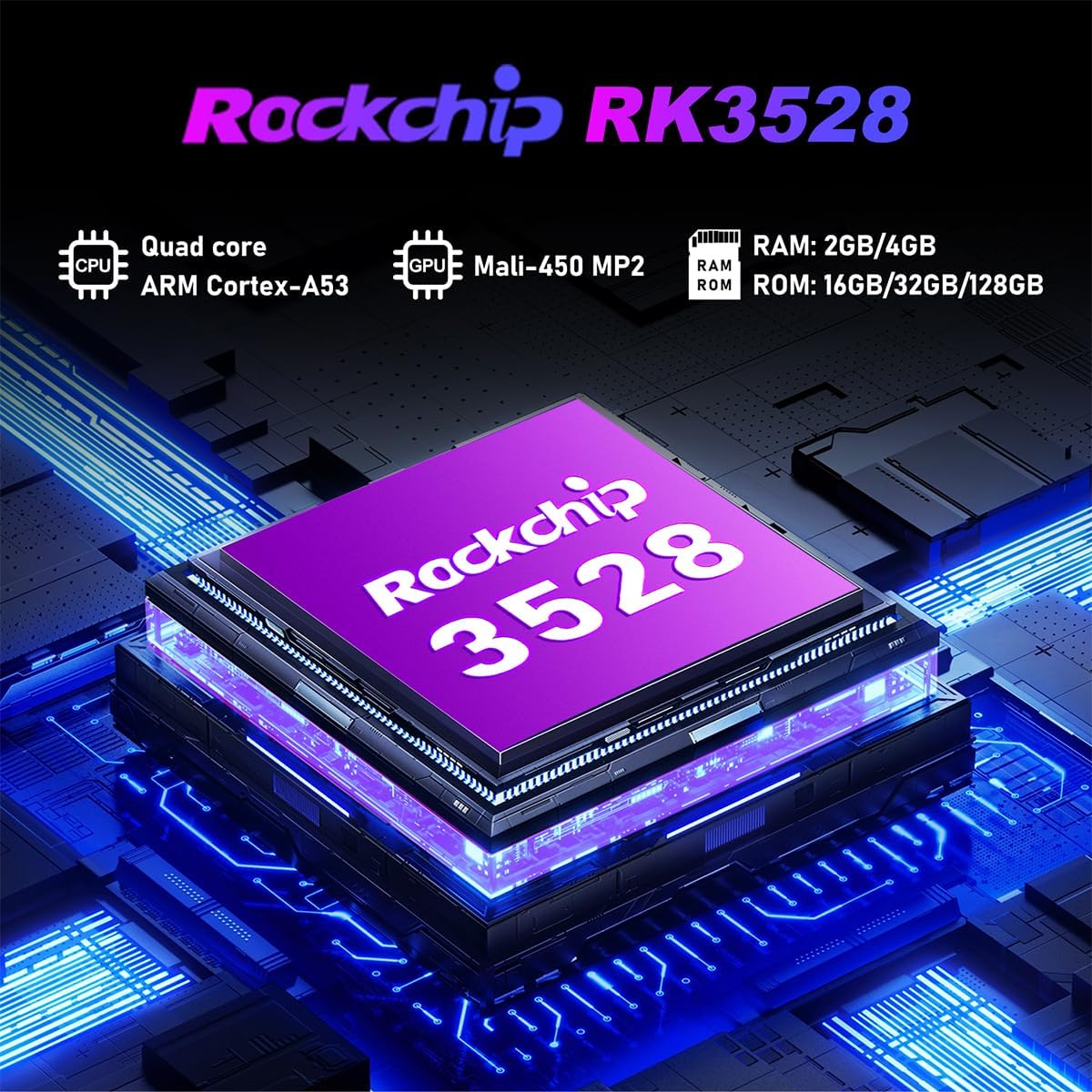
Image 9.1: Detailed view of the Rockchip RK3528 processor, highlighting its quad-core CPU, Mali-450 MP2 GPU, and memory configurations.
10. Maintenance
To ensure the longevity and optimal performance of your TV box:
- Cleaning: Use a soft, dry cloth to clean the exterior of the device. Do not use liquid cleaners or aerosols.
- Ventilation: Ensure the ventilation holes are not blocked. Do not place the device on soft surfaces that may obstruct airflow.
- Storage: When not in use for extended periods, disconnect the power adapter and store the device in a cool, dry place.
11. Warranty and Support
LEFFOT products are designed for reliability and performance. This product comes with a standard manufacturer's warranty. Please refer to the warranty card included in your package for specific terms and conditions.
For technical support, troubleshooting assistance, or warranty claims, please contact LEFFOT customer service through the retailer where you purchased the product or visit the official LEFFOT website for contact information.
Please retain your proof of purchase for warranty purposes.


