
ASECAM AC-CAM-01
ASECAM 4G Solar Outdoor Security Camera AC-CAM-01 User Manual
Model: AC-CAM-01
Introduction
This manual provides detailed instructions for the installation, operation, and maintenance of your ASECAM 4G Solar Outdoor Security Camera. Please read this manual thoroughly before using the product to ensure proper function and safety.
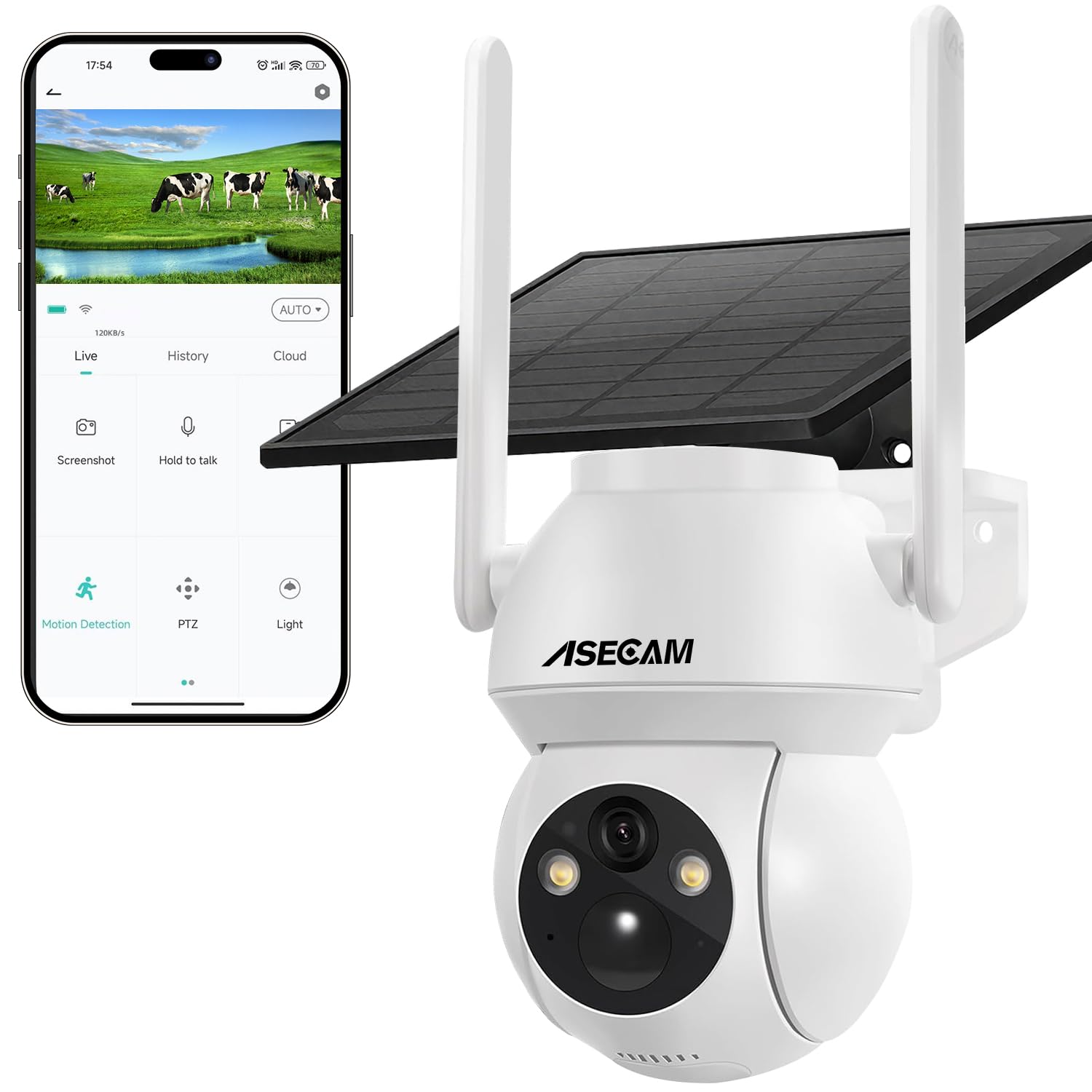
Image: ASECAM 4G Solar Outdoor Security Camera with its solar panel, illustrating its wireless capability and outdoor application.
Package Contents
Verify that all items are present in your package:
- 1x Solar-powered battery camera (battery included)
- 1x Solar panel
- 1x User manual
- 1x SIM Card (EIOTCLUB, 300MB trial)
- 1x Tool bag (for installation)
- 1x Type-C charging cable

Image: Components highlighting the 100% wireless operation with solar panel and 4G SIM card.
Setup Instructions
1. SIM Card and TF Card Installation
The camera operates on a 4G LTE network and does not require Wi-Fi. It supports a prepaid SIM card (300MB trial included) and a TF card for local storage (up to 128GB, not included).
- Locate the SIM card slot on the camera.
- Insert the provided EIOTCLUB SIM card or your own compatible 4G SIM card into the slot. Ensure it is inserted correctly according to the diagram on the camera or in the manual.
- If desired, insert a TF (microSD) card into the designated slot for local video storage.
Note: Some users have reported difficulty with the camera reading the SIM card initially. Ensure the card is fully and correctly seated. If the camera disconnects due to low data, a SIM card reset button press may be required to re-establish connection after recharging data.
2. App Download and Registration (UBox)
The camera is controlled via the UBox application.
- Download the "UBox" app from the App Store (iOS) or Google Play Store (Android). Alternatively, scan the QR code provided in the physical manual or on the product packaging.
- Register for a new account or log in if you already have one.

Image: The UBox app interface demonstrating two-way audio functionality.

Image: Step-by-step guide for UBox app setup, including downloading the app, registration, inserting SIM/TF card, and adding the camera.
For app download, visit: http://app.ubianet.com/app/ubox/
3. Camera Pairing
Follow the in-app instructions to add your camera to the UBox app. This typically involves scanning a QR code on the camera or following a guided pairing process.
4. Mounting and Solar Panel Placement
The camera is designed for outdoor use with an IP66 rating and includes a wall/ceiling mount.
- Choose a location that provides optimal solar exposure for the solar panel throughout the day.
- Mount the camera securely using the provided tool bag and hardware.
- Connect the solar panel to the camera. The 7W high-efficiency solar panel charges the integrated 10000mAh battery.

Image: The ASECAM camera and solar panel installed outdoors, demonstrating its IP66 weather resistance against rain, dust, and extreme temperatures.
Operating Instructions
1. Power Management
The camera is powered by a 10000mAh battery, continuously charged by a 7W solar panel. A full charge from solar power can provide 24-48 hours of surveillance. The battery supports temperatures from -20°C to 60°C and has overcharge protection.
2. PTZ Control and 4K (5MP) Video
Control the camera's pan (355° horizontal) and tilt (90° vertical) functions directly from the UBox app to cover a wide area. The camera captures video in 4K (5MP) resolution with a wide-angle lens and 4X digital zoom.

Image: Illustration of the camera's 355° pan and 90° tilt capabilities, controllable through the UBox app on a smartphone.

Image: Visual comparison demonstrating the enhanced clarity and detail of 4K 5MP video resolution compared to 1080P.
3. Night Vision Modes
The camera features intelligent night vision with 2 infrared LEDs and a STARVIS sensor.
- Full Color Night Vision: Up to 15 meters.
- Black and White Night Vision: Up to 30 meters.

Image: The camera's intelligent night vision capabilities, showing person detection, black and white infrared vision, and full-color night vision.
4. Two-Way Audio
Utilize the built-in microphone and speaker for two-way communication through the UBox app. This feature includes echo cancellation for clear audio, useful for deterring intruders or interacting with visitors.

Image: The camera's two-way audio feature, enabling real-time communication between the user via the app and individuals near the camera.
5. PIR Intelligent Detection and Real-time Alerts
The dual-zone PIR sensor detects human, animal, and vehicle movement, reducing false alarms. When motion is detected, the camera sends push notifications with photos/videos to your mobile device and automatically records to the TF card or encrypted cloud storage.
You can also activate a siren or spotlight from the app to deter unwanted activity.

Image: The camera's intelligent PIR detection system, showing a person being detected, triggering a spotlight, siren, and push notifications to a smartphone.
6. Time-Lapse Recording
The camera supports time-lapse mode for extended recording, useful for monitoring long-term events or changes in an area.
Maintenance
- Solar Panel Cleaning: Regularly clean the solar panel surface to ensure maximum charging efficiency. Dust, dirt, and debris can reduce its performance.
- Battery Care: The integrated 10000mAh Lithium-Ion battery is designed for durability. Avoid prolonged storage in extreme temperatures outside the -20°C to 60°C operating range.
- Firmware Updates: Check the UBox app periodically for any available firmware updates for your camera. Updates can improve performance, add features, or fix bugs.
- Physical Inspection: Periodically inspect the camera and mounting hardware for any signs of wear, damage, or loose connections, especially after severe weather.
Troubleshooting
Common Issues and Solutions:
- Camera Disconnects Frequently:
Ensure the 4G signal strength at the camera's location is adequate. Check the signal indicator in the UBox app.
- SIM Card Not Reading / Camera Offline After Data Depletion:
If the camera runs out of data (saldo or megas) on its SIM card, it may display red and blue blinking lights and appear offline in the app. Simply recharging the SIM card's data may not be sufficient to restore connection. You may need to physically access the camera and press the SIM card reset button to re-establish the 4G connection.
Ensure the SIM card is correctly and fully inserted into its slot. Re-inserting the SIM card can sometimes resolve reading issues.
- Poor Video Quality:
Ensure the camera lens is clean and free from dirt or obstructions. Check the network signal strength; a weak 4G signal can affect streaming quality.
- False Alarms:
Adjust the PIR detection sensitivity settings in the UBox app. Ensure the camera is not pointed at areas with constant movement (e.g., busy roads, swaying branches) if not intended for detection.
- Battery Not Charging:
Verify that the solar panel is clean and receiving direct sunlight for several hours daily. Check the connection between the solar panel and the camera. Ensure the solar panel is not obstructed.
Specifications
| Feature | Detail |
|---|---|
| Model Number | AC-CAM-01 |
| Video Capture Resolution | 4K (5MP) / 1920p |
| Color | White |
| Wireless Communication Technology | 4G LTE |
| Night Vision Range | Up to 30 meters (B/W), Up to 15 meters (Color) |
| Dimensions (L x W x H) | 20.32 x 17.78 x 12.7 cm (8 x 7 x 5 inches) |
| Weight | 790 g |
| Special Features | No WiFi/Electrical Power Needed, PTZ Technology, UBox APP, Night Vision, PIR Detection, Two-Way Audio, IP66 Weatherproof |
| Battery Type | Lithium Ion (10000mAh) |
| Power Source | Solar Power |
| Indoor/Outdoor Use | Outdoor |
| Compatible Devices | Smartphone |
| Mounting Type | Wall Mount |
Warranty Information
ASECAM products typically come with a standard manufacturer's warranty. Please refer to the warranty card included in your package or visit the official ASECAM website for detailed warranty terms and conditions. Keep your purchase receipt as proof of purchase for any warranty claims.
Additional protection plans may be available for purchase from retailers, offering extended coverage for accidental damage. Please check with your point of purchase for details on such plans.
Support
For technical assistance, troubleshooting, or further inquiries, please refer to the following resources:
- UBox App: The UBox application often includes an FAQ section or direct support contact options.
- Online Resources: Visit the official ASECAM website for product support pages, FAQs, and contact information.
- Retailer Support: For purchase-related issues, contact the retailer where you purchased the camera.
For UBox app download: http://app.ubianet.com/app/ubox/
Ask a question about this manual
Ask about setup, troubleshooting, compatibility, parts, safety, or missing instructions. Manuals+ will review the question and use this page’s manual context to help answer it.