
Arylic A100
Arylic A100 Wireless Full Digital HiFi Amplifier User Manual
Model: A100 | Brand: Arylic
1. Introduction
The Arylic A100 is a 100W×2 high-power stereo amplifier designed for home audio systems. It integrates wireless streaming capabilities including WiFi, Bluetooth, and AirPlay, along with support for various online music services and FM radio. The device features dual microphone input jacks for karaoke and multiroom audio functionality, allowing synchronized or independent playback across multiple rooms.
This manual provides detailed instructions for the setup, operation, and maintenance of your Arylic A100 amplifier. Please read it thoroughly before use to ensure proper functionality and to maximize your listening experience.

This image highlights the comprehensive features of the Arylic A100, including its support for WiFi, AirPlay, Bluetooth, FM Radio, KTV, and multiroom audio, making it a versatile audio solution.
2. Important Safety Information
- Power Source: Connect the unit only to an AC power outlet of the specified voltage. Ensure the power cord is securely plugged in.
- Ventilation: Do not block ventilation openings. Ensure adequate airflow around the unit to prevent overheating.
- Water and Moisture: Do not expose the unit to rain, moisture, or dripping/splashing liquids. Do not place objects filled with liquids, such as vases, on the apparatus.
- Heat: Keep the unit away from heat sources such as radiators, heat registers, stoves, or other apparatus (including amplifiers) that produce heat.
- Cleaning: Clean only with a dry cloth.
- Servicing: Do not attempt to service this product yourself. Refer all servicing to qualified service personnel.
- Antennas: Ensure all antennas (WiFi, Bluetooth, FM) are properly connected for optimal performance.
3. Package Contents
Verify that all items listed below are included in your package:
- Arylic A100 Amplifier Unit
- Power Cable
- Remote Control
- WiFi Antenna
- Bluetooth Antenna
- FM Antenna (wire type)
- User Manual (this document)
4. Product Overview
4.1 Front Panel

This image displays the front panel of the Arylic A100 amplifier, featuring the power button, display screen, volume knob, mode button, preset buttons (1-6), playback controls, and dual microphone inputs with a USB port.
4.2 Rear Panel

This image illustrates the rear panel of the Arylic A100 amplifier, detailing all connection ports including antennas, audio inputs/outputs, speaker terminals, LAN port, and power input.

This diagram provides a detailed view of both the front and rear panels of the Arylic A100, with all buttons, ports, and terminals clearly labeled for easy identification.
5. Setup
5.1 Physical Connections
- Connect Antennas: Screw the provided WiFi, Bluetooth, and FM antennas into their respective ports on the rear panel.
- Connect Speakers: Connect your passive speakers to the R (Right) and L (Left) speaker terminals on the rear panel. Ensure correct polarity (+ to + and - to -).
- Connect Audio Sources (Optional):
- For analog devices (e.g., CD player), use the Line In RCA ports.
- For turntables, use the Phono In RCA ports and connect the turntable's ground wire to the GND terminal.
- For digital audio sources (e.g., TV, game console), use the OPT In (optical) or Coaxial In ports.
- Connect Power: Plug the power cable into the AC Power Input on the rear panel, then plug the other end into a wall outlet.

This image shows the Arylic A100 amplifier connected to a pair of speakers and a CD player, demonstrating the use of Line In and Line Out connections for analog audio equipment.

This image illustrates the Arylic A100 amplifier connected to a turntable, highlighting its dedicated Phono In input for vinyl playback.

This image shows the Arylic A100 amplifier connected to a television, demonstrating its capability to play high-quality digital sound from a TV source.
5.2 Network Setup (WiFi / LAN)
The Arylic A100 supports both wired (LAN) and wireless (WiFi) network connections for streaming services and multiroom functionality.
- Wired Connection (Recommended for Stability):
- Connect an Ethernet cable from your router to the LAN Port on the rear panel of the A100. The device will automatically connect to the network.

This image demonstrates connecting an Ethernet cable to the LAN port on the Arylic A100 for a stable wired network connection.
- Wireless Connection (WiFi):
- Ensure the WiFi antenna is connected.
- Download the "Go Control" or "4Stream" app from your mobile device's app store.
- Follow the in-app instructions to connect the A100 to your home WiFi network. This typically involves selecting the A100 from a list of devices and entering your WiFi password.
6. Operating Instructions
6.1 Basic Operation
- Power On/Off: Press the Power Button on the front panel.
- Volume Adjustment: Rotate the Volume Knob to increase or decrease the audio output.
- Input Selection: Press the Volume Knob to cycle through available input sources (WiFi, Bluetooth, Line In, Phono In, Optical, Coaxial, FM, USB).
- Preset Selection: Use the Preset Buttons (1-6) to quickly access saved radio stations or streaming playlists.
6.2 Wireless Audio Streaming
The A100 supports various wireless streaming technologies:
- Bluetooth:
- Select Bluetooth as the input source.
- On your mobile device, search for "Arylic A100" in the Bluetooth settings and pair.
- WiFi Streaming (AirPlay, Spotify Connect, DLNA, UPnP):
- Ensure the A100 is connected to your WiFi network (see Section 5.2).
- Use compatible apps (e.g., Spotify, Apple Music) on your mobile device to stream audio to the A100 via AirPlay or Spotify Connect.
- The A100 is compatible with a wide range of online streaming music platforms and protocols, including Spotify, Amazon Music, TuneIn, iHeartRadio, QQ Music, TIDAL, Napster, and more.

This image displays the logos of several popular music services and platforms that are compatible with the Arylic A100 amplifier, highlighting its broad streaming capabilities.
6.3 FM Radio
The A100 features a built-in FM radio tuner.
- Ensure the FM antenna is connected.
- Select FM as the input source.
- The unit supports automatic scanning of local FM channels.
- You can preset multiple favorite channels using the preset buttons for quick access.

This close-up image of the Arylic A100's display panel shows the FM radio interface, indicating a tuned frequency and station information.
6.4 Microphone Input (KTV Function)
The A100 includes dual microphone input jacks for karaoke or public address applications.
- Connect up to two microphones to the Mic 1 and Mic 2 input jacks on the front panel.
- Adjust microphone volume as needed.

This image shows a person using a microphone connected to the Arylic A100 amplifier, demonstrating its karaoke (KTV) functionality.
6.5 Multiroom Functionality
By setting up multiple Arylic devices in different rooms, you can create a multiroom audio system.
- Synchronized Playback: Play the same song in all connected rooms simultaneously.
- Independent Playback: Play different songs in different rooms at the same time.
- Control multiroom settings using the "Go Control" or "4Stream" app.
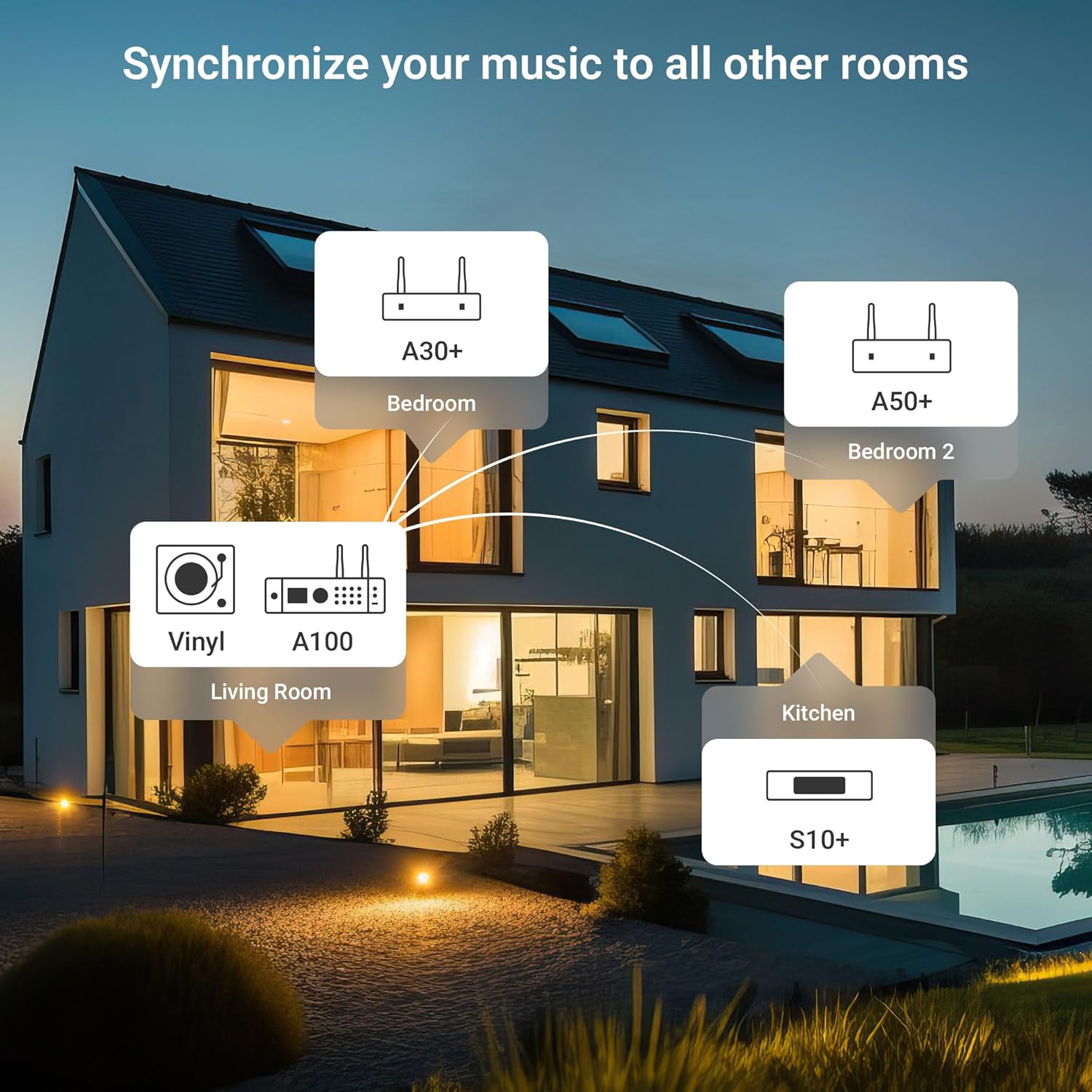
This diagram illustrates a multiroom audio setup, showing how various Arylic devices, including the A100, can be distributed throughout a home to play synchronized or independent music.
6.6 App Control (Go Control / 4Stream)
The "Go Control" and "4Stream" apps provide comprehensive control over the A100 amplifier.
- Download: Obtain the apps from your mobile device's app store.
- Functions: Adjust volume, switch input sources, manage multiroom zones, and apply equalizer (EQ) settings.

This image displays multiple screenshots of the "Go Control" mobile application, showcasing its interface for managing audio settings, input sources, and multiroom configurations.
6.7 USB Playback
The A100 supports audio playback from USB storage devices.
- Insert a USB drive containing audio files into either the front or rear USB port.
- Select USB as the input source.
- Playback can be controlled via the front panel buttons or the mobile app.

This image illustrates a USB drive connected to the Arylic A100 amplifier, with a smartphone screen displaying a music playlist, indicating USB playback functionality.
7. Maintenance
- Cleaning: Use a soft, dry cloth to clean the exterior of the unit. Do not use liquid cleaners or aerosols.
- Ventilation: Periodically check that the ventilation openings are clear of dust and debris.
- Storage: If storing the unit for an extended period, disconnect it from the power supply and store it in a cool, dry place.
8. Troubleshooting
| Problem | Possible Cause | Solution |
|---|---|---|
| No power | Power cable not connected; Power outlet not active. | Ensure power cable is securely connected. Test the outlet with another device. |
| No sound output | Incorrect input source selected; Speaker cables loose; Volume too low; Mute activated. | Select the correct input source. Check speaker connections. Increase volume. Deactivate mute. |
| Cannot connect to WiFi | Incorrect WiFi password; Router too far; WiFi antenna not connected. | Verify WiFi password. Move unit closer to router or use wired LAN. Ensure WiFi antenna is connected. Re-run app setup. |
| Bluetooth pairing fails | Bluetooth not selected as input; Device already paired to another unit; Bluetooth antenna not connected. | Select Bluetooth input. Disconnect from other devices. Ensure Bluetooth antenna is connected. Try pairing again. |
| Poor FM radio reception | FM antenna not properly positioned or connected. | Adjust the position of the FM wire antenna. Ensure it is fully extended and connected. Consider an external FM antenna for improved reception. |
| Microphone not working | Microphone not plugged in correctly; Microphone volume too low. | Ensure microphones are securely plugged into Mic 1/2 jacks. Adjust microphone volume. |
9. Specifications
| Feature | Detail |
|---|---|
| Model | A100 |
| Output Power | 100W x 2 (into 4 Ohms) |
| Wireless Connectivity | WiFi, Bluetooth, AirPlay, Spotify Connect, DLNA, UPnP |
| Audio Inputs | Line In (RCA), Phono In (RCA), Optical In, Coaxial In, USB (front & rear), Dual Microphone (front) |
| Audio Outputs | Speaker Terminals (R/L), Line Out (RCA) |
| Special Features | FM Radio, Multiroom Audio, App Control (Go Control/4Stream), Built-in Power Supply with Toroidal Transformer, TPA3255 Amplifier Chip, ESS 9023P DAC |
| Package Dimensions | 14 x 10.8 x 4.4 inches |
| Item Weight | 3 pounds |
| Manufacturer | Rakoit Technology (Shenzhen) Co., Ltd. |
10. Warranty and Support
For warranty information and technical support, please refer to the official Arylic website or contact your local dealer. Keep your purchase receipt for warranty claims.
Manufacturer: Rakoit Technology (Shenzhen) Co., Ltd.
For further assistance, visit the Arylic Store on Amazon.
Related documentsA100


Ask a question about this manual
Ask about setup, troubleshooting, compatibility, parts, safety, or missing instructions. Manuals+ will review the question and use this page’s manual context to help answer it.