
1. Introduction
Thank you for choosing the MTAKYA Wireless CarPlay AI Box. This device is designed to enhance your in-car entertainment and connectivity by converting your wired CarPlay system into a wireless CarPlay and Android Auto experience, while also providing access to streaming services like Netflix and YouTube. This manual provides essential information for setup, operation, maintenance, and troubleshooting to ensure optimal performance and user satisfaction.
2. Important Safety Information
Please read all safety instructions carefully before using the device. Failure to follow these instructions may result in injury or damage to the device or vehicle.
- Do not operate the device in a manner that distracts you from driving. Always prioritize road safety.
- Ensure the device is securely placed and does not obstruct your view or interfere with vehicle controls.
- Avoid exposing the device to extreme temperatures, direct sunlight, or moisture.
- Do not attempt to disassemble, repair, or modify the device. Contact customer support for assistance.
- Use only the provided cables and accessories to prevent damage.
3. Package Contents
Verify that all items are present in the package:
- MTAKYA Wireless CarPlay AI Box
- USB-A to USB-C Cable
- USB-C to USB-C Cable
- User Manual (this document)

Image 3.1: The MTAKYA Wireless CarPlay AI Box and its accompanying USB cables.
4. Setup Guide
4.1. Compatibility
The MTAKYA Wireless CarPlay AI Box is compatible with:
- Vehicles: Most car models manufactured after 2016 that feature factory-installed wired Apple CarPlay.
- Important Note: This device is not compatible with BMW or Tesla vehicles, nor with cars that have built-in wireless CarPlay or lack a touchscreen.
- Mobile Phones: iPhones with iOS 10.0 and above, and Android phones with Android 11.0 and above.

Image 4.1: Visual representation of compatible car brands and phone operating systems.
4.2. Installation Steps
Follow these steps to connect your AI Box:
- Connect the AI Box to your car's USB port (the one used for wired CarPlay) using the appropriate USB cable (USB-A or USB-C).
- On your car's screen, select the CarPlay or Android Auto option.
- On your mobile phone, enable both Wi-Fi and Bluetooth. Search for the AI Box's Bluetooth name (e.g., "HBT") and pair with it. Confirm any pairing requests on both your phone and car screen.
- Once connected, the wireless CarPlay or Android Auto interface will appear on your car's screen. The device will automatically reconnect after the initial setup.

Image 4.2: Step-by-step guide for connecting and initiating the AI Box.
5. Operating Your MTAKYA Wireless CarPlay AI Box
5.1. Wireless CarPlay & Android Auto
After successful setup, your car's display will show the familiar CarPlay or Android Auto interface. You can access navigation, music, calls, and messages wirelessly from your smartphone.
5.2. Streaming Media (Netflix & YouTube)
The AI Box features built-in Netflix and YouTube applications for in-car entertainment. To use these:
- Connect the AI Box to your phone's mobile hotspot for internet access.
- Select the Netflix or YouTube app from the AI Box interface on your car screen.
- Log in to your accounts to start streaming.
Note: You can connect to either Apple CarPlay/Android Auto or streaming services like YouTube/Netflix, but not both simultaneously.

Image 5.1: Car display showing Netflix and YouTube applications for entertainment.
5.3. Dual Band WiFi (2.4G & 5G)
The device utilizes dual-band Wi-Fi for optimized performance:
- One Wi-Fi connection is used to link to your phone's hotspot for internet access, enabling streaming apps.
- A separate Wi-Fi connection maintains the Apple CarPlay or Android Auto link, ensuring seamless switching between navigation/communication and entertainment without needing to disconnect or reconnect.
5.4. Control Methods
The AI Box supports various control methods, integrating with your vehicle's existing systems:
- Voice Control: Use voice commands (e.g., Siri, Google Assistant) for navigation, calls, and music playback.
- Touch Screen Control: Interact directly with the car's touchscreen display.
- OEM Knob Control: Utilize your car's original control knob for menu navigation.
- Steering Wheel Control: Use your steering wheel buttons for audio control and other functions.

Image 5.2: Various control methods supported by the AI Box, including voice, touch, knob, and steering wheel.
6. Care and Maintenance
To ensure the longevity and optimal performance of your MTAKYA Wireless CarPlay AI Box, follow these maintenance guidelines:
- Cleaning: Gently wipe the device with a soft, dry cloth. Do not use liquid cleaners or abrasive materials.
- Storage: When not in use for extended periods, store the device in a cool, dry place away from direct sunlight.
- Handling: Avoid dropping the device or subjecting it to strong impacts.
- Cable Care: Inspect cables regularly for any signs of wear or damage. Replace damaged cables immediately.
7. Troubleshooting Guide
If you encounter issues with your AI Box, refer to the table below for common problems and solutions:
| Problem | Possible Cause | Solution |
|---|---|---|
| Device does not power on. | Incorrect USB port, faulty cable, insufficient power. | Ensure connection to the correct USB port (for wired CarPlay). Try a different USB cable. Check car's USB port for power. |
| Cannot connect to Wireless CarPlay/Android Auto. | Bluetooth/Wi-Fi off, incorrect pairing, car not compatible. | Ensure phone's Bluetooth and Wi-Fi are on. Forget previous Bluetooth connections and re-pair. Verify car compatibility (wired CarPlay required). |
| Streaming apps (Netflix/YouTube) not working. | No internet connection, app issues. | Ensure AI Box is connected to your phone's mobile hotspot. Check hotspot functionality. Restart the app or device. |
| Lag or delayed response. | Weak signal, too many background apps. | Ensure strong Wi-Fi/Bluetooth signal. Close unnecessary apps on your phone. Restart the AI Box and phone. |
| Audio issues. | Volume settings, car audio source. | Check volume levels on both phone and car. Ensure car's audio source is set to CarPlay/Android Auto. |
8. Product Specifications
- Product Dimensions: 0.3 x 0.2 x 0.1 inches (80 x 50 x 12 mm)
- Item Weight: 1.06 ounces (30 Grams)
- Model Number: 2d4ee5cd-66d1-4cdc-8e1d-e2b413b25814
- Android Version: Android 13.0
- System Storage: 2GB LPDDR3X + 16GB eMMC
- Memory Card Support: TF Card/U disk (up to 128GB)
- Bluetooth Version: BLE 5.0
- WiFi: 2.4G WiFi
- Support: Wireless CarPlay, Wireless Android Auto, Wired Android Auto
- Remote Control: BT Remote control (if applicable, sold separately)
- Interface: Type-C / USB A
- Compatible Devices: Smartphone
- Connectivity Technologies: USB
- Scanner Resolution: 1080p
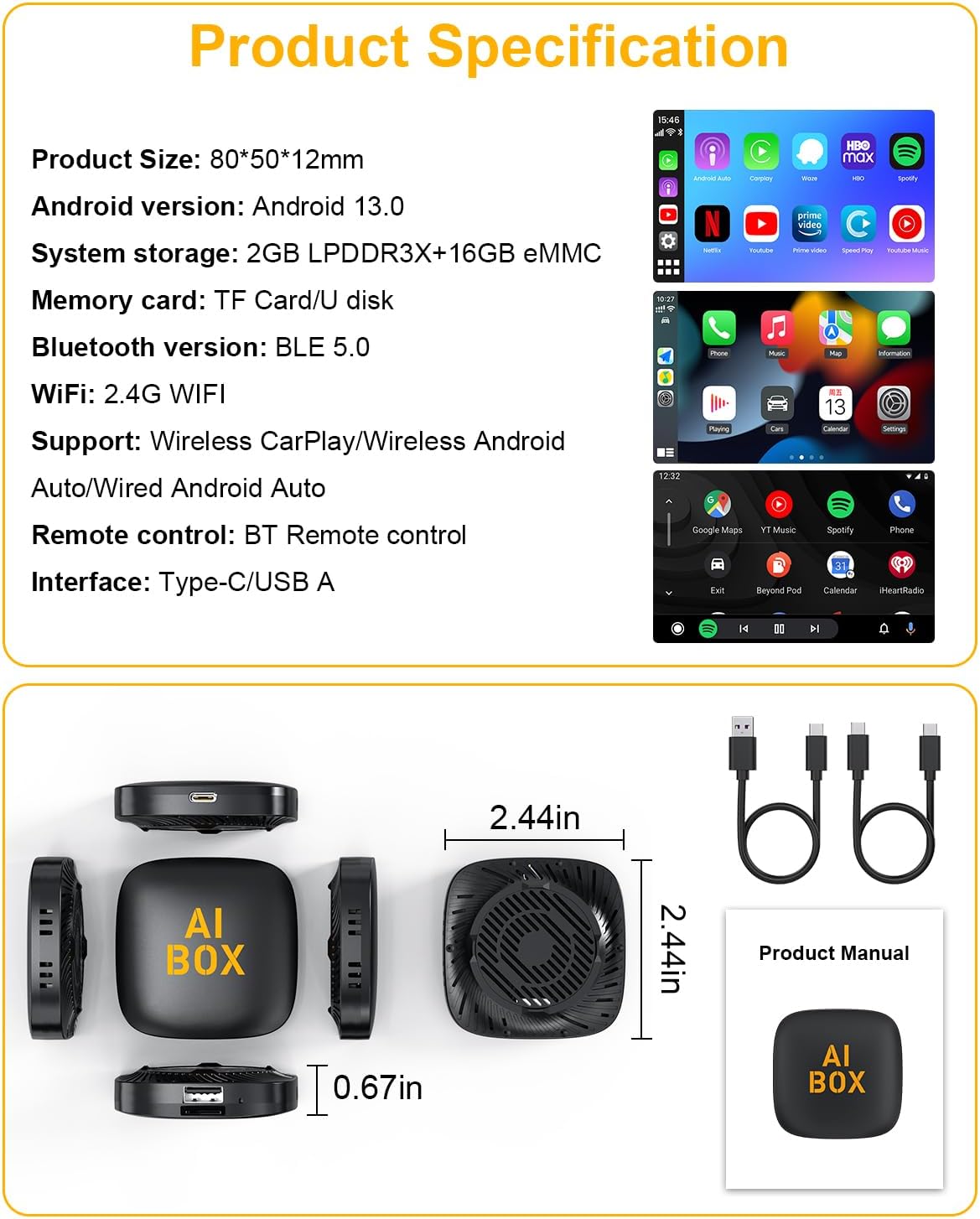
Image 8.1: Detailed product dimensions and interface view of the AI Box.
9. Warranty and Customer Support
The MTAKYA Wireless CarPlay AI Box comes with a 24-month worry-free after-sales customer service. If you have any questions, concerns, or require technical assistance, please contact us through the Amazon messaging system. Our support team will respond within 24 hours and provide a satisfactory solution.