
1. Introduction
The ARPHA D289C WiFi Video Smart Lock is an advanced security device integrating multiple functionalities for enhanced home access control. This 5-in-1 system combines a smart lock with a 150° camera, doorbell, fingerprint scanner, and keypad for comprehensive security and convenience.
This manual provides detailed instructions for installation, operation, maintenance, and troubleshooting to ensure optimal performance and user satisfaction.
2. Safety Information
- This product is composed of precision and complex components. Do not disassemble or assemble the internal structure yourself to avoid abnormal product operation or other use hazards. If you need to disassemble or assemble again, please contact a professional for operation.
- Use a dry cloth to clean this product. Do not wash it with water to avoid circuit failure.
- Low battery prompt: When unlocking, it will prompt "Beep beep beep beep" and the red light will flash at the same time.
- Ensure your router supports 2.4GHz WiFi band (5GHz is not compatible) for optimal performance.
3. Package Contents
The ARPHA D289C Smart Lock package includes all necessary components for installation and operation:
- Exterior Assembly (Keypad with Camera)
- Interior Assembly (Thumb-turn)
- Latch
- Strike Plate
- Mounting Plate
- Battery Cover
- Keys (x2)
- All necessary mounting screws
- Step-by-step installation guide (this manual)
Note: 4x AA batteries are required but not included in the package.
4. Specifications
| Feature | Description |
|---|---|
| Brand | ARPHA |
| Model Name | D289C |
| Special Features | App Unlock, Camera, Fingerprint, WiFi |
| Lock Type | Biometric, WiFi |
| Material | Zinc |
| Product Dimensions | 5.7 x 2.3 x 1.57 inches |
| Item Weight | 2.35 pounds |
| Control Method | App |
| Connectivity Protocol | BLE, Wi-Fi (2.4GHz only) |
5. Setup and Installation
The ARPHA D289C Smart Lock is designed for easy installation without the need for complex wiring. Follow the steps below or refer to the detailed video guide.
5.1 Pre-Installation Checks
- Confirm door thickness and backset measurements. The lock supports backset of 60mm or 70mm.
- Ensure your door is compatible (single cylinder, not mortise or integrated).
5.2 Installation Steps
- Remove your existing deadbolt.
- Install the latch into the door edge. Ensure the word "UP" on the deadbolt faces up. Secure with screws.
- Before installing the exterior assembly, rotate the tail of the lock cylinder to the vertical position.
- Pass the connection wire through the button of the cylinder and then through the bottom-right hole of the mounting plate.
- Attach the mounting plate to the door, securing it with screws.
- Connect the front and rear power communication link cables.
- Install the interior assembly, ensuring the knob is in the vertical position. Secure with screws.
- Install 4x AA batteries into the battery compartment, ensuring correct polarity.
- Attach the battery cover.
5.3 Installation Video Guide
Video: ARPHA D289C Installation Video Guide. This video demonstrates the step-by-step process of installing the smart lock, including preparing the door, installing the latch, connecting wires, and securing the main units.
5.4 Product Dimensions and Compatibility

Image: Multi-Function & Security. This diagram illustrates the precise dimensions required for installation, including backset (2.36" or 2.75"), door thickness (1.37"-2.16"), and the sizes of the exterior and interior lock components.
6. Operating Instructions
The ARPHA D289C Smart Lock offers multiple convenient ways to access your property.
6.1 Unlocking Methods

Image: Multiple Ways to Unlock. This image visually demonstrates the four primary methods of unlocking the ARPHA D289C Smart Lock: using a password on the keypad, scanning a registered fingerprint, using the Cldbus App, or inserting a physical backup key.
- Fingerprint: Use the integrated AI recognition fingerprint scanner for quick access.
- Keypad PIN: Enter your personalized PIN code on the touchscreen keypad.
- Cldbus App: Remotely unlock the door using the dedicated mobile application.
- Physical Keys: Two backup keys are provided for traditional manual unlocking.
6.2 App Control and Remote Access
The Cldbus App provides comprehensive control and monitoring features for your smart lock. Ensure your phone's Bluetooth is enabled and you are using a 2.4G Wi-Fi network.
6.2.1 Connecting to the Cldbus App
Video: Connect APP video tutorial. This video demonstrates how to connect the ARPHA D289C Smart Lock to the Cldbus mobile application, including entering the admin password and configuring network settings.
6.2.2 Remote Unlocking and Two-Way Audio
When a visitor presses the doorbell button on the lock, you will receive an alert on your Cldbus App. You can then view live video, engage in two-way audio communication, and remotely unlock the door.

Image: Convenient Two-Way Audio. This image illustrates the two-way audio feature, allowing users to speak with visitors at the door directly through the Cldbus mobile application.
Video: APP Remote Unlocking. This video demonstrates how to remotely unlock the ARPHA D289C Smart Lock using the Cldbus mobile application after receiving a doorbell notification.
Note: The camera and remote unlock features require the doorbell to be pressed to activate WiFi each time.
6.3 User Management (Passwords & Fingerprints)
You can manage administrator and normal user passwords and fingerprints directly from the lock's keypad or through the Cldbus App.
6.3.1 Registering User Passwords
Video: Register User Password. This video provides instructions on how to set up and register new user passwords for the ARPHA D289C Smart Lock via the keypad.
6.3.2 Deleting User Passwords and Fingerprints
Video: Delete user passwords and fingerprints. This video guides users through the process of deleting existing user passwords and fingerprints from the ARPHA D289C Smart Lock.
6.4 Auto-Lock Feature
The lock can be configured to automatically lock after a set period (10 seconds to 30 minutes) once the door is closed. This feature enhances security by ensuring the door is always locked after entry or exit.
6.5 Volume Settings
Video: D289C Volume Settings. This video demonstrates how to adjust the volume settings for the ARPHA D289C Smart Lock's voice prompts and alerts.
7. Maintenance
7.1 Battery Replacement
The lock operates on 4x AA batteries, providing over 6 months of life. When the battery is low, the lock will emit a "Beep beep beep beep" sound and a red light will flash to alert you. Replace all four batteries promptly to ensure continuous operation.
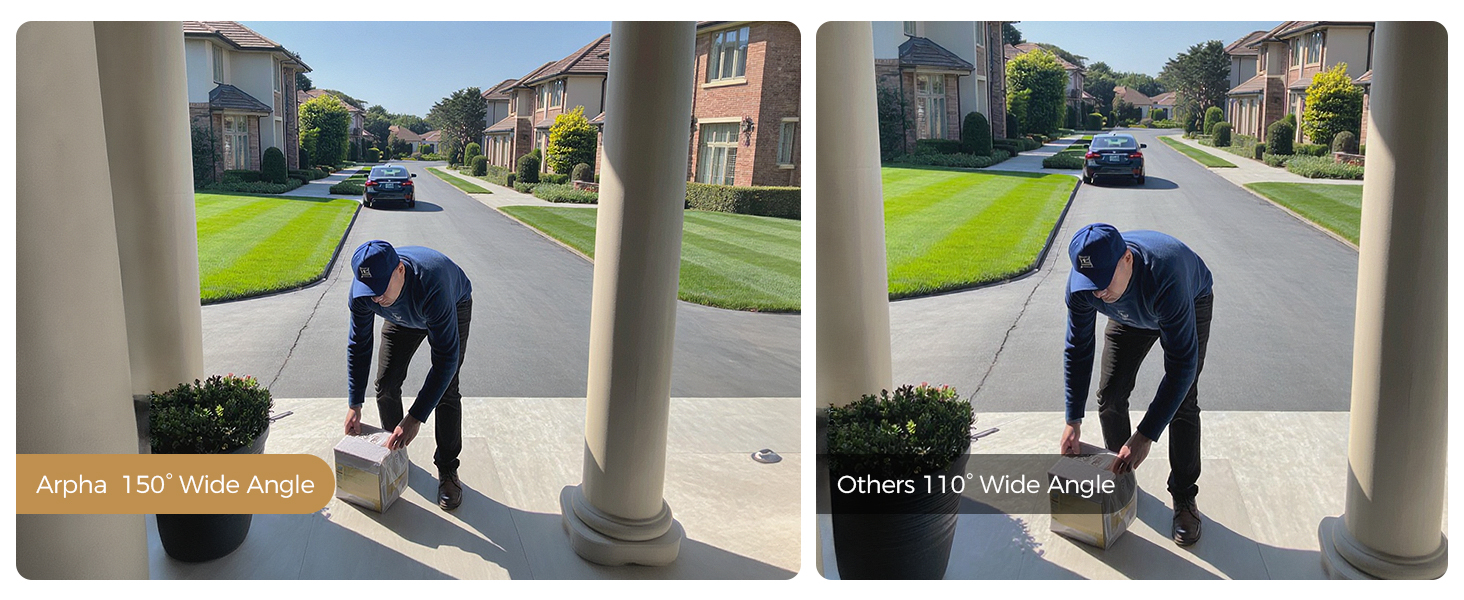
Image: Low Battery Alert. This image displays the smart lock with a low battery alert notification on a smartphone, indicating the need for battery replacement. A USB-C port is visible for emergency power supply.
For emergency power supply, a USB-C cable can be connected. This is for power only and does not allow data transfer.
7.2 Cleaning
Use a soft, dry cloth to clean the lock's exterior. Avoid using abrasive cleaners or solvents that could damage the finish or electronic components.
8. Troubleshooting
8.1 Resetting the Lock
If you encounter persistent issues or need to clear all user data, you can perform a factory reset.
Video: Reset Video Guidance. This video demonstrates the procedure for resetting the ARPHA D289C Smart Lock to its factory default settings.
8.2 WiFi Connectivity Issues
- Ensure your router is broadcasting a 2.4GHz WiFi signal. The lock is not compatible with 5GHz networks.
- Verify that your WiFi password is entered correctly in the Cldbus App.
- Keep your WiFi router as close to your device as possible during the initial setup.
8.3 Camera and Remote Unlock Activation
The camera and remote unlock features are activated when the doorbell button is pressed. This design conserves battery life by only activating WiFi when needed.

Image: Real-Time Doorbell Notification. This image shows the smart lock's doorbell function, where pressing the button triggers a real-time notification and live video feed on the user's smartphone.
9. Warranty and Support
The ARPHA D289C WiFi Video Smart Lock comes with an 18-month warranty. For technical support, troubleshooting assistance, or warranty claims, please contact ARPHA customer service through the official channels provided at the time of purchase.


