
1. Introduction
This manual provides essential information for the proper installation, operation, and maintenance of your Rugged Series IR1101-K9 Industrial Integrated Services Router. Please read this manual thoroughly before using the device to ensure safe and efficient operation.
The IR1101-K9 is designed for industrial environments, offering robust and reliable network connectivity. This renewed product has been inspected and tested to work and look like new by an Amazon-qualified supplier.
2. Safety Information
- Electrical Safety: Ensure the device is connected to a power source that matches the specified voltage and current requirements. Do not operate with damaged power cords.
- Environment: Install the router in a well-ventilated area, away from direct sunlight, heat sources, and excessive moisture. This device is designed for industrial use but should still be protected from extreme conditions beyond its rating.
- Handling: Handle the device with care. Avoid dropping or subjecting it to strong impacts.
- Servicing: Do not attempt to open or repair the device yourself. Refer all servicing to qualified personnel.
- Disposal: Dispose of this product according to local environmental regulations.
3. Package Contents
Verify that all items are present in your package:
- Rugged Series IR1101-K9 Industrial Integrated Services Router
- (Note: Additional accessories such as power adapters or mounting kits may be sold separately or included depending on the specific renewed package.)
4. Product Overview
The IR1101-K9 is a compact, modular, and ruggedized router designed for mission-critical applications in harsh environments. It provides secure connectivity and advanced networking features for industrial IoT deployments.
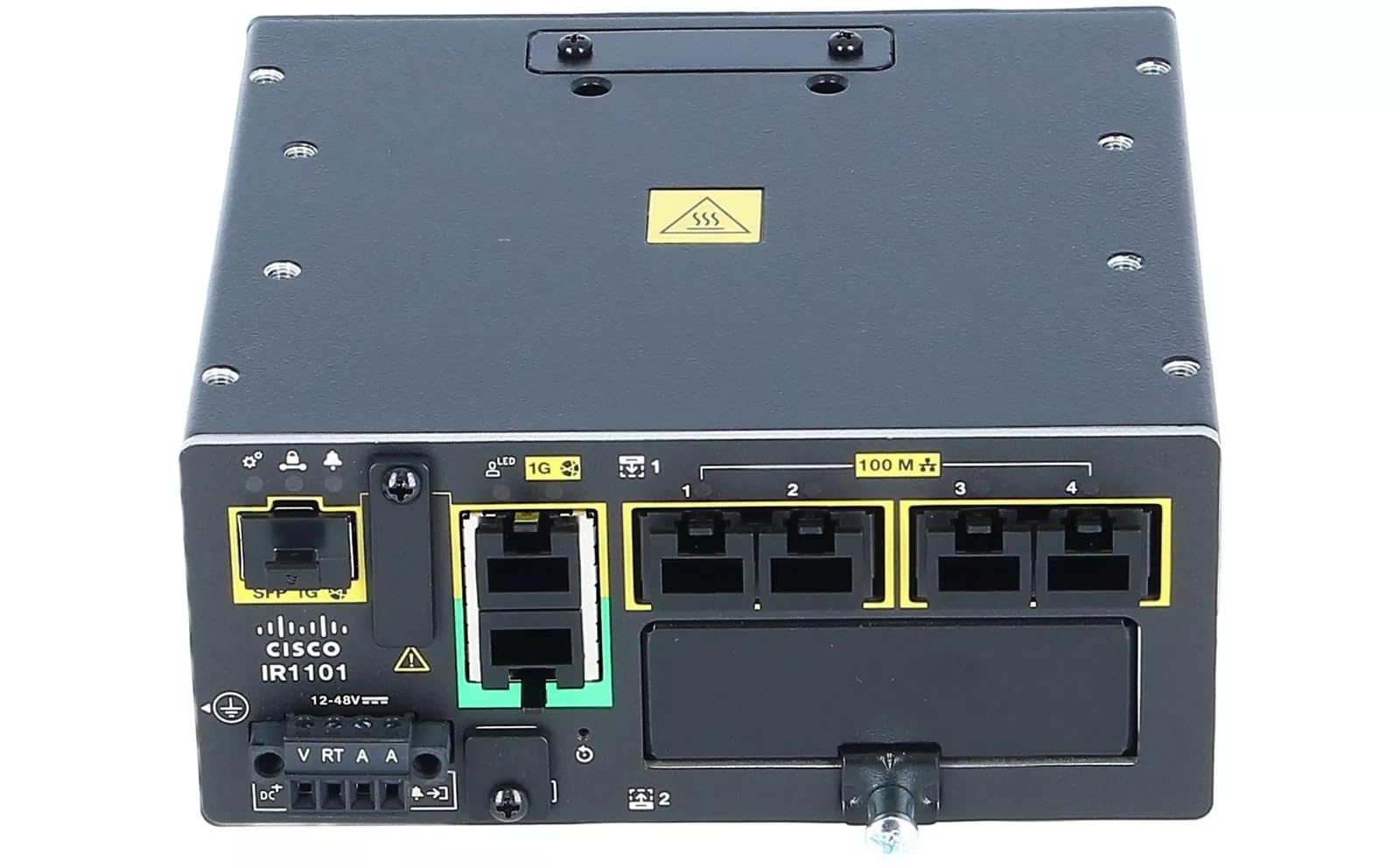
Figure 1: Rugged Series IR1101-K9 Industrial Integrated Services Router, showing its robust design and various ports.
Key features typically include:
- Multiple WAN connectivity options (e.g., LTE, Wi-Fi, Ethernet)
- Integrated security features
- Industrial-grade design for extended temperature ranges and vibration resistance
- Compact form factor for space-constrained deployments
5. Setup
- Unpack the Router: Carefully remove the router from its packaging.
- Mounting (Optional): If required, mount the router using appropriate industrial mounting hardware (e.g., DIN rail, wall mount). Ensure it is securely fastened.
- Connect Antennas (if applicable): Attach any external antennas (e.g., cellular, Wi-Fi) to their designated ports.
- Connect Network Cables:
- Connect your WAN (Wide Area Network) cable (e.g., Ethernet from a modem or cellular antenna) to the appropriate WAN port.
- Connect your LAN (Local Area Network) devices (e.g., computers, switches) to the Ethernet LAN ports.
- Connect Power: Connect the power adapter to the router's power input and then to a suitable power outlet. The power LED should illuminate.
- Initial Configuration:
- Access the router's web-based management interface or command-line interface (CLI) using a connected computer. Refer to the manufacturer's official documentation for default IP addresses and login credentials.
- Follow the on-screen prompts or CLI commands to configure basic network settings, security, and any specific industrial protocols required.
6. Operating the Router
Once configured, the IR1101-K9 operates continuously to provide network services. Monitor its status through the management interface or LED indicators.
- LED Indicators: Observe the status LEDs on the router for operational status, network activity, and error indications. Consult the official Cisco documentation for a detailed explanation of each LED.
- Network Connectivity: Ensure all connected devices have proper network access.
- Remote Management: Utilize the router's management interface for ongoing monitoring, configuration changes, and firmware updates.
7. Maintenance
Regular maintenance helps ensure the longevity and optimal performance of your router.
- Firmware Updates: Periodically check the manufacturer's website for firmware updates. Apply updates to enhance security, improve performance, and add new features.
- Cleaning: Keep the router free from dust and debris. Use a soft, dry cloth for cleaning. Do not use liquid cleaners.
- Environmental Checks: Ensure the operating environment remains within the specified temperature and humidity ranges.
- Configuration Backup: Regularly back up your router's configuration settings to prevent data loss in case of a reset or failure.
8. Troubleshooting
If you encounter issues, try the following steps:
| Problem | Possible Solution |
|---|---|
| No power / LEDs off | Check power cable connection, power outlet, and power adapter. |
| No internet connection |
|
| Devices cannot connect to LAN |
|
| Slow network performance |
|
For more advanced troubleshooting, refer to the official Cisco documentation for the IR1101-K9 or contact technical support.
9. Specifications
| Feature | Detail |
|---|---|
| Model Number | IR1101-K9 |
| Manufacturer | Cisco |
| ASIN | B0F3PGKTCN |
| GTIN (UPC) | 724129204865 |
| Included Components | Only Item (Router) |
| Built-In Media | Only Item |
| Condition | Renewed |
10. Warranty and Support
Warranty: This renewed product typically comes with a 90-day limited warranty from the supplier. Please refer to your purchase documentation for specific warranty terms and conditions.
Technical Support: For technical assistance, configuration guidance, or troubleshooting beyond this manual, please contact the seller or refer to the official Cisco support resources for the IR1101-K9 model.
Note: As this is a renewed product, support may be provided by the reseller (e.g., Refurb Rack) rather than directly by the original manufacturer (Cisco) for certain issues.