
Introduction
This manual provides detailed instructions for setting up, operating, and maintaining your Motorola Razr Plus 2025 foldable smartphone. It is designed to help users of all experience levels, including beginners and seniors, understand and utilize the device's full capabilities. Please read this guide thoroughly to ensure optimal performance and a seamless user experience.
1. Device Overview
The Motorola Razr Plus 2025 is a state-of-the-art foldable smartphone featuring a large internal OLED display and a versatile external screen. Its innovative design combines powerful performance with portability.
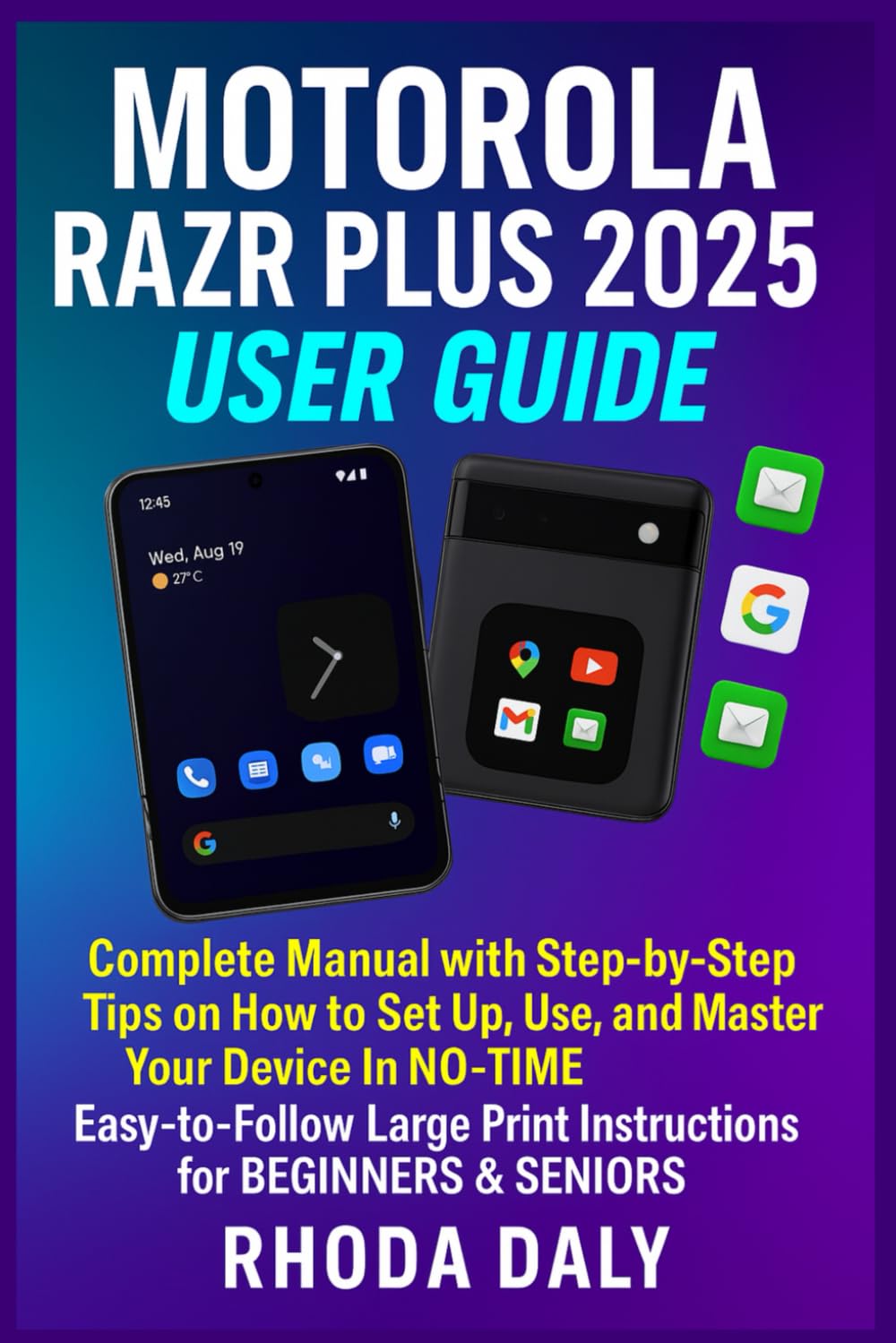
Image 1.1: Front cover of the Motorola Razr Plus 2025 User Guide. This image displays the title "Motorola Razr Plus 2025 User Guide" prominently, indicating the comprehensive nature of the manual.
Image 1.2: Back cover of the Motorola Razr Plus 2025 User Guide. This image shows additional descriptive text about the guide's content and the ISBN barcode.
2. Setup and Initial Configuration
Follow these steps to set up your new Motorola Razr Plus 2025 and prepare it for use.
2.1 Powering On and Off
- To Power On: Press and hold the Power button (usually on the side) until the Motorola logo appears.
- To Power Off: Press and hold the Power button, then select "Power off" from the options that appear on the screen.
2.2 Connecting to Wi-Fi
- Go to Settings.
- Tap on Network & internet.
- Select Wi-Fi and toggle it On.
- Choose your desired Wi-Fi network from the list and enter the password if prompted.
2.3 Setting Up Your Google Account
A Google account is essential for accessing apps, services, and backups.
- During initial setup, you will be prompted to sign in with your Google account. Enter your email and password.
- If you skip this step or need to add an account later, go to Settings > Accounts > Add account > Google.
2.4 Personalizing Your Device
- Wallpaper: Go to Settings > Wallpaper & style.
- Ringtones & Sounds: Adjust notification and call sounds in Settings > Sound & vibration.
- Display Settings: Customize brightness, font size, and display mode in Settings > Display.
3. Operating Your Device
Understand the key features and how to navigate your Motorola Razr Plus 2025.
3.1 Using the Main Display (6.9-inch OLED)
The large internal OLED display is your primary interface for apps, browsing, and media consumption. It offers vibrant colors and deep blacks.
- Navigation: Use gestures (swipe up for home, swipe from side for back) or the traditional three-button navigation bar.
- Multitasking: Swipe up and hold from the bottom to view recent apps.
3.2 Utilizing the External Screen (4-inch)
The external screen provides quick access to notifications, widgets, and even some apps without unfolding the phone.
- Notifications: Swipe down to view notifications.
- Widgets: Swipe left or right to access various widgets like weather, calendar, and music controls.
- Quick Reply: Respond to messages directly from the external screen.
3.3 Camera and Photo Tips
Capture stunning photos and videos with the advanced camera system.
- Main Camera (50MP): Ideal for high-resolution photos in various lighting conditions. Tap to focus, pinch to zoom.
- Telephoto Lens (50MP): Use for optical zoom to capture distant subjects with clarity.
- Front Camera (32MP): Perfect for high-quality selfies and video calls.
- Camera Modes: Explore modes like Portrait, Night Vision, Panorama, and Pro mode for advanced controls.
3.4 Accessibility Features
The Motorola Razr Plus 2025 includes features to enhance usability for all, especially seniors.
- Large Print: Adjust font size in Settings > Display > Font size.
- Voice Commands: Activate Google Assistant by saying "Hey Google" or by long-pressing the power button (if configured).
- Magnification: Enable screen magnification in Settings > Accessibility > Magnification.
4. Maintenance and Battery Management
Proper care and efficient battery usage will extend the life of your device.
4.1 Battery-Saving Techniques
- Reduce screen brightness.
- Enable Battery Saver mode in Settings > Battery.
- Limit background app refresh.
- Turn off Wi-Fi, Bluetooth, and GPS when not in use.
4.2 Fast Charging (68W)
Your device supports 68W fast charging. Use the official Motorola charger and cable for optimal charging speed and safety.
- Connect the charger to the USB-C port at the bottom of the phone.
- Ensure the charger is plugged into a working power outlet.
4.3 General Device Care
- Keep the device clean using a soft, dry cloth.
- Avoid exposing the device to extreme temperatures or direct sunlight for extended periods.
- Protect the foldable screen from sharp objects and excessive pressure.
5. Troubleshooting Common Issues
This section addresses common problems you might encounter and provides solutions.
5.1 Device Not Responding
- Perform a force restart: Press and hold the Power button for approximately 10-15 seconds until the device restarts.
5.2 Connectivity Problems (Wi-Fi/Bluetooth)
- Toggle Wi-Fi or Bluetooth off and on again.
- Restart your device.
- Forget the network/device and reconnect.
5.3 Battery Draining Quickly
- Review battery-saving techniques in Section 4.1.
- Check Settings > Battery > Battery usage to identify power-hungry apps.
6. Specifications
Key technical specifications of the Motorola Razr Plus 2025.
| Feature | Detail |
|---|---|
| Main Display | 6.9-inch OLED |
| External Display | 4-inch |
| Main Camera | 50MP |
| Telephoto Lens | 50MP |
| Front Camera | 32MP |
| Fast Charging | 68W Technology |
| ISBN-13 (User Guide) | 979-8316413621 |
| Language | English |
| Publication Date (User Guide) | April 1, 2025 |
7. Warranty Information
Motorola provides a limited warranty for its devices. For detailed warranty terms and conditions, please refer to the official Motorola website or the warranty card included with your device. Keep your proof of purchase for warranty claims.
8. Support and Contact
For further assistance, technical support, or service inquiries, please visit the official Motorola support website or contact their customer service. You can typically find contact information on the Motorola website or in the packaging materials.
- Online Support: Visit www.motorola.com/support (example link, actual link may vary).
- Customer Service: Refer to your region's Motorola website for local contact numbers.


