
1. Introduction
This manual provides essential instructions for the setup, operation, and maintenance of your Epson TM-M30III USB/Ethernet Thermal Receipt Printer. Please read this manual thoroughly before using the product to ensure correct and safe operation.
The Epson TM-M30III is a compact and versatile thermal receipt printer designed for point-of-sale (POS) environments. It offers fast printing speeds, multiple connectivity options, and features like ePOS print capability and USB-C tablet charging.
2. Safety Information
Observe the following safety precautions to prevent damage to the printer or injury to yourself.
- Do not disassemble or modify the printer.
- Use only the specified power adapter and cables.
- Avoid exposing the printer to water or excessive humidity.
- Place the printer on a stable, level surface.
- Keep the printer away from heat sources and direct sunlight.
- Ensure proper ventilation around the printer.
3. Package Contents
Verify that all items are present in the package:
- Epson TM-M30III Thermal Receipt Printer
- Power Adapter
- Power Cable
- Starter Roll of Thermal Paper
- USB Cable (may vary by region/bundle)
- Setup Guide
4. Setup
4.1 Unpacking and Placement
Carefully remove the printer from its packaging. Place the printer on a flat, stable surface near your point-of-sale system and a power outlet. Ensure adequate space for paper loading and connectivity.
4.2 Loading Thermal Paper
- Open the printer's roll paper cover.
- Insert the thermal paper roll with the paper feeding from the bottom, ensuring the leading edge is straight.
- Pull a small amount of paper past the cutter.
- Close the roll paper cover firmly until it clicks into place.
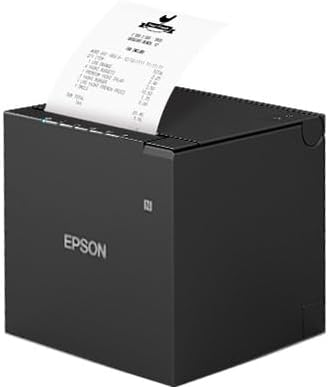
Figure 1: Epson TM-M30III Thermal Receipt Printer with paper loaded. This image shows the compact black printer with a white receipt strip extending from the top output slot. The Epson logo is visible on the front.
4.3 Connecting Power
- Connect the power cable to the power adapter.
- Plug the power adapter into the printer's power port.
- Plug the power cable into a standard electrical outlet.
- The power indicator light on the printer should illuminate.
4.4 Connecting to a Host Device (USB/Ethernet)
The TM-M30III supports both USB and Ethernet connectivity.
- USB Connection: Connect one end of the USB cable to the printer's USB port and the other end to your computer or POS terminal.
- Ethernet Connection: Connect an Ethernet cable from the printer's Ethernet port to your network router or switch.
4.5 Driver Installation
For proper operation, printer drivers must be installed on your host device. Drivers are typically available for download from the official Epson support website. Follow the on-screen instructions provided by the driver installer.
5. Operating the Printer
5.1 Basic Printing
Once the printer is connected and drivers are installed, you can initiate printing from your POS software or application. Ensure the printer is selected as the default or active printer in your system settings.
5.2 ePOS Print Capability
The ePOS print feature allows for online ordering or remote printing. Refer to your specific ePOS software documentation for configuration details and usage instructions.
5.3 Tablet Charging (USB-C)
The printer includes a USB-C connection that can provide up to 18W of power for charging compatible tablets. Connect your tablet to the designated USB-C port on the printer.
6. Maintenance
6.1 Cleaning the Printer
Regular cleaning helps maintain print quality and extends the printer's lifespan.
- Exterior: Wipe the exterior with a soft, damp cloth. Do not use abrasive cleaners or solvents.
- Print Head: If print quality degrades, gently clean the thermal print head with an alcohol swab designed for electronics. Ensure the printer is off and cooled down before cleaning.
- Paper Path: Remove any paper dust or debris from the paper path using a soft brush or compressed air.
6.2 Replacing Thermal Paper
When the paper roll is depleted, follow the steps in Section 4.2 to load a new roll. Use only high-quality thermal paper recommended for your printer model.
7. Troubleshooting
| Problem | Possible Cause | Solution |
|---|---|---|
| Printer does not power on. | Power cable not connected; power outlet faulty. | Check power connections; try a different outlet. |
| No printing occurs. | Paper out; incorrect driver; cable disconnected. | Load paper; install correct drivers; check USB/Ethernet cable. |
| Poor print quality. | Dirty print head; low-quality paper. | Clean print head (Section 6.1); use recommended thermal paper. |
| Printer not recognized by computer. | Driver not installed; incorrect USB port; cable issue. | Install drivers; try a different USB port; replace USB cable. |
8. Specifications
- Model Name: TM-M30III
- Item Model Number: C31CK50012
- Printing Technology: Thermal
- Connectivity Technology: Ethernet, USB
- Max Print Speed Monochrome: 187 ppm (300 mm/sec)
- Maximum Media Size: 3.15 x 3.27 inches
- Sheet Size: 3.15 x 3.27 Inches
- Printer Output: Monochrome
- Special Feature: Energy Star
- Product Dimensions: 7.7"D x 5.3"W x 5"H
- Item Weight: 3 Pounds
- Included Components: Paper (Starter Roll)
- UPC: 667758703791
9. Warranty and Support
For warranty information and technical support, please refer to the documentation included with your purchase or visit the official Epson support website. Keep your purchase receipt for warranty claims.


