
SOLITY GP-6000BAK
Solity GP-6000BAK Smart Door Lock
User Manual
1. Introduction
The Solity GP-6000BAK Premium Smart Door Lock is designed to provide advanced security and convenient access to your home. Manufactured by Solity Korea, this digital lock integrates multiple authentication methods including 3D Face Recognition, Fingerprint, PIN Code, RFID Card, and a backup Mechanical Key. With built-in Wi-Fi and Bluetooth, it offers remote management via the Solity Smart Home App, real-time alerts, and enhanced security features like auto-lock and intrusion alarms. This manual provides essential information for setup, operation, and maintenance of your smart door lock.
2. Product Features
- Premium Korean Brand: High-end smart lock design for superior security and ease of use.
- Advanced 3D Face Recognition: Instant, touchless unlock by 3D face scan.
- Fingerprint Sensor: High-speed biometric authentication for secure access.
- Multiple Access Methods: Supports Face ID, Fingerprint, PIN, RFID card, and mechanical key backup.
- Solity Smart Home App: Manage access, review entry logs, and control settings remotely.
- Built-in Wi-Fi Connectivity: Control the lock from anywhere without additional devices.
- Auto Lock & Intrusion Alarm: Automatic door locking and alerts for unauthorized attempts.
- Ergonomic & Durable Design: Sleek black finish with a modern, user-friendly interface.
- Internal Double Lock Function: Disables external access for enhanced security from inside.
- Electric Shock Neutralization: Protection against high voltage devices.

Figure 2.1: The Solity GP-6000BAK offers six authentication methods: Smart Solity App, Face Recognition, Wi-Fi, Passcode, RFID Card, Fingerprint, and Mechanical Key.
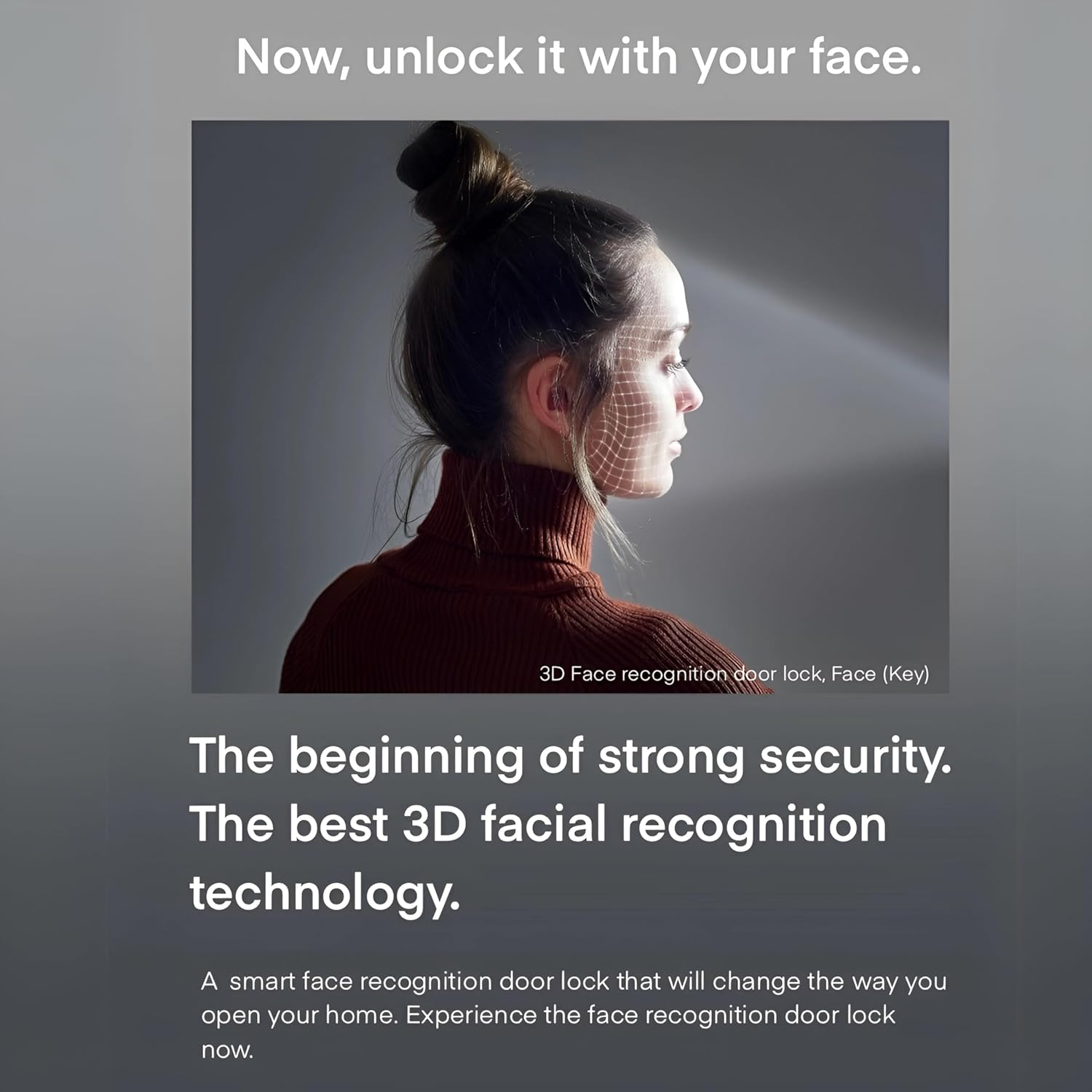
Figure 2.2: The advanced 3D facial recognition technology provides fast and secure touchless access.
3. Package Contents
Please verify that all components are present in the package:
- Solity GP-6000BAK Smart Door Lock (Main Unit and Sub Unit)
- Mortise Lock Body
- Mechanical Keys (2 pcs)
- RFID Cards (Quantity may vary, typically 2 pcs)
- Installation Screws and Hardware
- User Manual (this document)

Figure 3.1: Overview of the Solity GP-6000BAK Smart Door Lock and its included accessories.
4. Setup and Installation
Professional installation is highly recommended for the Solity GP-6000BAK Smart Door Lock to ensure proper functionality and security. Refer to the detailed installation guide provided in the product packaging for step-by-step instructions.
4.1 Pre-Installation Checklist
- Ensure your door meets the required thickness and backset specifications.
- Verify all package contents are present.
- Prepare necessary tools (e.g., screwdriver, drill).
4.2 Battery Installation
The lock operates on standard AA batteries. Open the battery cover on the indoor unit and insert the specified number of AA batteries, ensuring correct polarity. Replace the cover securely. A low battery warning will be indicated when replacement is needed.
4.3 Initial Setup and Registration
After physical installation, follow the on-screen prompts or refer to the quick start guide for initial setup, including setting up the master PIN code and connecting to your home Wi-Fi network via the Solity Smart Home App.
5. Operating Instructions
5.1 Unlocking Methods
- Face Recognition: Stand approximately 30-50 cm in front of the lock. The 3D face recognition sensor will scan your face and unlock the door within 1 second if a registered face is detected.
- Fingerprint: Place your registered finger flat on the fingerprint sensor. The lock will unlock upon successful recognition.
- PIN Code: Enter your registered PIN code on the keypad, followed by the '*' or '#' key (refer to specific model instructions).
- RFID Card: Tap your registered RFID card on the card reader area of the lock.
- Mechanical Key: In case of emergency or battery depletion, insert the mechanical key into the hidden keyhole and turn to unlock.
- Solity Smart Home App: Open the app, select your lock, and tap the unlock icon. Ensure your phone has an internet connection or is within Bluetooth range.
5.2 Locking Methods
- Automatic Locking: The lock will automatically engage after a set period (configurable via app) once the door is closed.
- Manual Locking: Press the 'CLOSE' button on the indoor unit or use the app to manually lock the door.
5.3 Security Features
- Fake Passcode Function: Enter random numbers before or after your actual PIN code to prevent exposure of your code to onlookers.
- Intrusion and Breakage Alarm: The lock will sound an alarm if forced entry or abnormal intrusion is detected.
- Anti-Thief Function: If an incorrect password or card key is entered 5 times consecutively, an alarm will sound, and all operations will be stopped externally for 1 minute.
- Internal Double Lock Function: When activated from the inside, this function prevents external unlocking, even with a valid passcode, enhancing indoor security.

Figure 5.1: Illustrates the Fake Passcode Function and Intrusion and Breakage Alarm features.

Figure 5.2: Details on Anti-thief, Internal Double Lock, and Electric Shock Neutralization functions.
5.4 Solity Smart Home App Usage
The Solity Smart Home App allows comprehensive control and monitoring of your lock.
- User Management: Add, modify, or delete user fingerprints, PINs, and RFID cards.
- Access Logs: View a history of all lock and unlock events.
- Remote Control: Lock or unlock your door from anywhere with an internet connection.
- Settings: Adjust auto-lock time, volume, alarm sensitivity, and Wi-Fi settings.
- Real-time Push Notifications: Receive alerts for door activity, low battery, or intrusion attempts.

Figure 5.3: The Solity Smart Home App provides comprehensive control and monitoring.
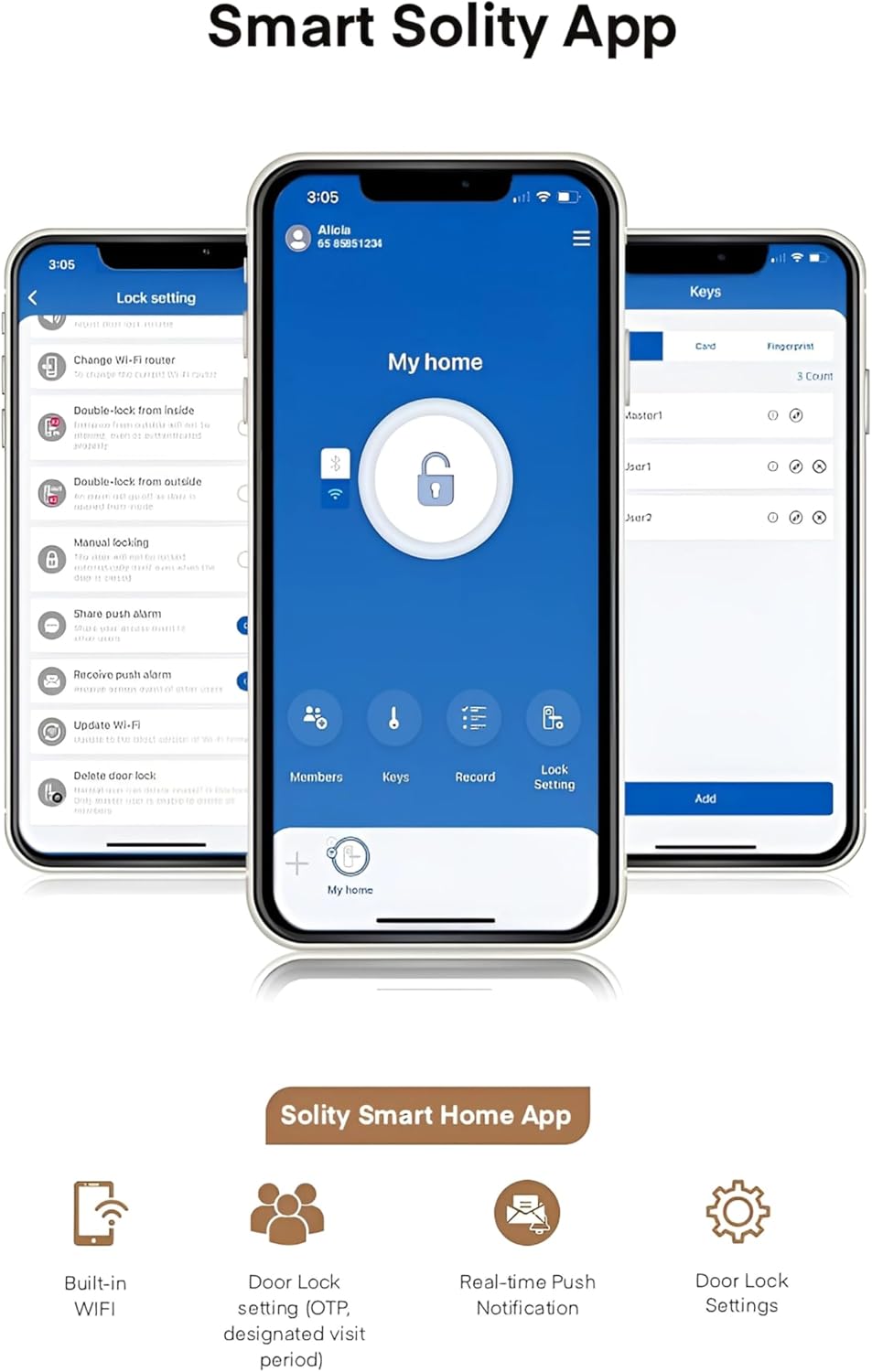
Figure 5.4: Key features of the Solity Smart Home App for enhanced smart home integration.
6. Maintenance
6.1 Battery Replacement
When the low battery indicator appears or you receive a notification via the app, replace all batteries with new ones of the specified type (typically AA). Do not mix old and new batteries.
6.2 Cleaning
Wipe the lock's surface with a soft, dry cloth. Avoid using abrasive cleaners, solvents, or harsh chemicals, as these can damage the finish and electronic components. Keep the fingerprint sensor and face recognition lens clean for optimal performance.
6.3 Software Updates
Periodically check the Solity Smart Home App for available firmware updates. Keeping your lock's software up-to-date ensures optimal performance, security, and access to new features.
7. Troubleshooting
- Lock not responding: Check battery levels and replace if necessary. Ensure the lock is properly installed and all cables are connected.
- Authentication failure (Face/Fingerprint/PIN/RFID): Ensure your credentials are correctly registered. Clean the sensor/lens. Re-register if issues persist. For PIN, ensure correct sequence and use fake passcode function if needed.
- Alarm sounding unexpectedly: Check for physical obstructions or tampering. Review alarm settings in the app.
- App connectivity issues: Ensure your lock is connected to Wi-Fi and your phone has internet access. Restart the app or your router if necessary.
- Door not locking automatically: Verify the auto-lock setting in the app. Ensure the door sensor is not obstructed and the door closes completely.
For persistent issues, refer to the comprehensive troubleshooting guide on the Solity official website or contact customer support.
8. Specifications
| Specification | Detail |
|---|---|
| Brand | SOLITY |
| Model Number | GP-6000BAK |
| Manufacturer | SOLITY |
| Material | Aluminum |
| Color | BLACK |
| Item Weight | 2 Kilograms |
| Product Dimensions | 2 x 9 x 38 cm |
| Special Features | Face Recognition |
| Lock Type | Biometric, Smart Lock |
| Included Components | Smart Lock, Mortise |
| Country of Origin | Korea, Republic of |
9. Warranty and Support
The Solity GP-6000BAK Smart Door Lock comes with a manufacturer's warranty. Please refer to the warranty card included in your product packaging or visit the official Solity website for detailed warranty terms and conditions. For technical support, product inquiries, or service requests, please contact Solity customer service through their official channels.
Related documentsGP-6000BAK

Ask a question about this manual
Ask about setup, troubleshooting, compatibility, parts, safety, or missing instructions. Manuals+ will review the question and use this page’s manual context to help answer it.