
1. Product Overview
The eufy Digital Bathroom Scale P2 Pro (Model: T9149) is a smart scale designed to provide comprehensive body composition analysis. It connects via Wi-Fi and Bluetooth to the EufyLife app, allowing users to track 16 different health measurements and visualize their progress.
Key Features
- Full Body Composition Analysis: Tracks 16 detailed measurements including weight, body fat, BMI, muscle mass, bone mass, and standing heart rate.
- Advanced Technology for High Accuracy: Features sensitive ITO-coating technology and high-precision manganese steel sensors for accurate readings up to 50g (0.1 lbs).
- 3D Virtual Model: Watch your body's progress with a virtual, U-Body 3D model in the app.
- Third-Party App Syncing: Connects to the EufyLife App and syncs data with Apple Health, Google Fit, or Fitbit.
- Family-Friendly: Supports unlimited users with individual profiles, including Baby mode and Pet mode.
- IPX5 Waterproof: Designed to withstand humid bathroom conditions.
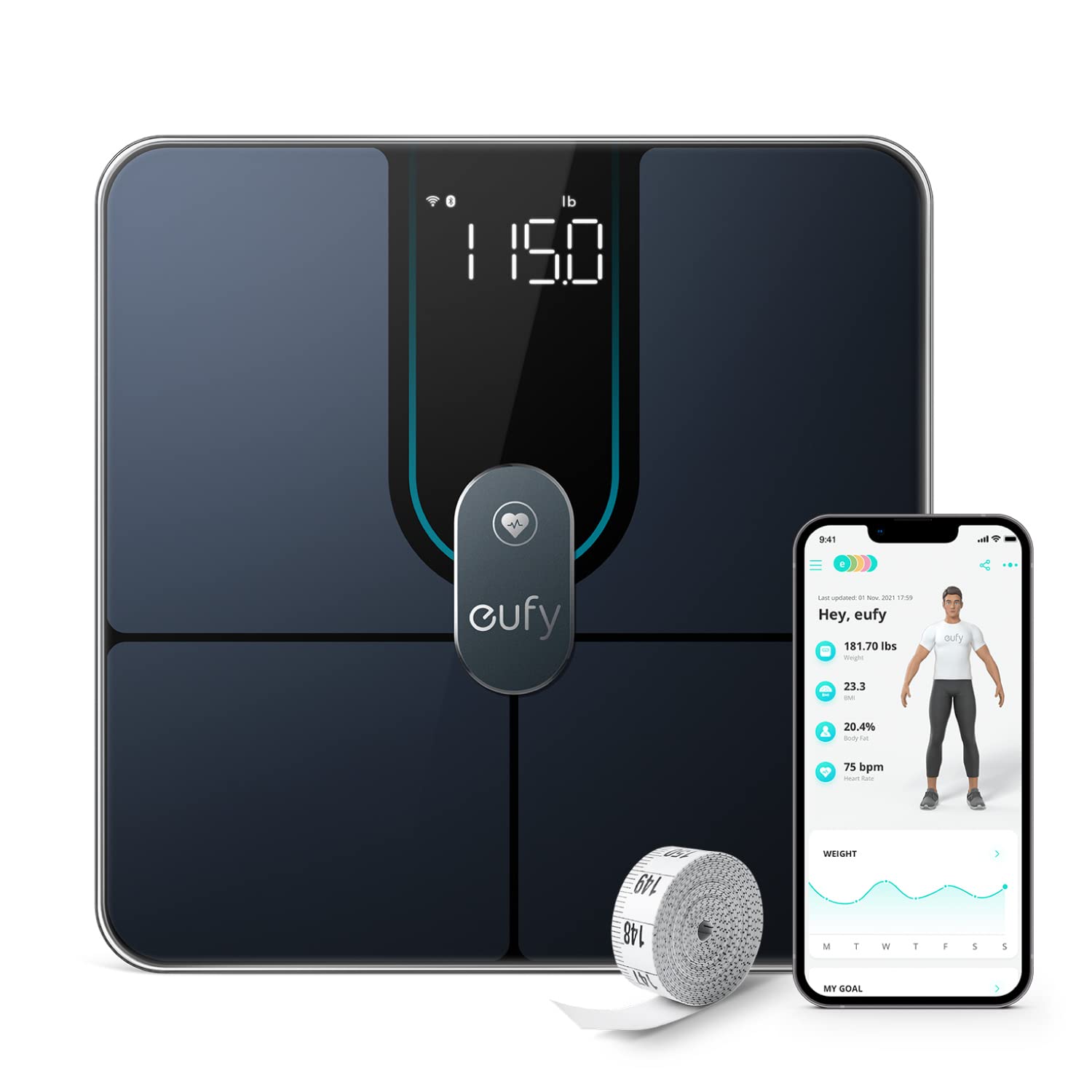
The eufy P2 Pro Smart Scale, shown with its companion EufyLife app and a measuring tape, highlights its comprehensive body composition analysis capabilities.
2. Setup
2.1 What's in the Box
- eufy Smart Scale P2 Pro
- AAA Battery (x4)
- Measuring Tape
- User Manual (this document)
2.2 Battery Installation
Locate the battery compartment on the underside of the scale. Insert the four AAA batteries, ensuring correct polarity (+/-) as indicated. Close the battery compartment securely.
2.3 App Download and Connection
- Download the EufyLife app from your device's app store (available on Apple App Store and Google Play Store).
- Open the EufyLife app and follow the on-screen instructions to create an account or log in.
- Add your eufy Smart Scale P2 Pro to the app. The app will guide you through connecting the scale via Wi-Fi or Bluetooth. Ensure your device's Bluetooth is enabled for initial pairing.
2.4 Initial Calibration and Placement
For accurate measurements, place the scale on a hard, flat surface. Avoid carpets or uneven flooring. To calibrate, step onto the scale for a few seconds, then step off. The display should show '0.0' or '0.00' indicating it's ready for use.
This official video from EufyHome provides guidance on how to troubleshoot inaccurate weight measurements on the eufy Smart Scale P2 Series, ensuring optimal performance.
3. Operating the Scale
3.1 How to Weigh In
- Ensure the scale is on a hard, flat surface.
- Step barefoot onto the scale. Ensure your feet are dry and positioned correctly on the conductive areas.
- Stand still until the measurement is complete. The display will show your weight, and other measurements will be transmitted to the EufyLife app.
3.2 Understanding Your Measurements
The eufy Smart Scale P2 Pro provides 16 different body composition metrics. These measurements are crucial for a holistic understanding of your health and fitness progress.

This image illustrates the 16 different body composition measurements provided by the eufy P2 Pro Smart Scale, offering a holistic view of your health.
3.3 EufyLife App Features
The EufyLife app is your central hub for tracking and analyzing your health data:
- Detailed Data Analysis: View all 16 measurements, including weight, BMI, body fat percentage, muscle mass, bone mass, water percentage, protein, BMR, visceral fat, subcutaneous fat, skeletal muscle mass, body age, and body type.
- 3D Virtual Body Mode: Input your body dimensions (biceps, chest, waist, hips, thighs) to create a personalized 3D avatar that visually tracks your body changes over time.
- Weekly Trend Graphs: Monitor your progress with easy-to-understand graphs for all key metrics.
- Useful Health Tips: Receive personalized tips and insights based on your data to help you achieve your fitness goals.
- Multi-User Support: Add unlimited users to the app, allowing the entire family to track their individual fitness journeys. The scale can automatically recognize different users.
- Baby Mode & Pet Mode: Specialized modes to monitor the healthy growth of your baby or pet.
- Third-Party Syncing: Seamlessly sync your EufyLife data with popular health platforms like Apple Health, Google Fit, and Fitbit.

Visualize your fitness journey with the U-Body 3D model feature in the EufyLife app, which creates a virtual representation of your body's progress.

The EufyLife app provides detailed data reports and trend graphs for all 16 body measurements, helping you track and understand your progress.
An official product video from EufyHome showcasing the key features and benefits of the eufy Smart Scale P2 Pro, emphasizing its comprehensive health tracking capabilities.
4. Maintenance
4.1 Cleaning
To clean the scale, wipe its surface with a soft, damp cloth. Avoid using abrasive cleaners or harsh chemicals, as these can damage the scale's finish and electronic components. Ensure the scale is dry before storage or next use.
4.2 Storage
The eufy Smart Scale P2 Pro is IPX5 waterproof, meaning it can withstand splashes and humid environments. It can be safely stored in your bathroom. For long-term storage, keep it in a cool, dry place away from direct sunlight.

The eufy P2 Pro Smart Scale features an IPX5 waterproof design, making it suitable for use and storage in humid bathroom environments.
4.3 Battery Replacement
When the battery indicator on the scale's display or in the EufyLife app shows low power, replace all four AAA batteries simultaneously. Use new, high-quality alkaline batteries for optimal performance.
5. Troubleshooting
5.1 Inaccurate Measurements
- Ensure the scale is placed on a hard, flat surface. Uneven surfaces can lead to inaccurate readings.
- Make sure your feet are dry and make full contact with the scale's surface.
- Step on and off the scale to re-calibrate it before weighing.
- Check for any obstructions under the scale.
5.2 Connectivity Issues (Wi-Fi/Bluetooth)
- Ensure Bluetooth is enabled on your smartphone and the scale is within range.
- Restart the EufyLife app and try reconnecting.
- Check your Wi-Fi network connection. The scale supports 2.4GHz Wi-Fi networks.
- If issues persist, try removing the device from the app and re-adding it.
5.3 App Not Syncing Data
- Verify that the scale is successfully connected to the EufyLife app via Wi-Fi or Bluetooth.
- Ensure the app has the necessary permissions on your smartphone (e.g., location, Bluetooth).
- Check for any pending app updates and install them.
- If you have multiple users, ensure the correct profile is selected in the app before weighing.
6. Specifications
| Attribute | Value |
|---|---|
| Product Dimensions | 11 x 11 x 1 inches |
| Item Weight | 2.8 Pounds |
| Item Model Number | T9149 |
| Batteries | 4 AAA batteries (included) |
| Manufacturer | eufy |
| Color | Black |
| Recommended Uses | Humans, Babies |
| Special Features | Heart Rate, Bone Mass, Muscle Mass |
| Display Type | Digital |
7. Warranty and Support
For detailed warranty information and customer support, please refer to the official eufy website or the documentation provided with your product. You can also access the full user guide PDF here.