1. Product Overview
The WEILAILIFE 2K Indoor WiFi Security Camera, Model CS-F17YW, is designed for indoor surveillance, offering 2K (2304x1296p) video resolution. It features 360° horizontal rotation and 90° vertical tilt for comprehensive coverage, automatic motion tracking, two-way audio, and full-color night vision. The camera supports dual-band WiFi (2.4GHz and 5GHz) for stable connectivity and can store recordings on a Micro SD card (up to 256GB) or via cloud storage. Remote viewing and control are available through the free "HonestView" application on smartphones, PCs, or tablets.

Image 1.1: Overview of the WEILAILIFE 2K Indoor WiFi Security Camera, highlighting its key features such as 2K resolution, 2-way audio, auto-tracking, night vision, push notifications, 24/7 recording, TF card & cloud storage, and 5G/2.4GHz WiFi compatibility.
2. Package Contents
Verify that all items are present in the package:
- Indoor PTZ Security Camera x 1
- 5V Power Adapter x 1
- Screw Bag x 1 (for wall mounting)
- User Manual x 1
3. Setup Guide
3.1 Powering the Camera
- Connect the provided 5V Power Adapter to the camera's power input port.
- Plug the power adapter into a standard electrical outlet. The camera will power on and initiate its startup sequence.
3.2 App Installation and Account Registration
- Download the "HonestView" app from your device's app store (available for iOS and Android).
- Open the app and follow the on-screen instructions to create a new account. Ensure you use a strong password.
3.3 Connecting to Wi-Fi
- In the "HonestView" app, select the option to add a new device.
- Follow the app's prompts to connect the camera to your home Wi-Fi network. The camera supports both 2.4GHz and 5GHz Wi-Fi bands. For optimal performance, ensure your camera is within range of your Wi-Fi router.
- Enter your Wi-Fi network name (SSID) and password accurately.
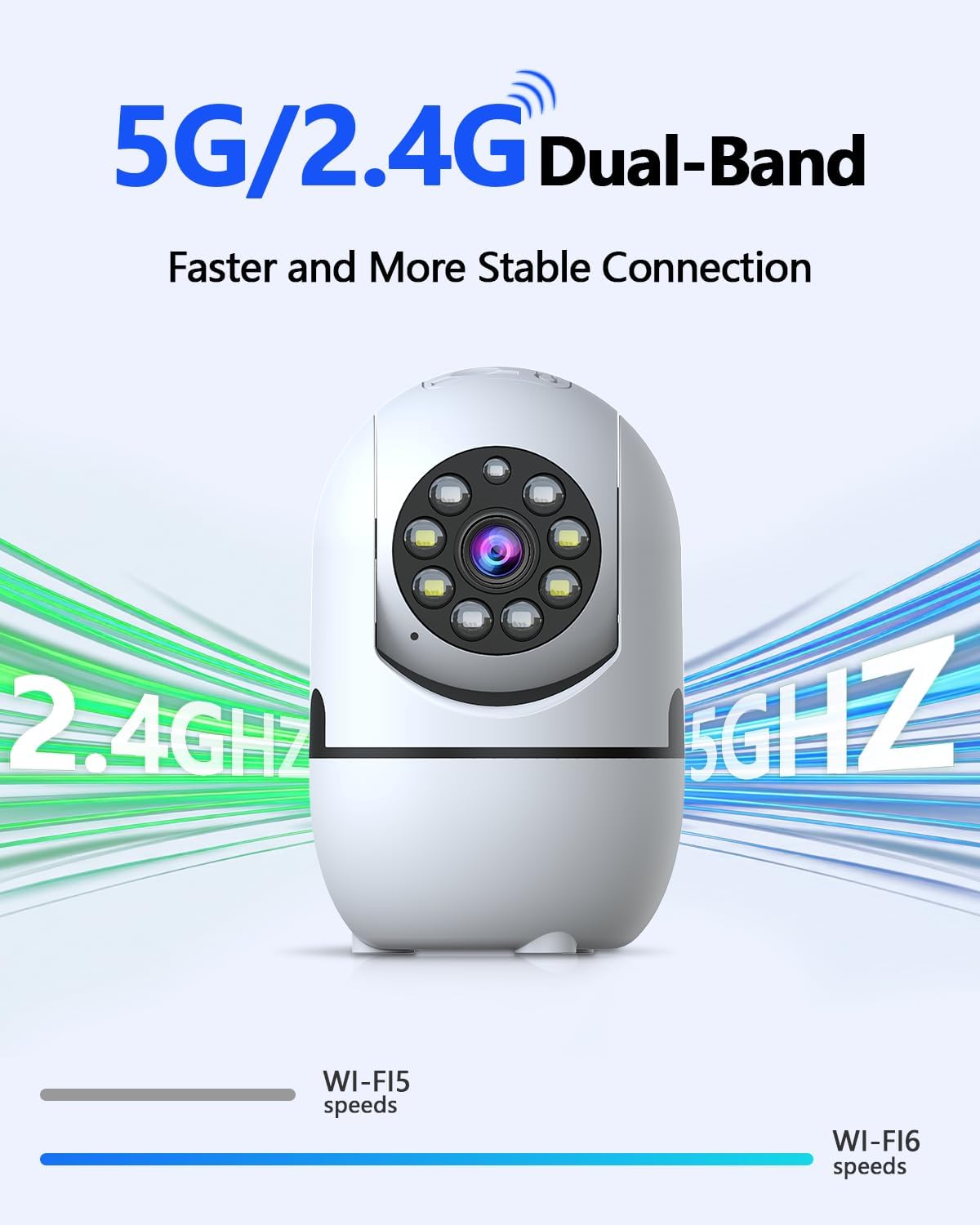
Image 3.3: The camera supports both 2.4GHz and 5GHz Wi-Fi for a faster and more stable connection.
3.4 Micro SD Card Installation (Optional)
To enable local video recording, install a Micro SD card (not included, up to 256GB).
- Locate the Micro SD card slot on the camera. This may require gently tilting the camera lens upwards to reveal the slot.
- Insert the Micro SD card into the slot with the contacts facing the correct direction until it clicks into place.
- Format the Micro SD card through the "HonestView" app settings for proper functionality.

Image 3.4: The camera offers flexible storage options including Micro SD card (up to 256GB) and cloud storage.
3.5 Mounting the Camera
The camera can be placed freestanding on a flat surface or mounted to a wall.
- Freestanding: Place the camera on a stable, flat surface such as a table or shelf.
- Wall Mount: Use the included screw bag to securely mount the camera to a wall. Ensure the mounting location provides a clear view and is within Wi-Fi range.
4. Operating Instructions
4.1 Live View and Pan/Tilt Control
Access the live video feed through the "HonestView" app. Use the on-screen controls to remotely pan the camera 360° horizontally and tilt it 90° vertically to adjust the viewing angle.
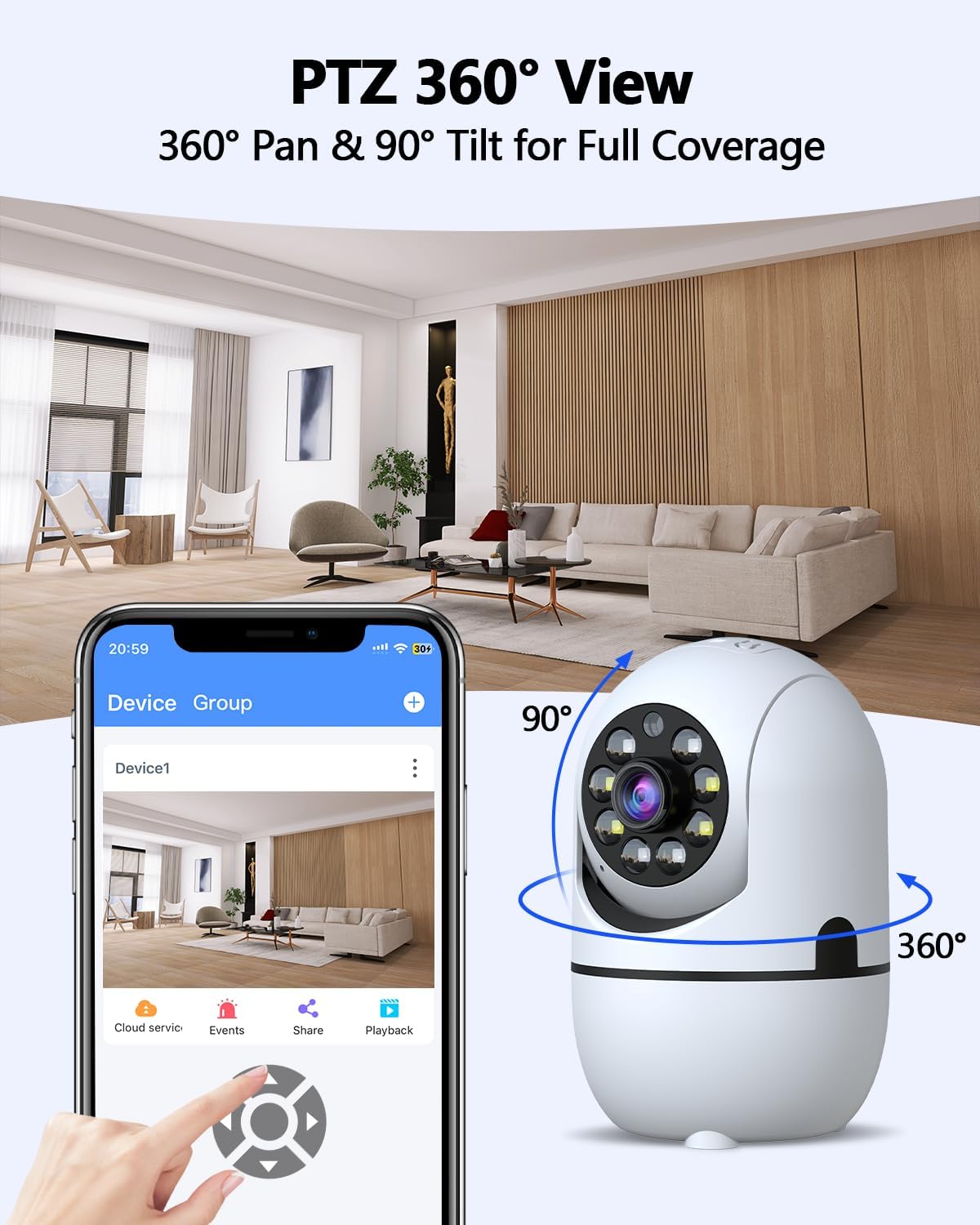
Image 4.1: The camera offers 360° pan and 90° tilt for full room coverage, controllable via the app.
4.2 Auto Tracking
Enable the auto-tracking feature in the app settings. The camera will automatically detect and follow movement within its field of view, sending real-time alerts to your phone.
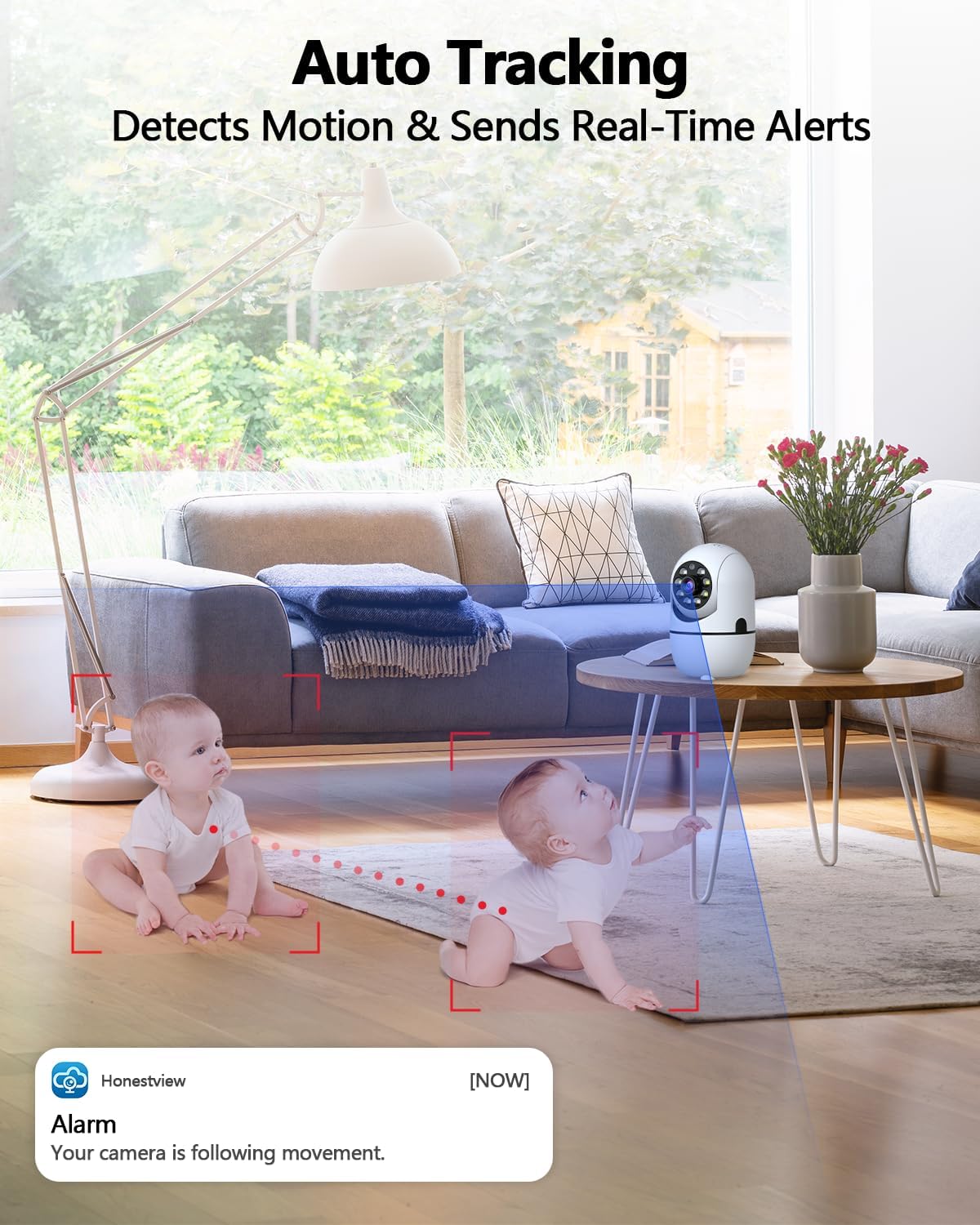
Image 4.2: The camera's auto-tracking feature detects motion and sends real-time alerts to your phone.
4.3 Two-Way Audio
Utilize the built-in microphone and speaker for real-time two-way communication. Tap the microphone icon in the app to speak, and listen through the camera's speaker. Noise reduction technology ensures clear audio.
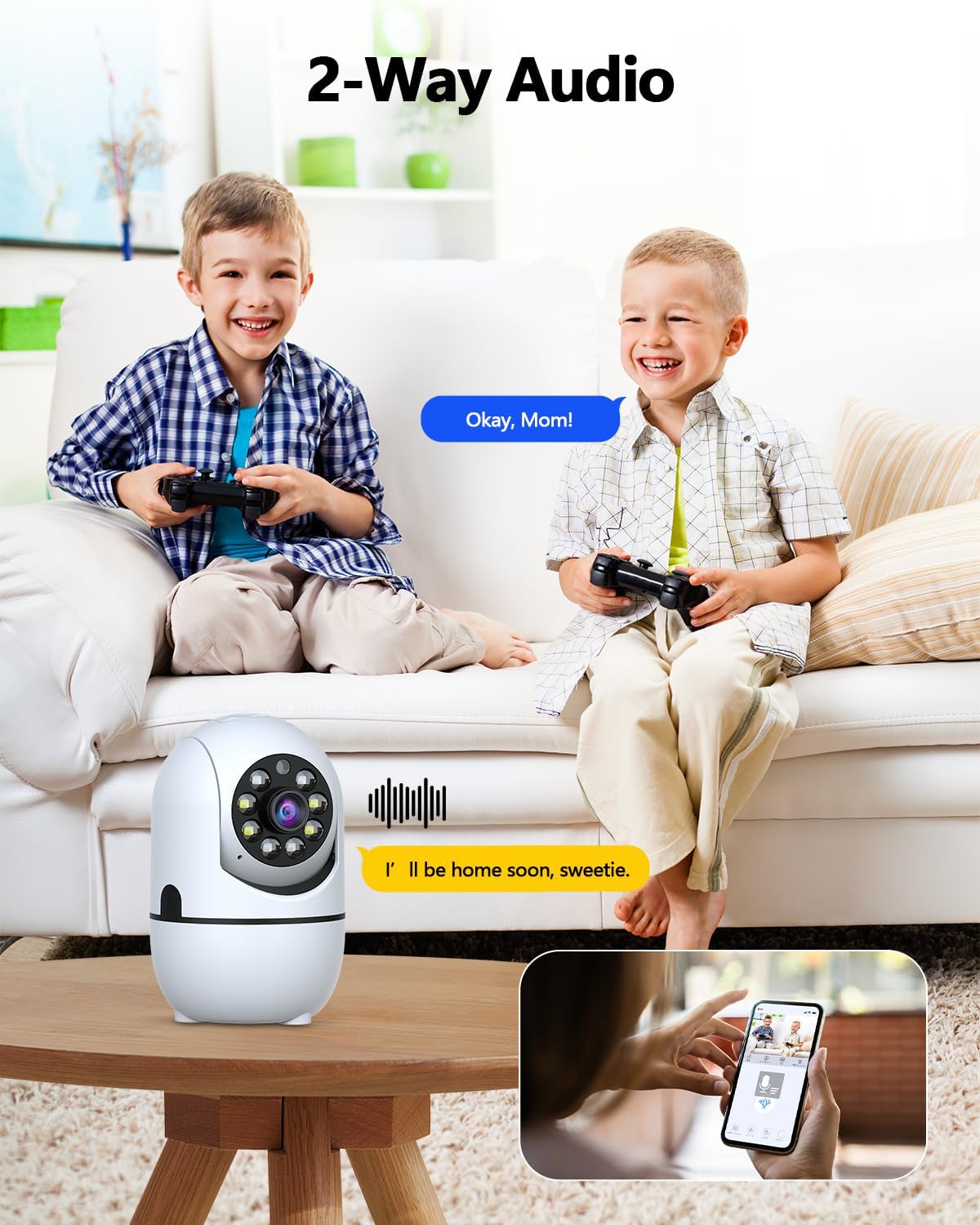
Image 4.3: The camera supports two-way audio, allowing communication through the app.
4.4 Night Vision
The camera automatically switches to night vision mode in low-light conditions. It uses dual light sources (infrared and white light) to provide full-color video up to 33 feet, even in complete darkness.

Image 4.4: The camera provides clear color night vision up to 33 feet, suitable for 24/7 monitoring.
4.5 Motion and Human Detection
The camera is equipped with motion detection and smart human detection capabilities. When motion or a human figure is detected, the camera can send real-time alerts to your phone, activate a siren, or trigger email notifications, reducing false alarms.
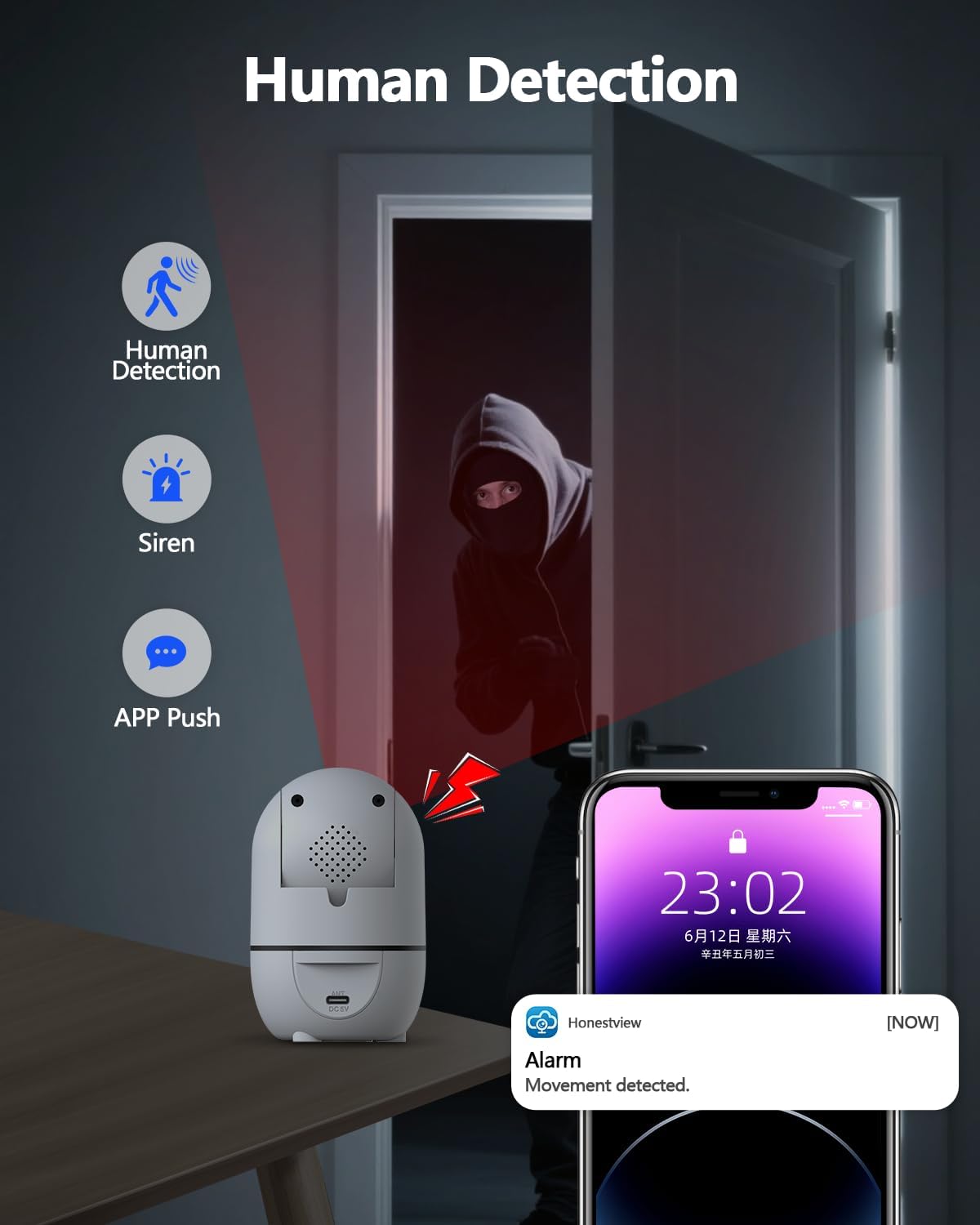
Image 4.5: Human detection feature triggers alerts and a siren when movement is detected.
4.6 Recording and Playback
Recordings are stored on the installed Micro SD card or in the cloud (subscription may be required for cloud services). Access recorded footage and playback events through the "HonestView" app.
Video 4.6: This video demonstrates the camera's functionality, including its ability to capture and record events for later playback.
5. Maintenance
5.1 Cleaning
To maintain optimal performance, periodically clean the camera lens and body. Use a soft, dry cloth to gently wipe away dust and smudges. Avoid using harsh chemicals or abrasive materials that could damage the camera.
5.2 Firmware Updates
Check the "HonestView" app regularly for available firmware updates. Keeping the camera's firmware updated ensures access to the latest features, security enhancements, and performance improvements.
5.3 Environmental Considerations
This camera is designed for indoor use only. Do not expose it to water, extreme temperatures, or high humidity. Ensure it is placed in a well-ventilated area.
6. Troubleshooting
- Camera not connecting to Wi-Fi:
- Ensure your Wi-Fi password is entered correctly.
- Verify that the camera is within range of your Wi-Fi router.
- Confirm your router is broadcasting both 2.4GHz and 5GHz networks, and try connecting to the other band if one fails.
- Restart your router and the camera.
- Poor video quality or lagging:
- Check your internet connection speed. A stable and fast connection is required for optimal streaming.
- Ensure the camera is connected to the stronger Wi-Fi band (5GHz typically offers faster speeds if available and in range).
- Reduce the video resolution setting in the app if your network bandwidth is limited.
- Auto-tracking or PTZ controls are unresponsive:
- Ensure the camera has a stable Wi-Fi connection.
- Close and reopen the "HonestView" app.
- Restart the camera by unplugging and replugging its power adapter.
- No recording or playback:
- Verify that a Micro SD card is properly inserted and formatted through the app.
- Check if your cloud storage subscription is active (if applicable).
- Ensure recording settings are enabled in the "HonestView" app.
- Frequent false alarms:
- Adjust the motion detection sensitivity settings in the app.
- Utilize the human detection feature to filter out non-human movements.
- Ensure the camera is not pointing at areas with constant, irrelevant motion (e.g., tree branches swaying outside a window).
7. Specifications
| Feature | Specification |
|---|---|
| Model Name | CS-F17YW |
| Indoor/Outdoor Usage | Indoor |
| Video Capture Resolution | 3.0 Megapixel (2304x1296p) |
| Viewing Angle | 360° (Pan), 90° (Tilt) |
| Night Vision Range | 33 Feet (Full Color) |
| Connectivity Technology | Dual-Band Wi-Fi (2.4GHz & 5GHz), IEEE802.11 1/n/f |
| Storage Options | Micro SD (up to 256 GB), Cloud Storage |
| Power Source | AC/DC (5V Power Adapter) |
| Dimensions (L x W x H) | 5 x 4 x 5 inches |
| Item Weight | 1.2 Pounds |
| Control Method | App (HonestView) |
| Special Features | 2-Way Audio, Auto Tracking, Full-Color Night Vision, Human Detection |
| Included Components | Camera, Power Adapter, Screw Bag, User Manual |
8. Warranty and Support
8.1 Warranty Information
Specific warranty details for the WEILAILIFE 2K Indoor WiFi Security Camera are typically provided with the product packaging or can be found on the official WEILAILIFE website. Please refer to these sources for the most accurate and up-to-date warranty terms and conditions.
8.2 Customer Support
For technical assistance, troubleshooting, or any questions regarding your WEILAILIFE camera, please contact WEILAILIFE customer support. You can usually find contact information within the "HonestView" app or on the official WEILAILIFE website.


