
1. Introduction
This manual provides detailed instructions for the setup, operation, and maintenance of your ARZOPA D10 Gold 10.1" Digital Picture Frame. Please read this manual thoroughly before using the device to ensure proper functionality and to maximize your user experience.
The ARZOPA D10 Gold Digital Picture Frame features a 10.1-inch HD IPS touchscreen, Wi-Fi connectivity, and a durable metal frame. It allows for easy sharing of photos and videos with family and friends through the dedicated ARZOPA app, offering unlimited cloud storage and additional 32GB built-in storage.
2. Package Contents
Please verify that all items are present in your package:
- ARZOPA D10 Gold 10.1" Digital Picture Frame
- Power Adapter
- User Manual
- Stand Bracket
3. Product Overview
Familiarize yourself with the components of your digital picture frame.

Figure 3.1: Front view of the ARZOPA D10 Gold Digital Picture Frame, showcasing its 10.1-inch display and a smartphone displaying the ARZOPA app interface.

Figure 3.2: Rear view of the ARZOPA D10 Gold Digital Picture Frame, highlighting the built-in speakers, wall mounting holes, stand hole, power button, USB port, Micro SD card slot, and DC power input.
Frame Components:
- 10.1" IPS Touch Screen: High-definition display for vibrant photo and video playback.
- Metal Frame: Durable and aesthetically pleasing gold-colored metal casing.
- Built-in Speakers: For audio playback with videos.
- Power Button: To turn the frame on/off or activate sleep mode.
- USB Port: For connecting USB drives for media transfer.
- Micro SD Card Slot: For expanding storage up to 128GB (SD card not included).
- DC Power Input: For connecting the power adapter.
- Stand Bracket: For tabletop display.
- Wall Holes: For mounting the frame on a wall.
4. Setup
4.1 Initial Setup
- Connect Power: Plug the power adapter into the DC power input on the back of the frame, then plug the adapter into a wall outlet. The frame will automatically power on.
- Language Selection: Follow the on-screen prompts to select your preferred language.
- Wi-Fi Connection: Select your Wi-Fi network from the list and enter the password. Ensure a stable internet connection for optimal performance.
- Download ARZOPA App: Download the free ARZOPA app from the App Store (iOS) or Google Play Store (Android) on your smartphone.
- Register Account: Open the ARZOPA app and register a new account or log in if you already have one.
- Pair Frame: In the app, follow the instructions to add a new device. You will typically scan a QR code displayed on your digital frame to pair it with your app account.

Figure 4.1: Visual guide for connecting the ARZOPA app to the digital picture frame, showing steps from opening the app to uploading photos.
4.2 Mounting Options
- Tabletop Display: Attach the included stand bracket to the designated hole on the back of the frame for stable placement on any flat surface.
- Wall Mounting: Use the wall holes on the back of the frame to mount it securely on a wall. Ensure appropriate wall anchors and screws are used (not included) for safe installation.
5. Operating Instructions
5.1 Basic Operation
- Touchscreen Navigation: The frame features a responsive touchscreen. Swipe left/right to navigate through photos, tap to access menus, and pinch to zoom (if supported by software).
- Power On/Off: Press and hold the power button for a few seconds to turn the frame on or off. A short press will activate/deactivate sleep mode.
- Sleep Mode: Configure smart sleep mode settings in the frame's settings menu to automatically turn the screen off during specific hours (e.g., overnight) to save energy.
- Brightness Adjustment: Adjust screen brightness via the settings menu or quick access controls (if available) for optimal viewing in different lighting conditions.
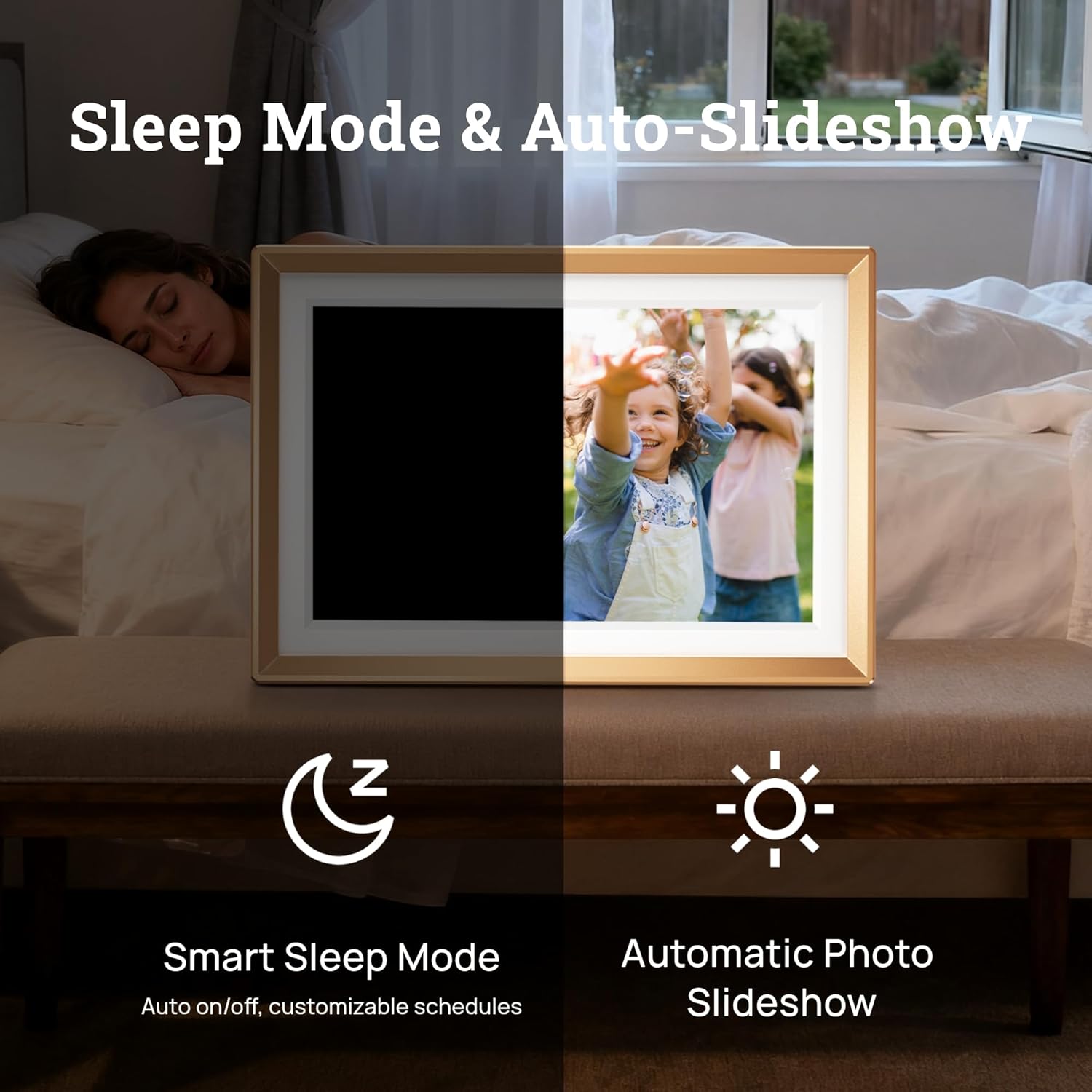
Figure 5.1: Illustration of the Smart Sleep Mode, where the frame automatically turns off, and the Automatic Photo Slideshow feature.
5.2 Photo and Video Management
- Uploading via ARZOPA App: Open the ARZOPA app, select the frame, and choose photos or videos from your device to upload. The app supports unlimited uploads to cloud storage.
- Uploading via SD Card/USB: Insert a Micro SD card (up to 128GB) or a USB drive into the respective port. The frame will detect the storage, allowing you to import media to the internal 32GB storage.
- Managing Content: Access the gallery or file management section on the frame's touchscreen to view, delete, or organize your uploaded photos and videos.
- Slideshow Settings: Customize slideshow intervals, transition effects, and playback order in the frame's settings.

Figure 5.2: Overview of various methods to upload photos and videos to the ARZOPA frame: via the ARZOPA app, external storage (SD card/USB), PC connection, and free cloud storage.
5.3 Sharing Features
- Invite Others to Share: Through the ARZOPA app, you can invite family and friends to share photos and videos directly to your frame. They will need to download the app and create an account.
- Interactive Features: The app may include features like 'like' and 'comment' to create a shared, interactive space for memories.
5.4 Advanced Features
- Weather and Calendar: The frame can display real-time weather information and a calendar. These features can be enabled and configured in the settings.
- Auto-Rotation: The built-in gravity sensor automatically adjusts the display orientation (landscape or portrait) based on how the frame is positioned.

Figure 5.3: The digital picture frame displaying a photo along with real-time weather and calendar information.
6. Maintenance
- Cleaning the Screen: Use a soft, lint-free cloth to gently wipe the screen. For stubborn smudges, slightly dampen the cloth with water or a screen-cleaning solution. Avoid harsh chemicals.
- Software Updates: Periodically check for software updates in the frame's settings menu to ensure you have the latest features and performance improvements.
- Storage Management: Regularly review your stored photos and videos. Delete unnecessary files to free up internal storage, especially if you are not using cloud storage exclusively.
7. Troubleshooting
If you encounter issues with your ARZOPA Digital Picture Frame, refer to the following common problems and solutions:
| Problem | Possible Solution |
|---|---|
| Frame does not power on. | Ensure the power adapter is securely connected to both the frame and a working power outlet. Try a different outlet. |
| Cannot connect to Wi-Fi. | Check if your Wi-Fi router is working. Re-enter the Wi-Fi password carefully. Ensure the frame is within range of your Wi-Fi signal. Restart the frame and your router. |
| Photos/Videos not appearing. | Verify that media has been successfully uploaded via the ARZOPA app or transferred from an SD card/USB. Check the frame's internal storage. Ensure file formats are supported. |
| ARZOPA app not pairing with frame. | Ensure both the frame and your smartphone are connected to the internet. Re-scan the QR code on the frame. Restart both the app and the frame. |
| Screen is unresponsive. | Restart the frame by holding down the power button. If the issue persists, perform a factory reset (refer to settings menu, note this will erase all data). |
8. Specifications
| Feature | Detail |
|---|---|
| Product Dimensions | 10.35 x 7.15 x 0.99 inches |
| Item Weight | 2.97 pounds |
| Screen Size | 10.1 Inches |
| Resolution | 1280x800 |
| Color | D10-Gold |
| Internal Storage | 32GB |
| Expandable Storage | Up to 128GB (Micro SD card, not included) |
| Connectivity | WiFi |
| Compatible Devices | Android, iOS, Personal Computer, Smartphone |
| Manufacturer | ARZOPA |
9. Warranty Information
ARZOPA products are covered by a manufacturer's warranty. For specific details regarding your product's warranty period and terms, please refer to the warranty card included in your package or visit the official ARZOPA website. Keep your purchase receipt as proof of purchase for warranty claims.
10. Support
For technical assistance, product inquiries, or warranty support, please contact ARZOPA customer service. Our dedicated support team aims to respond within 48 hours to provide personalized technical assistance.
- Online Support: Visit the official ARZOPA website for FAQs, support resources, and contact forms.
- Email Support: Refer to your product packaging or the ARZOPA website for the customer service email address.


