1. Introduction
This manual provides detailed instructions for the setup, operation, and maintenance of your MIKIBY AK980 Mechanical Keyboard. The AK980 features a 98% layout, tri-mode connectivity (Bluetooth 5.0, 2.4GHz wireless, and USB-C wired), a smart TFT display, a multi-function knob, hot-swappable switches, PBT keycaps, and customizable RGB backlighting. Please read this manual thoroughly to ensure optimal performance and longevity of your device.
2. Package Contents
Before you begin, please verify that all items are present in the package:
- MIKIBY AK980 Mechanical Keyboard
- USB-C Cable
- Keycap & Switch Puller
- User Manual (this document)
3. Product Overview
The MIKIBY AK980 is designed for versatility and performance. Key features include:
- TFT Smart Display & Knob: Displays date, time, battery level, connection mode, and allows for custom GIF images. The knob controls volume and backlight settings.
- Tri-Mode Connectivity: Seamlessly switch between Bluetooth 5.0, 2.4GHz wireless (via USB dongle), and wired USB-C connections.
- Hot-Swappable Switches: Supports 3-pin and 5-pin mechanical switches, allowing for easy customization without soldering.
- Long-lasting Battery: Equipped with an 8000mAh battery for extended wireless use.
- 98% Keyboard Layout: Compact design retaining essential keys including a numeric keypad and function row.
- RGB Backlight & Web Driver: Features 20 pre-programmed lighting effects and web-based customization for lighting, key functions, and macros.
- Gasket Mounted Design: Provides a soft, elastic typing feel and reduces noise.
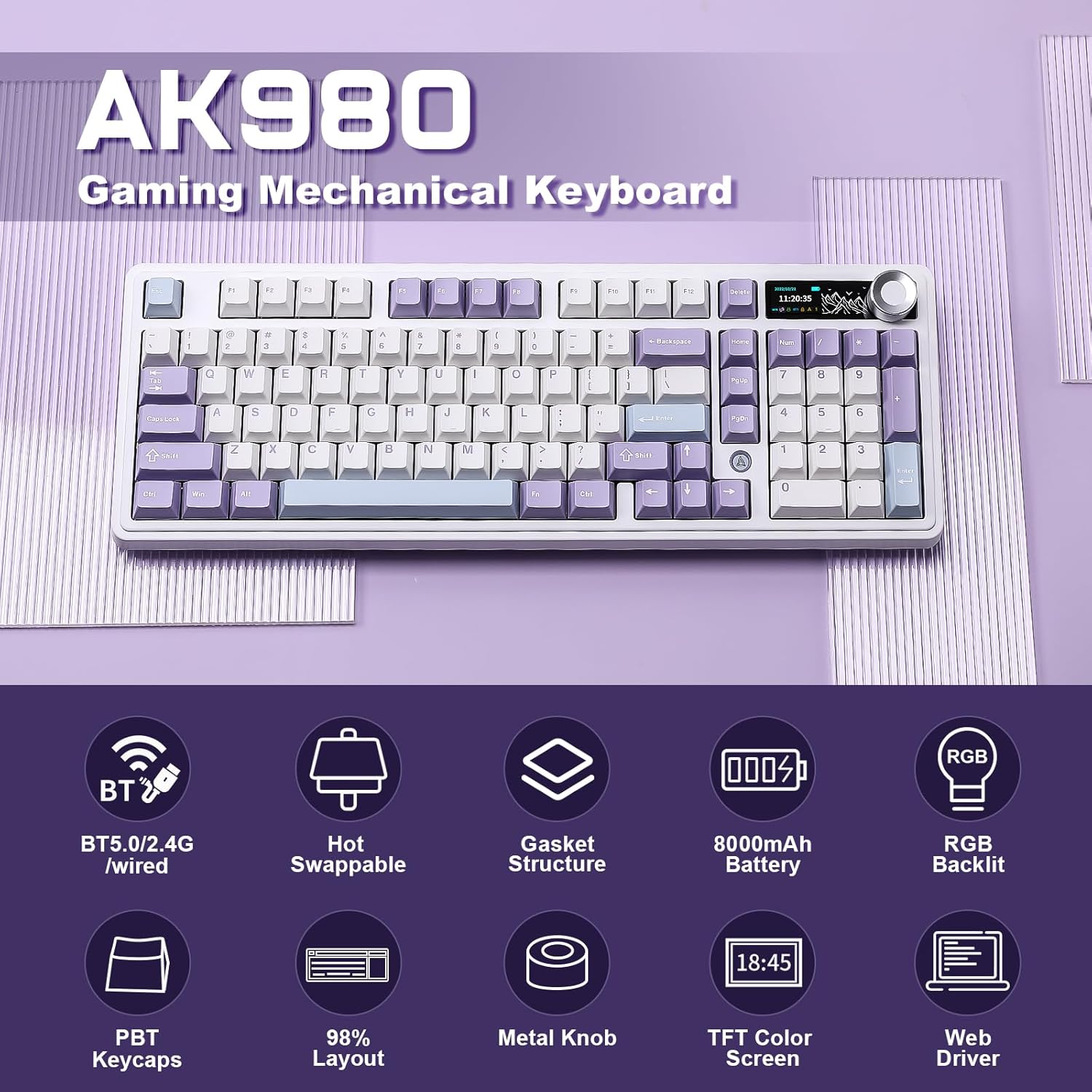
Figure 3.1: Overview of AK980 features including tri-mode connectivity, hot-swappable design, gasket structure, 8000mAh battery, RGB backlight, PBT keycaps, 98% layout, metal knob, TFT color screen, and web driver.
4. Setup and Connection
4.1 Initial Charging
Before first use, connect the keyboard to a USB power source (e.g., computer USB port or USB wall adapter) using the provided USB-C cable. The TFT display will indicate charging status. A full charge can take several hours.
4.2 Connectivity Modes
The AK980 supports three connection modes. Use the switch located on the back of the keyboard to select your desired mode:

Figure 4.1: Tri-mode connectivity options for the AK980 keyboard.
4.2.1 USB-C Wired Mode
- Set the mode switch on the back of the keyboard to 'USB'.
- Connect the USB-C cable to the keyboard and the other end to your computer's USB port.
- The keyboard will be automatically recognized and ready for use.
4.2.2 2.4GHz Wireless Mode
- Set the mode switch on the back of the keyboard to '2.4G'.
- Locate the 2.4G USB receiver (dongle) stored in the keyboard's dedicated slot.
- Plug the USB receiver into an available USB port on your computer.
- The keyboard will automatically connect. The TFT display will show the 2.4G connection icon.
4.2.3 Bluetooth Mode
- Set the mode switch on the back of the keyboard to 'BT'.
- The keyboard will enter pairing mode. The TFT display will show the Bluetooth icon blinking.
- On your device (computer, tablet, smartphone), open Bluetooth settings and search for new devices.
- Select 'AK980' from the list of available devices to pair.
- Once paired, the Bluetooth icon on the TFT display will become solid.
4.3 Operating System Switch (WIN/MAC)
Use the dedicated switch on the back of the keyboard to toggle between Windows (WIN) and macOS (MAC) layouts. This ensures proper key mapping for your operating system.
5. Operation
5.1 Smart TFT Display and Knob Functions
The AK980 features a smart TFT display and a multi-function knob for enhanced control.
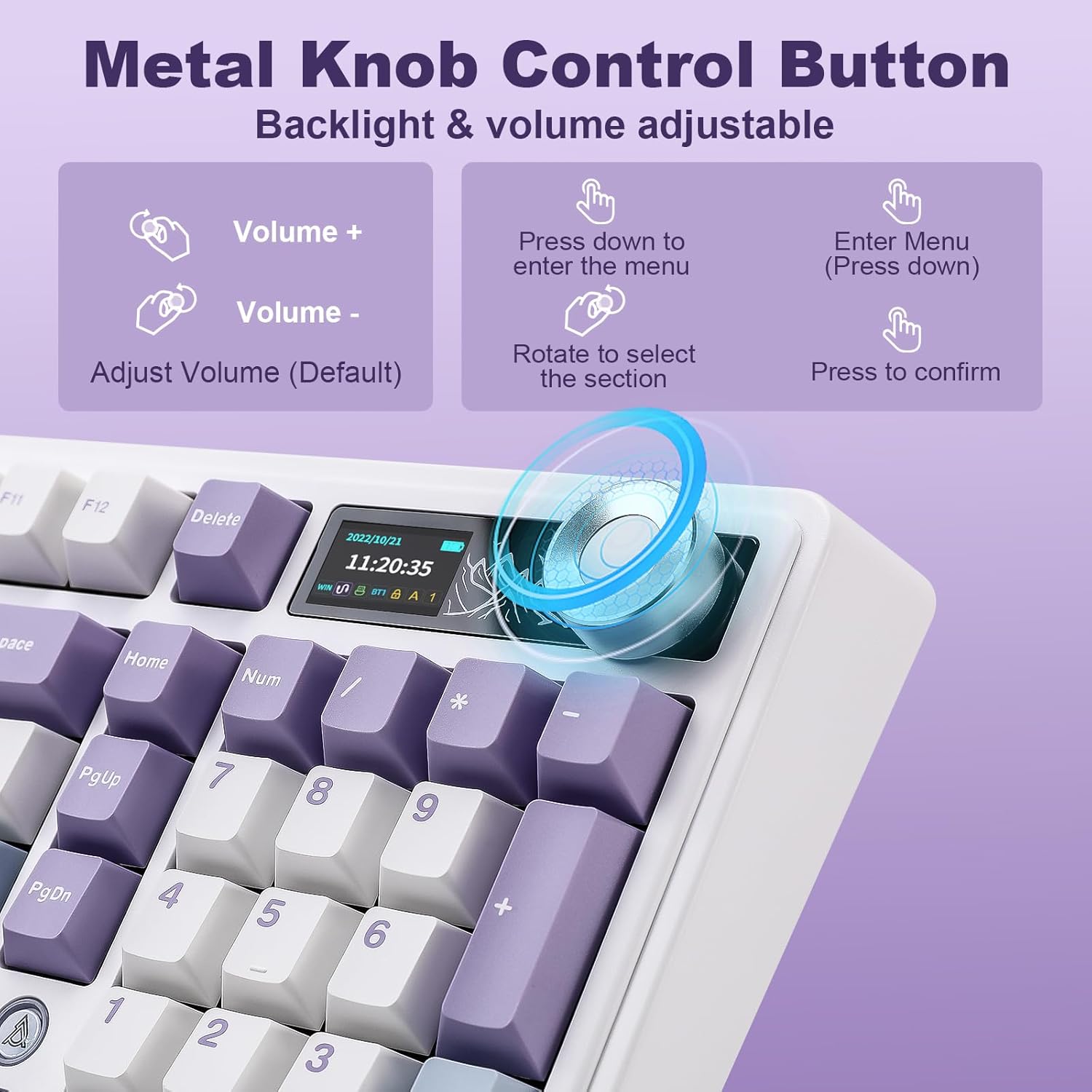
Figure 5.1: Metal Knob Control Button functions.
- Rotate Knob: Adjusts system volume by default.
- Press Knob (Short Press): Mutes/unmutes audio in default mode. Enters/confirms menu selections when navigating the display.
- Press Knob (Long Press): Toggles between volume control and backlight adjustment modes.
The TFT display provides real-time information and access to various settings:

Figure 5.2: TFT Smart Display menu options.
- Home Screen: Displays date, time, battery level, WIN/MAC layout, and current connection mode.
- RGB Modes: Select from various pre-programmed RGB lighting effects.
- RGB Colors: Adjust the color of the RGB backlight.
- RGB Speed: Control the speed of dynamic RGB effects.
- Language Settings: Change the display language.
- GIF Image Display: Customize the GIF displayed on the screen (requires web driver software).
5.2 RGB Backlight Control
The keyboard features vibrant RGB backlighting with 20 pre-programmed effects. Use the following key combinations to control the backlight:
- Fn + \|: Cycle through RGB lighting modes.
- Fn + ↑: Increase backlight brightness.
- Fn + ↓: Decrease backlight brightness.
- Fn + ←: Change lighting direction/effect.
- Fn + →: Change lighting direction/effect.
- Fn + X: Turn backlight ON/OFF.
- Fn + C: Change backlight color (for static modes).
- Fn + < : Decrease lighting speed.
- Fn + > : Increase lighting speed.
For advanced customization, including macro recording, custom shortcut keys, and GIF display settings, download the official web driver software from the MIKIBY website.
5.3 Hot-Swappable Switches
The AK980 supports 3-pin and 5-pin hot-swappable mechanical switches, allowing you to easily change switches without soldering. Use the included keycap and switch puller for this process.

Figure 5.3: Hot-swappable switch replacement process.
- Gently remove the keycap using the keycap puller.
- Use the switch puller to grasp the switch firmly and pull it straight up to remove it.
- Align the pins of the new switch with the holes on the PCB. Ensure the pins are straight.
- Press the new switch firmly into place until it clicks. Do not force it if there is resistance; check pin alignment.
- Replace the keycap.
5.4 Battery Management
The AK980 is equipped with an 8000mAh battery. Battery life varies depending on usage, especially RGB lighting. The TFT display shows the current battery level.

Figure 5.4: Battery endurance details.
- RGB On: Up to 28 hours of continuous use.
- Backlight Off (Sleeping Mode): Up to 110 hours.
- To charge, connect the keyboard via the USB-C cable to a power source. You can continue to use the keyboard while it charges.
6. Maintenance
6.1 Cleaning the Keyboard
- Disconnect the keyboard from all power sources before cleaning.
- Use a soft, lint-free cloth slightly dampened with water or a mild cleaning solution to wipe the keycaps and chassis.
- For dust and debris between keycaps, use compressed air or a small brush.
- Avoid using harsh chemicals, abrasives, or solvents.
6.2 Keycap and Switch Care
- When removing keycaps, use the provided keycap puller to avoid damaging the keycaps or switches.
- When replacing switches, ensure the pins are perfectly aligned to prevent bending or damage.
7. Troubleshooting
If you encounter issues with your MIKIBY AK980 keyboard, please refer to the following common solutions:
| Problem | Possible Solution |
|---|---|
| Keyboard not responding in wireless mode. |
|
| TFT display is blank or not updating. |
|
| RGB backlight not working or stuck. |
|
| Date/Time on display is incorrect. |
|
| Keys are not registering or feel inconsistent. |
|
8. Specifications
| Feature | Detail |
|---|---|
| Model Number | AK980 |
| Connectivity Technology | Bluetooth 5.0, 2.4GHz Wireless, USB-C Wired |
| Keyboard Description | Mechanical |
| Number of Keys | 97 |
| Backlighting | RGB |
| Battery Capacity | 8000mAh (1 Nonstandard Battery included) |
| Compatible Devices | Gaming Console, Laptop, PC, Smartphone, Tablet |
| Special Features | Backlit, Ergonomic, Hot-Swappable, Volume Roller, Smart TFT Display |
| Item Weight | 3.23 pounds |
| Package Dimensions | 17.87 x 7.76 x 2.32 inches |
| Manufacturer | MIKIBY |
9. Warranty and Support
9.1 Warranty Information
The MIKIBY AK980 Mechanical Keyboard comes with a standard manufacturer's warranty. Please refer to the warranty card included in your product packaging or visit the official MIKIBY website for detailed warranty terms and conditions. Keep your proof of purchase for warranty claims.
9.2 Customer Support
For technical assistance, troubleshooting beyond this manual, or warranty inquiries, please contact MIKIBY customer support through their official website or the contact information provided with your product. Ensure you have your product model number (AK980) and purchase details ready when contacting support.


