Introduction
Thank you for choosing the Inefala Single Din Touchscreen Car Stereo. This manual provides detailed instructions for the installation, operation, and maintenance of your new car audio receiver. Please read this manual thoroughly before use to ensure proper functionality and safety.
This car stereo features a 7-inch IPS manual flip-out touchscreen, Bluetooth 4.2, FM radio, Mirror Link for Android/iOS, USB and Type-C fast charging ports, EQ options, and support for a backup camera and steering wheel controls.
Package Contents
Verify that all items are present in the package:
- 1 x 7'' Single Din Car Stereo
- 1 x Power Cable
- 1 x Horn Cable
- 1 x Backup Camera
- 1 x External Microphone
- 1 x User Manual
- Accessories (mounting hardware)

Image: Dimensions of the car stereo and a visual representation of the package contents including the main unit, power cable, horn cable, backup camera, external microphone, user manual, and other accessories.
Setup and Installation
1. Wiring Connections
Proper wiring is crucial for the car stereo's functionality and safety. Refer to the wiring diagram below and your vehicle's specific wiring instructions.
- Power Cable: Connect the yellow wire to constant +12V (B+), the red wire to accessory +12V (ACC), and the black wire to ground (GND).
- Speaker Wires: Connect the speaker wires (e.g., white/white-black for front left, gray/gray-black for front right, green/green-black for rear left, purple/purple-black for rear right) to your vehicle's corresponding speaker outputs. Ensure correct polarity.
- Backup Camera: Connect the camera's video output to the 'Reverse Video Input' on the stereo. Connect the camera's power to the vehicle's reverse light circuit and the stereo's 'Reverse' (pink) wire to the same circuit or a signal wire that activates when reversing.
- Steering Wheel Control (SWC): Connect the SWC wires (Key1, Key2) to your vehicle's steering wheel control output wires. Ground the SWC ground wire if applicable.
- Antenna: Connect your vehicle's radio antenna to the stereo's antenna input.

Image: Comprehensive wiring diagram illustrating connections for the car stereo, including power, speaker outputs, reverse camera input, and steering wheel control inputs.
2. Physical Installation
Install the single DIN unit into your vehicle's dashboard opening. Secure it using the provided mounting brackets and screws. Ensure all cables are properly routed and secured to prevent interference or damage.
3. Initial Power On
After installation, turn on your vehicle's ignition. The stereo should power on. If not, recheck all power connections. The screen will flip out automatically or can be manually adjusted.
Operating Instructions
1. Basic Functions
- Power On/Off: Press the power button on the front panel or remote control.
- Volume Control: Use the rotary knob or volume buttons on the front panel/remote.
- Touchscreen Operation: Navigate menus and select functions by touching the 7-inch IPS display.

Image: The car stereo with its 7-inch flip-out touchscreen extended, showing the main menu interface with various application icons.
2. Bluetooth Connectivity
Pair your mobile phone with the car stereo via Bluetooth for hands-free calling and audio streaming.
- Enable Bluetooth on your mobile phone.
- On the car stereo, go to the Bluetooth menu.
- Search for available devices on your phone and select 'Inefala Car Stereo' (or similar name).
- Confirm the pairing code if prompted.
Once paired, you can make/receive calls and play music wirelessly through the car's speakers.

Image: A diagram showing the Bluetooth 4.2 chip and its functions, including hands-free phone calls and Bluetooth music streaming from a mobile device.
3. FM Radio
Access the FM radio function to listen to local stations.
- Select the FM icon from the main menu.
- Use the scan function to automatically search and save stations (up to 18 presets).
- Manually tune to specific frequencies using the touchscreen controls.
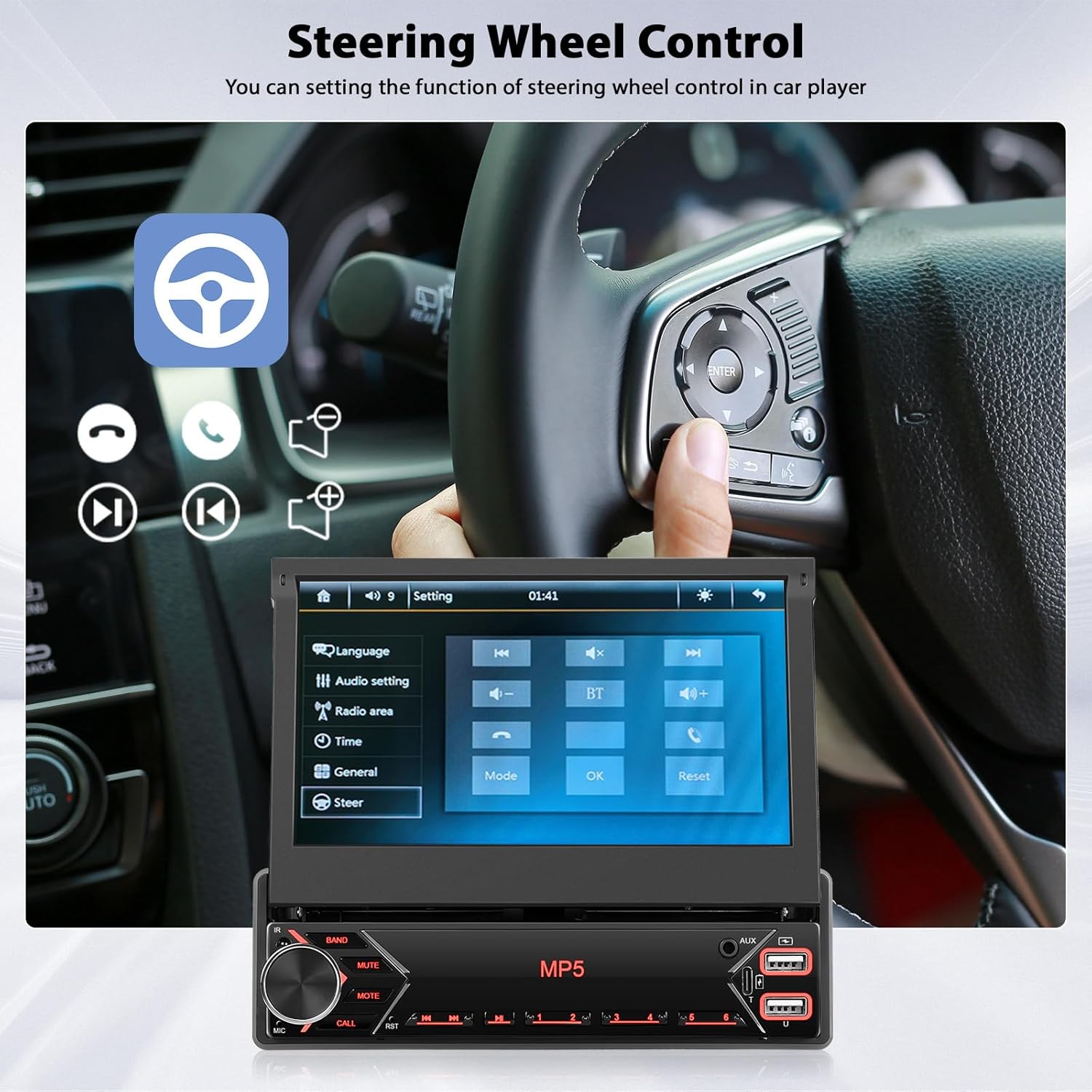
Image: The car stereo displaying the FM radio interface with frequency tuning and preset options, alongside an illustration of EQ settings for audio adjustment.
4. Mirror Link (Android/iOS)
Connect your smartphone to the car stereo to mirror its screen content.
- Connect your phone to the stereo using its original USB cable.
- Follow the on-screen prompts on both your phone and the stereo to establish the connection.
- Once connected, your phone's screen will be displayed on the stereo, allowing you to use navigation apps or other compatible applications.
Note: Compatibility may vary with certain Samsung phone models.

Image: An illustration demonstrating the Mirror Link feature, where a smartphone's screen content, including video playback, is displayed on the car stereo's flip-out screen via a USB connection.
5. Steering Wheel Control (SWC)
Program your vehicle's steering wheel buttons to control the car stereo functions.
- Access the 'Steering Wheel Control' learning function in the stereo's settings menu.
- Follow the on-screen instructions to assign functions (e.g., volume up/down, track skip, mode) to your steering wheel buttons.

Image: A user's hand pressing a button on a car's steering wheel, with the car stereo's screen showing the steering wheel control learning interface, allowing customization of button functions.
6. Backup Camera Display
When the vehicle is shifted into reverse, the stereo will automatically display the view from the connected backup camera.

Image: The car stereo's screen displaying the real-time feed from a backup camera, complete with parking guidelines, while a car is shown reversing in a parking lot.
7. EQ Settings
Adjust the audio equalizer settings to customize your listening experience.
- Access the EQ settings from the audio menu.
- Choose from preset equalizer modes or manually adjust bass, treble, midrange, and other frequency bands.
8. USB and Type-C Ports
Use the USB and Type-C ports for media playback from storage devices or for fast charging your mobile devices.
Maintenance
- Screen Cleaning: Use a soft, lint-free cloth to gently wipe the touchscreen. Do not use abrasive cleaners or solvents.
- General Cleaning: Keep the unit free from dust and debris. Use a dry cloth for cleaning the exterior.
- Software Updates: Check the manufacturer's website periodically for any available firmware updates to ensure optimal performance and new features.
Troubleshooting
| Problem | Possible Cause | Solution |
|---|---|---|
| No power | Incorrect wiring; Blown fuse | Check power (yellow, red, black) connections. Verify vehicle fuses and stereo fuse. |
| No sound | Incorrect speaker wiring; Volume too low; Mute activated | Check speaker connections and polarity. Increase volume. Deactivate mute function. |
| Bluetooth not connecting | Bluetooth not enabled; Device not in pairing mode; Interference | Ensure Bluetooth is on for both devices. Put stereo in pairing mode. Try pairing again. |
| Mirror Link not working | Incorrect USB cable; Phone not compatible; App not installed | Use original USB cable. Check phone compatibility. Ensure necessary apps are installed. |
| Backup camera not displaying | Incorrect camera wiring; Reverse signal not detected | Check camera video input and reverse trigger wire connection. Ensure camera is powered. |
| Steering Wheel Control not responding | Incorrect SWC wiring; Not programmed | Verify SWC wire connections. Perform SWC learning procedure in settings. |
Specifications
- Model Number: e3710168-f53d-493c-8d79-6fff78d22b23
- Screen Size: 7-inch IPS Touchscreen
- Screen Resolution: 1024*600
- Connectivity: Bluetooth 4.2, USB 2.0, AUX, Type-C
- Audio Output Mode: Stereo
- Surround Sound Channel Configuration: 4
- Output Power: 45W x 4
- Special Features: Wired Mirror Link, FM Radio, EQ, Video Playback, Steering Wheel Control, Backup Camera Support, Type-C Fast Charge
- Compatible Devices: Smartphone
- Video Encoding Support: RM/RMVB/AVI/MP4/MKV/3GP
- Item Weight: 2.6 pounds
- Package Dimensions: 10.63 x 8.07 x 3.54 inches
Warranty Information
This Inefala product is covered by a standard manufacturer's warranty. Please refer to the warranty card included in your package or contact customer support for specific details regarding warranty duration and terms. Keep your purchase receipt as proof of purchase.
Customer Support
For technical assistance, troubleshooting, or warranty inquiries, please contact Inefala customer support:
- Email: inefalaservices@163.com
Our support team is available to assist you with any questions or issues you may encounter.

Image: A customer service representative wearing a headset, with the Inefala customer support email address displayed: inefalaservices@163.com.


