
1. Introduction
The AWESAFE 7-inch Touch Screen GPS Navigator is designed to provide reliable and accurate navigation for both cars and trucks. Featuring preloaded 2025 North America maps with free lifetime updates, turn-by-turn voice guidance, and specialized routing options for larger vehicles, this device aims to make your journeys safer and more efficient. This manual will guide you through the setup, operation, and maintenance of your new GPS navigator.

Figure 1: AWESAFE 7-inch GPS Navigator in use, displaying a navigation route.
2. What's in the Box
Please check the package contents to ensure all items are present:
- AWESAFE GPS Navigation Unit
- Car Charger
- USB Cable
- Suction Cup Mount
- User Manual (this document)
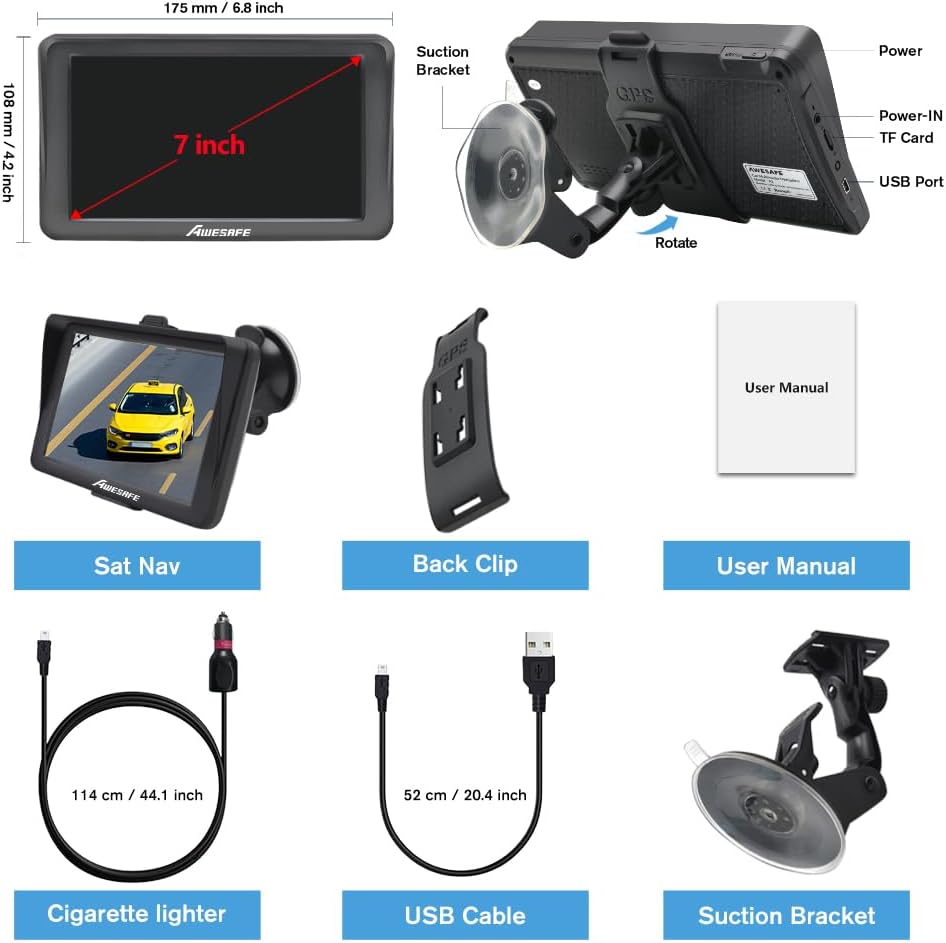
Figure 2: Package contents and device overview.
3. Setup
3.1 Mounting the Device
The GPS navigator can be mounted on your dashboard or windshield using the provided suction cup mount. Ensure the mounting surface is clean and dry for optimal adhesion.
- Attach the suction cup mount to the back of the GPS unit.
- Press the suction cup firmly against your desired mounting surface (dashboard or windshield).
- Flip the lever on the suction cup to secure it in place.
- Adjust the angle of the GPS unit for optimal viewing without obstructing your driving view.

Figure 3: Recommended installation methods.
3.2 Powering On/Off
To power on the device, press and hold the power button located on the top left part of the unit until the AWESAFE logo appears. To power off, press and hold the power button again and select 'Power Off' from the options.
For continuous operation, especially during navigation, always connect the device to your vehicle's power supply using the provided car charger.
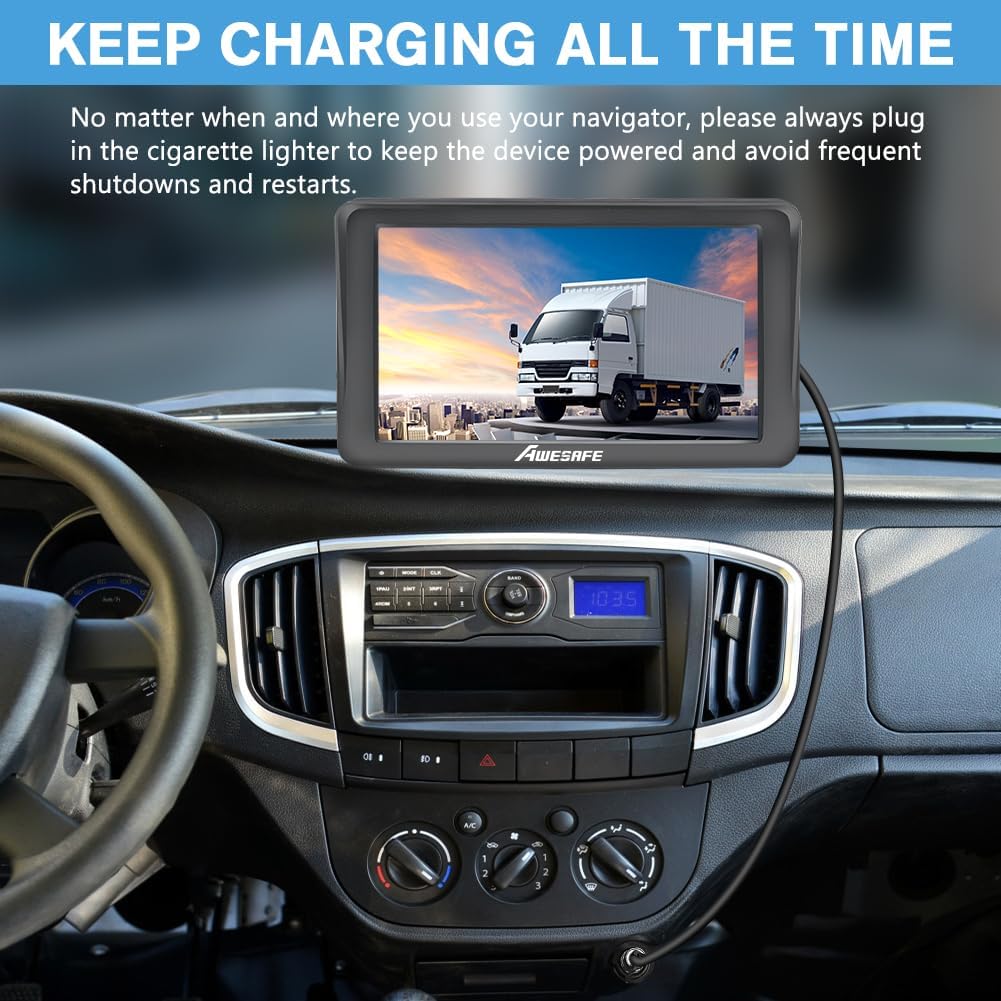
Figure 4: Connecting the GPS Navigator to the car charger.
3.3 Initial Configuration
Upon first use or after a factory reset, you may need to configure basic settings:
- Language: Select your preferred language for menus and voice guidance.
- Time Zone: Set the correct time zone or allow the GPS to automatically detect it.
- Units: Choose between miles/kilometers and other measurement units.
4. Operating Instructions
4.1 Navigation Basics
To begin navigation, tap the 'Navigation' icon on the main menu. You can then enter your destination using various methods:
- Address: Enter the street number, street name, city, and state/province.
- Postcode: Enter the postal code for the destination.
- Coordinates: Input specific latitude and longitude coordinates.
- Favorite: Select from previously saved favorite locations.
- POI (Points of Interest): Search for nearby restaurants, gas stations, hotels, and other points of interest.
After entering your destination, the device will calculate a route. You can choose from four route options: Fast, Green (most fuel-efficient), Short, or Convenient.

Figure 5: Smart Route options for optimized travel.
4.2 Customized Route for Trucks
For truck drivers, the GPS navigator offers a specialized routing feature. You can input your vehicle's specific dimensions and weight to avoid roads with restrictions (e.g., low bridges, weight limits, narrow roads). This ensures a safe and compliant route for your truck.

Figure 6: Truck-specific routing to avoid traffic restrictions.
4.3 Voice Guidance and Driver Alerts
The device provides clear, turn-by-turn voice guidance, including spoken street names, to help you stay focused on the road. It also offers intelligent driver alerts for:
- Current speed camera locations
- Red light warnings
- Speed limit changes
- Active lane assistance
- Estimated arrival time and remaining distance
4.4 Map Features
The AWESAFE GPS Navigator supports both 2D and 3D map perspectives, allowing you to choose your preferred view. Key map features include:
- Detailed North America maps (USA, Canada, Mexico)
- Points of Interest (POI) database
- Speed camera and red light warnings
- Lane guidance
- Day/Night mode for optimal visibility

Figure 7: Overview of GPS functions and map features.
4.5 Map Updates
Your GPS navigator comes with free lifetime map updates for North America. To ensure you have the most current map data, regularly connect your device to a computer and follow the instructions provided on the AWESAFE website for downloading and installing updates.

Figure 8: Process for updating maps via computer.
4.6 FM Transmitter Function
The device includes an FM transmitter function that allows you to transfer the GPS audio (voice guidance, alerts) to your car's FM radio. This is not an FM radio receiver, but a way to broadcast the GPS audio through your car's speakers.
- Access the FM settings on your GPS navigator.
- Select an unused FM frequency on the GPS unit.
- Tune your car's FM radio to the exact same frequency.
- The GPS audio will now play through your car's speakers.

Figure 9: Using the FM transmitter to output GPS audio to car speakers.
5. Specifications
| Feature | Specification |
|---|---|
| Brand | AWESAFE |
| Model Number | B0F3HRLNLL |
| Display Size | 7 Inches |
| Display Type | Touch Screen |
| Map Type | North America (USA, Canada, Mexico) |
| Map Updates | Free Lifetime Updates |
| Voice Command | Microphone, Touchscreen |
| Connectivity Technology | Bluetooth |
| Special Feature | Bluetooth |
| Vehicle Service Type | Car, Truck |
| Mounting Type | Dashboard Mount, Windshield Mount |
| Item Weight | 1.59 pounds (0.72 Kilograms) |
| Package Dimensions | 8.43 x 5.35 x 3.7 inches |
| Warranty | 1 year |
6. Maintenance
To ensure the longevity and optimal performance of your AWESAFE GPS Navigator, follow these maintenance guidelines:
- Cleaning: Use a soft, lint-free cloth to clean the screen and exterior. Avoid abrasive cleaners or solvents.
- Storage: When not in use, store the device in a cool, dry place away from direct sunlight and extreme temperatures.
- Software Updates: Regularly check for and install map and software updates to ensure accurate navigation and access to new features.
7. Troubleshooting
If you encounter issues with your GPS navigator, refer to the following common troubleshooting tips:
- Device Not Powering On: Ensure the device is fully charged or connected to the car charger. Check the car charger connection and the vehicle's power outlet.
- No GPS Signal: Ensure the device has a clear view of the sky. Move away from tall buildings or dense tree cover. Allow a few minutes for the device to acquire satellites.
- No Sound: Check the volume settings on the device. If using the FM transmitter, ensure your car radio is tuned to the correct frequency and the FM transmitter is enabled on the GPS.
- Inaccurate Location/Routing: Ensure your maps are up to date. Perform a map update if necessary.
- Screen Unresponsive: Try restarting the device. If the issue persists, a factory reset might be required (refer to settings for this option).
8. Warranty and Support
The AWESAFE GPS Navigator comes with a 1-year warranty from the date of purchase, covering manufacturing defects. Please retain your proof of purchase for warranty claims.
For technical support, warranty inquiries, or further assistance, please refer to the contact information provided in your product packaging or visit the official AWESAFE website.