
1. Introduction
This manual provides instructions for the safe installation, operation, and maintenance of your Amazon Basics Heavy Duty Dual Monitor Arm. This product is designed to securely hold two monitors, enhancing your workspace ergonomics and organization.
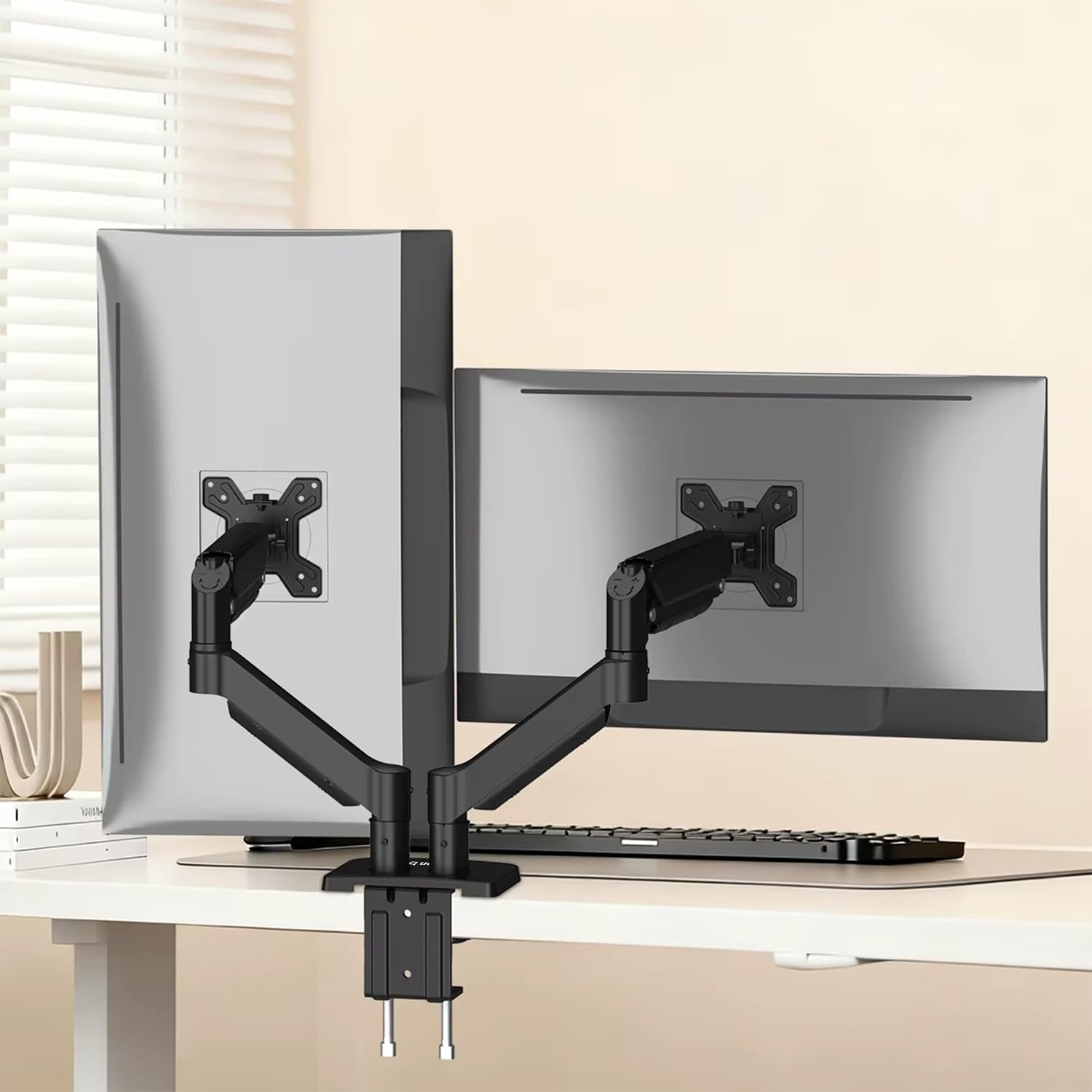
Figure 1: Amazon Basics Heavy Duty Dual Monitor Arm in use.
The image shows the dual monitor arm mounted on a desk, supporting two monitors. The setup appears clean and organized, highlighting the space-saving benefits.
2. Safety Information
Please read and understand all instructions before installation and use. Failure to follow these instructions may result in property damage, serious injury, or death.
- Weight Capacity: Do not exceed the maximum weight capacity of 9 kg (19.8 lbs) per arm. Ensure your monitors' weight is within this limit.
- Monitor Size: This arm is designed for monitors between 13 and 32 inches.
- Desk Thickness: Ensure your desk thickness is between 10 mm and 80 mm for secure mounting.
- Pinch Points: Keep hands and fingers clear of moving parts during adjustment to avoid pinching.
- Stability: Ensure the arm is securely fastened to a stable desk surface. Do not install on unstable or weak surfaces.
- Assembly: Assemble according to the instructions. Do not modify the product.
- Gas Spring: The gas spring is under high pressure. Do not attempt to disassemble the gas spring cylinder.
3. Package Contents
Verify that all components are present and undamaged before beginning installation. If any parts are missing or damaged, contact customer support.
- Main Pole with Base
- Dual Monitor Arms (2 units)
- VESA Plates (2 units)
- C-Clamp Assembly
- Grommet Mount Assembly
- Hardware Kit (screws for VESA mounting, washers, Allen keys)
- Cable Management Clips/Covers
4. Setup and Installation
Follow these steps carefully to install your dual monitor arm.
4.1 Choose Mounting Option
The monitor arm supports two installation methods: C-clamp or grommet mount. Select the option best suited for your desk.

Figure 2: C-clamp and Grommet Mount.
This image illustrates the two primary mounting methods: a C-clamp that grips the edge of the desk and a grommet mount that secures through a pre-drilled hole. Both options are shown with measurements indicating compatibility with desk thicknesses between 10-80 mm.
- C-Clamp Installation:
- Attach the C-clamp to the main pole base.
- Position the clamp on the edge of your desk.
- Tighten the clamp screw until the base is firmly secured to the desk. Ensure it is stable and does not wobble.
- Grommet Mount Installation:
- If your desk has a grommet hole, or you plan to drill one, assemble the grommet plate and bolt to the main pole base.
- Insert the bolt through the grommet hole.
- Secure the base from underneath the desk using the provided washer and nut. Tighten firmly.
4.2 Attach Monitor Arms
Slide the monitor arms onto the main pole. Adjust their height and orientation as desired, then tighten any securing screws.
4.3 Attach VESA Plates to Monitors
Before mounting, ensure your monitors are VESA compatible (75x75mm or 100x100mm).

Figure 3: VESA Compatibility and Dimensions.
This image highlights the VESA mounting plate, showing compatibility with both 75x75mm and 100x100mm standards. It also illustrates the adjustable height (max 17.7 inches) and arm length (max 20 inches) of the monitor arm.
- Carefully place your monitor face down on a soft, clean surface.
- Align the VESA plate with the mounting holes on the back of your monitor.
- Secure the VESA plate to the monitor using the appropriate screws from the hardware kit. Do not overtighten.
4.4 Mount Monitors to Arms
- With assistance if needed, carefully slide the monitor (with attached VESA plate) onto the VESA head of the monitor arm.
- Ensure the monitor is securely seated. Tighten any locking screws on the VESA head to prevent accidental dislodging.
- Repeat for the second monitor.
4.5 Cable Management
Route your monitor cables through the integrated cable management channels on the arms to maintain a tidy workspace.

Figure 4: Integrated Cable Management.
This image showcases the design features for a clean workspace, including built-in cable management channels along the monitor arms and a close-up view of the gas spring mechanism that allows for smooth adjustments.
5. Operating and Adjustments
The gas spring mechanism allows for smooth and effortless adjustments. Adjust the tension to match your monitor's weight for optimal performance.
5.1 Gas Spring Tension Adjustment
If the arm does not stay in position or is difficult to move, adjust the gas spring tension using the provided Allen key.
- If the arm drifts down: Turn the adjustment screw clockwise (towards '+') to increase tension.
- If the arm floats up: Turn the adjustment screw counter-clockwise (towards '-') to decrease tension.
Caution: Make small adjustments and test the arm's movement. Do not over-tighten or loosen excessively.
5.2 Monitor Positioning
Once the tension is set, you can freely adjust your monitors.

Figure 5: Full Range of Motion.
This image visually demonstrates the extensive adjustability of the monitor arm, including 360° rotation, -45° to 90° tilt, and ±90° swivel, allowing for optimal screen positioning.
- Height Adjustment: Gently push or pull the monitor up or down to your desired ergonomic height.
- Tilt: Tilt the monitor screen -45° to 90° (up or down) to reduce glare and optimize viewing angle.
- Swivel: Swivel the monitor ±90° (left or right) to share your screen or adjust your viewing position.
- Rotation: Rotate the monitor 360° to switch between landscape and portrait orientation.

Figure 6: Portrait and Landscape Viewing.
This image shows two monitors mounted on the arm, one in portrait mode and the other in landscape mode, demonstrating the 360° rotation capability for versatile viewing.
6. Maintenance
- Cleaning: Wipe the monitor arm with a soft, damp cloth. Avoid abrasive cleaners or solvents.
- Periodic Checks: Periodically check all screws and connections to ensure they remain tight and secure. Re-tighten if necessary.
- Gas Spring: The gas spring is maintenance-free. Do not attempt to lubricate or disassemble it.
7. Troubleshooting
| Problem | Possible Cause | Solution |
|---|---|---|
| Monitor arm drifts down or cannot hold position. | Gas spring tension is too low for monitor weight. | Increase gas spring tension by turning the adjustment screw clockwise ('+'). |
| Monitor arm floats up or is difficult to push down. | Gas spring tension is too high for monitor weight. | Decrease gas spring tension by turning the adjustment screw counter-clockwise ('-'). |
| Monitor wobbles or feels unstable. | Desk clamp/grommet mount is loose; VESA plate screws are loose. | Ensure desk clamp/grommet mount is securely tightened. Check and tighten VESA plate screws on monitor and arm. |
| Difficulty rotating or tilting monitor. | Joints may be too tight. | Loosen the corresponding joint screws slightly with an Allen key until movement is smooth. |
8. Specifications
| Model Number | AB-MS-05 |
| Screen Size Compatibility | 13 - 32 inches |
| Weight Capacity (per arm) | 2 - 9 kg (4.4 - 19.8 lbs) |
| VESA Compatibility | 75x75mm, 100x100mm |
| Tilt Range | -45° to +90° |
| Swivel Range | ±90° |
| Rotation | 360° |
| Desk Thickness Compatibility | 10 - 80 mm (0.4 - 3.1 inches) |
| Material | Cold Rolled Steel, Aluminum Alloy, Reinforced Plastic |
9. Warranty and Support
This Amazon Basics product comes with a 1-Year Limited Warranty from the date of purchase. This warranty covers defects in materials and workmanship under normal use.
For warranty claims, technical support, or replacement parts, please contact Amazon Basics customer service through your Amazon account or visit the official Amazon Basics website for support contact information.
Please have your product model number (AB-MS-05) and proof of purchase ready when contacting support.


