
1. Introduction
Thank you for choosing the EWEADN S9 Pro Wireless Gaming Mouse. This high-performance mouse is designed for precision and comfort, featuring triple connection modes, a high-accuracy PAW3395 optical sensor, and a lightweight ergonomic design. This manual provides detailed instructions to help you set up, operate, and maintain your new gaming mouse.
2. Package Contents
Please verify that all items listed below are included in your package:
- EWEADN S9 Pro Wireless Gaming Mouse
- Instruction Manual
- 8K Custom Wireless USB Receiver
- 1.5M Parachute Cord (USB-C to USB-A)
- PE Bag Foot Pads
- Anti-slip Protection Stickers

This image displays all items included in the product box: the mouse, instruction manual, wireless USB receiver, 1.5M parachute cord, PE bag foot pad, and anti-slip protection sticker.
3. Setup
3.1 Connection Modes
The EWEADN S9 Pro mouse supports three connection modes: 2.4G Wireless, Bluetooth 5.0, and USB-C Wired. You can switch between these modes using the switch located on the bottom of the mouse.
- 2.4G Wireless Mode: For blazing-fast speed and low latency. Insert the 8K Custom Wireless USB Receiver into an available USB port on your computer. Ensure the switch on the mouse is set to 2.4G mode. The mouse should connect automatically.
- Bluetooth 5.0 Mode: For minimalism and convenience, ideal for devices with Bluetooth connectivity. Set the switch on the mouse to BT mode. On your computer or device, search for Bluetooth devices and select "EWEADN S9 Pro" to pair.
- USB-C Wired Mode: For rechargeable use and zero delay. Connect the provided 1.5M Parachute Cord from the mouse's USB-C port to a USB-A port on your computer. Set the switch on the mouse to Wired mode. This mode also charges the mouse.

This image illustrates the three connection modes of the EWEADN S9 Pro mouse: 2.4G wireless, Bluetooth 5.0, and USB-C wired, suitable for various scenarios.

A visual representation of the EWEADN S9 Pro mouse alongside its USB wireless receiver, demonstrating the compact and portable design.
3.2 Software Installation
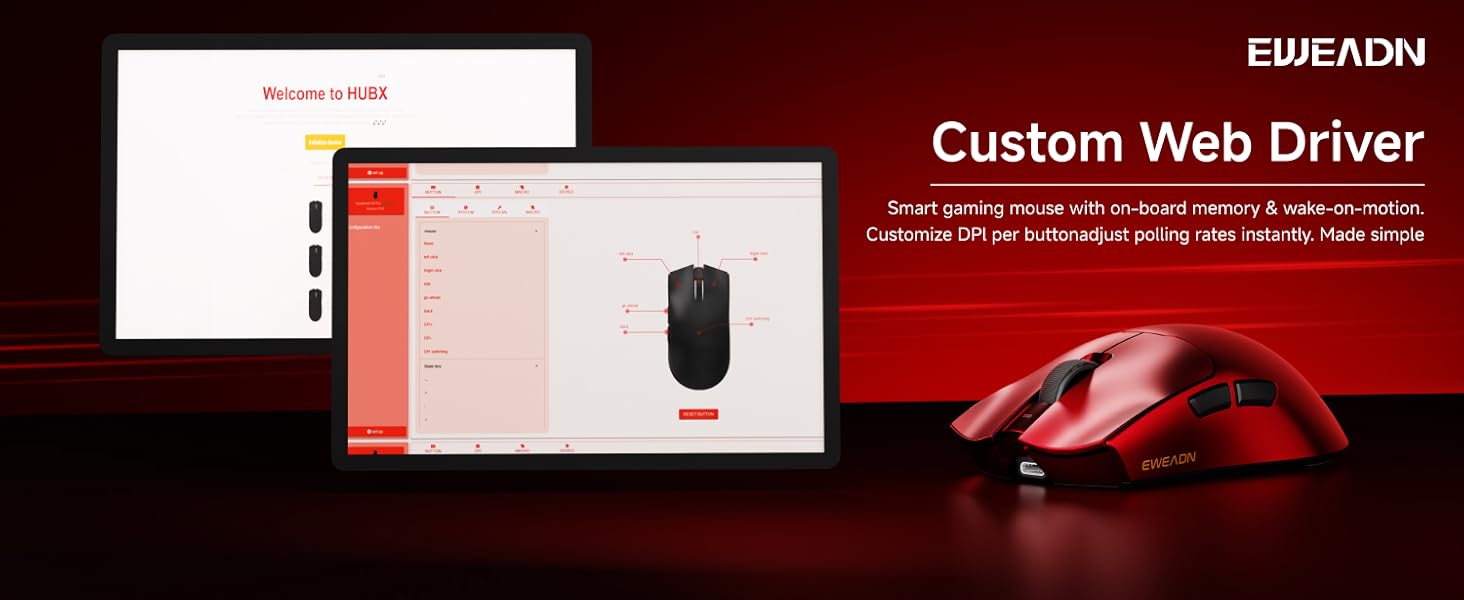
To unlock the full potential of your EWEADN S9 Pro mouse, including programmable buttons, DPI/IPS settings, lift distance, and powerful macro settings, download and install the official driver software from the EWEADN website. Refer to the included instruction manual for the specific download link or QR code.

This image shows the interface of the custom web driver, allowing users to customize DPI, button mapping, and macro settings for the EWEADN S9 Pro mouse.
4. Operating Instructions
4.1 DPI Adjustment
The S9 Pro mouse features a dedicated DPI switch on the bottom, allowing for quick adjustments to cursor sensitivity. It offers 6 customizable DPI settings: 800, 1600, 2400, 3200, 6400, and up to 26000 DPI. Press the DPI button to cycle through the settings. An indicator light will typically change color to show the current DPI level.

The mouse is shown with a large '26000' indicating its maximum DPI setting, emphasizing its customizable sensitivity levels.
4.2 Button Functions
The mouse is equipped with multiple programmable buttons:
- Left Button: Primary click function.
- Right Button: Secondary click function.
- Middle Button (Scroll Wheel): Scroll up/down, and click for middle-button function.
- Forward Button (Side): Default for navigating forward in browsers/applications.
- Backward Button (Side): Default for navigating backward in browsers/applications.
All buttons, except the DPI switch, can be reprogrammed using the official software to suit your preferences and gaming needs.
A detailed diagram of the S9 Pro mouse, labeling its left, right, middle, forward, and backward buttons, Type-C port, DPI switch, and receiver organizer, along with key dimensions.
4.3 Charging
The EWEADN S9 Pro mouse features an upgraded 500mAh rechargeable battery. To charge, connect the provided USB-C cable to the mouse and a USB-A port on your computer or a compatible power adapter. The LED indicator on the mouse will typically show charging status (e.g., red while charging, green when fully charged). A full charge provides extended battery life, up to 250 hours depending on usage and polling rate settings.
An illustration showing the mouse being charged, highlighting its upgraded 500mAh battery for extended usage.
5. Maintenance
To ensure the longevity and optimal performance of your EWEADN S9 Pro mouse, follow these maintenance guidelines:
- Cleaning: Use a soft, dry cloth to wipe the mouse surface. For stubborn dirt, slightly dampen the cloth with water or a mild cleaning solution. Avoid harsh chemicals or abrasive materials.
- Sensor Care: Keep the optical sensor on the bottom of the mouse clean and free from dust or debris to ensure accurate tracking.
- Storage: When not in use for extended periods, store the mouse in a cool, dry place away from direct sunlight and extreme temperatures.
- Skates/Feet: The mouse comes with durable PTFE skates. If they show significant wear, you can replace them with the included spare foot pads for smooth gliding.
6. Troubleshooting
If you encounter any issues with your EWEADN S9 Pro mouse, please refer to the following common troubleshooting steps:
- Mouse not responding: Ensure the mouse is charged. Check the connection mode switch (2.4G, BT, Wired) is correctly set. For wireless modes, ensure the USB receiver is securely plugged in or Bluetooth is properly paired. Try connecting the mouse via the USB-C cable.
- DPI not changing: Ensure you are pressing the correct DPI switch on the bottom of the mouse. If using custom software profiles, verify the settings within the software.
- Lag or erratic movement: Check for interference in 2.4G or Bluetooth mode (e.g., other wireless devices). Ensure the optical sensor is clean. Try connecting via wired mode to rule out wireless issues.
- Battery not charging: Ensure the USB-C cable is properly connected to both the mouse and the power source. Try a different USB port or power adapter.
- Software not detecting mouse: Ensure the mouse is connected and powered on. Reinstall the driver software. Try connecting the mouse to a different USB port.
If the issue persists after trying these steps, please refer to the official EWEADN support channels or the full instruction manual for further assistance.
7. Specifications
| Feature | Description |
|---|---|
| Model | S9 Pro |
| Sensor | PAW3395 Optical Sensor |
| DPI | Up to 26000 (Customizable: 800/1600/2400/3200/6400/26000) |
| Polling Rate | 8K Wireless, 1K Wired |
| Switches | Kailh White Blade Micro Switch (100 Million Clicks Life) |
| Connection Modes | 2.4G Wireless, Bluetooth 5.0, USB-C Wired |
| Battery | 500mAh Rechargeable (Up to 250h battery life) |
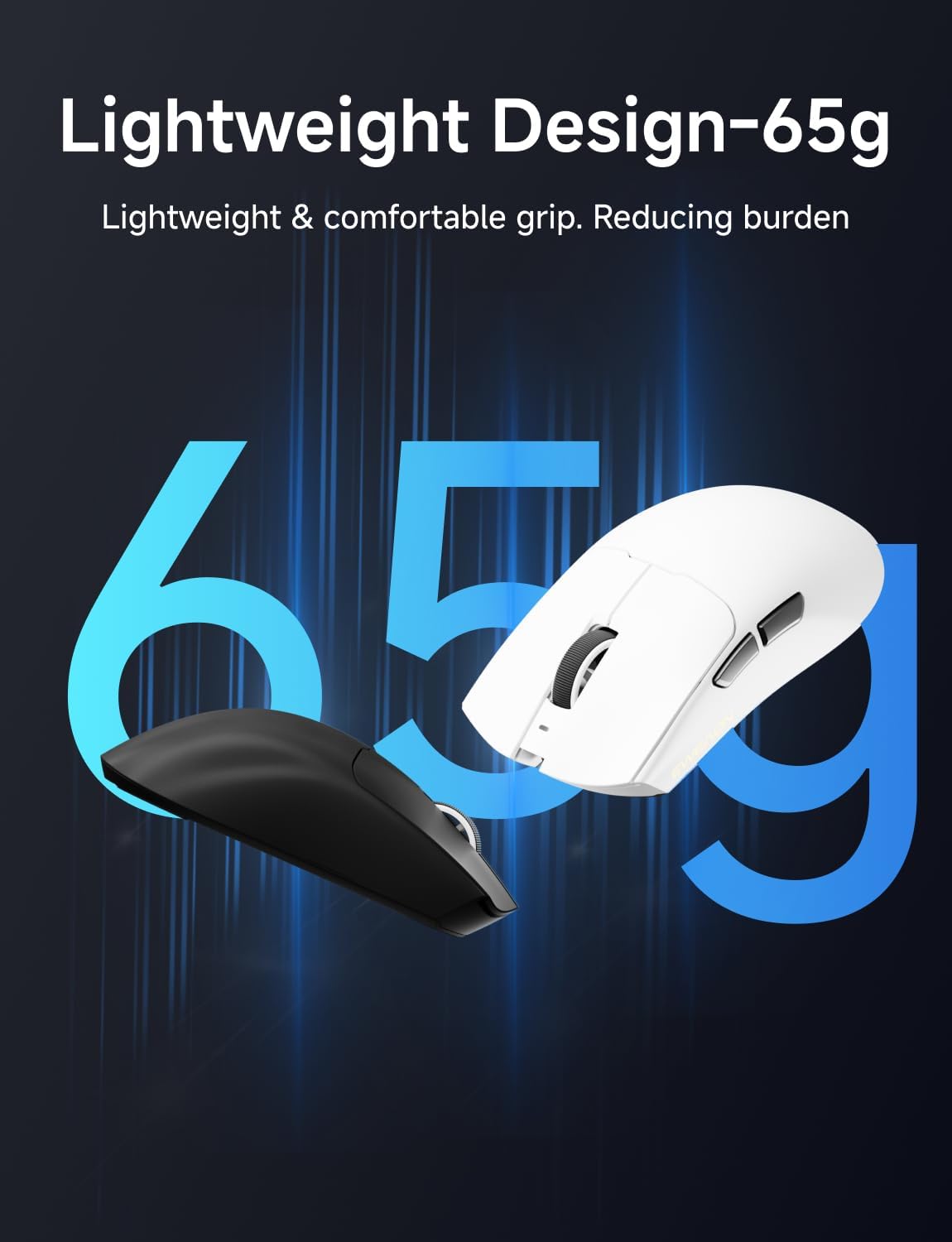
| Weight | 59g Ultra-lightweight |
| Coating | Nano Ice Skin Coating (Sweat-proof, comfortable matte feel) |
| Compatibility | Windows 7/8/10/XP/Vista, Mac OS, Linux, Android |
| Cable | 1.5M Nylon Braided Parachute Cord |

A top-down view of the EWEADN S9 Pro Wireless Gaming Mouse alongside a side profile, illustrating its contoured design and button placement.
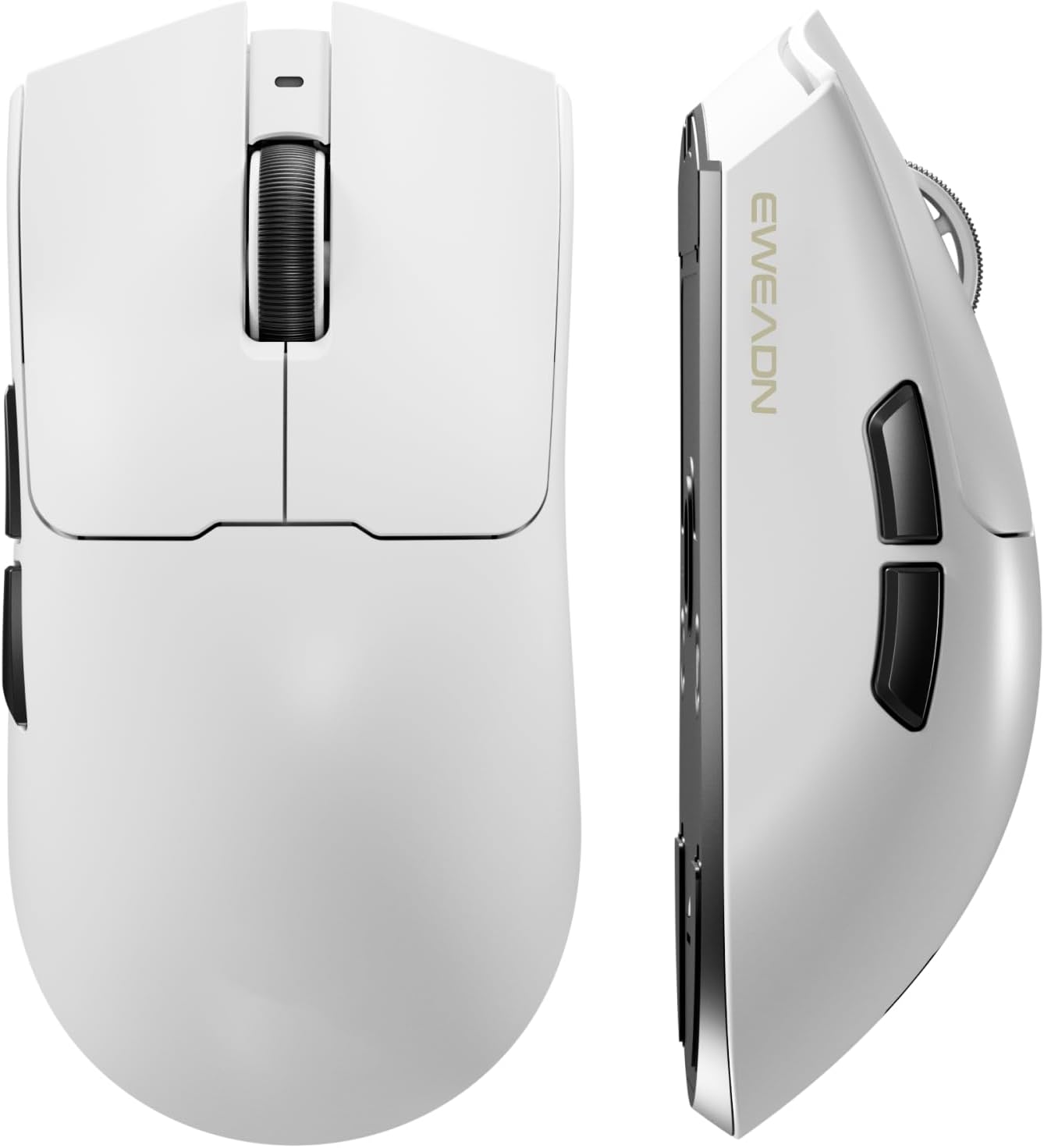
This image shows the EWEADN S9 Pro Wireless Gaming Mouse in white, highlighting its ergonomic shape and central scroll wheel.

This image displays the mouse's ergonomic design, suitable for medium to large hands, and illustrates palm, claw, and fingertip grip styles.
8. Warranty and Support
For warranty information and customer support, please refer to the warranty card included in your product packaging or visit the official EWEADN website. You can typically find detailed warranty terms, FAQs, and contact information for technical assistance there.

