
Introduction
This manual provides detailed instructions for the installation, operation, maintenance, and troubleshooting of your Roinvou Android Car Radio. This unit is specifically designed for Toyota Camry models from 2015 to 2017, offering advanced features such as Wireless CarPlay, Android Auto, GPS Navigation, and a 10.1-inch high-resolution touch screen.
Please read this manual thoroughly before installation and use to ensure proper function and to maximize your experience with the product.

Image: The Roinvou Android Car Radio seamlessly integrated into a Toyota Camry dashboard, showcasing its large display and user interface.
1. Setup and Installation
1.1 Vehicle Compatibility
This car radio stereo is compatible with Toyota Camry models from 2015, 2016, and 2017. To confirm compatibility and ensure all necessary cables are provided, please verify your car's model, production year, and provide a picture of your car's dashboard to the seller.
1.2 Package Contents
Before beginning installation, ensure all components are present:
- Toyota Camry Car Stereo Unit
- 2 x Power Cables
- 1 x Canbus Decoder
- 1 x Original USB Cable
- 1 x RCA Harness
- 1 x GPS Antenna
- 1 x AHD Backup Camera
- 1 x External Microphone
- 1 x Rear Camera Input Cable
- 2 x USB Cables
- 1 x Installation Tool

Image: A visual representation of all items included in the product package, such as the main unit, various cables, GPS antenna, and backup camera.
1.3 Wiring and Connections
Careful wiring is crucial for optimal performance. Refer to the provided wiring diagrams for correct connections.
1.3.1 Reversing Camera & Canbus Wiring
The reverse input cable must be plugged in, even if the reverse camera is not being used. Failure to do so may affect Bluetooth and WiFi signal reception.

Image: A detailed wiring diagram illustrating how to connect the reversing camera and Canbus system to the car radio unit.
1.3.2 General Connection Reference
Follow the general connection reference for power, USB, RCA, and other essential harnesses.
Image: A comprehensive diagram showing the various connection points on the car stereo and the corresponding cables for installation.
2. Operating Instructions
2.1 Wireless CarPlay & Android Auto
Sync your iPhone or Android phone wirelessly to access maps, music, and make calls. Use Siri or Google Voice Assistant for hands-free control, enhancing driving safety by keeping your focus on the road.
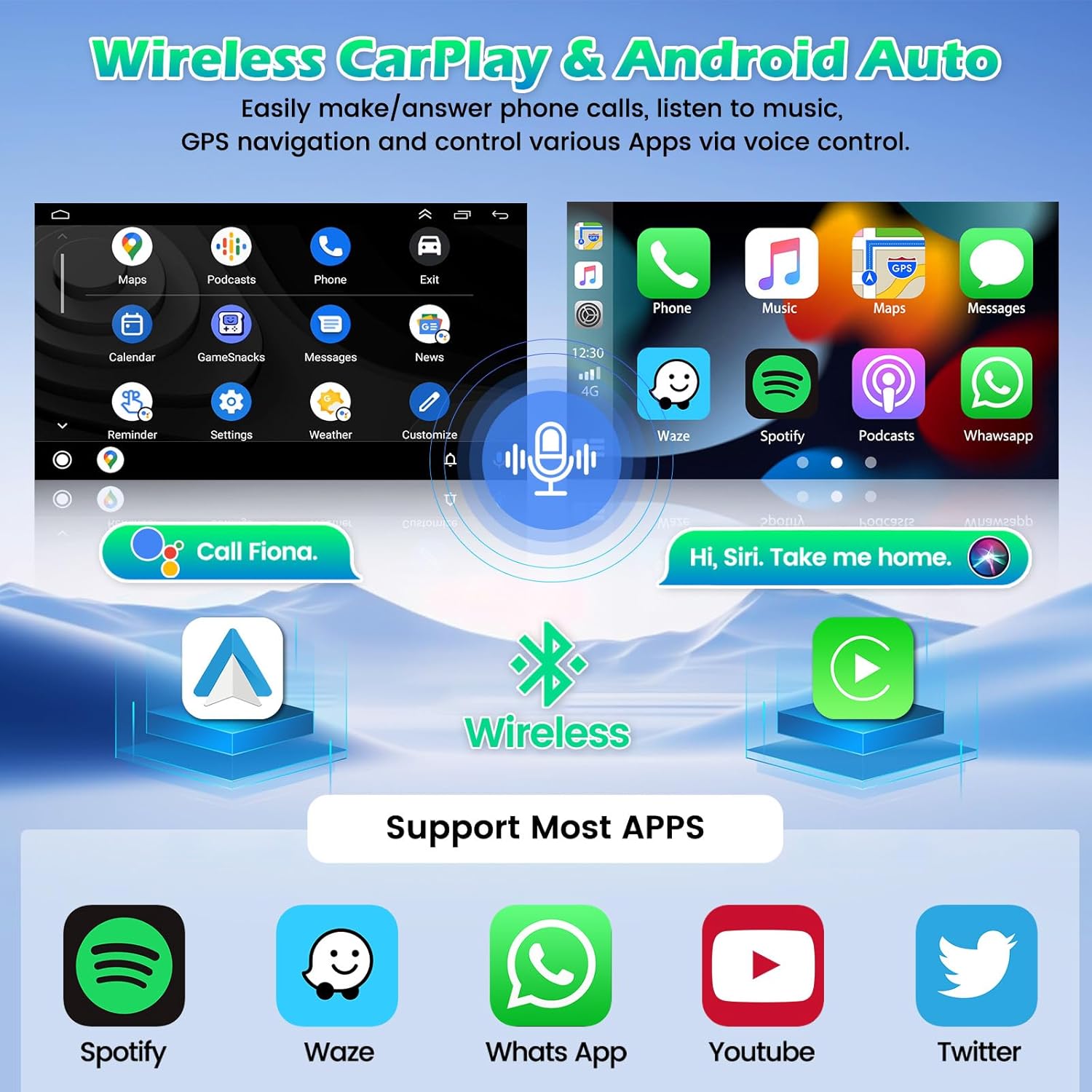
Image: The car radio display showing both Wireless CarPlay and Android Auto interfaces, highlighting app icons and voice command features.
2.2 Audio Features: 32-Band EQ & FM/RDS Radio
Enhance your audio experience with the built-in 32-band EQ. Adjust sound settings via the app or system settings to compensate for original speaker limitations and achieve better, lossless sound quality. The integrated FM/RDS radio allows you to listen to broadcasts, real-time traffic updates, and weather forecasts.

Image: A composite image displaying the Bluetooth connection screen, FM/RDS radio interface, and the detailed 32-band equalizer settings.
2.3 High-Resolution Touch Screen
The 10.1-inch capacitive touch screen features a 1280*720 ultra-high resolution, providing a clear visual experience even under direct sunlight or from various viewing angles.
2.4 Backup Camera Functionality
When shifting into reverse gear, the radio screen automatically displays the image from the AHD backup camera, aiding in safer reversing maneuvers.

Image: The AHD backup camera displaying a wide-angle view on the car radio screen, along with an image of the camera unit itself.
2.5 Steering Wheel Control (SWC)
The unit supports your car's steering wheel control buttons, allowing you to quickly switch functions without taking your hands off the wheel.
- Without CANBUS Decoder: Connect the steering wheel control wires (Key1/Key2) in the power cable to the corresponding port or wire of your original car. Then, go to 'SteeringWheel Key' manual match in settings to activate button functions.
- With CANBUS Decoder: Connect the Canbus before powering on the machine. Navigate to 'Apps - Settings - Factory Settings (8888/8317) - Vehicle - Automotive type'. Select the brand of the Canbus decoder and then the matching model and year.
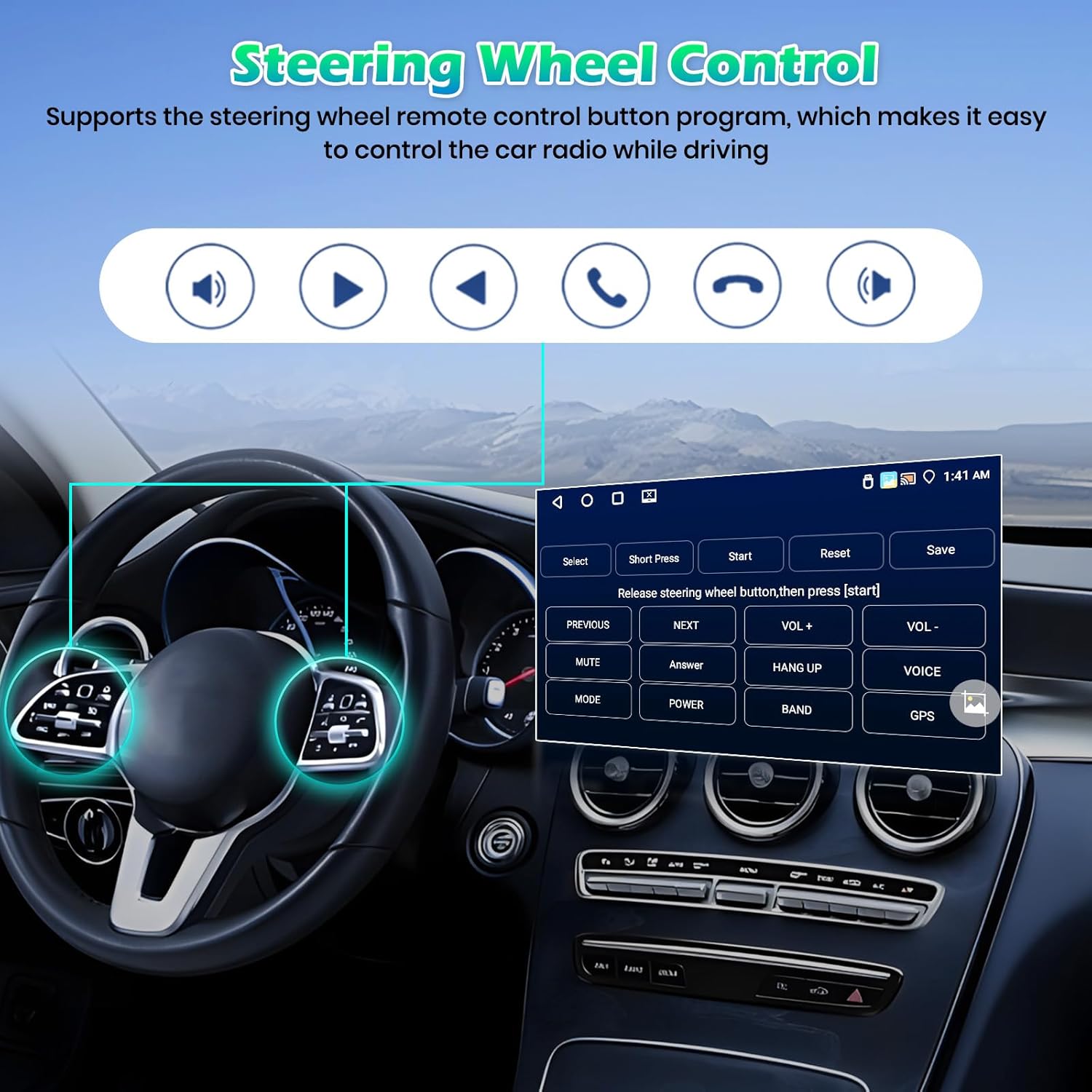
Image: The car radio display showing the steering wheel control learning interface, with various button functions like volume, track skip, and call answer.
2.6 Mirror Link Function
Synchronize your Android or iOS smartphone screen with the car radio display to enjoy videos and other content on a larger screen via WiFi.

Image: A smartphone screen mirrored onto the larger car radio display, demonstrating the Mirror Link function.
2.7 GPS Navigation & WiFi
The unit features built-in GPS navigation. You can download offline navigation maps directly from the Play Store. After connecting to WiFi, online maps can also be used effectively.

Image: The car radio displaying GPS navigation with a route, alongside various app icons indicating WiFi connectivity.
2.8 Split Screen Function
Utilize the split-screen feature to run two applications simultaneously, such as navigation and music, or radio and a news feed.

Image: The car radio screen divided into two sections, showing the radio interface on one side and a news application on the other, demonstrating the split-screen capability.
3. Maintenance
3.1 Screen Cleaning
To clean the touch screen, use a soft, lint-free cloth. For stubborn smudges, lightly dampen the cloth with water or a screen-safe cleaner. Avoid abrasive materials or harsh chemicals that could damage the screen coating.
3.2 Software Updates
Periodically check for software updates to ensure optimal performance and access to the latest features. Updates can typically be found in the system settings under 'About device' or 'System updates'. Ensure a stable internet connection during updates.
3.3 General Care
Avoid exposing the unit to extreme temperatures, direct sunlight for prolonged periods, or excessive moisture. Ensure all connections remain secure to prevent intermittent issues.
4. Troubleshooting
4.1 No Power
- Check all power cable connections to ensure they are securely plugged in.
- Verify the car's fuse box for any blown fuses related to the car stereo.
- Ensure the car battery has sufficient charge.
4.2 No Sound
- Check speaker wire connections.
- Verify volume settings on the unit and ensure it is not muted.
- Confirm that the correct audio source is selected.
4.3 GPS Not Working / Inaccurate
- Ensure the GPS antenna is properly connected and positioned with a clear view of the sky.
- Check GPS settings in the unit to ensure GPS is enabled.
- If using offline maps, ensure they are fully downloaded and updated.
4.4 CarPlay/Android Auto Connectivity Issues
- Ensure your phone's Bluetooth and Wi-Fi are enabled.
- Restart both your phone and the car radio.
- Check for any software updates for both the car radio and your smartphone.
- Ensure the reverse input cable is connected, as it can affect wireless signals.
4.5 Backup Camera Not Displaying
- Verify the backup camera's power and video signal connections.
- Ensure the reverse trigger wire is correctly connected to the car's reverse light circuit.
- Check the camera settings in the car radio's menu.
5. Specifications
| Item Weight | 4.31 pounds |
| Package Dimensions | 14.17 x 11.02 x 3.74 inches |
| Display Size | 10.1 Inches |
| Voice Command | Touchscreen |
| Screen Size | 10.1 Inches |
| Special Features | Latest Android System, Wireless CarPlay, Wireless Android Auto, Mirror Link, Bluetooth 5.0, Touchscreen, GPS Navigation, WiFi Connection, FM RDS Radio, Support Reverse Input, Split Screen, EQ Setting, SWC, 1280*720 Resolution |
| Connectivity Technology | Bluetooth, USB, Wi-Fi |
| Map Type | North America |
| Audio Output Mode | Stereo |
| Mounting Type | Dashboard Mount |
| Operating System | Android |
6. Warranty Information
The Roinvou Android Car Radio comes with a 1-Year Warranty from the date of purchase. This warranty covers manufacturing defects and malfunctions under normal use. Please retain your proof of purchase for warranty claims.
For detailed warranty terms and conditions, please refer to the documentation included with your product or contact customer support.
7. Customer Support
If you encounter any issues or have questions regarding your Roinvou Android Car Radio, please contact our customer support team. We are committed to providing assistance and ensuring your satisfaction.
7.1 Contacting Support
You can reach Roinvou customer support through the following methods:
- Amazon Chat: If purchased via Amazon, you can contact the seller 'Roinvou' directly through the Amazon messaging system.
- Email: For direct inquiries, you may email roinvouservices@163.com.

Image: A graphic detailing steps to contact customer service via Amazon and providing a direct email address.


