
1. Product Overview
The EWEADN S9 Ultra is a high-performance, tri-mode wireless gaming mouse designed for precision and comfort. Featuring the flagship PAW3950 optical sensor, it offers up to 42,000 DPI and an 8K polling rate for ultra-smooth and responsive gameplay. Its lightweight 65g design and ergonomic shape ensure comfortable use during extended gaming sessions. The mouse is equipped with durable Kailh micro switches and a long-lasting 500mAh battery.

Figure 1: EWEADN S9 Ultra Gaming Mouse (Red)
Key features include:
- Advanced PAW3950 Optical Sensor: Provides up to 42,000 DPI and 750 IPS tracking for exceptional accuracy.
- Dual 8K Polling Rate: Supports 8K wired and 8K wireless polling for minimal latency.
- Tri-Mode Connectivity: Seamlessly switch between 2.4G wireless, Bluetooth 5.0, and USB-C wired modes.
- Kailh Micro Switches: Rated for 100 million clicks, offering crisp and reliable performance.
- Ultra-Lightweight Design: Weighs only 65 grams, reducing hand fatigue.
- Long-Lasting Battery: Integrated 500mAh rechargeable battery for extended use.
- Programmable Buttons: Five customizable buttons for personalized control.
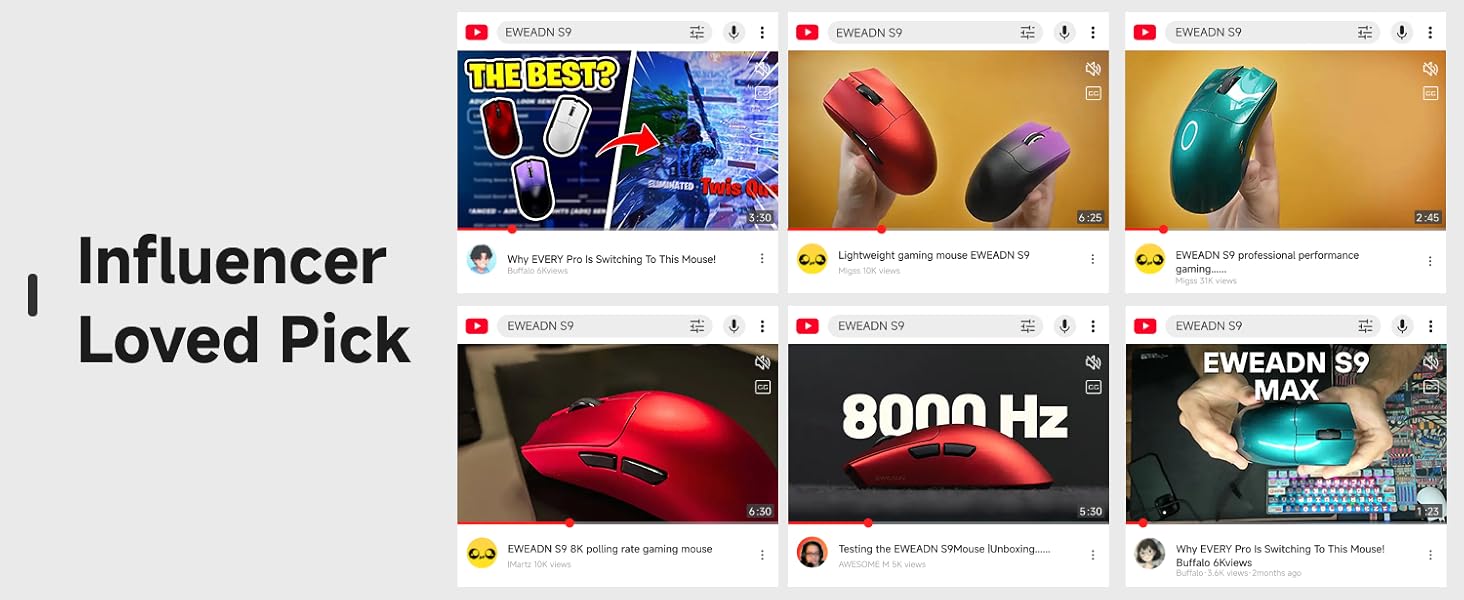
Figure 2: EWEADN S9 Ultra Feature Highlights
2. Setup Guide
2.1 What's in the Box
Before you begin, please ensure all components are present:
- EWEADN S9 Ultra Gaming Mouse
- Instruction Manual
- 8K Custom Receiver (USB Dongle)
- 1.5M Parachute Cord (USB-C to USB-A cable)
- PE Bag Foot Pad
- Anti-slip Protection Sticker Set

Figure 3: Package Contents
2.2 Initial Charging
For optimal performance, fully charge the mouse before first use. Connect the supplied USB-C parachute cord to the mouse's front port and the other end to a USB-A port on your computer or a USB wall adapter. The LED indicator will show charging status.

Figure 4: Charging the Mouse
2.3 Connecting the Mouse
The S9 Ultra offers three connection modes:
- 2.4G Wireless Mode:
- Locate the 8K Custom Receiver (USB dongle) in the package.
- Plug the USB receiver into an available USB port on your computer.
- On the bottom of the mouse, slide the switch to the '2.4G' position. The mouse will automatically connect.
- Bluetooth 5.0 Mode:
- On the bottom of the mouse, slide the switch to the 'BT' position.
- On your computer, open Bluetooth settings and search for new devices.
- Select 'EWEADN S9 Ultra' from the list of available devices to pair.
- USB-C Wired Mode:
- Connect the supplied USB-C parachute cord to the mouse's front port.
- Connect the USB-A end of the cable to your computer's USB port.
- On the bottom of the mouse, slide the switch to the 'OFF' position (or 'Wired' if explicitly labeled). The mouse will function as a wired device and charge simultaneously.
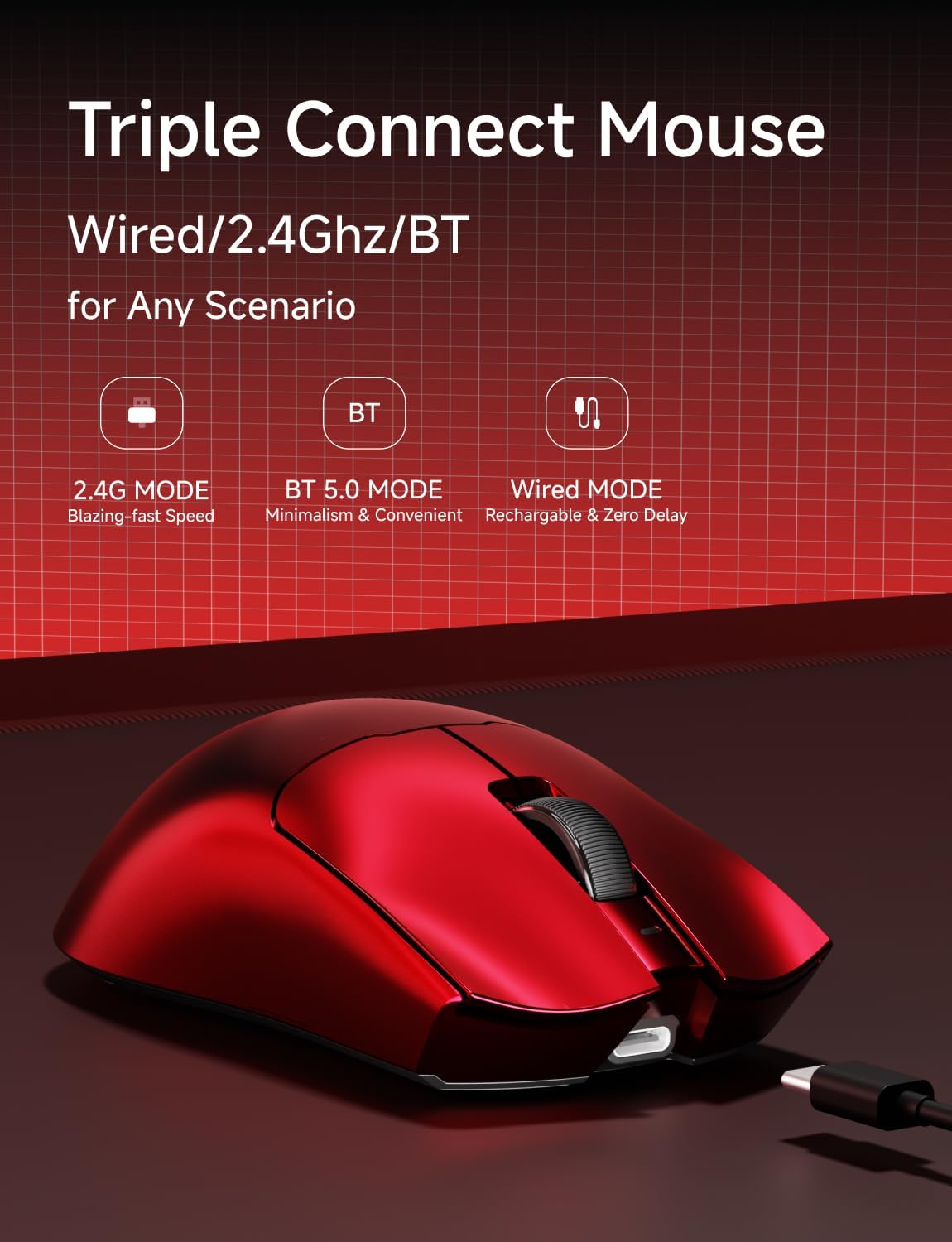
Figure 5: Tri-Mode Connectivity
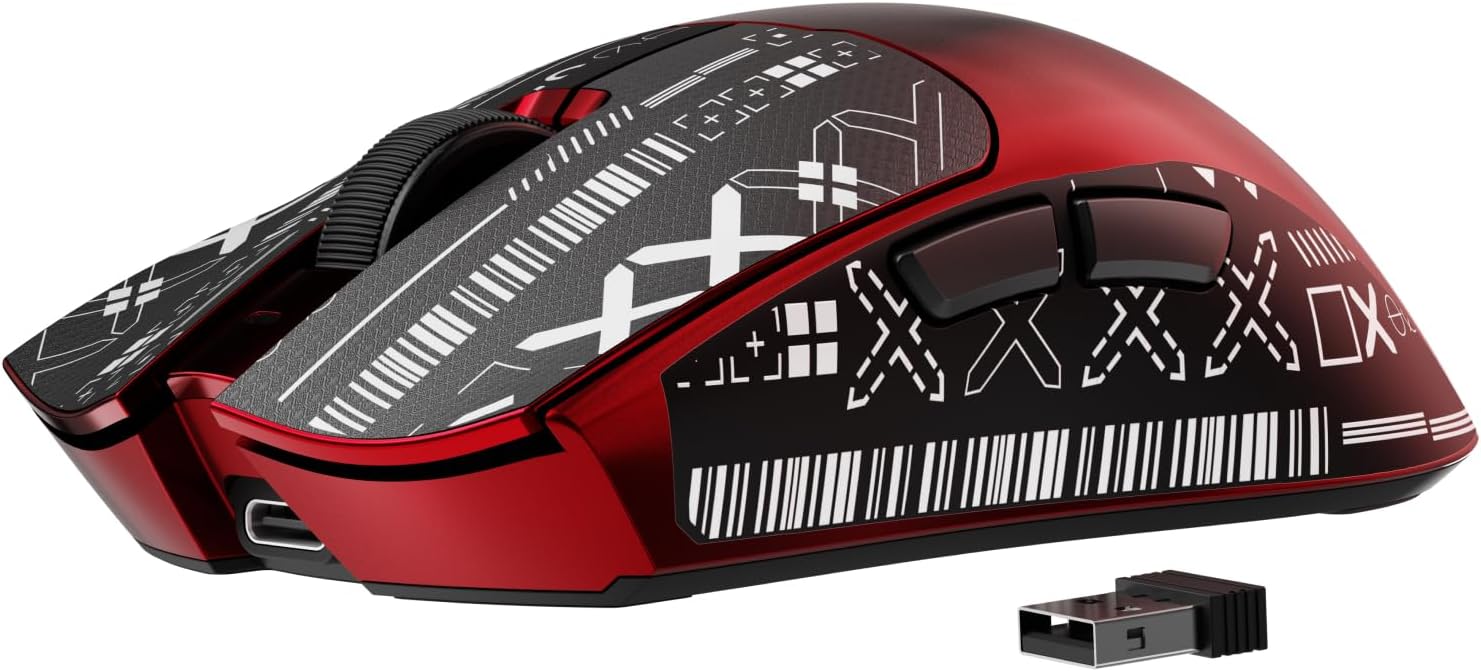
Figure 6: Mouse with USB Receiver
3. Operating Instructions
3.1 DPI Adjustment
The S9 Ultra features a DPI switch button on the bottom of the mouse, allowing you to cycle through 6 customizable DPI settings. The default settings are typically 800-1600-2400-3200-6400-42000 DPI. Each setting may be indicated by a specific LED color or flash pattern (refer to the software for detailed indicators).

Figure 7: 42000 DPI Capability
3.2 Programmable Buttons and Software
The S9 Ultra has 5 programmable buttons (Left Click, Right Click, Middle Click/Scroll Wheel, Forward, Backward). To customize button functions, DPI/IPS settings, lift-off distance, button mapping, and macro settings, download and install the official EWEADN software or use the custom web driver.
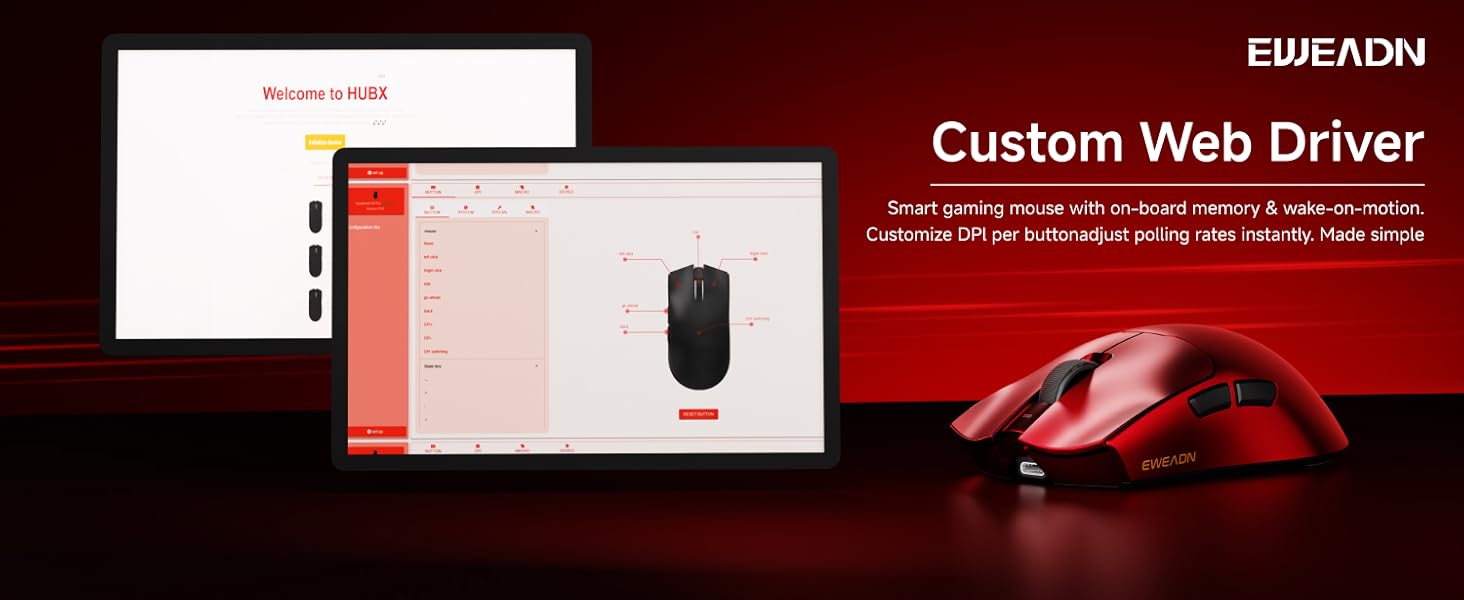
Figure 8: Custom Web Driver Interface
3.3 Ergonomics and Grip Styles
The S9 Ultra is designed for right-handed users with medium to large hands, weighing only 65g. Its ergonomic shape is suitable for various grip styles, including palm, claw, and fingertip grips, minimizing fatigue during prolonged use.

Figure 9: Supported Grip Styles
4. Maintenance and Care
To ensure the longevity and optimal performance of your EWEADN S9 Ultra mouse, follow these care guidelines:
- Cleaning: Use a soft, dry cloth to wipe the mouse surface. For stubborn dirt, slightly dampen the cloth with water or a mild, non-abrasive cleaner. Avoid harsh chemicals or abrasive materials.
- Sensor Maintenance: Keep the optical sensor area on the bottom of the mouse clean and free of dust or debris. Use a cotton swab or compressed air if necessary.
- Battery Care: Avoid fully discharging the battery frequently. For long-term storage, charge the mouse to about 50% and store it in a cool, dry place.
- Cable Care: The parachute cord is designed to be durable, but avoid sharp bends or excessive pulling to prevent damage.
- Surface Protection: The mouse features a nano ice skin coating which is sweat-proof and easy to clean. If using the anti-slip protection stickers, ensure the surface is clean before application for best adhesion.

Figure 10: Mouse Detail Design
5. Troubleshooting
5.1 Mouse Not Responding
- Check Battery: Ensure the mouse is charged. Connect it via USB-C cable to charge.
- Check Connection Mode: Verify the switch on the bottom of the mouse is set to the correct mode (2.4G, BT, or OFF/Wired) corresponding to your connection method.
- 2.4G Wireless: Ensure the USB receiver is securely plugged into a working USB port. Try a different USB port.
- Bluetooth: Ensure Bluetooth is enabled on your computer and the mouse is paired. Try unpairing and re-pairing the mouse.
- Wired: Ensure the USB-C cable is securely connected to both the mouse and the computer.
- Restart: Restart your computer.
5.2 Cursor Movement is Erratic or Laggy
- Clean Sensor: Check the optical sensor on the bottom of the mouse for any dust or debris and clean it.
- Mouse Pad/Surface: Use the mouse on a clean, uniform, non-reflective surface or a high-quality mouse pad.
- Interference (Wireless): Move the mouse closer to the USB receiver (for 2.4G) or your computer (for Bluetooth). Avoid placing the receiver near other wireless devices or large metal objects.
- Polling Rate: While 8K polling is advanced, some systems or games might perform better with lower polling rates (e.g., 1K or 2K). Adjust this in the mouse software.
- DPI Setting: Ensure the DPI setting is appropriate for your usage. Very high DPI can sometimes feel erratic if not accustomed to it.
5.3 Buttons Not Functioning
- Software Conflict: If you have other mouse software installed, it might conflict. Try uninstalling other mouse drivers/software.
- Reset Settings: Use the EWEADN software to reset button assignments to default.
6. Specifications
Detailed specifications for the EWEADN S9 Ultra Lightweight Wireless Gaming Mouse:
| Feature | Specification |
|---|---|
| Model | S9 Ultra |
| Sensor | PAW3950 Optical Sensor |
| DPI (Dots Per Inch) | Up to 42,000 (Customizable) |
| IPS (Inches Per Second) | 750 IPS |
| Polling Rate | 8K Hz (Wired & Wireless) |
| Micro Switch | Kailh White Blade Micro Switch (100 Million Clicks) |
| Connectivity | 2.4Ghz Wireless, Bluetooth 5.0, USB-C Wired |
| Battery Capacity | 500mAh |
| Weight | 65g (approx. 2.3 oz) |
| Dimensions | 5 x 2.55 x 1.60 inches (approx. 127 x 64.77 x 42.16 mm) |
| Buttons | 5 Programmable Buttons |
| Compatibility | Windows 7/8/10/XP/Vista, Mac OS, Linux, Android |

Figure 11: PAW3950 Sensor Capabilities

Figure 12: Mouse Dimensions and Components
7. Warranty and Support
EWEADN is committed to providing high-quality products and excellent customer service. Your EWEADN S9 Ultra mouse comes with a manufacturer's warranty. For specific warranty terms and conditions, please refer to the warranty card included in your product packaging or visit the official EWEADN website.
If you encounter any issues, have questions, or require technical assistance, please do not hesitate to contact EWEADN customer support. We are always available to assist you.
Contact Information: Please refer to the official EWEADN website or the contact details provided in your product packaging for the most up-to-date support information.


