
Element Element 2023
Element 43" Frameless 4K UHD HDR XUMO TV User Manual
Model: Element 2023
1. Introduction
This manual provides essential information for setting up, operating, and maintaining your Element 43-inch Frameless 4K UHD HDR XUMO TV. Please read it thoroughly before using your television to ensure proper functionality and safety.
The Element XUMO TV offers a breathtaking viewing experience with its 4K Ultra HD resolution, delivering clear and detailed images. Enhanced color and contrast are provided by Dolby Vision and HDR technology, ensuring an immersive experience even in dark scenes. Dolby Audio contributes to superior sound quality for movies and games. A 120Hz effective refresh rate ensures smooth motion during fast-paced content.

Image 1.1: Front view of the Element 43" XUMO TV.
2. What's in the Box
Please check the contents of your package to ensure all items are present:
- 1 Element Xumo TV 43"
- 1 Xumo TV remote control (batteries included)
- 1 Quick Start Guide
- 1 TV stand + hardware
3. Setup
3.1 Unpacking
- Carefully remove the TV from its packaging. It is recommended to have two people for this step due to the size and weight of the television.
- Place the TV screen-down on a soft, flat surface to prevent scratches.
- Remove all protective films and packaging materials.
3.2 Attaching the Stand
To attach the TV stand:
- Identify the left and right stand legs.
- Align each stand leg with the corresponding screw holes on the bottom of the TV.
- Secure the stand legs using the provided hardware (screws). Do not overtighten.
- Carefully lift the TV to its upright position on a stable, level surface.
3.3 Connecting Peripherals
Connect your external devices (e.g., cable box, gaming console, Blu-ray player) to the appropriate ports on the back of the TV. Refer to the Quick Start Guide for port locations.
3.4 Initial Power On
- Plug the power cord into the TV and then into a wall outlet.
- Press the Power button on the remote control or on the TV itself.
- Follow the on-screen instructions to complete the initial setup, including network connection and channel scanning.
4. Operating Instructions
4.1 Remote Control Functions
The included XUMO TV remote control allows you to navigate the TV's features. It includes an advanced voice remote function for easy content search.
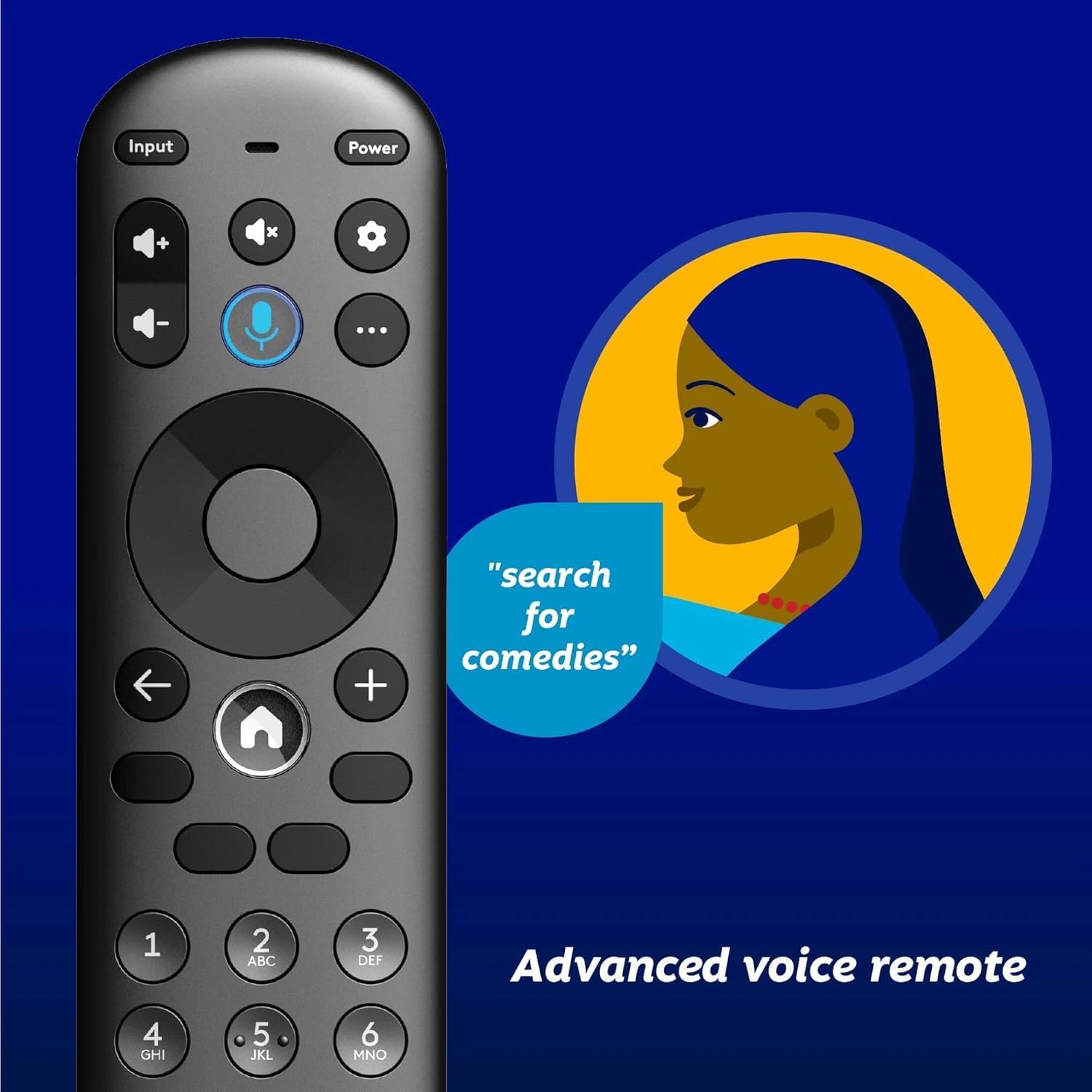
Image 4.1: Element XUMO TV advanced voice remote control.
- Power: Turns the TV on or off.
- Input: Selects the input source (HDMI, AV, etc.).
- Voice Button: Activates voice commands for searching content or controlling the TV.
- Navigation Pad: Used to move through menus and select options.
- Home Button: Returns to the XUMO TV home screen.
- Volume +/-: Adjusts the volume level.
- Channel +/-: Changes TV channels.
4.2 Smart TV Features (XUMO)
Your Element TV features a built-in XUMO TV experience, providing access to over 250 pre-loaded apps and streaming services.

Image 4.2: XUMO TV smart interface with streaming applications.
- Streaming Apps: Access thousands of movies, TV shows, and music from platforms like Netflix, YouTube, Disney+, Prime Video, Peacock, and more.
- Live Channels: Explore over 750 free live channels, including news, sports, and kids' programming, from Xumo Play, Tubi, Pluto TV, and others.
- Personalized Content: The XUMO interface is designed to help you stream easily, bringing together content in one simple view.
4.3 Connectivity
- Wi-Fi: Connect to your home wireless network for internet access and streaming.
- Bluetooth: Easily pair your TV with compatible Bluetooth devices such as speakers, headphones, or game controllers.
- Apple AirPlay & Home: Mirror your smartphone, iPad, or Mac screen to the TV, stream media, and control your TV directly from Apple devices.
5. Maintenance
5.1 Cleaning the Screen
- Turn off the TV and unplug it from the power outlet.
- Gently wipe the screen with a soft, dry, lint-free cloth.
- For stubborn marks, lightly dampen the cloth with water or a specialized screen cleaner (do not spray directly onto the screen).
- Avoid using harsh chemicals, abrasives, or alcohol-based cleaners.
5.2 General Care
- Keep the TV away from direct sunlight, heat sources, and excessive dust.
- Ensure proper ventilation around the TV to prevent overheating.
- Do not place heavy objects on top of the TV.
6. Troubleshooting
If you encounter issues with your TV, refer to the following common problems and solutions:
- No Power:
- Ensure the power cord is securely plugged into both the TV and a working electrical outlet.
- Check if the outlet is functional by plugging in another device.
- Try pressing the power button on the TV itself, not just the remote.
- No Picture, But Has Sound:
- Verify the correct input source is selected (e.g., HDMI 1, AV).
- Check all cable connections between the TV and external devices.
- Restart the TV and any connected devices.
- No Sound, But Has Picture:
- Check the volume level and ensure the TV is not muted.
- If using external speakers, ensure they are properly connected and powered on.
- Check audio output settings in the TV menu.
- Remote Control Not Working:
- Replace the batteries in the remote control.
- Ensure there are no obstructions between the remote and the TV's IR sensor.
- Re-pair the remote if it's a Bluetooth remote (refer to the Quick Start Guide for pairing instructions).
- Network Connection Issues:
- Restart your Wi-Fi router and modem.
- Check the Wi-Fi settings on the TV to ensure it's connected to the correct network.
- If possible, try connecting the TV to the internet via an Ethernet cable.
7. Specifications
Key technical specifications for the Element 43" Frameless 4K UHD HDR XUMO TV:
| Feature | Description |
|---|---|
| Brand Name | Element |
| Model Name | Element 2023 |
| Screen Size | 43 Inches (110 cm) |
| Display Technology | LED |
| Resolution | 4K Ultra HD |
| Special Features | 4K High Definition, HDR (High Dynamic Range), Vibrant Colors, 60 Hz, Dolby Vision, HDR10+ |
| Effective Refresh Rate | 120Hz |
| Audio Technology | Dolby Audio |
| Supported Internet Services | Netflix, Prime Video, Max, Disney Plus, YouTube TV, Paramount+, Apple TV+, Crunchyroll, Xumo Play, Tubi, Pluto TV |
| Connectivity Technology | Wired, Wireless (Wi-Fi, Bluetooth, Apple AirPlay) |
| Aspect Ratio | 16:9 |
| Item Weight | 22 pounds |
| Product Dimensions | 3.3 x 37 x 225 inches |
7.1 Picture Quality Features

Image 7.1: Dolby Vision technology enhances highlights and darks for superior contrast.

Image 7.2: 120Hz Effective Refresh Rate for smooth motion.

Image 7.3: 4K resolution delivers vivid colors and remarkable detail.
8. Warranty and Support
This product is an Amazon Renewed item. Amazon Renewed products are backed by the Amazon Renewed Guarantee. This means your purchase is eligible for a replacement or refund within 90 days of receipt if it does not work as expected.
For specific warranty details or support inquiries, please refer to the documentation provided with your Amazon Renewed purchase or visit the Amazon Renewed support page.
Related documentsElement 2023


Ask a question about this manual
Ask about setup, troubleshooting, compatibility, parts, safety, or missing instructions. Manuals+ will review the question and use this page’s manual context to help answer it.