
FREEWOLF T96
FREEWOLF T96 Wireless Gaming Keyboard and Mouse Combo User Manual
Model: T96
Introduction
This user manual provides detailed instructions for the FREEWOLF T96 Smart Display Wireless Gaming Keyboard and Mouse Combo. This combo is designed for a seamless and responsive experience across various devices and applications, from gaming to office work.
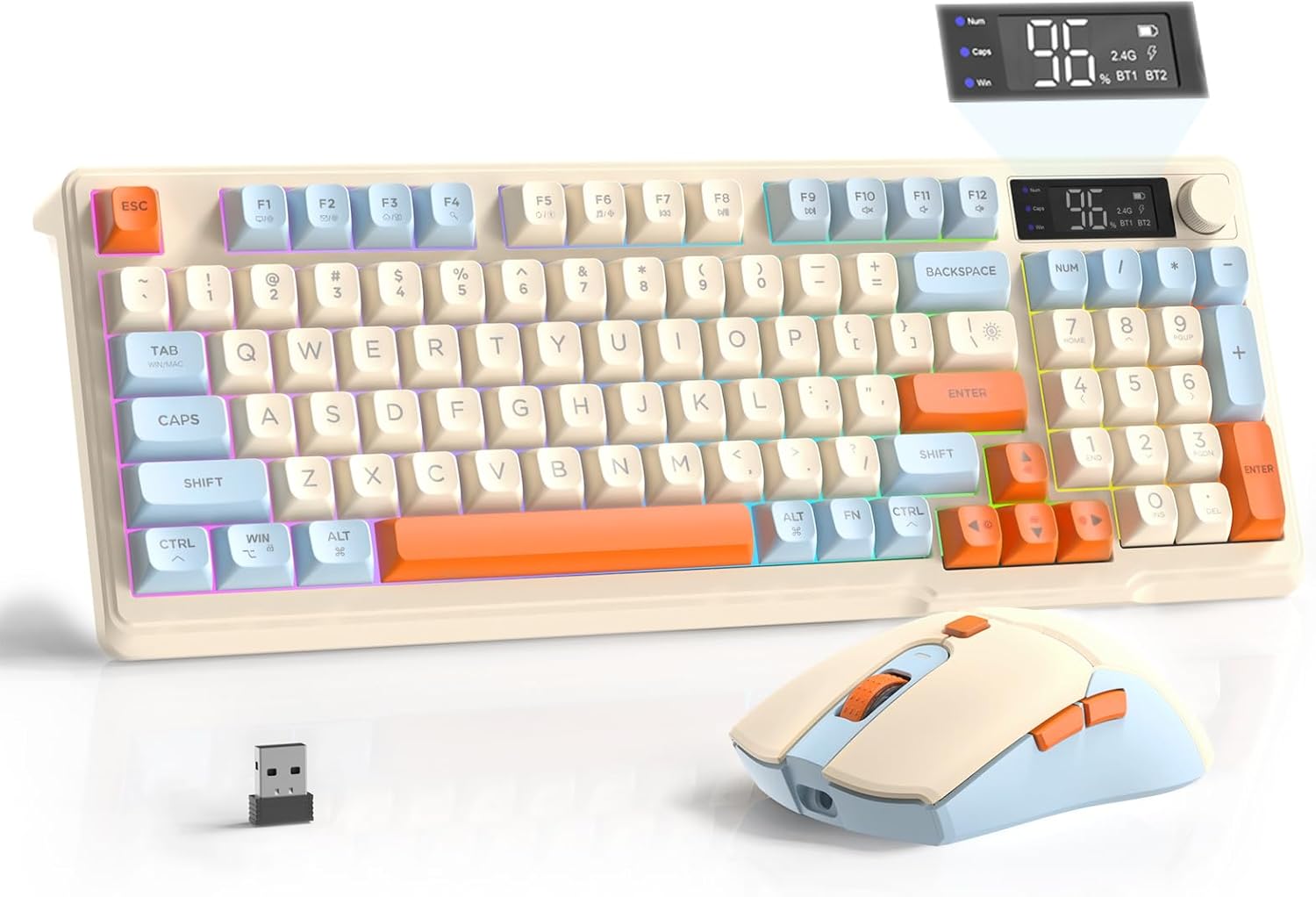
Image: The FREEWOLF T96 Wireless Gaming Keyboard and Mouse Combo, featuring the keyboard, mouse, and USB receiver.
Package Contents
Ensure all items are present in the package:
- 1 x T96 Membrane Keyboard
- 1 x T96 Wireless Mouse
- 1 x USB-C Cable
- 1 x USB Receiver (stored in mouse bottom slot)
- 1 x User Manual
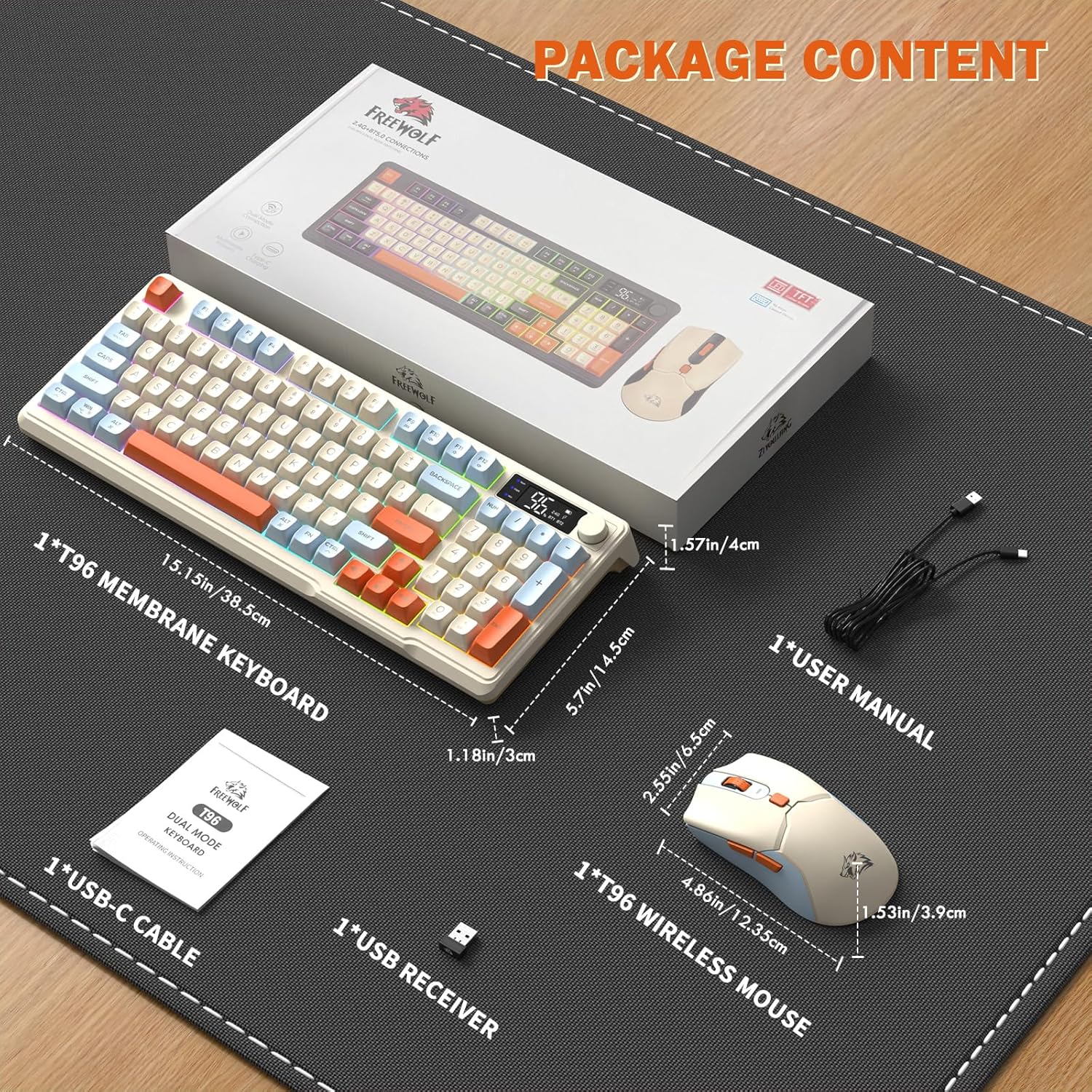
Image: A visual representation of the package contents, including the keyboard, mouse, USB-C cable, USB receiver, and user manual.
Setup
Connectivity Options
The T96 combo supports dual-mode wireless connectivity:
- 2.4G Wireless Connection: Utilizes the included USB receiver for a stable, plug-and-play connection.
- Bluetooth Connections (BT1/BT2): Allows pairing with up to two Bluetooth-enabled devices, enabling seamless switching.
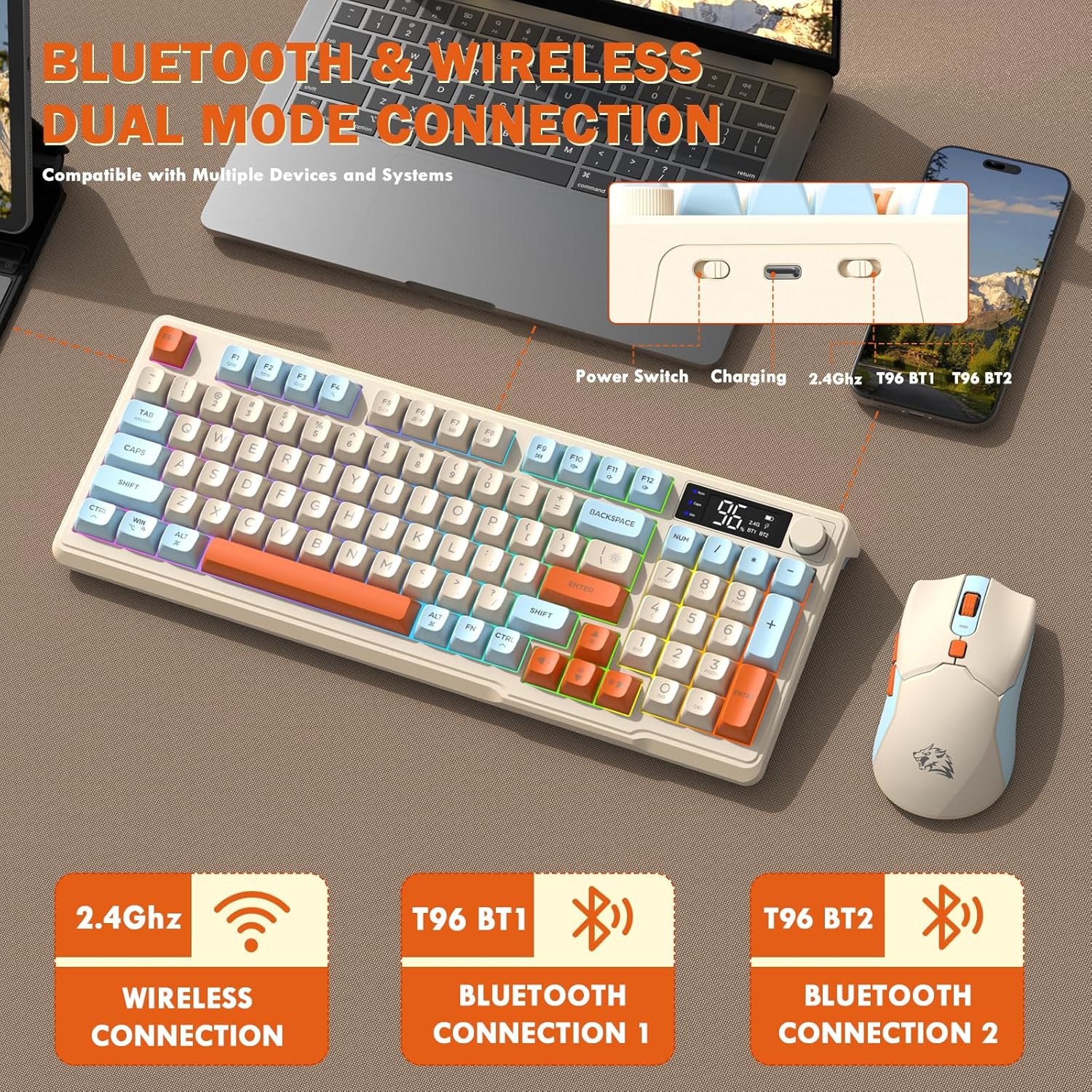
Image: Diagram illustrating the dual-mode connection options (2.4GHz, Bluetooth 1, Bluetooth 2) and the location of the power switch, charging port, and connection indicators on the keyboard.
Initial Setup Steps
- Charge Devices: Before first use, fully charge both the keyboard and mouse using the provided USB-C cable. The keyboard has a 2000mAh battery, and the mouse has a 500mAh battery. The smart display on the keyboard will show charging progress.
- Locate USB Receiver: The USB receiver for 2.4G wireless connection is stored in a slot on the bottom of the mouse. Remove it for use.
- Power On: Turn on the keyboard and mouse using their respective power switches.
- Connect via 2.4G Wireless:
- Insert the USB receiver into an available USB port on your computer.
- Ensure the keyboard and mouse are set to 2.4G mode (indicated on the keyboard's smart display). They should connect automatically.
- Connect via Bluetooth:
- Switch the keyboard and mouse to BT1 or BT2 mode.
- On your device (PC, laptop, tablet, smartphone), open Bluetooth settings.
- Search for "T96 Keyboard" and "T96 Mouse" in the list of available devices and pair them.
- The smart display will indicate the active Bluetooth connection (BT1 or BT2).
Operating Instructions
Keyboard Operation
The T96 keyboard features a 94-key compact layout with various functions to enhance your experience.
Smart Display Functions
The intelligent LED display provides real-time information:
- Battery Status: Shows remaining battery percentage.
- Connection Mode: Indicates active connection (2.4G, BT1, BT2).
- Charging Progress: Displays charging status when connected to power.
- Caps Lock/Num Lock/Win Lock Indicators: Shows status of these keys.
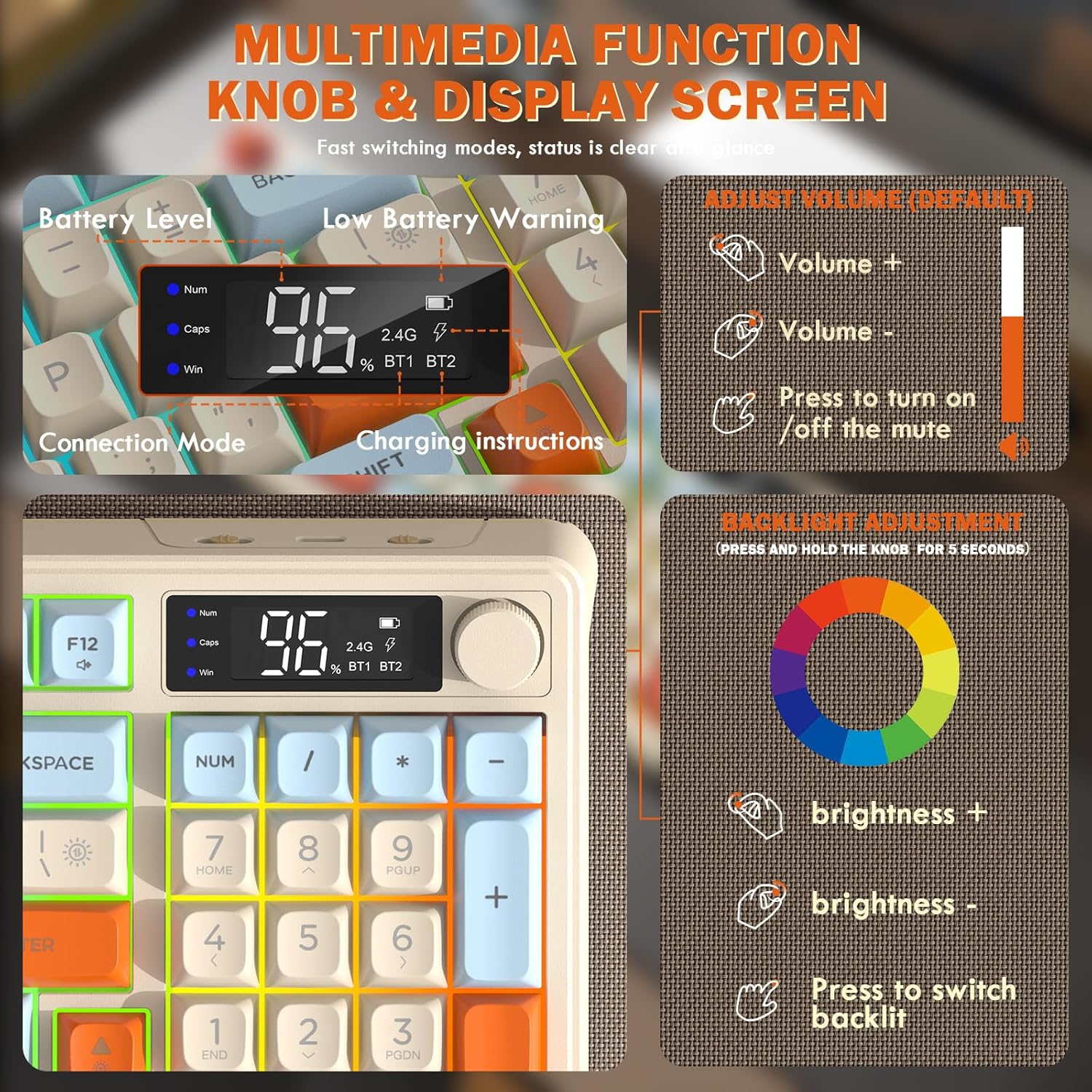
Image: Close-up of the keyboard's smart display showing battery level, connection mode, and charging instructions. Also details the multimedia knob's functions for volume and backlight control.
Multimedia Control Knob
Located on the top right of the keyboard, this knob offers quick control:
- Rotate: Adjusts system volume (clockwise for volume up, counter-clockwise for volume down).
- Press: Toggles mute on/off.
- Press and Hold (5 seconds): Activates backlight adjustment mode. Rotate to change brightness, press to switch light effects.
Multimedia Hotkeys (FN Combinations)
The keyboard includes 12 dedicated multimedia hotkeys accessible via the FN key:
- FN + F1-F12: Access various multimedia and system functions (e.g., media playback, volume, browser, email). Refer to keycap legends for specific functions.
Backlight Control
The keyboard features vibrant rainbow LED backlighting. Control it using the following combinations:
- FN + Up Arrow: Increase backlight brightness.
- FN + Down Arrow: Decrease backlight brightness.
- FN + Right Arrow: Increase backlight speed.
- FN + Left Arrow: Decrease backlight speed.
- FN + \|: Switch between different lighting modes (e.g., always on, breathing, off).
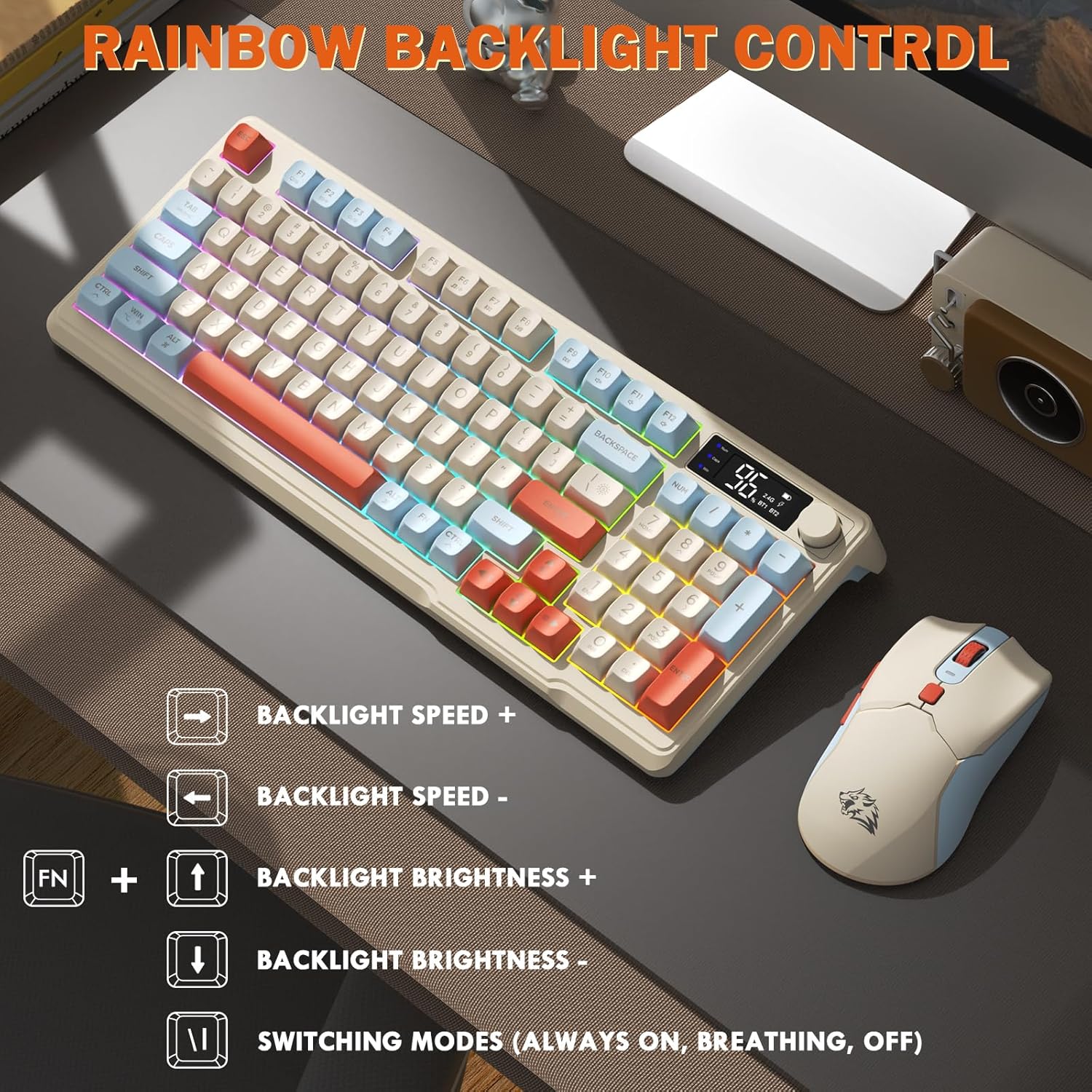
Image: Visual guide for controlling the rainbow LED backlight, showing key combinations for brightness, speed, and mode switching.
Anti-Ghosting
The keyboard supports 26-key rollover anti-ghosting technology, ensuring accurate registration of multiple simultaneous key presses, crucial for gaming.
Mouse Operation
The T96 gaming mouse is designed for precision and comfort.
DPI Adjustment
Adjust the mouse sensitivity (DPI) to suit your preference:
- Press the DPI Button (located behind the scroll wheel) to cycle through available DPI settings: 800 / 1600 / 2400 / 4000 DPI.
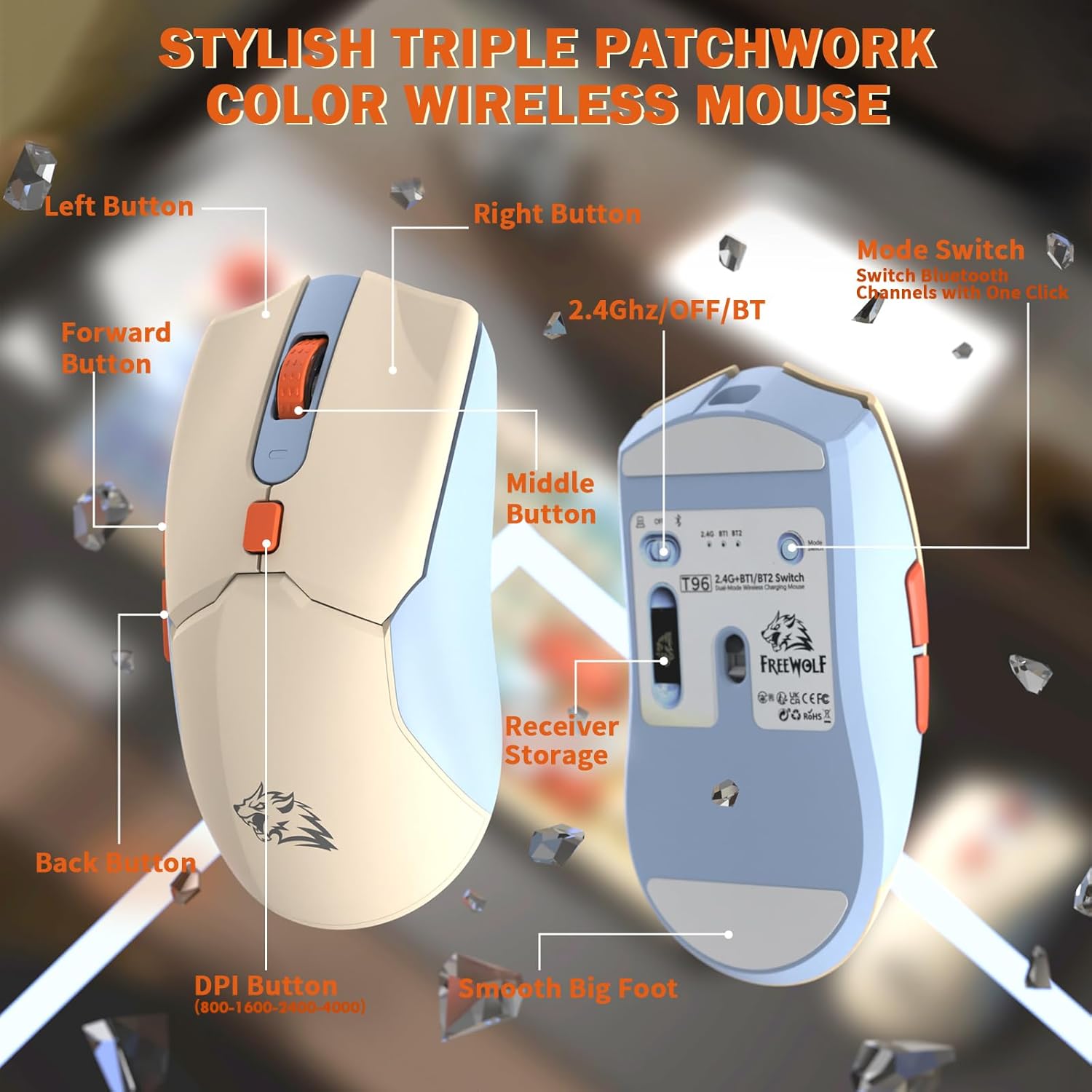
Image: Detailed view of the T96 wireless mouse, highlighting its buttons (Left, Right, Middle, Forward, Back, DPI) and the receiver storage compartment on the bottom.
Programmable Buttons
The mouse features six programmable buttons. Refer to specific software (if applicable, not mentioned in data) or operating system settings for customization options.
Polling Rates
The mouse operates at different polling rates depending on the connection mode:
- Bluetooth (BT): 115Hz
- 2.4G Wireless: 125Hz
Maintenance
Cleaning
- Use a soft, dry cloth to clean the surfaces of the keyboard and mouse.
- For stubborn dirt, slightly dampen the cloth with water or a mild, non-abrasive cleaner.
- Avoid using harsh chemicals, solvents, or abrasive materials, as these can damage the finish.
- Do not immerse the devices in water or any liquid.
Battery Care
To maximize battery life and performance:
- Recharge the devices when the low battery indicator appears on the keyboard's smart display.
- Avoid completely draining the battery frequently.
- Store the devices in a cool, dry place when not in use for extended periods.
- The devices feature smart power-saving modes: the keyboard enters sleep mode after 3 minutes of inactivity, and the mouse after 2 minutes. They wake instantly upon touch.

Image: Illustration showing the 2000mAh battery capacity of the keyboard and 500mAh battery capacity of the mouse, emphasizing long-lasting power.
Troubleshooting
If you encounter issues with your T96 combo, refer to the following common solutions:
| Problem | Possible Cause | Solution |
|---|---|---|
| Keyboard/Mouse not responding | Low battery; Incorrect connection mode; USB receiver not connected (2.4G); Bluetooth not paired. |
|
| Lag or intermittent connection | Interference; Distance from receiver/device; Low battery. |
|
| Backlight not working or dim | Backlight turned off; Brightness set too low; Low battery. |
|
| Mouse DPI not changing | DPI button not pressed correctly. |
|
Specifications
| Feature | Detail |
|---|---|
| Brand | FREEWOLF |
| Model | T96 |
| Connectivity Technology | 2.4Ghz Wireless, Bluetooth (BT1, BT2) |
| Keyboard Type | Membrane, 94-Key Compact Layout |
| Keycaps | PBT Triple-Tone Spherical Keycaps |
| Backlight | Rainbow LED Backlight |
| Anti-Ghosting | 26-Key Rollover |
| Keyboard Battery Capacity | 2000mAh |
| Mouse DPI | 800 / 1600 / 2400 / 4000 DPI (Adjustable) |
| Mouse Polling Rate (BT) | 115Hz |
| Mouse Polling Rate (2.4G) | 125Hz |
| Mouse Battery Capacity | 500mAh |
| Compatible Devices | Laptop, Gaming Console, PC, Tablet, Smartphone |
| Operating Systems | Windows, macOS, Linux, iOS, Android |
| Item Weight | 2.12 pounds (approx. 0.96 kg) |
| Package Dimensions | 16.26 x 8.78 x 1.85 inches (approx. 41.3 x 22.3 x 4.7 cm) |
Warranty and Support
Information regarding product warranty and customer support was not provided in the available data. Please refer to the product packaging or the manufacturer's official website for details on warranty coverage and how to contact customer support for assistance.
Related documentsT96


Ask a question about this manual
Ask about setup, troubleshooting, compatibility, parts, safety, or missing instructions. Manuals+ will review the question and use this page’s manual context to help answer it.