1. Product Overview
The ULSOU Wireless Ergonomic Keyboard and Mouse Combo is designed for comfort and efficiency. It features a wave-shaped keyboard with an integrated wrist rest and a contoured optical mouse with adjustable DPI settings. Both devices connect wirelessly via a single 2.4 GHz USB receiver, offering a stable connection up to 33 feet (10 meters). The combo is compatible with various operating systems, including Windows and Mac OS, and includes automatic power-saving functions to extend battery life.
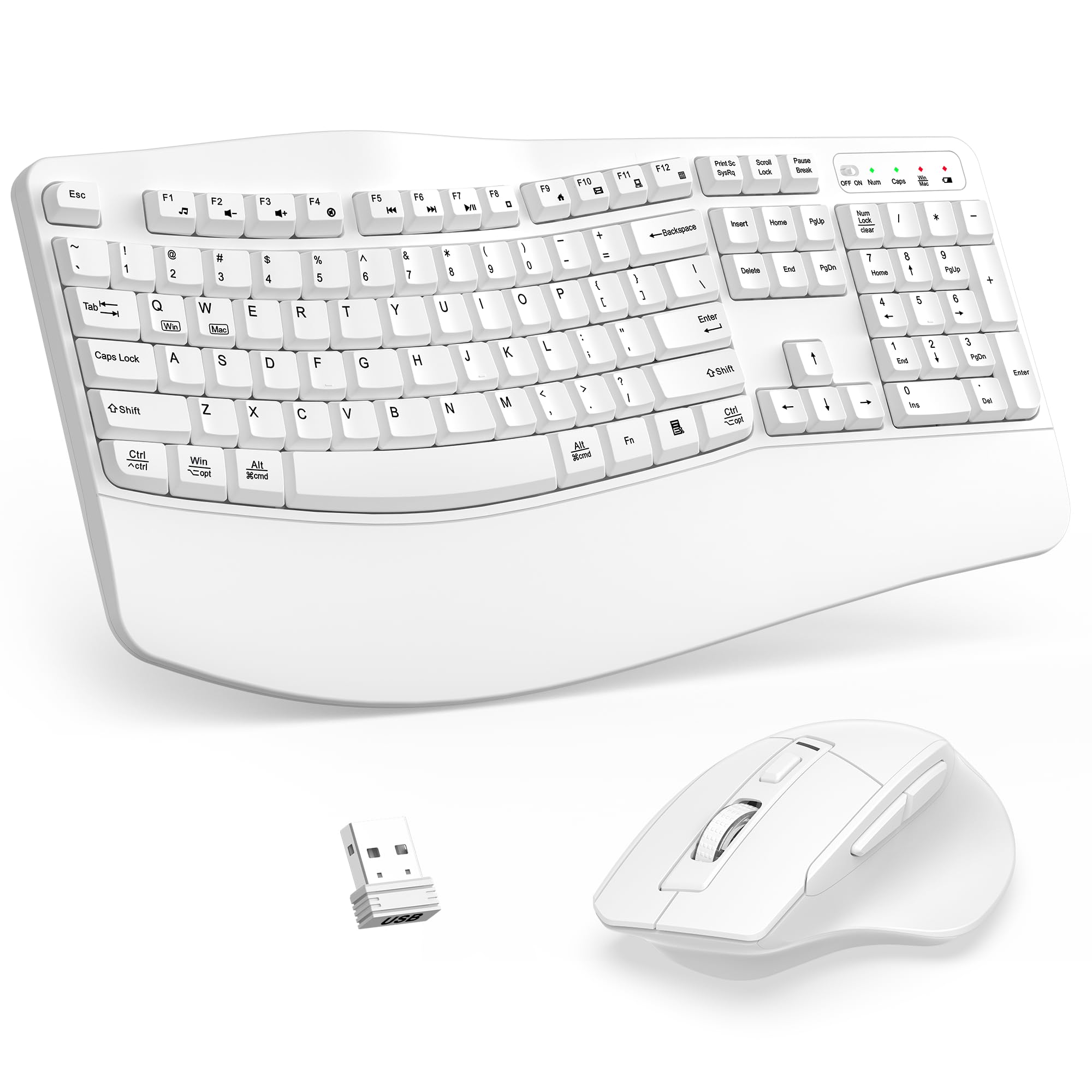
Image 1: ULSOU Wireless Ergonomic Keyboard and Mouse Combo in white, shown on a desk with a laptop.
2. Setup Instructions
2.1. Battery Installation
Both the keyboard and mouse require one AA battery each (batteries not included). To install:
- Locate the battery compartment on the underside of the keyboard and the mouse.
- Open the battery compartment cover.
- Insert one AA battery into each device, ensuring correct polarity (+/-).
- Close the battery compartment cover securely.

Image 2: Diagram illustrating the battery compartments for the keyboard and mouse, highlighting the need for 1 AA battery for each device.
2.2. USB Receiver Connection
The keyboard and mouse share a single 2.4 GHz USB receiver.
- The USB receiver is typically stored in the battery compartment of the mouse for safekeeping. Carefully remove it.
- Plug the USB receiver into an available USB port on your computer (desktop, laptop, PC, Chromebook, etc.).
- Your computer should automatically detect and install the necessary drivers. No software download is required.

Image 3: Close-up view of the ergonomic wireless mouse, indicating the location of the USB receiver within its base.
2.3. Power On
After installing batteries and connecting the USB receiver:
- Locate the ON/OFF switch on the underside of both the keyboard and the mouse.
- Slide the switches to the "ON" position.
- The devices should now be connected and ready for use.

Image 4: Visual representation of the 2.4 GHz wireless connection, showing the keyboard and mouse connected via a single USB receiver.
3. Operating Instructions
3.1. Keyboard Usage
- Ergonomic Design: The wave key design and integrated wrist rest are engineered to naturally fit your fingers and reduce wrist strain during prolonged use.
- Adjustable Stand: The keyboard features an adjustable stand on the underside, allowing you to set it to a comfortable height.
- Multimedia Keys: Utilize the dedicated multimedia keys for quick access to functions like volume control, media playback, and browser shortcuts.
- Dual System Layout: Switch between Windows and macOS layouts by pressing FN+Q for Windows or FN+W for macOS.

Image 5: The ergonomic wave keyboard highlighting the wide wrist rest and foldable stand for adjustable typing angles.

Image 6: Layout of the keyboard showing 12 multimedia keys and the number pad, with icons for functions like music, volume, play/pause, and browser.
3.2. Mouse Usage
- Contoured Shape: The mouse is designed to fit comfortably in the palm of your right hand, providing a natural grip.
- DPI Adjustment: The mouse features a button to cycle through 3 adjustable DPI levels (800/1200/1600) to suit your preference for cursor speed and precision.
- Forward/Back Buttons: Use the dedicated forward and back buttons on the side of the mouse for quick navigation in web browsers and file explorers.

Image 7: Comparison image demonstrating reduced wrist fatigue with the ergonomic keyboard's wide wrist rest and comfortable typing angle versus a standard keyboard.

Image 8: Detailed view of the ergonomic wireless mouse, illustrating its contoured shape designed for natural hand fit, along with its left/right click, scroll wheel, DPI button, and forward/backward buttons.
3.3. Power Saving Function
To conserve battery life, both devices enter sleep mode after periods of inactivity:
- The keyboard enters sleep mode after 30 seconds of inactivity.
- The mouse enters sleep mode after 15 minutes of inactivity.
- To reactivate either device, simply press any button.
4. Maintenance
- Cleaning: Use a soft, dry cloth to clean the surface of the keyboard and mouse. For deeper cleaning, a small brush can be used to remove debris from between the keys.
- Battery Replacement: Replace AA batteries in both devices when performance degrades or they stop responding.
- Storage: When not in use for extended periods, turn off both devices using their ON/OFF switches to further conserve battery life.
5. Troubleshooting
- No Connection: Ensure the USB receiver is securely plugged into your computer. Check that both the keyboard and mouse are turned ON and have fresh batteries. Try plugging the USB receiver into a different USB port.
- Lag or Intermittent Connection: Ensure the devices are within the 33-foot (10-meter) wireless range of the USB receiver. Avoid placing the receiver near large metal objects or other devices that may cause interference.
- Mouse Cursor Not Moving: Check mouse battery. Ensure the mouse is on a suitable surface (not clear glass). Adjust DPI settings if the cursor is too slow or fast.
- Keys Not Responding: Check keyboard battery. Ensure the keyboard is turned ON. If specific keys are not working, try cleaning around them.
- System Switching Issues: If experiencing problems switching between Windows and macOS layouts, ensure you are using the correct key combination (FN+Q for Windows, FN+W for macOS).
6. Specifications
| Brand | ULSOU |
| Model | B0F3D8JG5K |
| Product Dimensions | 17.6 x 8.7 x 1.4 inches |
| Item Weight | 2.6 pounds |
| Batteries Required | 2 AA batteries (1 for keyboard, 1 for mouse - not included) |
| Connectivity Technology | 2.4 GHz Wireless (USB Receiver) |
| Wireless Range | Up to 33 feet (10 meters) |
| Special Features | Ergonomic Wave Design, Integrated Wrist Rest, 3-Level DPI Adjustable Mouse, Automatic Power Saving, Dual System Layout |
| Compatible Devices | Laptop, Personal Computer (Windows XP/Vista/7/8/10/11, Mac OS) |

Image 9: Detailed dimensions of the wireless keyboard, mouse, and USB receiver for reference.
7. Warranty and Support
ULSOU provides worry-free after-sales warranty service for all customers who purchase ULSOU wireless keyboards and mice. If you encounter any issues or require support, please contact us directly. We are committed to providing a satisfactory solution as soon as possible, even if the standard return period has passed.
For assistance, please refer to the contact information provided with your product packaging or visit the official ULSOU support website.

Image 10: Customer service representatives ready to assist with product inquiries and support.
8. Product Videos
8.1. Wireless Keyboard and Mouse Combo Review
Video 1: A detailed review of the ULSOU Wireless Keyboard and Mouse Combo, demonstrating its features and functionality. This video provides insights into the product's performance and user experience.
8.2. Wireless Keyboard and Mouse Combo - One USB Dongle for Both
Video 2: This video highlights the convenience of the single USB receiver that connects both the wireless keyboard and mouse, simplifying setup and reducing the number of ports used.
8.3. My New Favorite Item In My Office
Video 3: A user's perspective on integrating the ULSOU keyboard and mouse combo into their office setup, focusing on its ergonomic benefits and ease of use.
8.4. MUST WATCH BEFORE BUYING! (Full Demo & Review)
Video 4: A comprehensive demonstration and review of the product, covering its features, setup, and practical application in detail.
8.5. Comfortable, Ergonomic and Perfect For Daily Use
Video 5: This video emphasizes the comfort and ergonomic design of the keyboard and mouse, showcasing their suitability for daily use and long work sessions.