
Introduction
This manual provides detailed instructions for the installation, operation, and maintenance of your MekedeTech DUDUAUTO DUDU4 Android Screen. This 9.5-inch head unit is designed specifically for Dodge Charger models from 2016 to 2023, offering advanced features such as wireless CarPlay, Android Auto, and 4G LTE connectivity. Please read this manual thoroughly before using the product to ensure proper function and safety.
Safety Information
- Always ensure the vehicle is parked and the engine is off before performing any installation or maintenance.
- Disconnect the vehicle's battery before starting installation to prevent electrical shorts and damage.
- Consult a professional installer if you are unsure about any part of the installation process.
- Do not operate the device in a way that distracts you from driving. Always prioritize road safety.
- Avoid exposing the unit to extreme temperatures, direct sunlight for prolonged periods, or excessive moisture.
Setup and Installation
The DUDUAUTO DUDU4 Android Screen is designed for direct fitment in Dodge Charger models from 2016 to 2023. Professional installation is recommended.
Pre-Installation Check
- Verify all components are present in the package.
- Ensure the vehicle's ignition is off and the battery is disconnected.
- Familiarize yourself with the vehicle's dashboard layout and existing wiring.
Installation Steps (General Guide)
- Carefully remove the existing factory radio and dashboard trim. Refer to your vehicle's service manual for specific instructions.
- Connect the main power harness, speaker wires, and antenna cable from the vehicle to the DUDUAUTO DUDU4 unit. Ensure all connections are secure.
- Connect any additional accessories such as the GPS antenna, USB cables, and external microphone.
- If using 4G LTE, insert a compatible SIM card into the designated slot on the unit.
- Carefully mount the DUDUAUTO DUDU4 unit into the dashboard opening.
- Reconnect the vehicle's battery and test the unit's functionality before fully reassembling the dashboard.
- Reassemble the dashboard trim, ensuring no wires are pinched.
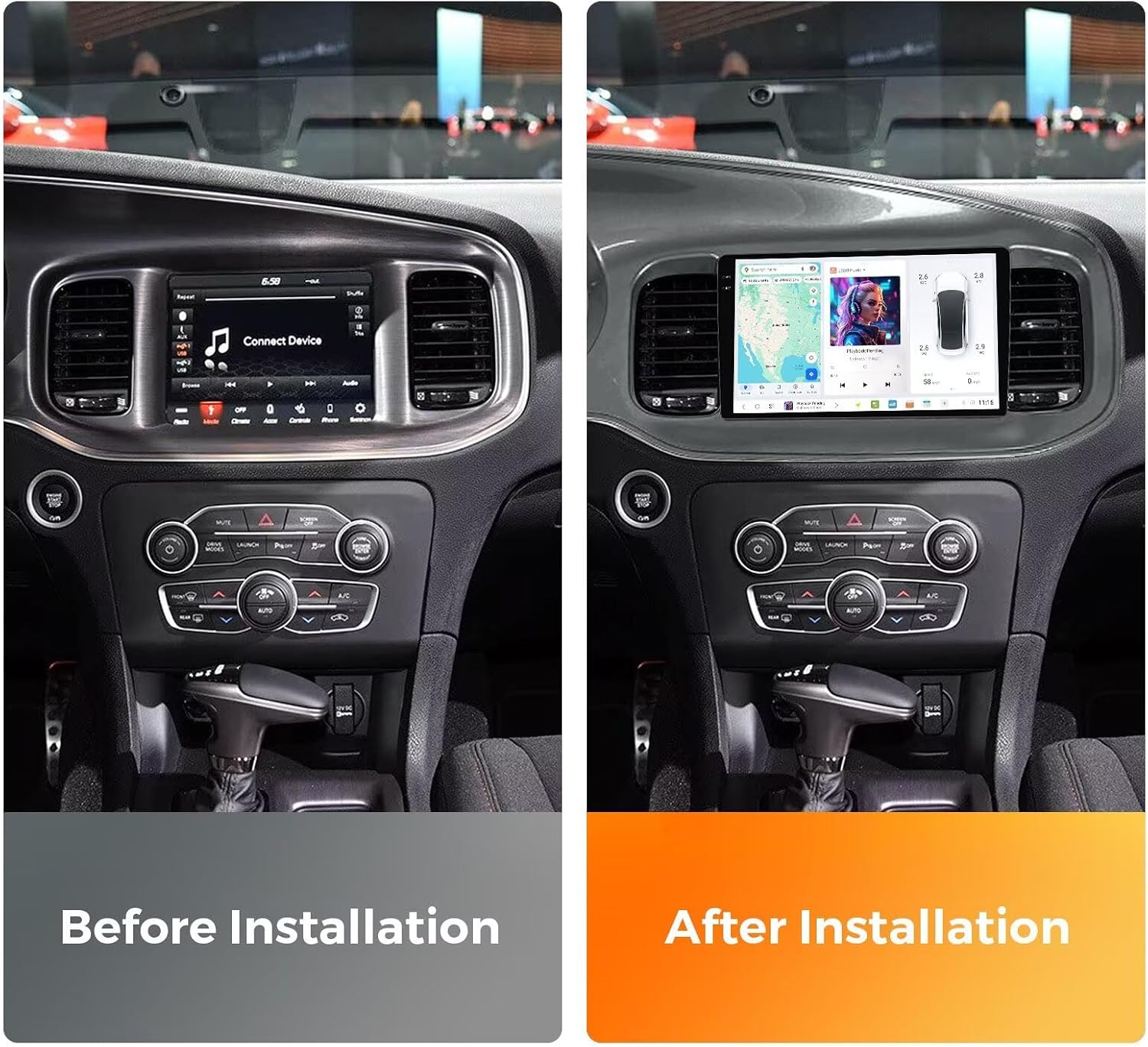
Figure 1: Comparison of the Dodge Charger dashboard before and after the installation of the MekedeTech DUDUAUTO DUDU4 Android Screen. The image on the left shows the original factory radio, while the image on the right displays the new 9.5-inch Android screen seamlessly integrated into the dashboard.
Operating Instructions
Powering On and Initial Setup
After installation, turn on your vehicle's ignition. The DUDUAUTO DUDU4 unit will boot up, displaying the DUDU OS 3.5 interface. Follow the on-screen prompts for initial setup, including language selection, time zone, and Wi-Fi connection.

Figure 2: The DUDU OS 3.5 interface, showcasing its simple and enthusiast modes with various applications, navigation, and vehicle information displays. This operating system focuses on intuitive operation and powerful functionality.
Wireless CarPlay and Android Auto
The unit supports both wireless CarPlay for iOS devices and wired/wireless Android Auto for Android devices.
- For Wireless CarPlay (iOS System):
- On the DUDUAUTO DUDU4 unit, navigate to the CarPlay application.
- On your iPhone, enable Bluetooth and connect to the DUDUAUTO unit's Bluetooth signal.
- Confirm the connection on both devices. CarPlay will launch automatically.
- For Wired Android Auto (Android System):
- Connect your Android phone to the DUDUAUTO DUDU4 unit using a USB cable.
- Ensure Android Auto is installed and enabled on your phone.
- The unit will prompt you to launch Android Auto.

Figure 3: Visual guide illustrating the connection process for Wireless CarPlay (iOS) via Bluetooth and Wired Android Auto (Android) via USB cable. The DUDUAUTO DUDU4 unit supports both functionalities.
4G LTE & Wi-Fi Connectivity
The unit supports 4G LTE via a SIM card (not included) and Wi-Fi connectivity. To access 4G internet, insert a compatible SIM card into the designated slot. For Wi-Fi, navigate to the settings menu, select Wi-Fi, and connect to an available network.
Steering Wheel Controls
The DUDUAUTO DUDU4 unit retains your vehicle's original steering wheel control functionality. This allows you to adjust volume, skip tracks, and switch channels without removing your hands from the steering wheel. Configuration may be required in the unit's settings menu.
Maintenance
- Screen Cleaning: Use a soft, lint-free cloth slightly dampened with water or a screen cleaner. Do not use abrasive cleaners or solvents.
- Software Updates: Periodically check for software updates through the unit's settings menu to ensure optimal performance and access to new features.
- General Care: Keep the unit free from dust and debris. Avoid placing heavy objects on the screen.
Troubleshooting
- No Power / Unit Does Not Turn On:
- Check all power connections to ensure they are secure.
- Verify the vehicle's fuse for the radio is not blown.
- Ensure the vehicle's battery is properly connected and charged.
- No Sound:
- Check speaker wire connections.
- Ensure the volume is not muted or set to minimum.
- Verify audio output settings in the unit's menu.
- CarPlay/Android Auto Not Connecting:
- For Wireless CarPlay, ensure Bluetooth is enabled on your iPhone and paired with the unit.
- For Wired Android Auto, try a different USB cable and ensure Android Auto is enabled on your phone.
- Restart both the head unit and your smartphone.
- GPS Signal Issues:
- Ensure the GPS antenna is properly installed and has a clear view of the sky.
- Check GPS settings in the unit's menu.
Specifications
The MekedeTech DUDUAUTO DUDU4 Android Screen features robust hardware for optimal performance.
- Model Name: MKD-DUDU4-4-64
- Operating System: Android 13
- CPU: 8 Core UIS8581A
- RAM: 4GB
- Internal Storage (ROM): 64GB
- Display Size: 9.5 inch
- Display Resolution: 1280x720 (In-cell screen)
- Bluetooth: BT5.0 (Qualcomm 3031 chip)
- Wi-Fi: 802.11a/b/g/n/ac (Supports 5G WIFI)
- GPS: 3 mode L1 B1 E1
- USB: USB2.0*2
- Power Amplifier: TDA7851
- DSP: AK7604
- Radio IC: TDA7708
- Work Voltage: 9V~16V
- Special Features: Wireless CarPlay, Wired Android Auto, Touchscreen, 4G LTE Support

Figure 4: The powerful 8-Core UIS8581A Smart Cockpit chip, which powers the DUDUAUTO DUDU4 Android Screen, ensuring smooth performance and responsiveness.

Figure 5: The 1280x720 in-cell screen of the DUDUAUTO DUDU4 unit, designed to deliver clearer and more detailed images and videos for an enhanced user experience.

Figure 6: A detailed comparison table outlining key specifications for DUDU4, DUDU5, DUDU6, and DUDU7 models, including RAM/ROM, CPU, memory type, GPS, MIC, USB interface, power amplifier, DSP, Bluetooth chip, WiFi type, and radio IC.
Warranty Information
The MekedeTech DUDUAUTO DUDU4 Android Screen comes with a 1-Year Warranty from the date of purchase. This warranty covers manufacturing defects and malfunctions under normal use. It does not cover damage caused by improper installation, misuse, accidents, or unauthorized modifications. Please retain your proof of purchase for warranty claims.
Customer Support
For technical assistance, troubleshooting, or warranty inquiries, please contact MekedeTech customer support. You can find contact information on the official MekedeTech website or through your purchase platform.
Visit the official MekedeTech Store for more information and products: MekedeTech Store