1. Introduction
Thank you for choosing the MUSTAR 88 Key Piano Keyboard. This portable digital piano is designed for beginners and experienced musicians alike, featuring lighted keys for easy learning, semi-weighted keys for a realistic feel, and a foldable design for ultimate portability. This manual provides essential information on setting up, operating, maintaining, and troubleshooting your new instrument.
2. Package Contents
Please check the package carefully to ensure all items are present and in good condition.
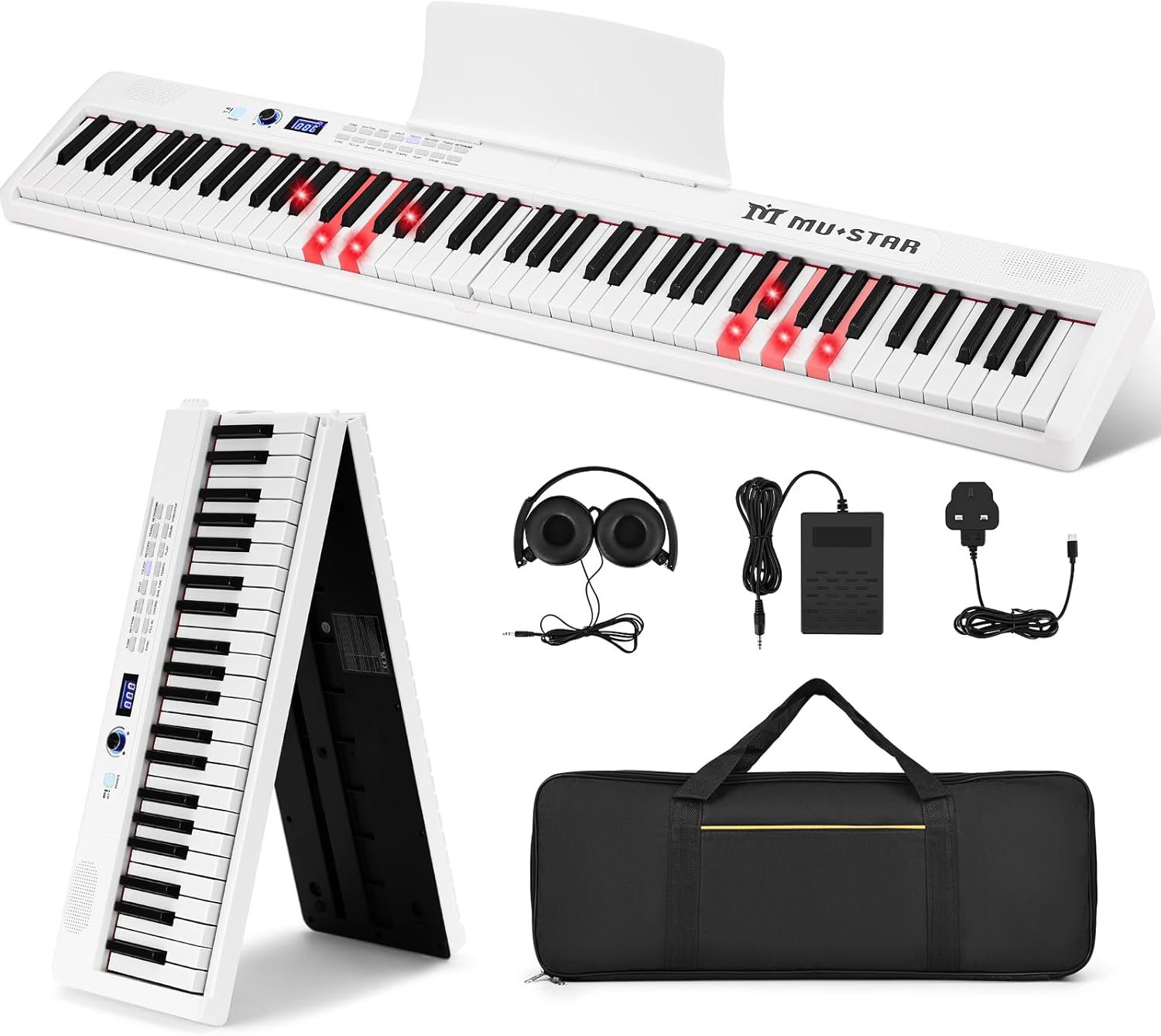
Image: The MUSTAR 88 Key Piano Keyboard shown with all included accessories: headphones, power adapter, sustain pedal, and carrying case.
- 1 x MUSTAR 88 Key Piano Keyboard
- 1 x Portable Carrying Case
- 1 x Sustain Pedal
- 1 x Over-ear Headphones
- 1 x Note Stickers
- 1 x Sheet Music Stand
- 1 x Power Adapter
- 1 x User Manual (this document)
3. Product Features
3.1 Foldable & Portable Design
Weighing only 4.2kg and folding to a compact 64cm, this keyboard is designed for easy transport and storage. It features dual power supply methods: an adapter for continuous use and a rechargeable battery for over 8 hours of cordless playing.
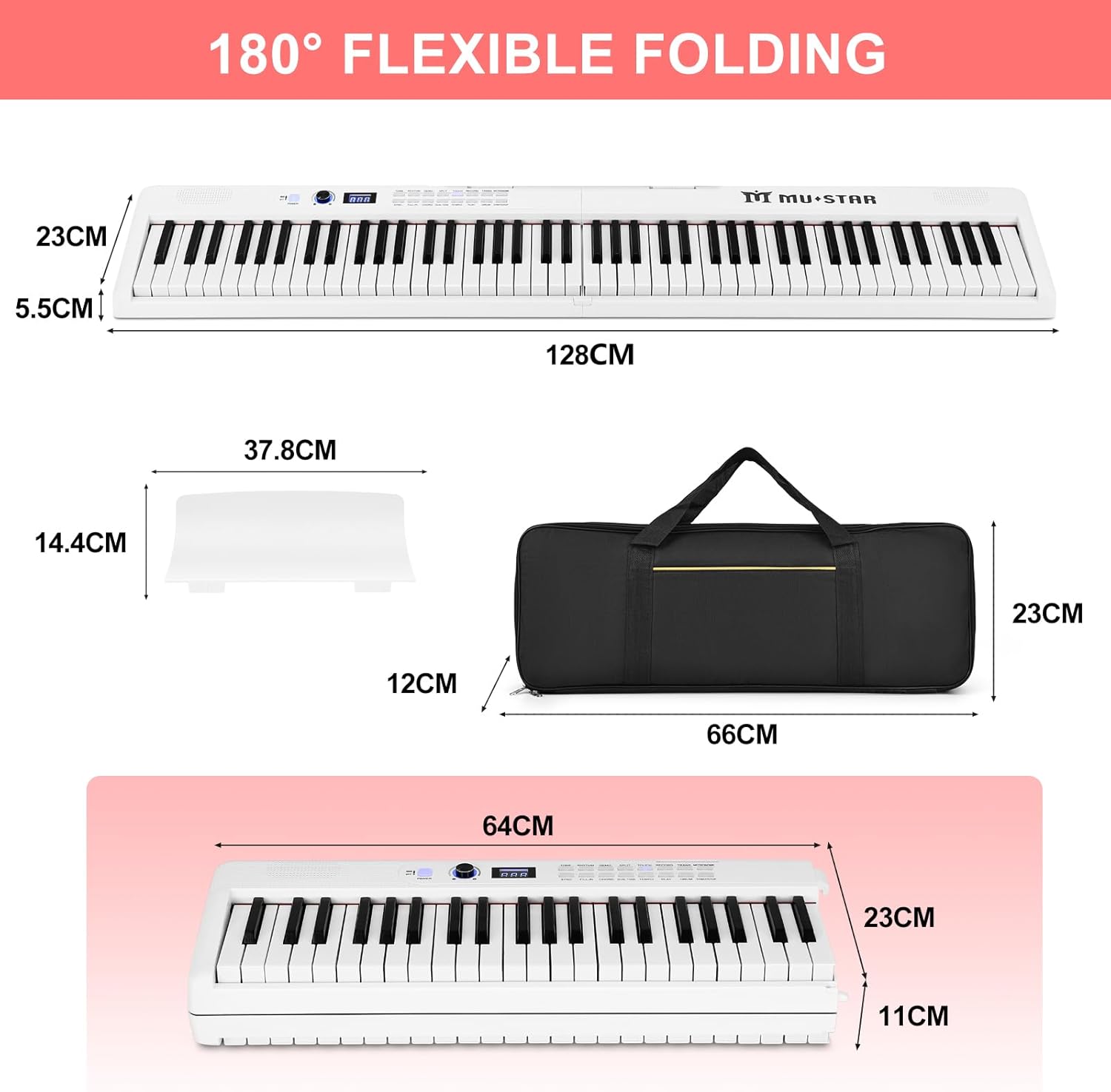
Image: Visual representation of the keyboard's dimensions when unfolded (128cm x 23cm x 5.5cm) and folded (64cm x 23cm x 11cm), highlighting its compact nature.
3.2 Lighted Keys for Learning
The 88 keys light up to guide beginners through songs without needing to read sheet music. This feature makes learning intuitive and engaging. The included over-ear headphones allow for silent practice.
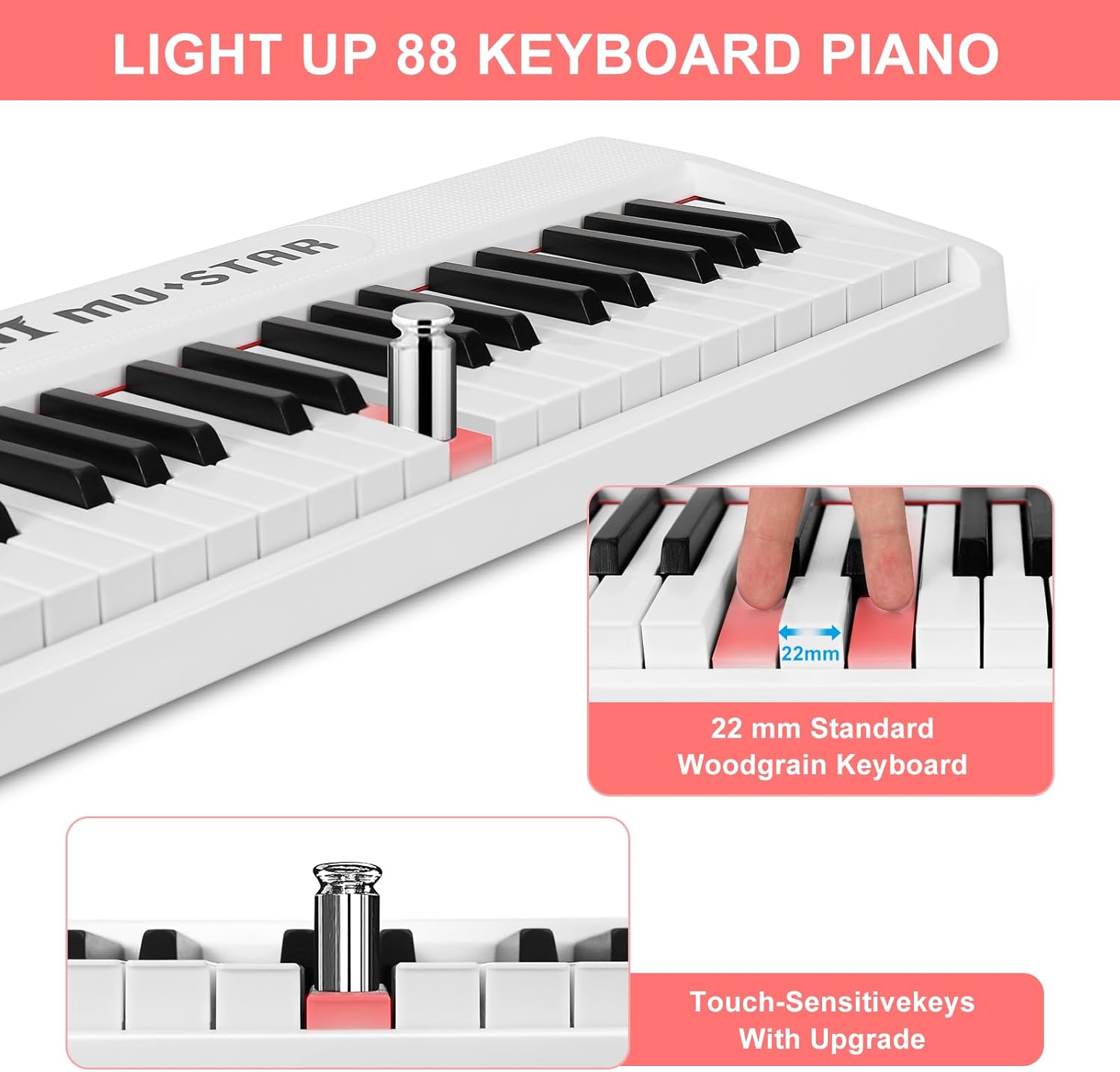
Image: A detailed view of the keyboard's lighted keys and the 22mm standard woodgrain key design, emphasizing touch-sensitive capabilities.
3.3 Superior Sound Source
Equipped with 80 demo songs, 128 tones, 128 preset rhythms, and built-in stereo speakers, the keyboard delivers rich and realistic sound quality. The semi-weighted keys and sustain pedal enhance the playing experience for developing skills.

Image: A young girl playing the keyboard, with icons illustrating key sound features: 128 Tones, 128 Rhythms, 80 Demo Songs, and 64 Polyphony Numbers.
3.4 Multiple Educational & Connectivity Features
The keyboard includes auto chord, split, dual-tone mode, record/playback, transpose, audio input/output, and drum kit functions. Connectivity options include USB/MIDI and Bluetooth for interactive learning with mobile phones or computers.

Image: A detailed diagram showing the various ports and their functions: Headphone, Audio Output, Power Socket, Record, Audio Input, Delay Pedal, Triple Pedal (not included), MIDI, and USB.
4. Setup Guide
4.1 Unfolding the Keyboard
Carefully unfold the keyboard until it locks into its full 88-key position. Ensure the locking mechanism is securely engaged to prevent accidental folding during use.

Image: A visual guide demonstrating the folding and unfolding process of the keyboard, showing the hinge mechanism and how it locks into place.
4.2 Power Connection
Connect the provided power adapter to the "DC IN" port on the keyboard and then to a wall outlet. Alternatively, the keyboard can operate on its internal rechargeable battery for portable use.
To charge the battery, connect the power adapter. The battery indicator will show charging status.
4.3 Connecting Accessories
- Sustain Pedal: Plug the sustain pedal into the "SUSTAIN" jack.
- Headphones: For silent practice, plug the headphones into the "HEADPHONE" jack.
- External Audio: Connect external audio sources (e.g., MP3 player) to the "AUDIO IN" jack.
- USB/MIDI: Use the USB port to connect to a computer or other MIDI devices for advanced functions and software integration.
4.4 Bluetooth Pairing
To connect via Bluetooth, activate Bluetooth on your mobile device or computer and search for "MUSTAR Keyboard". Select it to pair. This allows for wireless MIDI connectivity with compatible apps.
5. Operating Instructions
5.1 Power On/Off
Press and hold the POWER button to turn the keyboard on or off.
5.2 Volume Adjustment
Use the VOLUME knob or buttons to adjust the master volume.
5.3 Selecting Tones and Rhythms
Press the TONE or RHYTHM buttons and use the number keys or +/- buttons to select desired tones or rhythms.
5.4 Using Lighted Keys (Learning Mode)
Activate the learning mode (refer to specific button on keyboard, e.g., LESSON or LIGHT GUIDE). The keys will light up to indicate which notes to play for selected demo songs or exercises.
5.5 Recording and Playback
Press the RECORD button to start recording your performance. Press PLAY to listen to your recorded track.
5.6 Split and Dual-Tone Modes
- Split Mode: Divides the keyboard into two sections, each with a different tone, allowing two people to play simultaneously or for one person to play different instruments with each hand.
- Dual-Tone Mode: Layers two different tones together to create a richer, more complex sound.
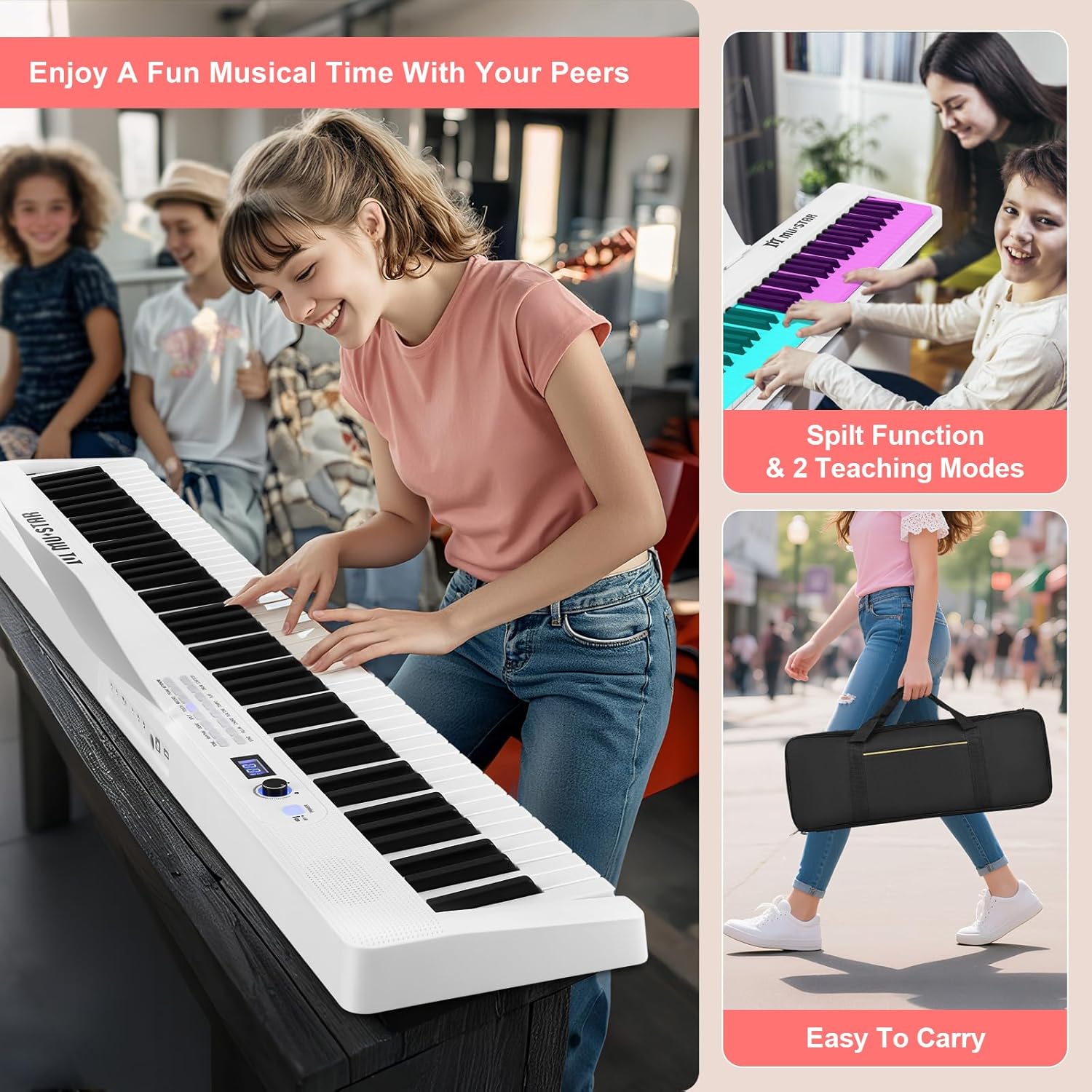
Image: A user playing the keyboard, illustrating the Split Function with different colored key sections and highlighting the two teaching modes available.
6. Maintenance
- Cleaning: Use a soft, dry cloth to wipe the surface of the keyboard. For stubborn dirt, slightly dampen the cloth with water. Avoid using abrasive cleaners, solvents, or waxes.
- Storage: When not in use, store the keyboard in its portable case in a cool, dry place away from direct sunlight and extreme temperatures.
- Battery Care: If storing for an extended period, ensure the battery is partially charged (around 50%) to prolong its lifespan. Recharge periodically if not used for several months.
- Avoid Liquids: Keep liquids away from the keyboard to prevent damage to internal components.
7. Troubleshooting
| Problem | Possible Cause | Solution |
|---|---|---|
| No sound from speakers/headphones. | Volume too low; headphones not fully plugged in; power issue. | Increase volume. Ensure headphones are fully inserted. Check power connection and battery level. |
| Keys not lighting up. | Learning mode not activated; specific song/exercise not selected. | Activate learning mode. Select a demo song or lesson. |
| Sustain pedal not working. | Pedal not connected properly; pedal polarity issue. | Ensure pedal is fully plugged into the correct jack. Try unplugging and re-plugging the pedal while the keyboard is on. |
| Bluetooth connection unstable. | Distance too far; interference; device not paired correctly. | Move closer to the keyboard. Avoid other wireless devices. Re-pair the Bluetooth connection. |
| Keyboard not turning on. | Low battery; power adapter not connected; faulty power adapter. | Charge the battery or connect the power adapter. Ensure the power outlet is working. Try a different power adapter if available. |
8. Specifications
| Feature | Detail |
|---|---|
| Brand | MUSTAR |
| Model Name | 88 Key Piano Keyboard with Lighted Up Keys |
| Number of Keys | 88 |
| Key Type | Semi-Weighted, Touch-Sensitive, Lighted Keys |
| Dimensions (Unfolded) | 128W x 23D x 5.5H cm |
| Dimensions (Folded) | 64W x 23D x 11H cm |
| Item Weight | 5 kg (approx. 4.2kg for keyboard only) |
| Tones | 128 |
| Rhythms | 128 |
| Demo Songs | 80 |
| Polyphony | 64 |
| Connectivity | Bluetooth, USB MIDI, 3.5mm Jack (Headphone, Audio In/Out) |
| Power Source | Adapter and Rechargeable Lithium Polymer Battery (8+ hours playtime) |
| Special Features | Lighted Keys, Foldable, Built-in Speakers, Headphone Jack, Record/Playback, Split, Dual-Tone, Transpose, Auto Chord, Drum Kit |
9. Warranty and Support
For warranty information and technical support, please refer to the warranty card included in your package or contact MUSTAR customer service directly. You can typically find contact details on the official MUSTAR website or through your purchase platform.
Please retain your proof of purchase for any warranty claims.


