
Introduction
This manual provides detailed instructions for the setup, operation, and maintenance of your Bextgoo R90-Pro 4G LTE Surveillance Camera. Designed for versatile security, this portable mini camera offers 2K HD video, a 160° viewing angle, and AI motion detection, making it ideal for locations without Wi-Fi connectivity. Please read this manual thoroughly before using the device to ensure proper functionality and safety.

Image: The Bextgoo 4G LTE Surveillance Camera, showcasing its compact design, a 4G SIM card, and a smartphone displaying the live camera feed.
Package Contents
Please verify that all the following items are included in your package:
- Bextgoo 4G LTE Surveillance Camera (R90-Pro)
- Pre-installed 4G SIM Card (with 300 MB free data)
- Mounting Bracket
- Screw Set for Installation
- USB Charging Cable
- User Manual

Image: The camera's rear view highlighting the SIM card slot, emphasizing that a 4G SIM card is included and Wi-Fi is not required for operation.
Product Features
Portable 4G LTE Connectivity
The Bextgoo R90-Pro camera operates on 4G LTE, eliminating the need for Wi-Fi. This makes it ideal for remote locations such as cottages, campsites, RVs, or vehicles where Wi-Fi is unavailable. Its compact size ensures easy portability and quick setup anywhere.

Image: Examples of common use cases for the 4G LTE camera, demonstrating its versatility in various non-Wi-Fi environments.
Extended Battery Life
Equipped with a powerful 5200 mAh battery and advanced energy-saving technology, the camera offers significantly longer operational periods between charges. This ensures reliable, uninterrupted performance for extended monitoring needs.

Image: Visual comparison highlighting the superior 5200mAh battery capacity of the Bextgoo camera compared to typical mini cameras.
2K HD Clarity & Night Vision
Capture clear and detailed footage with 2K HD resolution, offering twice the clarity of many 1080P cameras. The 160° wide-angle lens and 10x digital zoom allow for comprehensive area coverage and detailed inspection. Automatic IR night vision provides clear visibility up to 10 meters in complete darkness, ensuring 24/7 surveillance.
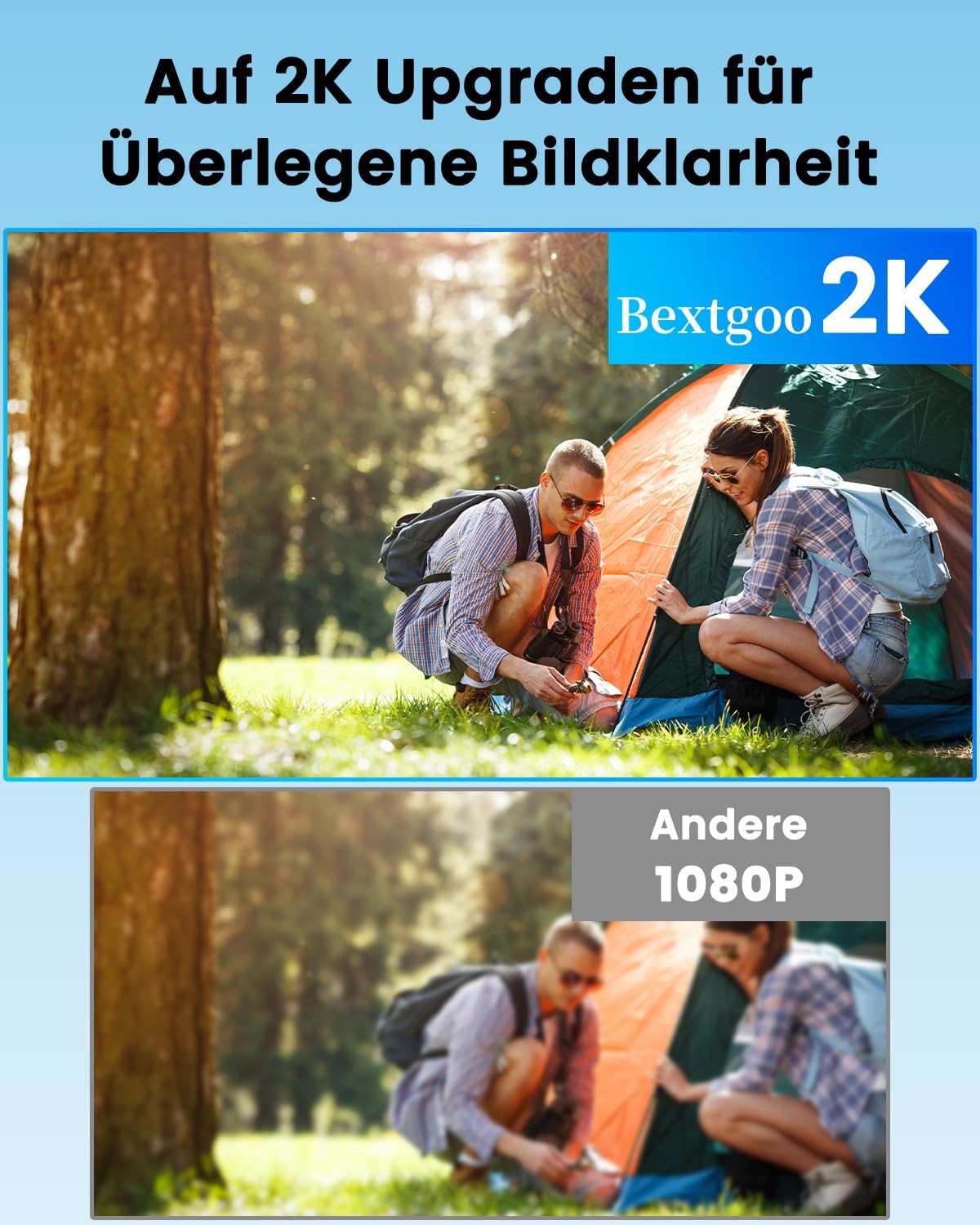
Image: A side-by-side comparison illustrating the enhanced 2K image clarity provided by the Bextgoo camera over standard 1080P cameras.
Intelligent Motion Detection & Notifications
Benefit from precise AI-powered motion detection that accurately identifies people, cars, and animals, significantly reducing false alarms. Receive instant notifications on your smartphone when activity is detected, keeping you informed in real-time.

Image: A visual representation of the camera's intelligent motion detection capabilities, including app notifications for detected events.
Flexible Storage Options
The camera supports local storage via a microSD card (up to 128GB, not included) with automatic overwrite functionality. Additionally, a 30-day free trial of cloud storage is available, providing secure and encrypted video backup.

Image: A graphic detailing the camera's local storage capacity and the availability of cloud storage with a trial period.
Setup Guide
Charge the Camera
Before first use, fully charge the camera using the provided USB charging cable. Connect the cable to the camera's charging port and a standard USB power adapter (not included). The charging indicator light will show the charging status.
Insert 4G SIM Card
Your camera comes with a pre-installed 4G SIM card. Ensure it is properly seated in the SIM card slot. If you need to replace it, gently insert a new 4G SIM card (Nano-SIM size) into the designated slot with the gold contacts facing down.
Download the App
Search for the "UBox" app in your smartphone's app store (Google Play Store for Android or Apple App Store for iOS) and download it.
Register and Add Device
Open the UBox app and follow the on-screen instructions to register an account. Once registered, tap the "+" icon to add a new device. Scan the QR code located on the camera or its packaging to pair the device with your app.
Mount the Camera
Use the provided mounting bracket and screw set to install the camera in your desired location. The camera supports screw-in, free-standing, and self-adhesive mounting options. Ensure the camera has a clear line of sight to the area you wish to monitor.

Image: The camera's small and portable design, demonstrating how it can be easily carried and set up in different environments.
Operating Instructions
Live View and Remote Access
Once the camera is connected to the UBox app, you can access the live video feed from anywhere with 4G coverage. Open the app, select your camera, and view real-time footage. You can also use the app to check data usage for your 4G SIM card.

Image: Demonstrating the convenience of remote access and real-time monitoring through the UBox app.
Motion Detection Settings
Navigate to the camera settings in the UBox app to customize motion detection sensitivity and set specific time periods for alerts. This helps in minimizing unnecessary notifications.
Video Recording and Playback
Recorded videos are stored either on the inserted microSD card (if present) or in the cloud (if subscribed to the service). You can review past recordings directly from the UBox app. The system automatically overwrites older footage when storage is full.
Night Vision Activation
The camera automatically switches to infrared (IR) night vision mode in low-light conditions to ensure continuous surveillance. No manual activation is required.
Maintenance
Battery Charging
To maintain optimal battery life, charge the camera regularly, especially when the battery level is low. Use only the provided USB cable.
Cleaning
Wipe the camera lens and body with a soft, dry cloth. Avoid using harsh chemicals or abrasive materials that could damage the device.
Firmware Updates
Periodically check the UBox app for available firmware updates. Keeping your camera's firmware updated ensures optimal performance and access to new features.
Troubleshooting
| Problem | Possible Cause | Solution |
|---|---|---|
| Camera not powering on | Low battery; Power button not pressed correctly. | Charge the camera fully. Press and hold the power button for a few seconds. |
| No 4G signal / Offline | Poor network coverage; SIM card not properly inserted; SIM card data exhausted. | Move the camera to an area with better 4G coverage. Reinsert the SIM card. Check SIM card data balance via the UBox app and recharge if necessary. |
| Cannot connect to UBox app | Incorrect QR code scan; App version outdated; Camera not in pairing mode. | Ensure QR code is clear and well-lit. Update the UBox app to the latest version. Reset the camera (refer to manual for reset procedure) and try pairing again. |
| Motion detection not working | Sensitivity too low; Detection area not configured; Obstructions in view. | Adjust motion detection sensitivity in the app. Ensure the camera's view is clear. |
| Poor image quality | Dirty lens; Low light conditions; Network bandwidth issues. | Clean the camera lens. Ensure adequate lighting or rely on night vision. Check 4G signal strength. |
Specifications
| Model Name | R90-Pro |
| Brand | Bextgoo |
| Connectivity Technology | Wireless (4G LTE) |
| Video Capture Resolution | 2K |
| Viewing Angle | 160 Degrees |
| Night Vision Range | Up to 10 meters (33 feet) |
| Power Source | Battery Powered |
| Battery Capacity | 5200 mAh (Lithium Ion) |
| Storage Options | Local (up to 128GB MicroSD, not included), Cloud Storage (30-day free trial) |
| Motion Detection | AI Motion Detection (People, Cars, Animals) |
| Compatible Devices | Smartphone (Android, iOS) |
| Controller Type | UBox App |
| Dimensions (L x W x H) | 5.5 x 4.2 x 3.8 cm (2.17 x 1.65 x 1.5 inches) |
| Item Weight | 200 g (0.44 lbs) |
| Material | Plastic |
| Installation Type | Screw-in, Free-standing, Self-adhesive |
Warranty and Support
For warranty information and technical support, please refer to the contact details provided on the product packaging or visit the official Bextgoo website.
The product includes a pre-installed 4G SIM card with 300 MB free data. For additional data plans or inquiries regarding SIM card usage, please refer to the instructions provided within the UBox app or contact Bextgoo customer service.
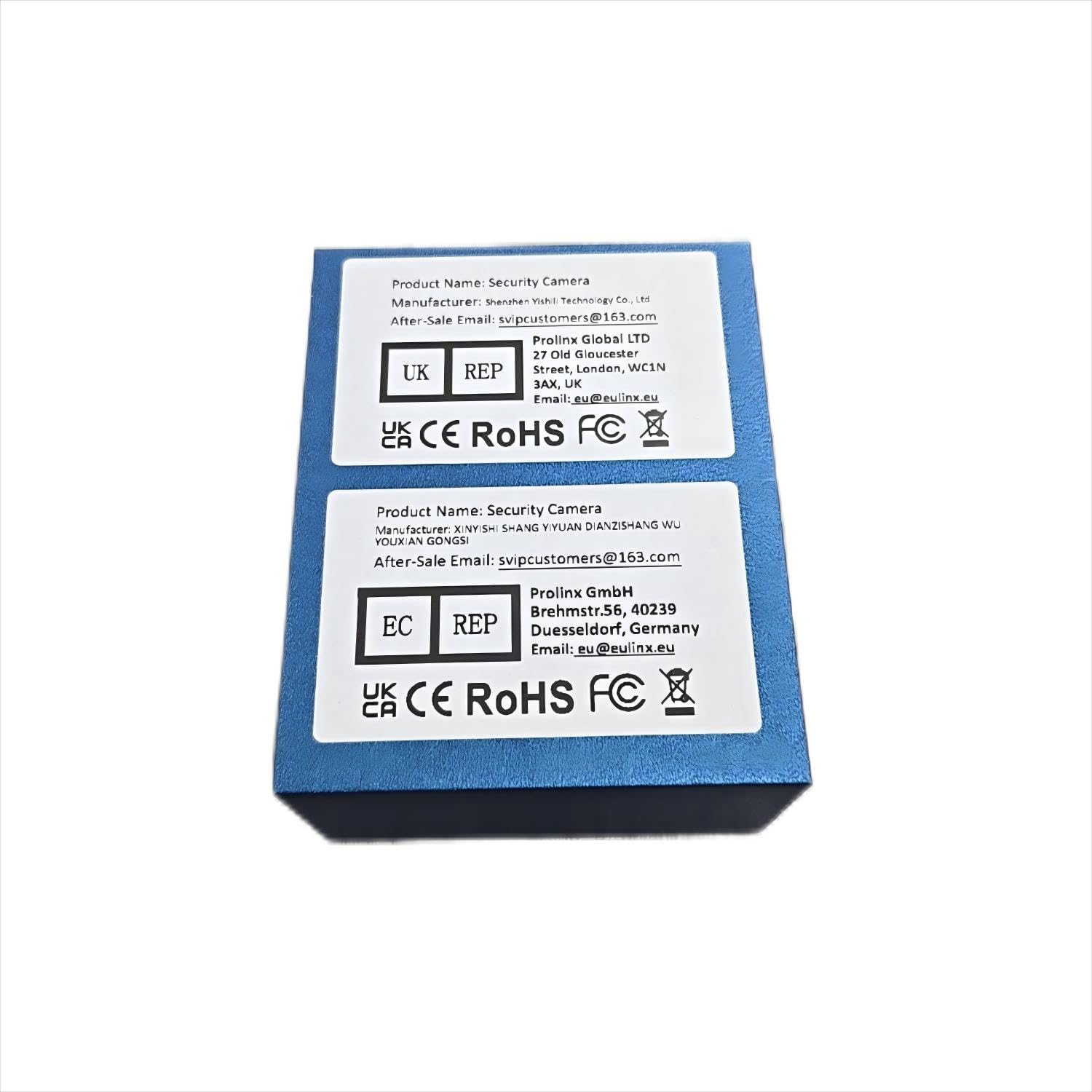
Image: Product labels indicating manufacturer and after-sales support contact details, including email addresses for customer service.


