
Crelander T40
Crelander 10.1-inch Android 13 Tablet User Manual
Model: T40
Introduction
This user manual provides comprehensive instructions for setting up, operating, and maintaining your Crelander 10.1-inch Android 13 Tablet. Designed for versatility and performance, this tablet comes equipped with a powerful processor, ample storage, and a vibrant display, making it suitable for various tasks from entertainment to productivity.

Image: The Crelander 10.1-inch Android 13 Tablet shown with its accompanying keyboard, mouse, and stylus, highlighting its 12GB RAM and 512GB ROM capabilities.
What's in the Box
Upon unboxing, please verify that all the following items are included:
- Crelander 10.1-inch Android 13 Tablet
- Protective Case
- Wireless Keyboard
- Wireless Mouse
- Stylus Pen
- USB-C Cable
- OTG Data Cable
- User Manual (this document)
- Screen Protector
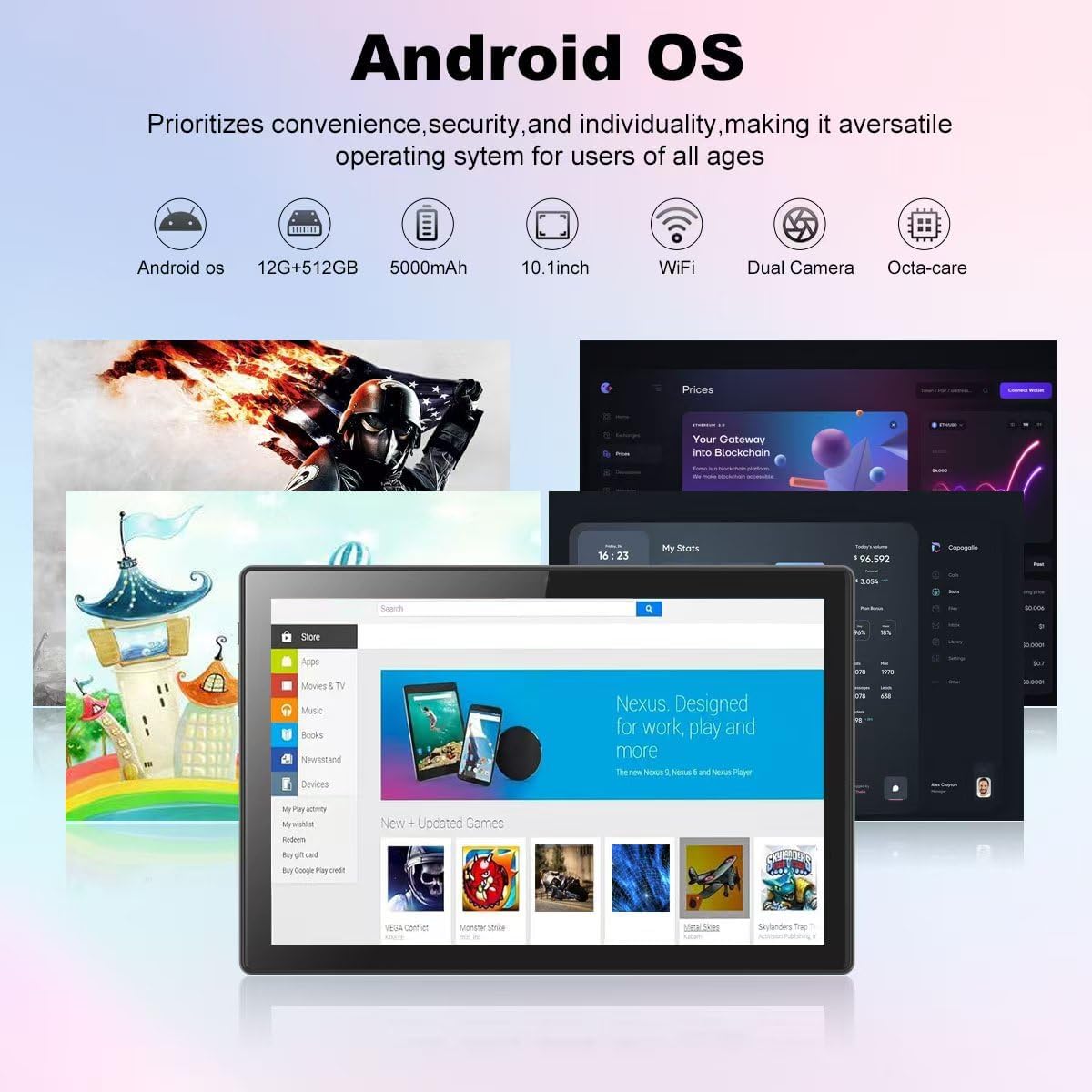
Image: A visual representation of the Crelander tablet package contents, including the tablet, protective case, keyboard, mouse, stylus, and cables.
Product Overview
Physical Components

Image: A detailed diagram illustrating the various ports and buttons on the Crelander tablet, including the Type-C port, Reset button, Volume controls, Power button, Headphone Jack, TF-Card/SIM-Card slot, and speakers.
- Type-C Port: For charging and data transfer.
- Reset Button: Small pinhole for system reset if needed.
- Volume Buttons: Adjust audio volume.
- Power Button: Press and hold to power on/off or restart. Short press to sleep/wake.
- Headphone Jack: 3.5mm audio output.
- TF-Card / SIM-Card Slot: Insert a TF (MicroSD) card for expandable storage (up to 1TB) or a SIM card for cellular data (if supported by your model).
- Speakers: Integrated audio output.
Key Features
- Display: 10.1-inch 1280x800 IPS HD Touch Screen for vibrant visuals.
- Performance: 12GB RAM and 512GB ROM, powered by Android 13 for smooth multitasking.
- Expandable Storage: Supports up to 1TB via Micro SD card.
- Cameras: Dual cameras (5MP Front, 13MP Rear) for photos and video calls. Features LED Flash and Face Unlock.
- Connectivity: Built-in WiFi and Bluetooth for seamless wireless connections.
- Battery: 8000mAh battery for extended usage.

Image: An overview of the Crelander tablet's features, including its 10-inch HD screen, dual camera system, 8000mAh battery, SIM card slot, and Android OS.

Image: Details on the tablet's camera capabilities, showing 5MP front and 13MP rear cameras, LED flash, and face unlock functionality.
Setup
Initial Charging
Before first use, fully charge the tablet using the provided USB-C cable and a compatible power adapter. The battery indicator on the screen will show charging status.
Powering On/Off
- To Power On: Press and hold the Power button until the Crelander logo appears.
- To Power Off: Press and hold the Power button until a power menu appears, then select "Power off".
- To Restart: Press and hold the Power button until a power menu appears, then select "Restart".
Connecting Accessories
The tablet comes with a keyboard, mouse, and stylus for enhanced productivity. These accessories typically connect via Bluetooth.
- Keyboard/Mouse:
- Ensure the keyboard/mouse is charged and powered on.
- On the tablet, go to Settings > Connected devices > Bluetooth.
- Turn on Bluetooth and search for available devices.
- Select the keyboard/mouse from the list and follow on-screen pairing instructions.
- Stylus: The provided stylus is a passive capacitive stylus and does not require pairing. Simply use it directly on the screen.
Operating the Tablet
Basic Navigation
The tablet runs on Android 13, offering an intuitive user interface. Use touch gestures for navigation:
- Tap: Select an item or open an app.
- Swipe: Scroll through pages or menus.
- Pinch-to-Zoom: Zoom in or out on images and web pages.
- Long Press: Access contextual menus or move icons.

Image: A screenshot of the Android OS interface on the Crelander tablet, showcasing various applications and the overall user experience.
Wi-Fi Connectivity
To connect to a Wi-Fi network:
- Go to Settings > Network & internet > Wi-Fi.
- Turn on Wi-Fi.
- Select your desired network from the list.
- Enter the password if prompted and tap "Connect".
SIM Card Installation (if applicable)
If your model supports cellular data, you can install a SIM card:
- Locate the SIM card slot on the side of the tablet (refer to Product Overview diagram).
- Use the SIM ejector tool (not explicitly listed but implied for SIM slot) or a paperclip to open the tray.
- Place the SIM card correctly into the tray.
- Gently push the tray back into the slot until it clicks into place.
Using the Cameras
The tablet features a 5MP front camera and a 13MP rear camera. Open the "Camera" app to capture photos or record videos.

Image: The tablet's dual camera setup, showing the rear camera module and a user taking a photo with the tablet.
Video Playback Demonstration
Watch this video to see the Crelander tablet in action, demonstrating its display quality and accessory integration.
Video: An official product video from Crelander, showcasing the 10.1-inch Android 13 Tablet, its accessories, and demonstrating video playback and general usage.
Specifications
| Feature | Specification |
|---|---|
| Brand | Crelander |
| Model Name | T40 |
| Operating System | Android 13 |
| Screen Size | 10.1 Inches |
| Max Screen Resolution | 1280x800 Pixels |
| Processor Brand | MT6750 |
| RAM | 12 GB |
| Internal Storage (ROM) | 512 GB |
| Expandable Storage | Up to 1TB via TF (MicroSD) Card |
| Front Camera | 5 MP |
| Rear Camera | 13 MP |
| Battery Capacity | 8000mAh |
| Connectivity | Wi-Fi, Bluetooth |
| Item Weight | 3.3 pounds |
| Product Dimensions (LxWxH) | 10 x 0.3 x 7 inches |
| Color | Gray Black |

Image: Diagram showing the physical dimensions of the Crelander 10.1-inch tablet.
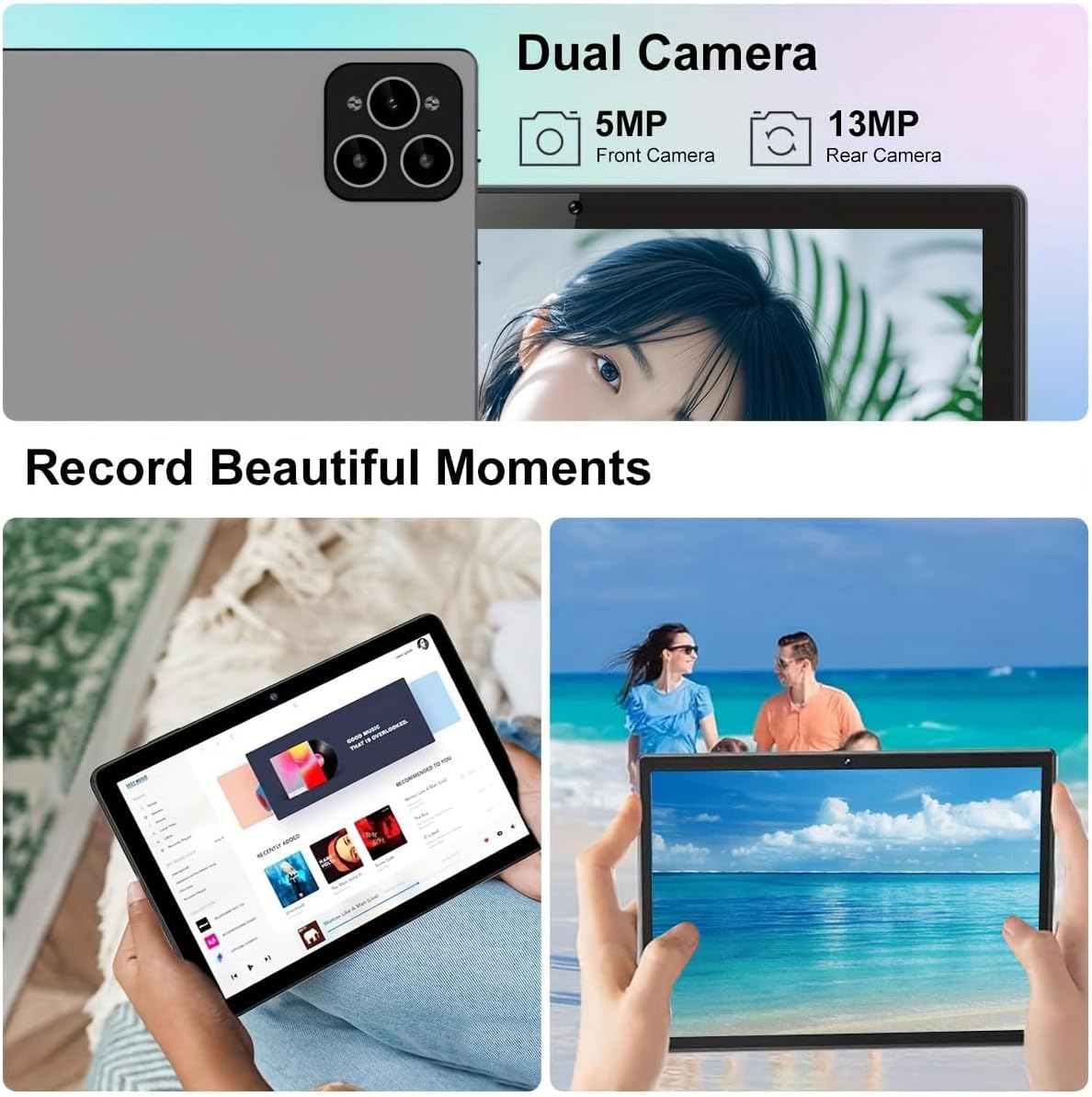
Image: Visual representation of the tablet's storage (12GB RAM, 512GB ROM, 1TB expandable) and processor (MTK 6763) capabilities.
Maintenance
- Cleaning: Use a soft, lint-free cloth to clean the screen and body. Avoid abrasive cleaners or solvents.
- Battery Care: To prolong battery life, avoid extreme temperatures and do not let the battery fully drain frequently.
- Software Updates: Regularly check for and install system updates to ensure optimal performance and security. Go to Settings > System > System update.
- Storage Management: Periodically clear unnecessary files and apps to maintain sufficient storage space and performance.
Troubleshooting
| Problem | Solution |
|---|---|
| Tablet does not power on. | Ensure the tablet is fully charged. Press and hold the Power button for at least 10 seconds. |
| Cannot connect to Wi-Fi. | Check if Wi-Fi is enabled in settings. Restart your router. Ensure you are entering the correct password. |
| Tablet is slow or unresponsive. | Close unused applications. Clear cache. Restart the tablet. Consider a factory reset if issues persist (backup data first). |
| Accessories (keyboard/mouse) not connecting. | Ensure accessories are charged and in pairing mode. Re-pair them via Bluetooth settings. |
Warranty and Support
Crelander offers dedicated after-sales support for any inquiries or issues you may encounter with your tablet. Please refer to your purchase documentation for specific warranty terms and contact information. For general support, visit the official Crelander website or contact their customer service.
Online Resources:
- Crelander Store on Amazon: Visit Crelander Store
Ask a question about this manual
Ask about setup, troubleshooting, compatibility, parts, safety, or missing instructions. Manuals+ will review the question and use this page’s manual context to help answer it.