
1. Introduction
This manual provides essential information for the installation, operation, maintenance, and troubleshooting of your WD_Black SN8100 NVMe SSD. Designed for high-performance computing, this PCIe Gen 5.0x4 M.2 2280 SSD offers exceptional speed and reliability for demanding applications such as high-level gaming, professional content creation, and AI applications.
The WD_Black SN8100 NVMe SSD utilizes advanced TLC 3D CBA NAND technology, ensuring robust performance and durability. Its optimized thermal performance and low-power profile contribute to a cool and efficient system operation.
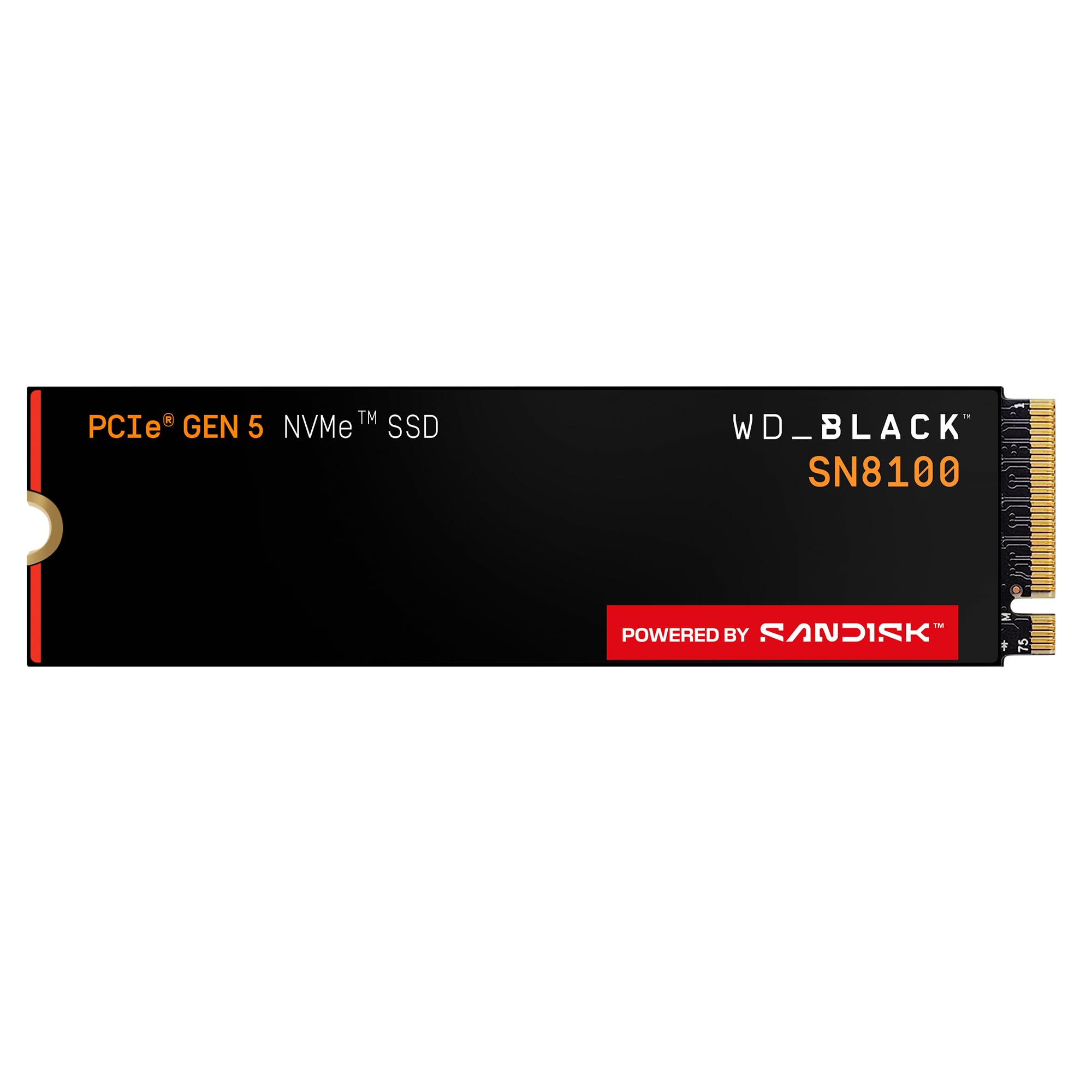
Image 1.1: WD_Black SN8100 NVMe SSD (2TB model).
Key Features:
- PCIe Gen 5 Interface: Experience enhanced performance for gaming and content creation.
- High-Speed Performance: Sequential read speeds up to 14,900MB/s and sequential write speeds up to 14,000MB/s (for 2TB-4TB models).
- Power Efficiency: Over 100% more power efficient than previous PCIe Gen4 drives (1TB-4TB models) with an average operating power of 7.5W or less.
- Advanced Reliability: Features TLC 3D CBA NAND technology for heightened speed and endurance.
- Large Storage Capacity: Available in capacities up to 8TB, providing ample space for operating systems, applications, and large media files.
2. Setup and Installation
Installing the WD_Black SN8100 NVMe SSD requires a motherboard with an available M.2 slot that supports PCIe Gen 5.0x4. Always ensure your system is powered off and unplugged before beginning installation.
2.1 Physical Installation
- Prepare Your System: Power down your computer and disconnect all cables. Open your computer case to access the motherboard.
- Locate M.2 Slot: Identify an available M.2 slot on your motherboard. Refer to your motherboard's manual for exact locations and any specific instructions regarding M.2 slot usage, especially for PCIe Gen 5.0x4.
- Insert SSD: Gently insert the WD_Black SN8100 NVMe SSD into the M.2 slot at a 30-degree angle. Ensure the gold contacts are fully seated.
- Secure SSD: Push the SSD down until it is parallel with the motherboard. Secure it with the provided screw or retention clip from your motherboard.
- Close Case: Close your computer case and reconnect all cables.
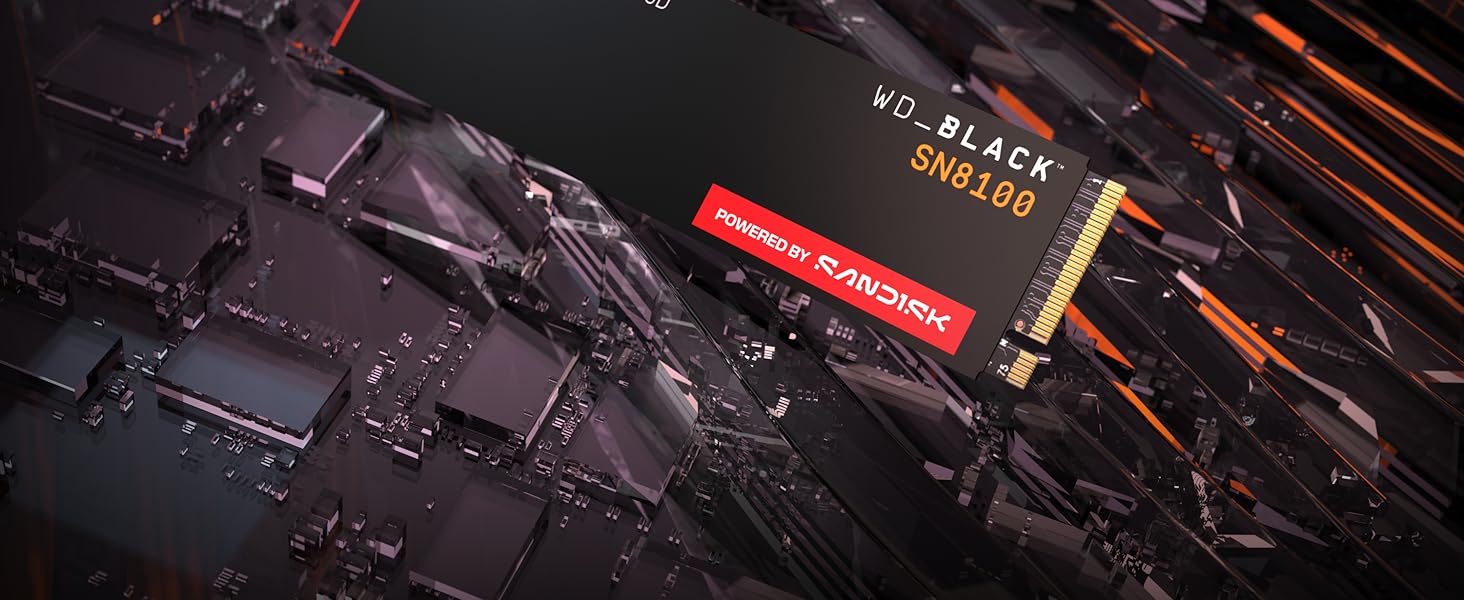
Image 2.1: WD_Black SN8100 NVMe SSD installed in an M.2 slot.
2.2 Software Setup (Windows)
- Boot System: Power on your computer. The system should boot into your existing operating system.
- Initialize Disk: Right-click the Start button and select "Disk Management." You may be prompted to initialize the new SSD. Choose GPT (GUID Partition Table) for modern systems.
- Create New Simple Volume: Right-click the unallocated space on your new SSD, select "New Simple Volume," and follow the wizard to format the drive and assign a drive letter.
- Install Drivers (if necessary): While NVMe drives often use generic drivers, check the Sandisk support website for any specific drivers or firmware updates for the WD_Black SN8100.
2.3 Official Product Video: Installation and Features
Video 2.2: Official overview of the WD_BLACK SN8100 Gen 5 NVMe SSD, highlighting its features and potential installation scenarios.
3. Operating the SSD
Once installed and formatted, your WD_Black SN8100 NVMe SSD operates like any other storage drive. Its high performance is particularly beneficial for applications requiring fast data access.
3.1 Performance Expectations
The WD_Black SN8100 is designed for peak performance. You can expect significantly reduced loading times for games and applications, faster file transfers, and improved system responsiveness. Actual speeds may vary based on your system's configuration, workload, and other factors.

Image 3.1: Visual representation of the high-speed capabilities of the WD_Black SN8100 SSD.
3.2 Sandisk Dashboard Software
For Windows users, the Sandisk Dashboard software can help maximize your drive’s performance, monitor its health, and keep it up to date. This utility provides insights into drive status, temperature, and allows for firmware updates. You can download it from the official Sandisk website.
4. Maintenance
Proper maintenance ensures the longevity and optimal performance of your SSD.
4.1 Firmware Updates
Periodically check for firmware updates using the Sandisk Dashboard software or the official Sandisk support website. Firmware updates can improve performance, enhance compatibility, and fix potential issues.
4.2 Data Management
- Avoid Defragmentation: Unlike traditional HDDs, SSDs do not benefit from defragmentation. It can actually reduce the lifespan of the drive. Ensure defragmentation is disabled for your SSD.
- TRIM Command: Ensure your operating system supports and enables the TRIM command. TRIM helps the SSD manage its data blocks efficiently, maintaining performance over time. Modern operating systems typically enable this by default.
- Leave Some Free Space: While not strictly necessary, leaving a small percentage of the drive (e.g., 10-15%) free can help maintain optimal write performance, especially for drives with high usage.

Image 4.1: The WD_Black SN8100 SSD is built for endurance and reliability.
5. Troubleshooting
If you encounter issues with your WD_Black SN8100 NVMe SSD, refer to the following common solutions.
5.1 SSD Not Detected
- Check Physical Connection: Ensure the SSD is correctly seated in the M.2 slot and secured.
- BIOS/UEFI Settings: Enter your system's BIOS/UEFI settings. Verify that the M.2 slot is enabled and configured correctly (e.g., NVMe mode). Some motherboards may disable certain SATA ports when an M.2 NVMe drive is used.
- Driver Installation: Ensure your operating system has the necessary NVMe drivers. For a new OS installation, these are usually included.
- Disk Management: If detected by the system but not visible in File Explorer, check Disk Management to initialize and format the drive (see Section 2.2).
5.2 Slow Performance
- PCIe Generation: Ensure your motherboard's M.2 slot supports PCIe Gen 5.0x4. If installed in a lower generation slot (e.g., Gen 4 or Gen 3), the drive will operate at the maximum speed of that slot.
- System Resources: High CPU usage, low RAM, or other background processes can impact SSD performance.
- Thermal Throttling: While the SN8100 has optimized thermal performance, extreme workloads or poor case airflow can lead to overheating and subsequent performance reduction. Ensure adequate cooling.
- Firmware: Check for and install any available firmware updates.
5.3 Overheating
- Airflow: Ensure good airflow within your computer case.
- Heatsink: If your motherboard or system did not come with an M.2 heatsink, consider adding one. While the SN8100 is power-efficient, a heatsink can further improve thermal management under sustained heavy loads.
- Monitoring: Use Sandisk Dashboard or other system monitoring tools to track the SSD's temperature.
6. Specifications
Detailed technical specifications for the WD_Black SN8100 2TB NVMe SSD (Model WDS200T1X0M).
| Feature | Specification |
|---|---|
| Digital Storage Capacity | 2 TB |
| Hard Disk Interface | PCIE x 4 |
| Connectivity Technology | NVMe, PCIe Gen5 |
| Brand | Sandisk |
| Hard Disk Form Factor | 22 Millimeters (M.2 2280) |
| Hard Disk Description | Solid State Drive |
| Compatible Devices | Desktop, Laptop |
| Installation Type | Internal Hard Drive |
| Color | Black |
| Specific Uses For Product | Gaming, Multimedia, Personal |
| Read Speed | 14900 Megabytes Per Second |
| Write Speed (Media Speed) | 14000 Megabytes Per Second |
| Data Transfer Rate | 14900 Megabytes Per Second |
| Hardware Platform | PC |
| Item Weight | 7.5 Grams |
| Model Number | WDS200T1X0M |
| Model Name | WD_BLACK SN8100 NVMe SSD |
| Manufacturer | Sandisk Technologies, Inc. |
7. Warranty and Support
7.1 Warranty Information
The WD_Black SN8100 NVMe SSD comes with a 5-Year Limited Warranty. Please retain your proof of purchase for warranty claims. For full terms and conditions, refer to the warranty guide included with your product or visit the official Sandisk website.
7.2 Technical Support
For technical assistance, product registration, or to download the latest drivers and firmware, please visit the official Sandisk support website. You can also find FAQs and community forums for additional help.
Sandisk Support Website: www.sandisk.com/support


