
1. Introduction
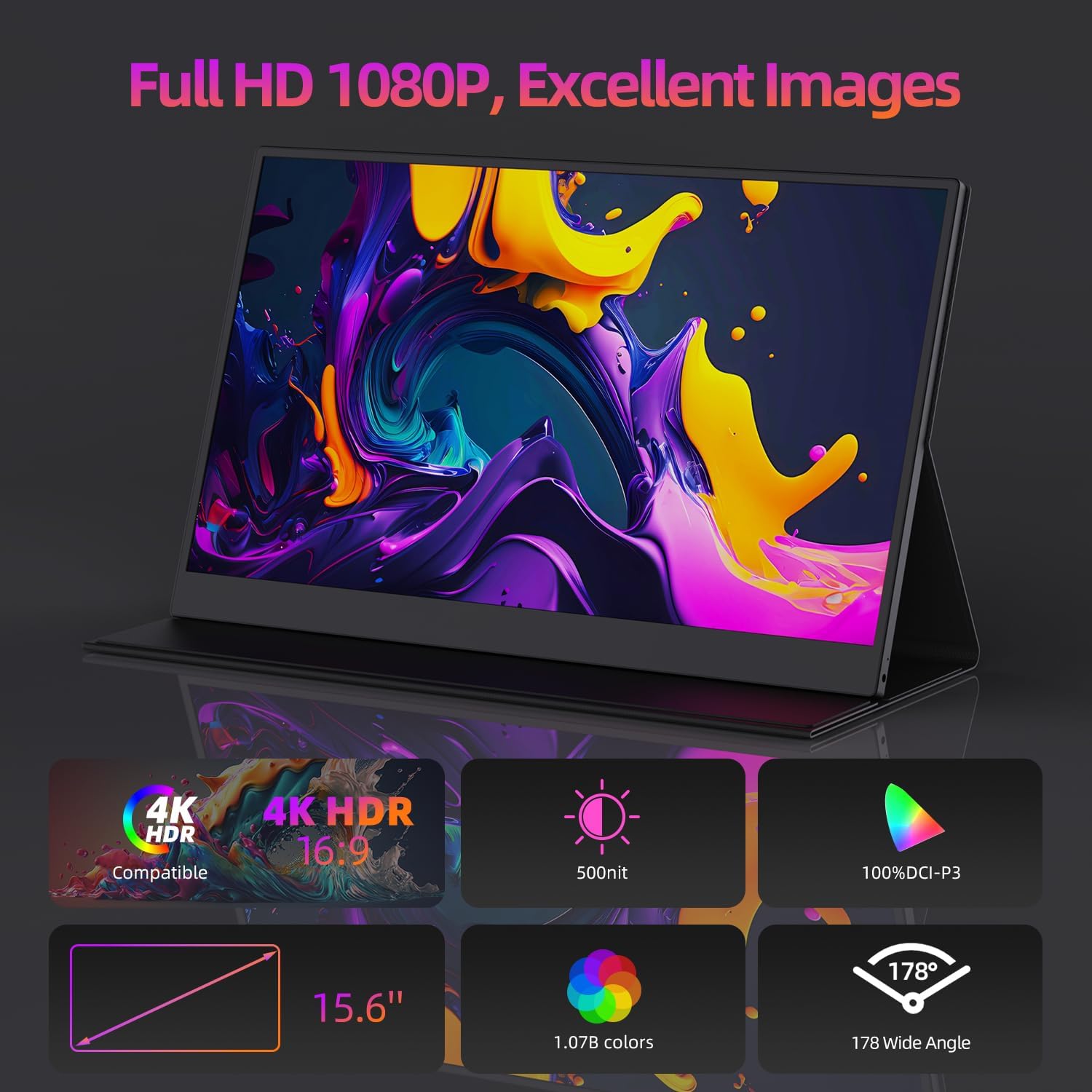
The Bettdow 14-inch FHD 1080P Portable Touchscreen Monitor is designed to enhance your productivity and entertainment experience. Featuring a Full HD 1920x1080 resolution IPS panel with a 178° wide viewing angle, it delivers accurate and vibrant colors. The monitor is equipped with features to reduce blue light radiation and flicker, promoting eye comfort during extended use. Its compact design makes it an ideal second screen for work or leisure.

2. Package Contents
Upon unboxing, please verify that all the following items are included in your package:
- Bettdow 14-inch Portable Touchscreen Monitor
- Magnetic Protective Cover
- USB-C to USB-C Cable
- Mini HDMI to HDMI Cable
- Power Adapter (for power delivery)
3. Product Overview
The Bettdow portable monitor features a durable metallic build and a smart magnetic leather cover that provides full protection and doubles as a flexible stand.
Ports and Controls:
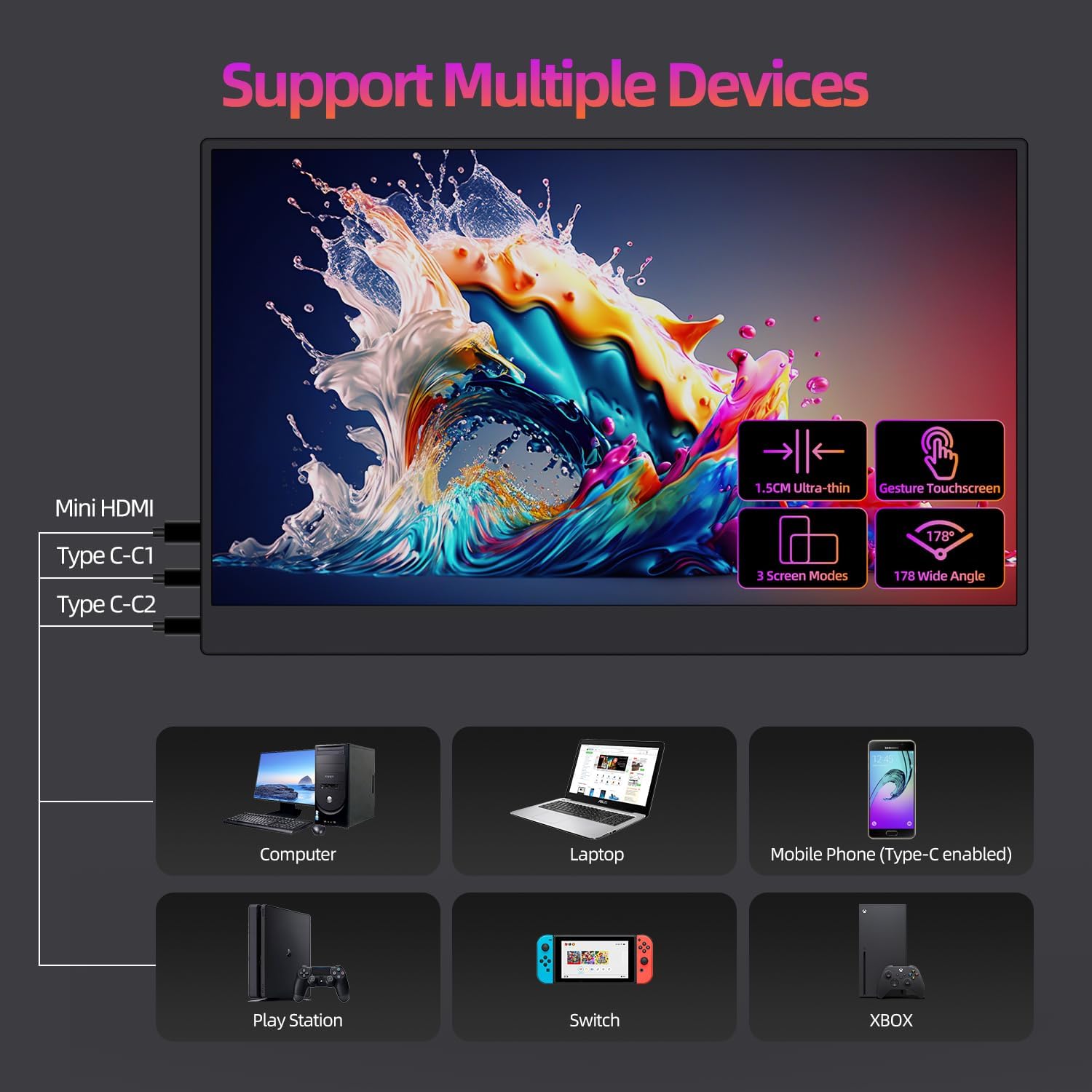
The monitor is equipped with dual full-featured USB-C ports and a Mini HDMI port, allowing versatile connectivity.
- Dual USB-C Ports: Support power delivery and display signal transmission with a single cable.
- Mini HDMI Port: For video input from various devices.
- 3.5mm Audio Jack: For connecting external headphones or speakers.
- Control Buttons: Typically located on the side for navigating the On-Screen Display (OSD) menu, adjusting settings, and power control.

4. Setup
Follow these steps to connect your Bettdow portable monitor to your device:
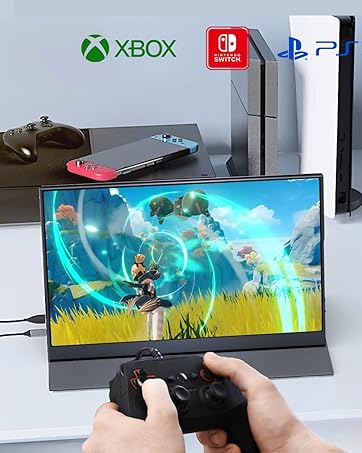
- Power Connection: Connect the monitor to a power source using the provided power adapter and a USB-C port, especially when connecting to devices that cannot supply sufficient power (e.g., some smartphones, gaming consoles).
- USB-C Connection (Full-Featured): If your laptop, PC, or smartphone supports DisplayPort Alternate Mode over USB-C, connect one end of the USB-C to USB-C cable to your device and the other end to one of the monitor's USB-C ports. This single cable can provide both power and video/touch signal.
- HDMI Connection: Connect the Mini HDMI to HDMI cable from the monitor's Mini HDMI port to your device's HDMI port. For touchscreen functionality with an HDMI connection, an additional USB-C to USB-A cable (not always included, may need to be purchased separately) is required to transmit touch data from the monitor's USB-C port to your device's USB-A port.
- Positioning: Adjust the magnetic cover to position the monitor horizontally or vertically as needed.
Touchscreen Configuration (Windows):
If the touchscreen is not responding correctly in Windows, navigate to your Windows settings, find 'Tablet PC Settings' or 'Pen and Touch', and ensure the portable monitor is correctly mapped for touch input. You may need to perform a screen calibration.

5. Operating the Monitor
Power On/Off:
Press and hold the power button (usually located on the side) to turn the monitor on or off.
On-Screen Display (OSD) Menu:
Use the control buttons to navigate the OSD menu. Here you can adjust settings such as:
- Brightness and Contrast
- Color Temperature and Mode
- Input Source Selection
- Volume Control for integrated speakers
Touchscreen Gestures:
The 10-point touchscreen supports various gestures for intuitive interaction with compatible operating systems. Common gestures include:
- Single tap for click
- Double tap for double click
- Swipe for scrolling
- Pinch-to-zoom for enlarging or reducing content
- Drag for moving items

Audio:
The monitor includes two integrated speakers for audio output. For private listening, connect headphones to the 3.5mm audio jack.

6. Maintenance
Proper maintenance ensures the longevity and optimal performance of your Bettdow portable monitor.
- Screen Cleaning: Gently wipe the screen with a soft, lint-free cloth. For stubborn smudges, slightly dampen the cloth with water or a screen-cleaning solution. Avoid harsh chemicals or abrasive materials.
- Body Cleaning: Use a soft, dry cloth to clean the monitor's body.
- Magnetic Cover Care: The magnetic leather cover is designed to be durable and scratch-resistant. Wipe it clean with a damp cloth if necessary. Avoid exposing it to extreme temperatures or sharp objects.
- Storage: When not in use, store the monitor in its protective cover in a cool, dry place to prevent dust accumulation and potential damage.
7. Troubleshooting
If you encounter issues with your Bettdow portable monitor, refer to the following troubleshooting guide:
| Issue | Possible Solution |
|---|---|
| No display or 'No Signal' message |
|
| Touchscreen not working or inaccurate |
|
| No audio from monitor speakers |
|
| Image quality issues (e.g., flickering, incorrect colors) |
|
8. Specifications
| Feature | Detail |
|---|---|
| Brand | Bettdow |
| Model Number | AC1064 |
| Screen Size | 14 Inches |
| Resolution | FHD 1080p (1920 x 1080) |
| Aspect Ratio | 16:9 |
| Image Contrast Ratio | 1000:1 |
| Refresh Rate | 60 Hz |
| Panel Type | IPS |
| Viewing Angle | 178 Degrees |
| Image Brightness | 250 CD/M2 |
| Dimensions (P x L x A) | 410P x 45L x 250A millimeters |
| Video Output Ports | 4 (including USB-C and HDMI) |
| Special Features | IPS Display, Ultra-thin, Flicker-Free, Blue Light Protection, Eye Care |
| Color | Black |
| Response Time | 2 Milliseconds |
| Connectivity Technology | HDMI, USB Type-C |
| Hardware Interface | HDMI |
| Country of Origin | China |
9. Warranty Information
The Bettdow 14-inch Portable Touchscreen Monitor comes with a 6-month warranty from the date of purchase. This warranty covers manufacturing defects and malfunctions under normal use. Please retain your proof of purchase for warranty claims. For detailed terms and conditions, refer to the warranty card included in your package or contact Bettdow customer support.
10. Support
For further assistance, technical support, or warranty inquiries, please contact Bettdow customer service.
- Online Support: Visit the official Bettdow website for FAQs, driver downloads, and support resources.
- Email Support: Refer to your product packaging or warranty card for customer service email addresses.