
Introduction
Thank you for choosing the Wisoqu 7-inch Portable Monitor. This manual provides essential information for setting up, operating, maintaining, and troubleshooting your device. Please read it thoroughly before use to ensure optimal performance and longevity of your monitor.
Package Contents
Upon unpacking, please verify that all the following items are included:
- 1 x Wisoqu 7-inch Portable Screen
- 1 x HD Multimedia Interface Cable
- 1 x USB Cable
- 1 x Type-C Cable
Setup
1. Connecting the Monitor
The Wisoqu portable monitor offers versatile connectivity options for various devices. Ensure your device is powered off before making connections.
- Power Supply: Connect the monitor to a power source using the provided USB Cable or Type-C Cable. The Type-C port can also supply power and video simultaneously if your device supports it.
- Video Input (HDMI): Use the provided HD Multimedia Interface Cable to connect the monitor's miniHD port to your device's HDMI output.
- Video Input (USB Type-C): If your device supports video output over USB Type-C (DisplayPort Alternate Mode), use the provided Type-C Cable to connect directly to the monitor's Type-C port.

Figure 1: Side view illustrating the miniHD and USB-C input ports for video and power.

Figure 2: Detailed view of the monitor's connectivity panel, showing the audio jack, miniHD, and Type-C ports.
2. Wall Mounting
The monitor features a 75x75mm VESA wall mounting hole pattern, allowing for flexible installation with compatible VESA mounts (not included).
- Ensure the VESA mount is securely attached to a stable surface.
- Align the monitor's mounting holes with the VESA mount and secure it using appropriate screws.

Figure 3: Rear view of the monitor demonstrating the 75x75mm VESA mounting compatibility.

Figure 4: Rear panel of the monitor, highlighting the speaker grilles and VESA mounting screw locations.
Operating Instructions
1. Powering On/Off
Once connected to a power source and a video input, the monitor should automatically power on. If not, locate the power button (usually on the side or back) and press it to turn on the display. To power off, press and hold the power button.
2. Touchscreen Functionality
The monitor features a responsive touchscreen. For touch functionality to work, ensure the USB data connection (via USB-C or a separate USB cable if applicable) is established between the monitor and your host device. Touch input is supported on compatible operating systems such as Windows and OS X.
3. Audio Output
The monitor includes double built-in speakers for audio output. A 3.5mm audio jack is also available for connecting external headphones or speakers. Audio is typically routed through the HDMI or USB-C connection from your host device.
4. Display Modes
Depending on your host device's operating system, you can configure the monitor to operate in various display modes:
- Mirror Mode: Duplicates the content of your primary display.
- Extended Mode: Extends your desktop space, allowing you to drag windows between displays.
- Sub Screen Mode: Functions as a dedicated secondary display.
These settings are typically managed within your operating system's display settings.
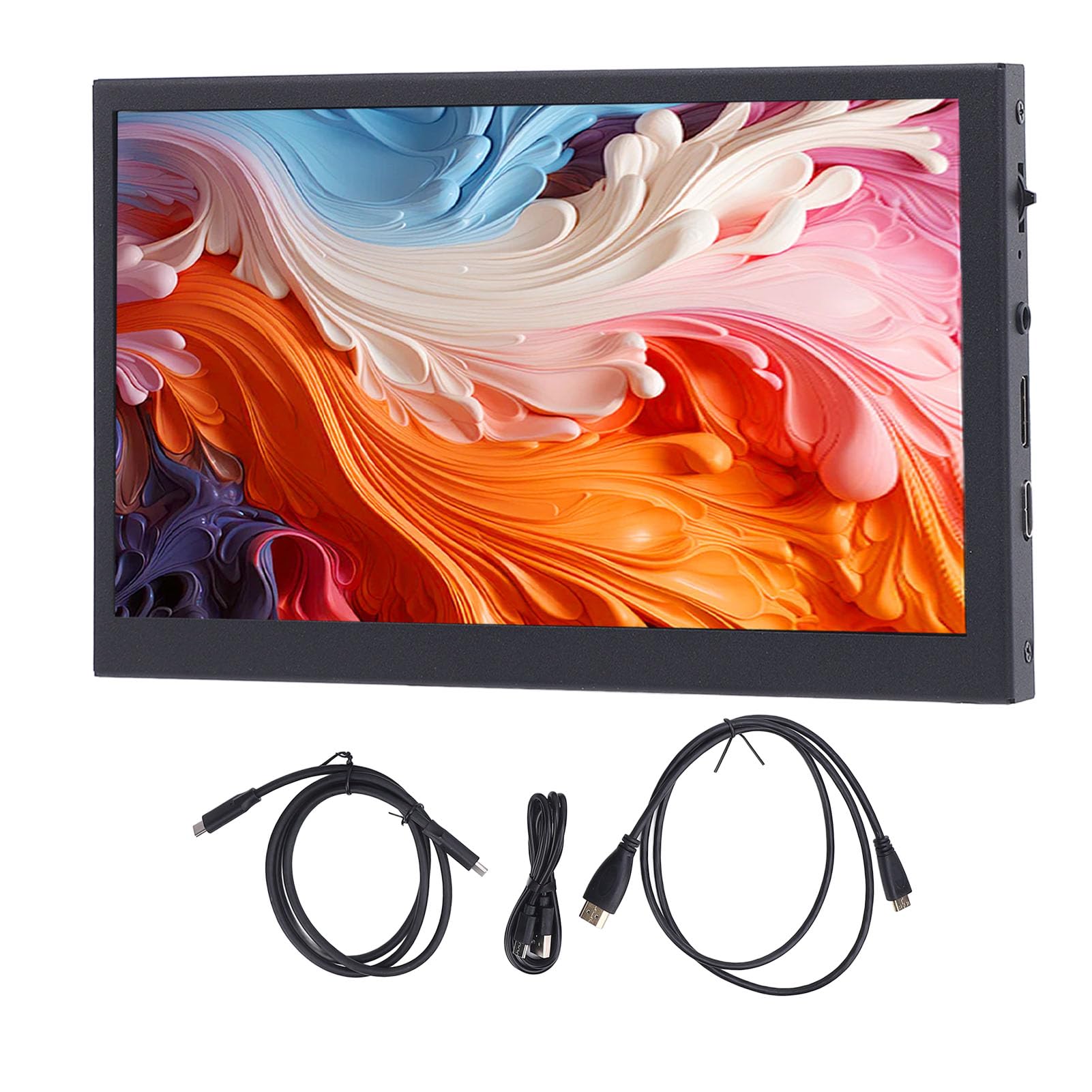
Figure 5: The monitor showcasing its IPS-like true color presentation with high saturation.

Figure 6: The monitor in use as a secondary display, highlighting its compatibility with various devices.

Figure 7: Front view of the monitor displaying a high-resolution image, demonstrating visual quality.
Maintenance
1. Cleaning the Screen
To clean the screen, gently wipe it with a soft, lint-free cloth. For stubborn smudges, slightly dampen the cloth with water or a screen-safe cleaning solution. Avoid using harsh chemicals, abrasive materials, or excessive moisture.
2. General Care and Storage
Keep the monitor away from direct sunlight, extreme temperatures, and high humidity. When not in use, store the monitor in a dry, cool place, preferably in its original packaging or a protective case to prevent scratches and damage.
Troubleshooting
If you encounter issues with your Wisoqu portable monitor, please refer to the following common solutions:
- No Display:
- Ensure the monitor is properly powered.
- Verify that the video cable (HDMI or Type-C) is securely connected to both the monitor and your host device.
- Check your host device's display settings to ensure it is configured to output to the external monitor.
- Try a different video cable or port if available.
- No Touch Response:
- Confirm that the USB data connection for touch functionality is established (often via the Type-C cable or a separate USB cable).
- Ensure your operating system supports touch input for external displays.
- Restart both the monitor and the host device.
- No Sound:
- Check the volume settings on both the monitor and your host device.
- Ensure audio output is directed to the monitor in your host device's sound settings.
- If using external speakers/headphones, ensure they are properly connected to the 3.5mm audio jack.
- Flickering or Unstable Display:
- Ensure the power supply is stable and sufficient.
- Try a different video cable.
- Adjust the display resolution or refresh rate on your host device.
If these steps do not resolve the issue, please contact customer support.
Specifications
| Item Type | Portable Screen |
| Material | Aluminum Alloy, LCD |
| Screen Size | 7.0 Inch |
| Resolution | 1024x600 (Note: Product specifications also list 1280x1024 MP, but 1024x600 is consistent with product title and description.) |
| Viewing Angle | 170° Full Viewing Angle |
| Color Gamut | 50% NTSC |
| Display Color | 16.7M (8 Bit) |
| Refresh Rate | 60Hz |
| Response Time | 25ms |
| Screen Ratio | 16:9 |
| Contrast Ratio | 700:1 |
| Brightness | 300cd/m2 |
| HDR Function | Not Supported |
| Wall Mounting Hole | Approx. 75x75mm / 2.95x2.95in |
| Product Dimensions | 7.87 x 5.51 x 1.57 inches |
| Item Weight | 12.7 ounces |
| Model Number | Wisoquhrscx3k5yq |
Warranty Information
Specific warranty details for the Wisoqu 7-inch Portable Monitor are not provided in this document. For information regarding product warranty, please refer to the product packaging, the manufacturer's official website, or contact your point of purchase.
Support
For further assistance, technical support, or inquiries not covered in this manual, please visit the official Wisoqu website or contact their customer service department. Contact information can typically be found on the product packaging or the manufacturer's website.