
1. Introduction
Thank you for choosing the Omnica Y-10 PRO 16-inch i5 Laptop. This manual provides essential information for setting up, operating, maintaining, and troubleshooting your new device. Designed for powerful performance and versatility, this laptop is ideal for students, business professionals, and everyday computing needs.

Image: The Omnica 16-inch Full HD Notebook, highlighting its sleek design and display.
2. Safety Information
Please read the following safety guidelines carefully before using your laptop to ensure safe and optimal performance:
- Do not expose the device to extreme temperatures, direct sunlight, or high humidity.
- Avoid dropping or subjecting the laptop to strong impacts.
- Use only the original power adapter and accessories provided with the device.
- Keep liquids away from the laptop to prevent electrical shock or damage.
- Do not attempt to disassemble or repair the device yourself. Contact qualified service personnel for assistance.
3. Package Contents
Verify that all items are present in your package:
- Omnica Y-10 PRO 16-inch i5 Laptop
- Power Adapter
- User Manual (this document)
4. Product Overview
4.1. Laptop Features
- Powerful Performance: Dual-core i5-8210Y processor (up to 3.6GHz) with 16GB DDR3 RAM for smooth multitasking.
- Vibrant Display: 16-inch FHD 1920x1200 (16:10 ratio) IPS screen with 250cd/m² brightness and 180° hinge.
- Ample Storage: Built-in 512GB SSD, expandable via M.2 slot (up to 1TB) and Micro SD card reader.
- Enhanced Connectivity: WiFi 5, Bluetooth 5.0, 3x USB 3.0, Type-C (data 3.0), HDMI 1.4, RJ45 Ethernet.
- Premium Design: Slim 0.79" portable design, backlit keyboard, 44Wh battery, and pre-loaded Windows 11 Pro.
4.2. Ports and Connectors
Familiarize yourself with the various ports on your laptop:
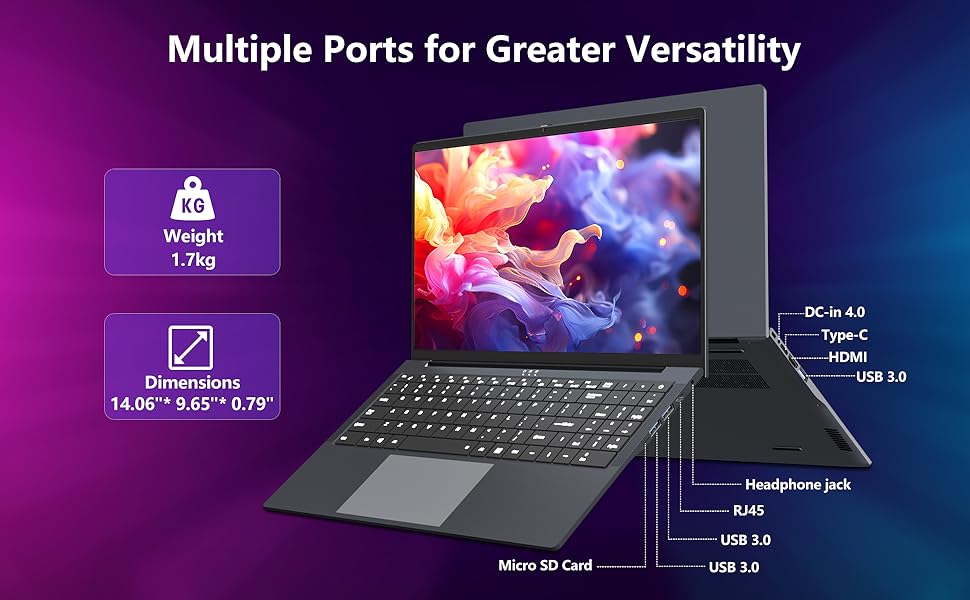
Image: Diagram showing the various ports on the Omnica Y-10 PRO laptop, including DC-in, Type-C, HDMI, USB 3.0, Headphone jack, RJ45, and Micro SD Card slot.
- Left Side: DC-in 4.0 (Charging Port), Type-C (Data 3.0), HDMI 1.4, USB 3.0.
- Right Side: Micro SD Card Slot, 2x USB 3.0, RJ45 Ethernet, Headphone Jack.
5. Setup
5.1. Initial Power-On and Charging
- Connect the power adapter to the DC-in port on the left side of the laptop and plug it into a power outlet.
- Press and hold the power button for 3 seconds to activate the battery and turn on the laptop for the first time.
- Follow the on-screen prompts to complete the initial Windows 11 Pro setup.
Video: A user demonstrates the initial setup and power-on process of the Omnica laptop, including navigating the Windows 11 interface and accessing pre-installed applications.
5.2. Connecting Peripherals
You can connect various peripherals using the available ports:
- USB Devices: Plug USB drives, mice, or keyboards into the USB 3.0 ports.
- External Display: Use the HDMI port to connect an external monitor or projector.
- Network Cable: Connect an Ethernet cable to the RJ45 port for a wired internet connection.
- Headphones/Speakers: Plug in your audio devices into the 3.5mm headphone jack.
6. Operating Instructions
6.1. Using the Keyboard and Touchpad
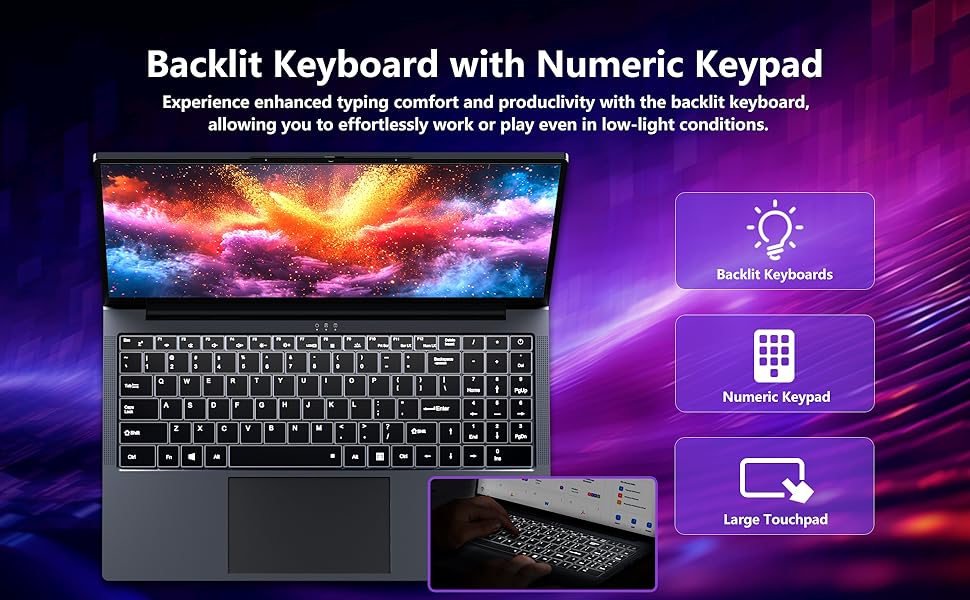
Image: The Omnica laptop's backlit keyboard with a numeric keypad, designed for comfortable typing in various lighting conditions.
- Backlit Keyboard: Press the Fn + F7 keys to toggle the keyboard backlight on/off or adjust its brightness.
- Numeric Keypad: The integrated numeric keypad allows for efficient data entry.
- Large Touchpad: The spacious touchpad supports multi-touch gestures for intuitive navigation.
6.2. Camera Usage
The laptop features a 1.0MP HD front camera with a privacy cover.
- Activate Camera: Open the Camera app in Windows or use video conferencing software.
- Privacy Cover: Slide the physical cover over the camera lens when not in use to ensure privacy.
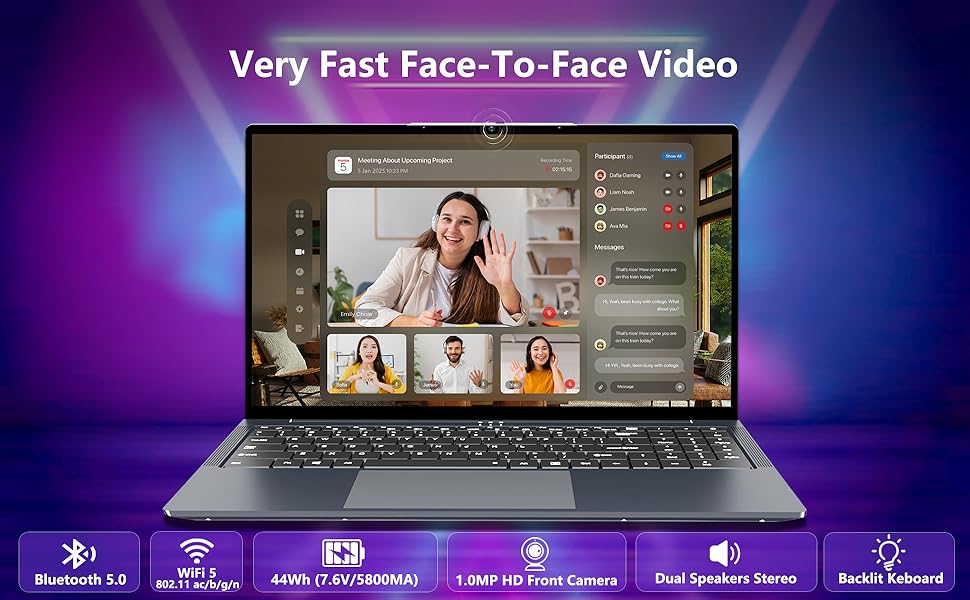
Image: The Omnica laptop displaying a video call, highlighting the 1.0MP HD front camera and dual stereo speakers for clear communication.
6.3. Wireless Connectivity
- Wi-Fi: Connect to wireless networks via Wi-Fi 5 (802.11ac) for internet access.
- Bluetooth: Pair Bluetooth devices like headphones or speakers using Bluetooth 5.0.
7. Maintenance
- Cleaning: Use a soft, dry cloth to clean the screen and exterior. Avoid harsh chemicals.
- Software Updates: Regularly check for and install Windows updates to ensure optimal performance and security.
- Battery Care: To prolong battery life, avoid fully discharging the battery frequently. Store the laptop in a cool, dry place if not used for extended periods.
8. Troubleshooting
| Problem | Solution |
|---|---|
| Laptop does not power on. | Ensure the power adapter is securely connected and the outlet is working. The battery might be completely drained; allow it to charge for at least 30 minutes before attempting to power on again. |
| Screen is blank or flickering. | Try adjusting the screen brightness using the function keys. If connected to an external display, ensure the cable is secure and try disconnecting it. Restart the laptop. |
| Wi-Fi connection issues. | Check if Wi-Fi is enabled in Windows settings. Restart your router and modem. Ensure you are within range of the Wi-Fi signal. |
| Keyboard backlight not working. | Press Fn + F7 to toggle the backlight or adjust its brightness. |
9. Specifications
Detailed technical specifications for your Omnica Y-10 PRO laptop:
| Feature | Description |
|---|---|
| Model Name | Y-10 PRO |
| Processor | Intel Core i5-8210Y (1.6GHz base, up to 3.6GHz turbo) |
| RAM | 16GB DDR3 SDRAM (Dual 8GB) |
| Storage | 512GB SSD (Expandable via M.2 slot up to 1TB) |
| Display | 16-inch FHD (1920x1200) IPS, 16:10 ratio, 250cd/m² brightness, 180° hinge |
| Graphics | Integrated UHD Graphics |
| Operating System | Windows 11 Pro |
| Wireless Connectivity | Wi-Fi 5 (802.11ac), Bluetooth 5.0 |
| Ports | 3x USB 3.0, 1x Type-C (Data 3.0), 1x HDMI 1.4, 1x RJ45 Ethernet, 1x Micro SD Card Slot, 1x 3.5mm Headphone Jack, 1x DC-in 4.0 |
| Camera | 1.0MP HD Front Camera with Privacy Cover |
| Battery | 44Wh (7.6V/5800mAh) Lithium Polymer |
| Dimensions | 14.06 x 9.06 x 0.81 inches |
| Weight | 5.15 pounds |
| Color | Space Gray |
10. Warranty and Support
Omnica is committed to providing high-quality products and reliable services. Your laptop comes with comprehensive support:
- Warranty: Enjoy 2 years of free repairs for your Omnica laptop.
- Customer Service: We offer 24-hour customer service. If you have any questions, please feel free to contact Omnica's professional after-sales team. We will reply within 24 hours to ensure a smooth and reliable user experience.

Image: Omnica customer support details, including how to get help via Amazon and information on the 2-year warranty and 24-hour customer service.
How to Get Support:
- Log in to your Amazon buyer account.
- Find your order for the Omnica Y-10 PRO laptop.
- Click "Get Help" to contact our support team.
11. Additional Product Videos
Explore more about your Omnica Y-10 PRO laptop with these helpful videos:
Amber Lake i5-8210Y Laptop Overview
Video: A detailed look at the Amber Lake i5-8210Y processor powering the Omnica laptop, showcasing its capabilities.
Omnica 16-inch Laptop Features
Video: An overview of the key features and design of the Omnica 16-inch laptop computer.
Excellent Work Laptop Review
Video: A review highlighting the Omnica laptop as a fast, quiet, and reliable device for work.