
MechLands AK980
AJAZZ AK980 Mechanical Keyboard User Manual
Model: AK980 | Brand: MechLands
Introduction
The AJAZZ AK980 is a 98% mechanical keyboard designed for versatility and performance. Featuring triple-mode connectivity, a hotswappable PCB, and a unique 1.14-inch TFT color screen, it offers a customizable and efficient typing experience. This manual provides detailed instructions for setup, operation, maintenance, and troubleshooting to ensure optimal use of your keyboard.

Image: The AJAZZ AK980 mechanical keyboard featuring the KiiBoom X Cosydiaries Rainy Froggy Day keycap set, showcasing its compact layout and aesthetic design.

Image: An overview of the AJAZZ AK980's key features, including 97 keys, triple connectivity modes, hot-swappable switches, RGB lighting, an 8000mAh battery, gasket structure, metal knob, FR4 plate, and a TFT screen.
Package Contents
- 1 x AJAZZ AK980 Mechanical Keyboard
- 1 x Keycap Puller
- 1 x USB-C Cable (for wired connection and charging)
- 1 x 2.4GHz Wireless Receiver (typically stored in the keyboard)
Setup
Connectivity Modes
The AK980 supports three connection modes: USB-C wired, 2.4GHz wireless, and Bluetooth 5.0. Use the switch located on the keyboard to select your desired mode.

Image: Diagram illustrating the three connectivity modes of the AK980 keyboard: 2.4GHz Wireless, Bluetooth 5.0, and USB-Type C Wired, compatible with various devices and operating systems.
1. USB-C Wired Connection
- Connect the provided USB-C cable to the keyboard's port.
- Plug the other end of the cable into an available USB port on your computer.
- Ensure the mode switch on the keyboard is set to 'Wired' or 'USB'.
- The keyboard will be automatically recognized by your system.
2. 2.4GHz Wireless Connection
- Locate the 2.4GHz USB receiver (usually stored in a slot on the keyboard).
- Plug the receiver into an available USB port on your computer.
- Set the mode switch on the keyboard to '2.4G'.
- The keyboard should connect automatically. If not, press Fn + R to initiate pairing.
3. Bluetooth 5.0 Connection
- Set the mode switch on the keyboard to 'BT'.
- Press and hold Fn + Q, Fn + W, or Fn + E for 3-5 seconds to enter pairing mode for BT1, BT2, or BT3 respectively. The indicator light will flash rapidly.
- On your device (computer, tablet, phone), open Bluetooth settings and search for new devices.
- Select 'AJAZZ AK980' from the list of available devices to connect.
- Once connected, the indicator light will stop flashing.
Initial Charging
Before first use, it is recommended to fully charge the keyboard using the provided USB-C cable. The 1.14-inch TFT screen will display the battery status.
Operation
Key Functions
The AK980 features a 97-key layout, providing a compact yet comprehensive typing experience. Standard QWERTY layout is supported. Refer to the keycap legends for primary and secondary functions accessible via the Fn key.
Metal Knob Functions
The multi-functional metal knob located on the top right of the keyboard provides quick access to various controls:
- Rotate Clockwise: Increase volume, scroll down pages.
- Rotate Counter-clockwise: Decrease volume, scroll up pages.
- Press: Play/Pause media, activate handy shortcuts (configurable via software if available).

Image: Close-up of the 1.14-inch TFT color screen displaying timing, connectivity modes, battery status, and custom GIF animation capabilities. Also details the metal knob's functions for volume control, scrolling, and pause.
1.14-inch TFT Color Screen
The integrated TFT screen provides real-time information and customization options:
- Timing: Displays current time.
- 3 Modes: Indicates the current connectivity mode (Wired, 2.4G, BT).
- Batteries: Shows the current battery level.
- Custom GIF Animation: Supports displaying custom GIF animations (requires specific software for upload).
RGB Lighting Control
The keyboard features customizable RGB backlighting. Specific key combinations (e.g., Fn + \| for mode change, Fn + Arrow Keys for brightness/speed) can be used to adjust lighting effects. Refer to the keyboard's specific function key legends for detailed controls.
Keycap and Switch Information
The AK980 comes with the KiiBoom X Cosydiaries Rainy Froggy Day Keycap Set, featuring a unique design and MOA profile for comfortable typing. The keycaps are made from PBT material using 5-side dye-sublimation for durability and vibrant colors. The keyboard utilizes an MX structure for switch compatibility.

Image: The complete KiiBoom X Cosydiaries Rainy Froggy Day Keycaps Set, highlighting its 143 keys, PBT material, MOA profile, 5-side dye-sublimation, ANSI & ISO layout compatibility, and MX structure.

Image: A visual representation of the MOA keycap profile, showing its uniform height and comfortable ergonomic design.
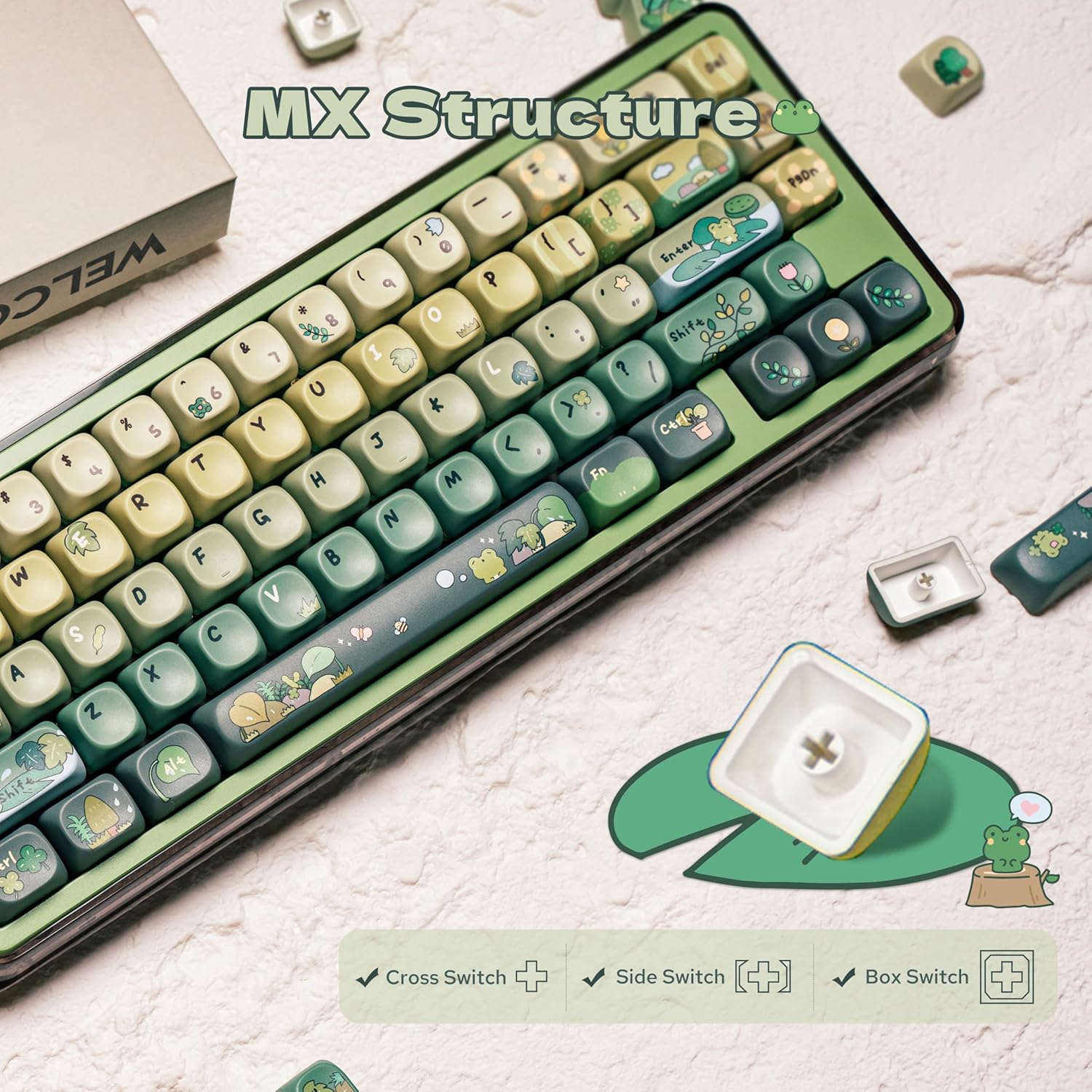
Image: An illustration of the MX keycap structure, demonstrating compatibility with cross-stem, side-stem, and box-stem switches.
Maintenance
Cleaning
To maintain your keyboard's appearance and functionality:
- Disconnect the keyboard from your device before cleaning.
- Use a soft brush or compressed air to remove dust and debris between keycaps.
- For keycap surfaces, wipe gently with a slightly damp, lint-free cloth. Avoid harsh chemicals.
Replacing Switches and Keycaps
The AK980 features a hotswappable PCB, allowing for easy replacement of mechanical switches without soldering. The included keycap puller facilitates safe removal of keycaps.

Image: A demonstration of the hotswappable PCB feature, showing a switch being removed from the keyboard, along with details on Cherry Profile and Gift Switch V2 specifications.
- Keycap Removal: Use the keycap puller to gently grip the keycap and pull straight up.
- Switch Removal: Once the keycap is removed, use a switch puller (not included, but often comes with switch sets) to carefully unclip the switch from the PCB and pull it straight out.
- Switch Installation: Align the pins of the new switch with the holes on the PCB. Press down firmly until the switch clicks into place. Ensure pins are not bent.
- Keycap Installation: Align the keycap with the switch stem and press down firmly until it is seated.
Troubleshooting
- Keyboard not responding:
- Ensure the correct connectivity mode (Wired, 2.4G, BT) is selected on the keyboard.
- Check USB cable connection or 2.4GHz receiver insertion.
- For Bluetooth, ensure the keyboard is paired and selected in your device's Bluetooth settings. Try re-pairing if necessary.
- Check battery level on the TFT screen; charge if low.
- Keys not registering:
- Remove the keycap and switch for the affected key. Re-insert the switch firmly to ensure proper contact with the PCB.
- Test with a different switch if available to rule out a faulty switch.
- Bluetooth connection unstable:
- Ensure no strong interference sources (e.g., Wi-Fi routers, other 2.4GHz devices) are too close.
- Keep the keyboard within the effective range of your device.
- Try re-pairing the keyboard.
- TFT screen not displaying:
- Ensure the keyboard is powered on and has sufficient battery.
- If the issue persists, try restarting the keyboard by cycling the power switch.
Specifications
| Feature | Detail |
|---|---|
| Model | AK980 |
| Brand | MechLands (AJAZZ) |
| Number of Keys | 97 |
| Connectivity Technology | USB-C Wired, 2.4GHz Wireless, Bluetooth 5.0 |
| Keyboard Layout | QWERTY |
| Switch Type | Mechanical (Hotswappable PCB) |
| Keycap Material | PBT (5-side Dye-Sublimation) |
| Keycap Profile | MOA Profile |
| Screen | 1.14-inch TFT Color Screen |
| Battery Capacity | 8000mAh (as per product features) |
| Included Components | 1 x Keyboard, 1 x Keycap Puller |
| Recommended Uses | Gaming |
| ASIN | B0F38FZDS4 |
Warranty and Support
This product comes with a standard manufacturer's warranty. For specific warranty terms, duration, and support inquiries, please refer to the documentation provided with your purchase or contact MechLands customer support directly. Keep your proof of purchase for warranty claims.
Ask a question about this manual
Ask about setup, troubleshooting, compatibility, parts, safety, or missing instructions. Manuals+ will review the question and use this page’s manual context to help answer it.