
1. Introduction
Welcome to the JK Vision 5MP IP Camera user manual. This document provides essential information for the proper installation, operation, and maintenance of your new security camera. The JK Vision 5MP IP Camera is designed for robust outdoor surveillance, featuring high-resolution imaging, built-in audio, and advanced night vision capabilities to ensure comprehensive monitoring.
Please read this manual thoroughly before installation and retain it for future reference.
2. Product Overview
Key Features
- 5MP IP Camera: Delivers high-resolution video for clear image capture.
- Color Night Vision: Provides enhanced visibility in low-light conditions.
- Built-In Audio: Enables two-way communication and audio monitoring.
- 30 Meter Distance Covered: Offers extensive surveillance range.
- NVR Compatibility: Supports integration with various Network Video Recorders, including CP PLUS, HIKVISION, and DAHUA.
What's in the Box
- JK Vision 5MP IP Camera
- Power Adapter
- Mounting Hardware (screws, wall plugs)
- User Manual

Figure 2.1: JK Vision 5MP IP Camera and its retail packaging.
3. Setup and Installation
This section guides you through the physical installation and initial setup of your JK Vision 5MP IP Camera.
3.1 Mounting the Camera
- Choose a Location: Select an outdoor location that provides the desired surveillance coverage. Ensure the camera is within range of a power source and network connection (Ethernet).
- Mark Drilling Points: Use the mounting template (if provided) or the camera base to mark the drilling points on the wall or ceiling.
- Drill Holes: Drill pilot holes at the marked points. Insert wall plugs if mounting on masonry.
- Secure the Base: Attach the camera's mounting base to the surface using the provided screws.
- Adjust Angle: Position the camera to achieve the optimal viewing angle. Tighten all screws to secure the camera in place.

Figure 3.1: The camera mounted on an exterior wall, demonstrating its outdoor application and communication capabilities.
3.2 Network and Power Connection
- Connect Power: Plug the provided power adapter into the camera's power input and then into a suitable electrical outlet.
- Connect Ethernet: Connect an Ethernet cable from the camera's RJ45 port to your network router or NVR.
- Initial Configuration: Refer to your NVR or network software manual for initial IP camera detection and configuration. The camera uses an Ethernet connectivity protocol.
4. Operating Instructions
Once installed and configured, your JK Vision 5MP IP Camera is ready for operation.
4.1 Accessing the Camera Feed
Access the live camera feed and recorded footage through your connected NVR system or compatible mobile application. Consult your NVR's user manual for specific instructions on viewing and managing camera streams.
4.2 Utilizing Key Features
- 5MP Resolution: The camera automatically records in 5MP resolution, providing detailed video. Ensure your viewing device supports this resolution for optimal clarity.
- Color Night Vision: The camera is equipped with 18 LEDs and advanced sensors to provide clear color images even in low-light conditions, extending surveillance effectiveness up to 30 meters.
- Built-In Audio: The integrated microphone and speaker allow for audio monitoring and two-way communication. This feature can be managed through your NVR interface or mobile app.
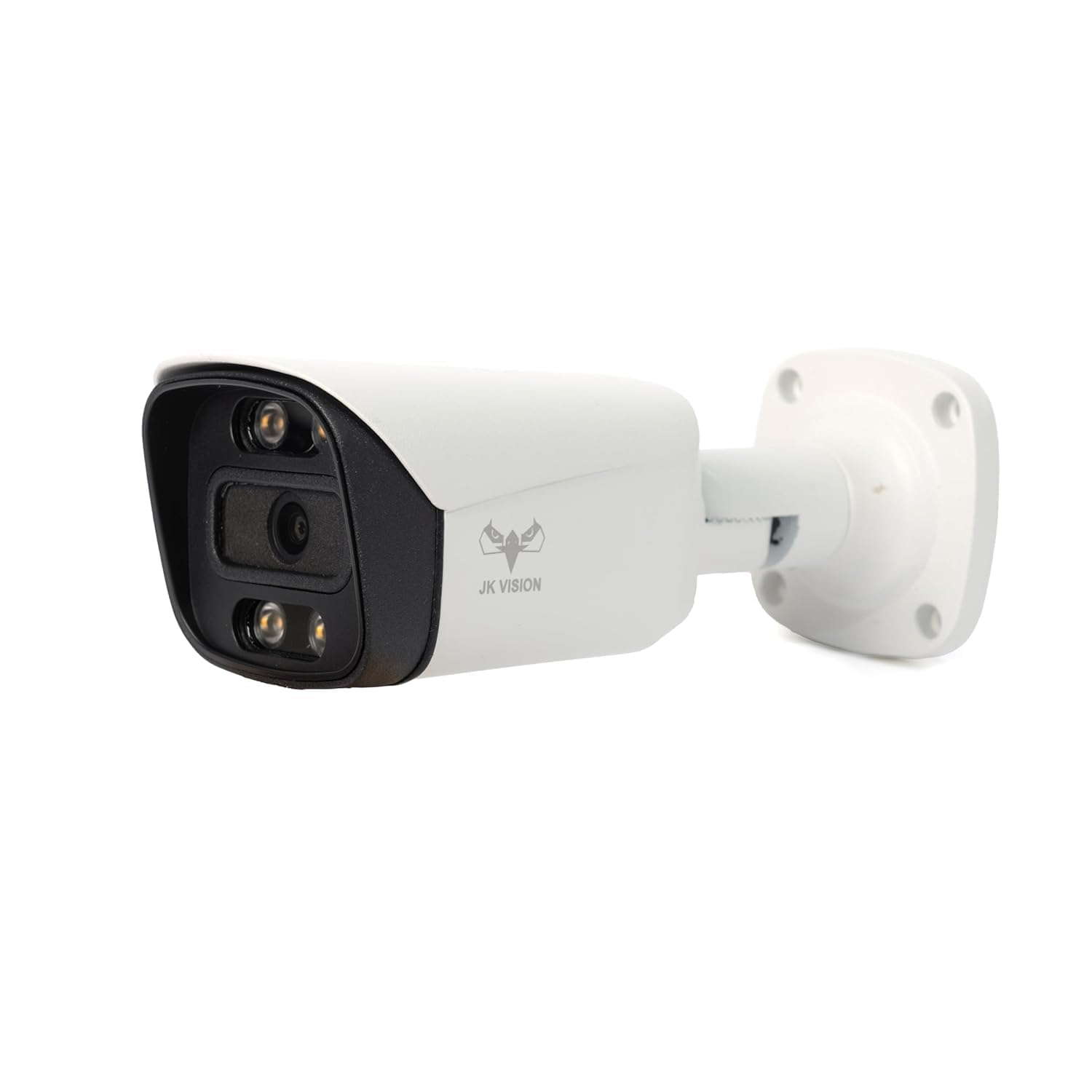
Figure 4.1: Visual representation of the camera's color night vision, 30-meter LED range, and built-in audio capabilities.

Figure 4.2: Illustrates the use of built-in audio for real-time communication through the camera.
4.3 Application Scenarios

Figure 4.3: Examples of the camera's versatility for both home and business security applications.
5. Maintenance
Regular maintenance ensures the longevity and optimal performance of your camera.
- Cleaning: Periodically clean the camera lens and housing with a soft, damp cloth. Avoid abrasive cleaners that could scratch the lens.
- Firmware Updates: Check the manufacturer's website or your NVR software for available firmware updates. Keeping the firmware updated can improve performance and security.
- Cable Inspection: Regularly inspect all cables for signs of wear, damage, or loose connections, especially for outdoor installations.
- Environmental Protection: While designed for outdoor use, ensure the camera is not exposed to extreme conditions beyond its operating specifications.
6. Troubleshooting
This section addresses common issues you might encounter with your JK Vision 5MP IP Camera.
6.1 No Video Feed
- Check Power: Ensure the camera is properly connected to a power source and the adapter is functioning.
- Check Network Connection: Verify the Ethernet cable is securely connected to both the camera and the router/NVR. Confirm network activity lights are illuminated.
- NVR/Software Configuration: Ensure the camera is correctly added and configured within your NVR system or viewing software. Check for correct IP address settings.
- Restart Devices: Power cycle the camera, router, and NVR.
6.2 Poor Image Quality
- Clean Lens: Ensure the camera lens is clean and free from dirt or smudges.
- Lighting Conditions: Verify that ambient lighting is adequate. For night vision, ensure no obstructions are blocking the IR LEDs.
- Resolution Settings: Confirm that your NVR or viewing software is set to display the camera's 5MP resolution.
6.3 Audio Issues
- Check Audio Settings: Verify that audio recording and playback are enabled in your NVR or viewing application settings.
- Microphone/Speaker Obstruction: Ensure the camera's microphone and speaker are not blocked.
6.4 Mobile App Connectivity Issues (e.g., No QR code, P2P function not working)
- Network Access: Ensure your mobile device has a stable internet connection and can access the camera's network.
- App Compatibility: Verify you are using the correct and latest version of the mobile application recommended for your NVR or camera system.
- P2P/Cloud Service: If using P2P or cloud services, ensure they are enabled and correctly configured on your NVR. Some cameras may require manual serial number entry if a QR code is not present or scannable.
- Firewall Settings: Check your network firewall settings to ensure they are not blocking communication between the camera and external services.
7. Specifications
| Feature | Specification |
|---|---|
| Brand | JK Vision |
| Model Number | HE-JK-1B-5MP-X1 |
| Video Capture Resolution | 5MP (1080p for general display) |
| Video Capture Format | MPEG-4 |
| Special Feature | Network camera with audio, 5MP bullet camera |
| Indoor/Outdoor Usage | Outdoor |
| Connectivity Protocol | Ethernet |
| Mounting Type | Door Mount |
| Included Components | ADAPTER |
| Item Dimensions (L x W x H) | 18 x 8 x 8 Centimeters |
| Item Weight | 200 Grams |
| Batteries Required? | No |
| Manufacturer | JKVISION |
| Country of Origin | India |
8. Warranty and Support
8.1 Warranty Information
This JK Vision 5MP IP Camera comes with a 1 Year Manufacturer Warranty from the date of purchase. Please retain your proof of purchase for warranty claims. The warranty covers manufacturing defects and malfunctions under normal use. It does not cover damage caused by misuse, accidents, unauthorized modifications, or improper installation.
8.2 Customer Support
For technical assistance, troubleshooting, or warranty inquiries, please contact your retailer or the manufacturer directly.
Manufacturer/Packer Contact Information:
HOTSPOT ELECTRONICS, MUMBAI 400004
For additional resources, you may visit the JK Vision official website or consult your NVR system provider for specific integration support.
