
1. Introduction
This manual provides detailed instructions for the Amazon Basics Pro Series Triple Mode Ergonomic Mouse. This device offers versatile connectivity options, high precision, and an ergonomic design for comfortable use. Please read this manual thoroughly before operating the mouse to ensure proper functionality and to maximize your user experience.
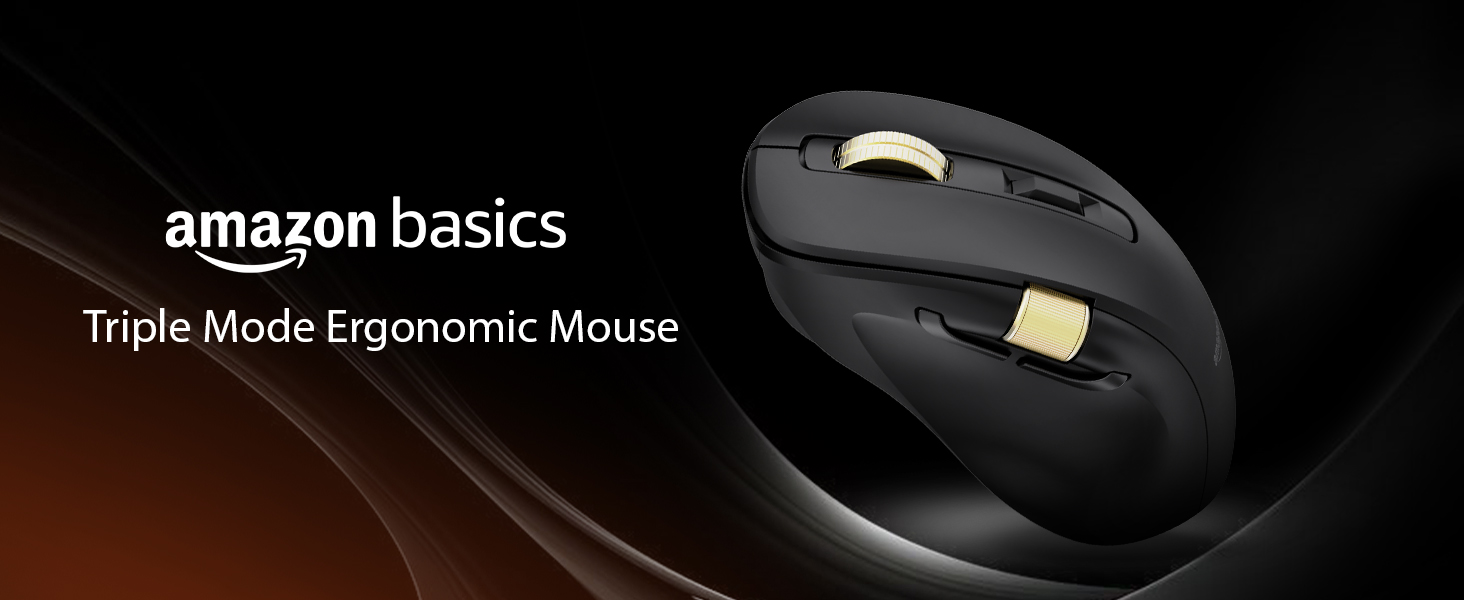
Image 1.1: The Amazon Basics Pro Series Triple Mode Ergonomic Mouse, showcasing its sleek design.
2. Package Contents
Verify that all items are present in the package:
- Amazon Basics Pro Series Triple Mode Ergonomic Mouse
- USB-C Charging Cable (1.8M)
- 2.4G USB Receiver
- User Manual (this document)
3. Product Overview
Familiarize yourself with the various components of your ergonomic mouse.

Image 3.1: Top-down view of the mouse, highlighting its ergonomic shape and controls.
Key Components:
- Left Click Button: Standard mouse function.
- Right Click Button: Standard mouse function.
- Scroll Wheel (Vertical): For vertical scrolling and middle-click function.
- DPI Adjustment Button: Cycles through DPI settings.
- Forward Button: Navigates forward in web browsers or file explorers.
- Backward Button: Navigates backward in web browsers or file explorers.
- Side Scroll Wheel: Dual-function for volume control and horizontal scrolling.
- Mode Switch: Selects between 2.4G, Bluetooth (BT1/BT2), and USB wired modes.
- RGB Backlighting Switch: Toggles dynamic lighting modes or turns off for battery saving.
- USB-C Charging Port: For recharging the internal battery.

Image 3.2: Illustration of the mouse's contoured shape and the dual-function side scroll wheel.
4. Setup
4.1. Charging the Mouse
Before first use, fully charge the mouse. A red light indicates low battery and charging in progress.
- Connect the provided USB-C charging cable to the mouse's USB-C port.
- Connect the other end of the cable to a USB power source (e.g., computer USB port, USB wall adapter).
- The charging indicator will illuminate. Once fully charged, the indicator may change color or turn off.
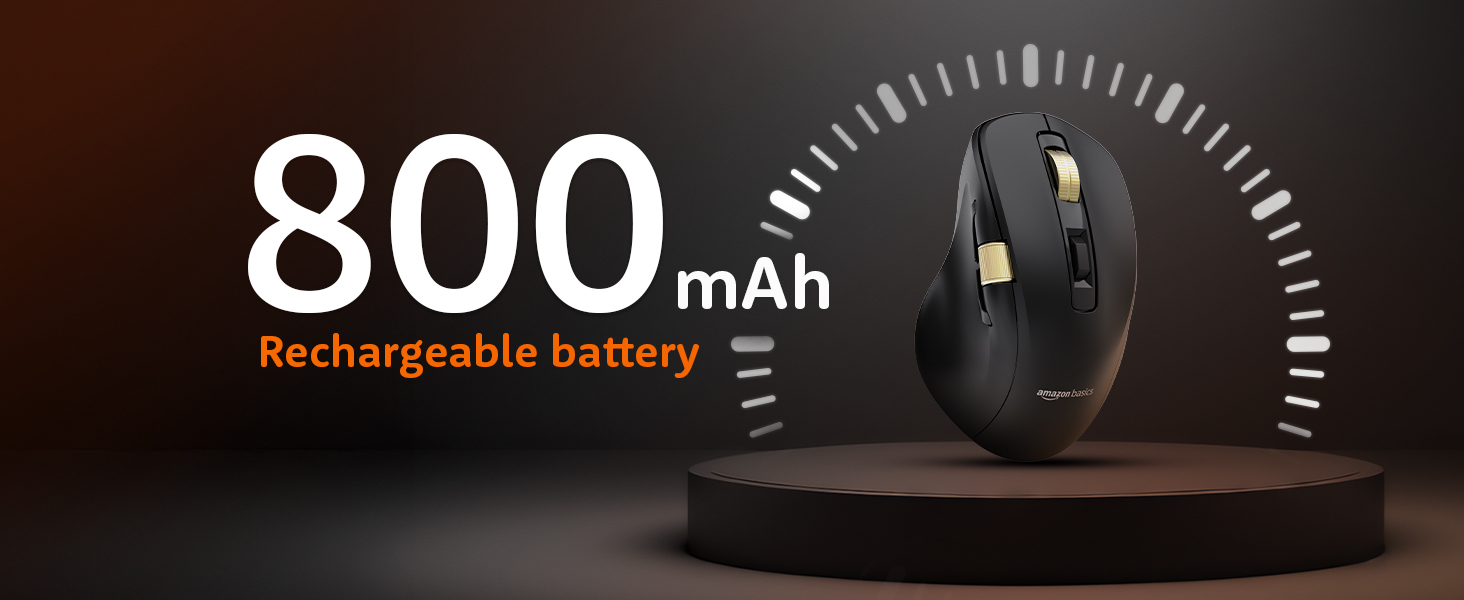
Image 4.1: The mouse features an 800mAh rechargeable battery, charged via USB-C.
4.2. Connecting via 2.4G Wireless Mode
This mode provides a stable and fast wireless connection using the included USB receiver.
- Locate the 2.4G USB receiver, typically stored in a compartment on the underside of the mouse.
- Plug the 2.4G USB receiver into an available USB port on your computer.
- Set the mode switch on the underside of the mouse to the '2.4G' position.
- The mouse should automatically connect to your computer. An LED indicator will confirm the active mode.
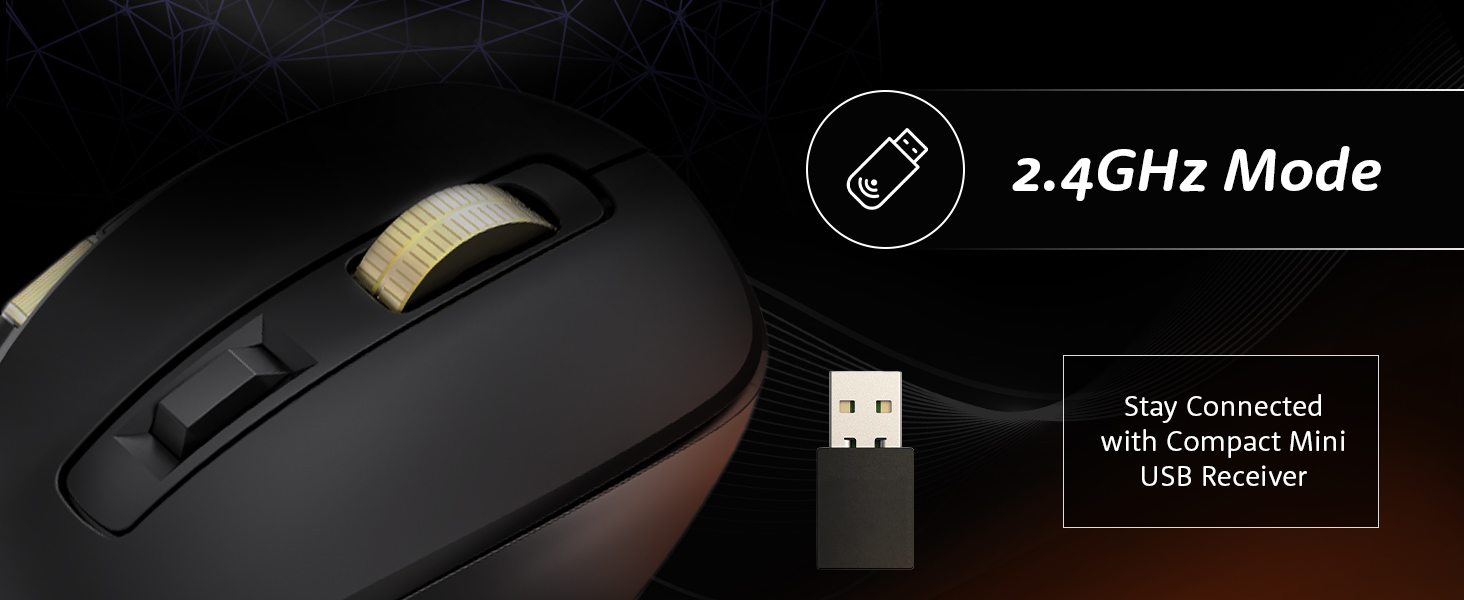
Image 4.2: Connecting the mouse using the 2.4GHz USB receiver.
4.3. Connecting via Bluetooth Mode
The mouse supports dual Bluetooth connections (BT1 and BT2).
- Set the mode switch on the underside of the mouse to either 'BT1' or 'BT2' position.
- The LED indicator for the selected Bluetooth channel will flash, indicating pairing mode.
- On your computer or device, open Bluetooth settings and search for new devices.
- Select "Amazon Basics Mouse" (or similar name) from the list of available devices to pair.
- Once paired, the LED indicator will stop flashing and remain solid.
- To switch between BT1 and BT2, simply move the mode switch to the desired channel.
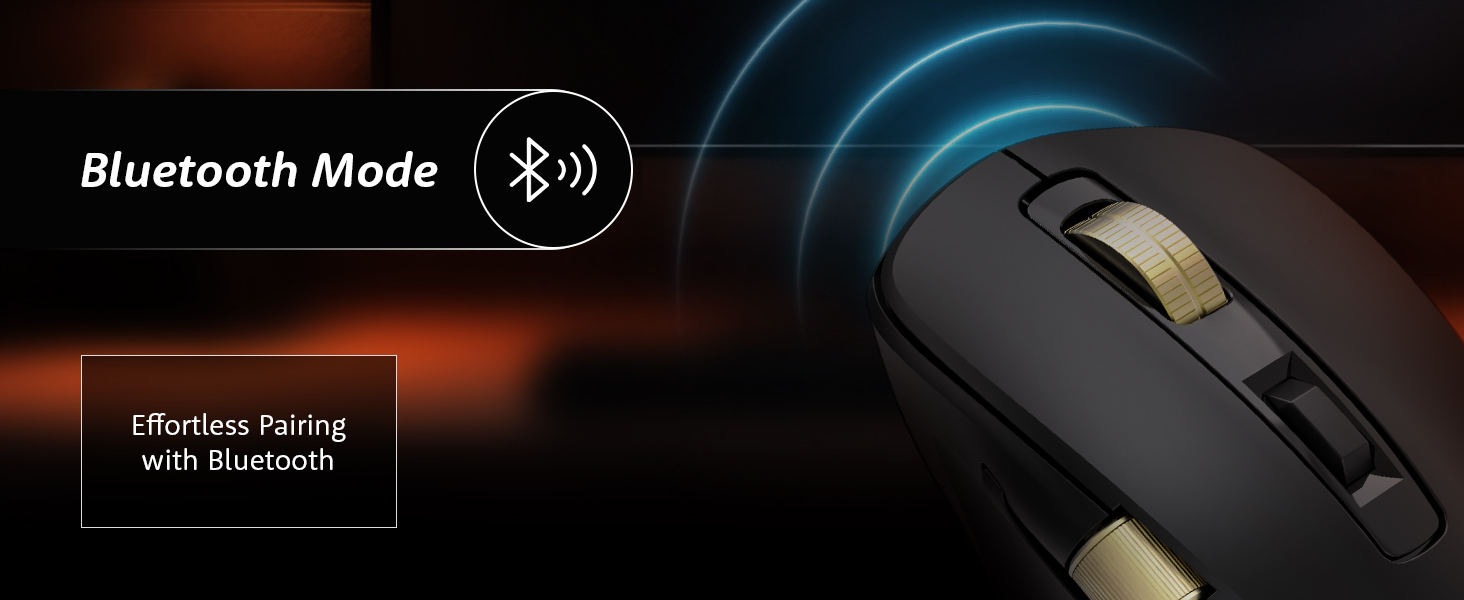
Image 4.3: Effortless pairing with Bluetooth-enabled devices.
4.4. Connecting via USB Wired Mode
For a direct and reliable connection, use the USB wired mode.
- Connect the provided USB-C charging cable to the mouse's USB-C port.
- Connect the other end of the cable to a USB port on your computer.
- Set the mode switch on the underside of the mouse to the 'USB' or 'Wired' position.
- The mouse will function immediately as a wired device.
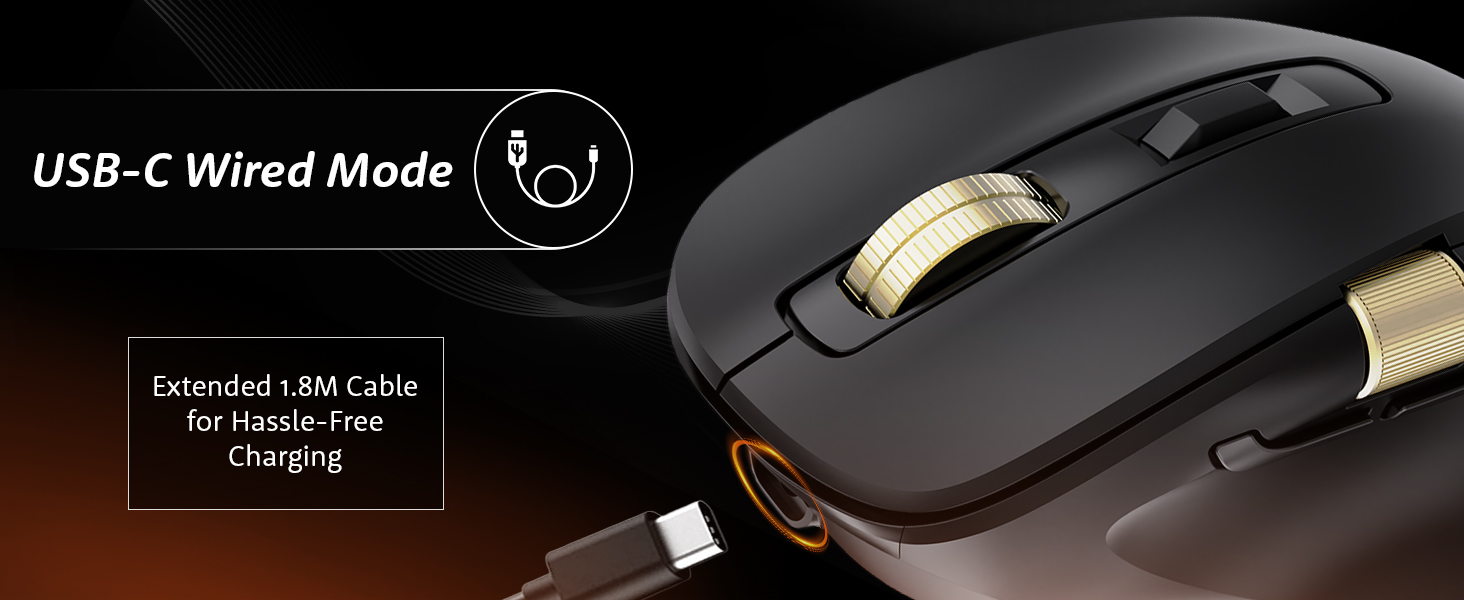
Image 4.4: The mouse connected via its USB-C cable for wired operation and charging.
5. Operating Instructions
5.1. DPI Adjustment
Adjust the mouse sensitivity (DPI) to suit your preference and task requirements.
- Press the DPI Adjustment Button (located behind the vertical scroll wheel) to cycle through available DPI settings.
- The mouse supports DPI settings from 800 to 5000. With the companion application, DPI can be adjusted up to 8000.
- Polling rates are 1000Hz in wired/2.4G modes and 125Hz in Bluetooth mode.
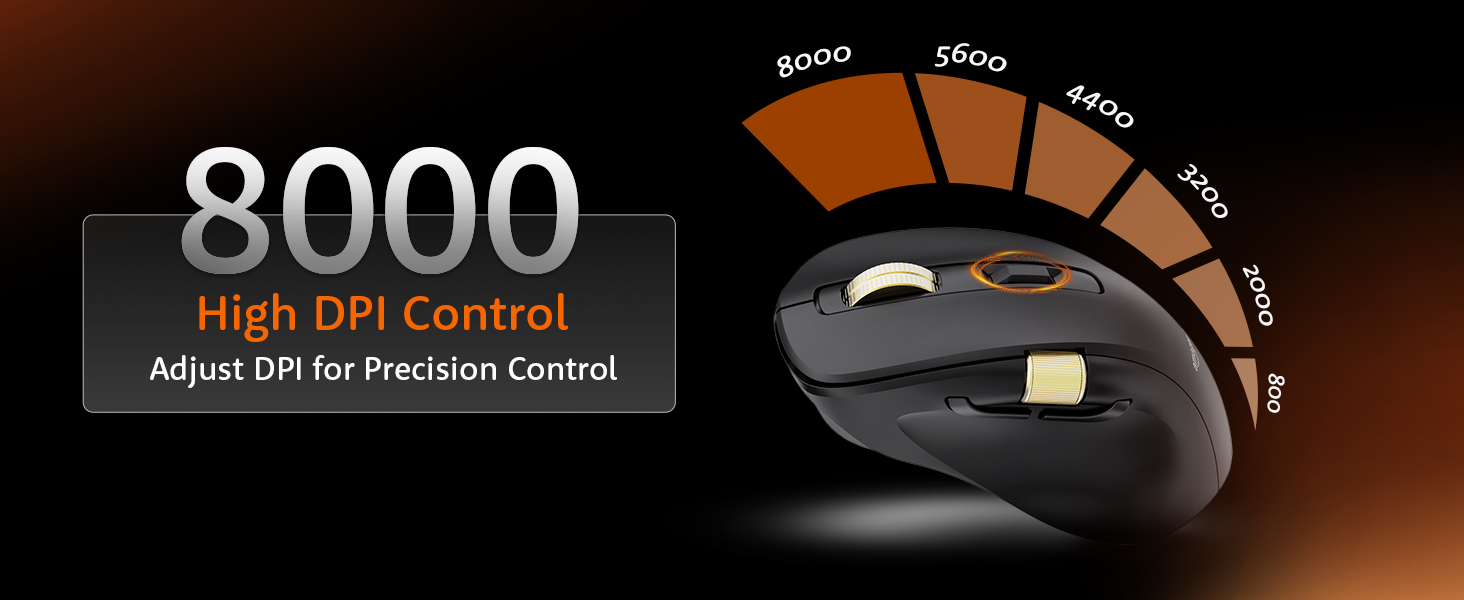
Image 5.1: Adjusting DPI for precision control, with settings up to 8000.
5.2. RGB Backlighting Control
Customize or disable the RGB backlighting.
- Use the RGB Backlighting Switch on the underside of the mouse to toggle dynamic lighting.
- You can choose between various lighting modes or turn off the lighting to conserve battery life.
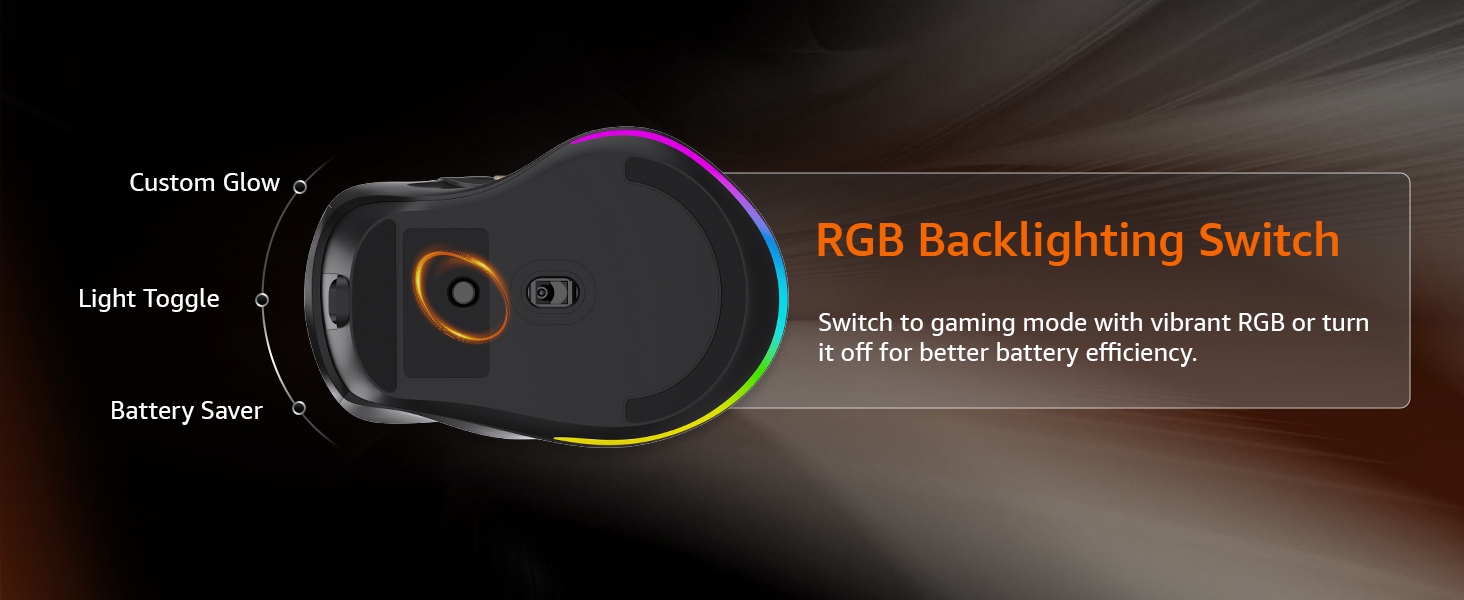
Image 5.2: The RGB backlighting switch allows optimization for performance or battery saving.
5.3. Side Scroll Wheel Functionality
The side scroll wheel offers dual functions for enhanced control.
- Volume Control: Scroll the wheel to adjust system volume.
- Horizontal Scrolling: In applications like Excel, web browsers, or email clients, the side scroll wheel enables horizontal scrolling.
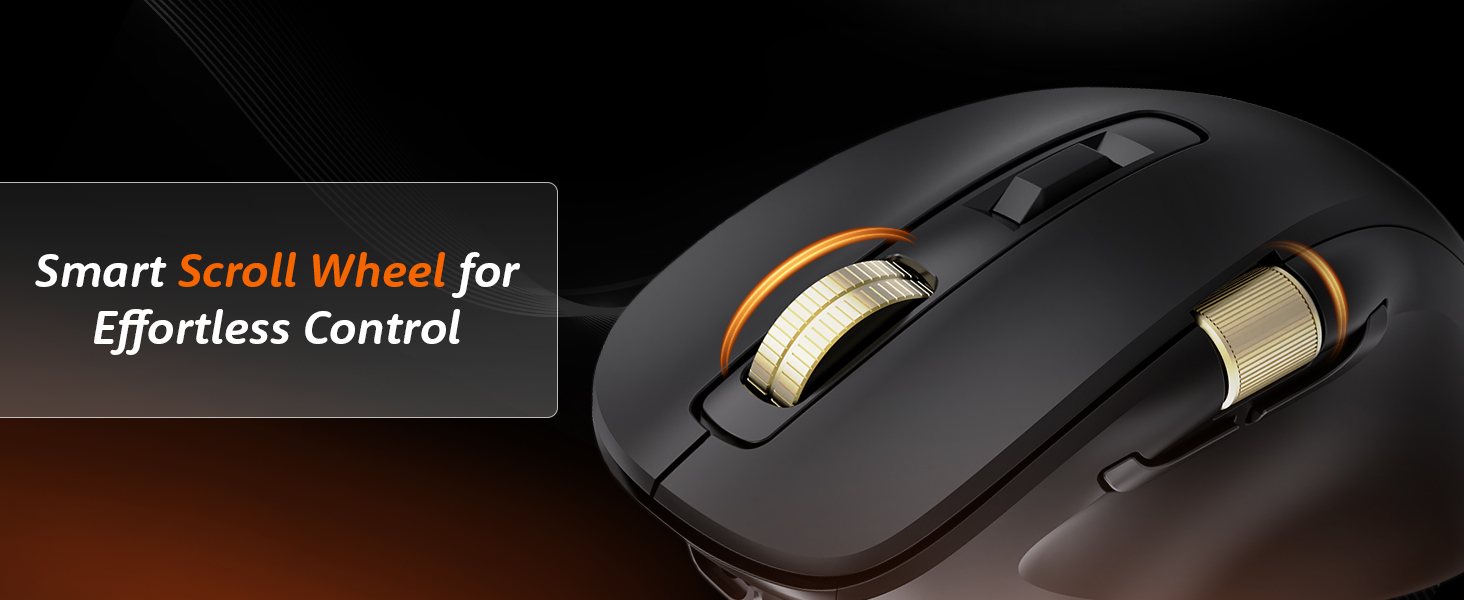
Image 5.3: The smart scroll wheel provides effortless control for various functions.
5.4. Programmable Keys
The mouse features 7 programmable keys, including the forward and backward buttons, which can be customized using the dedicated software (if available).
- The Forward Button and Backward Button (located on the side) provide quick navigation.
- Refer to the manufacturer's website for software downloads and instructions on customizing key functions.
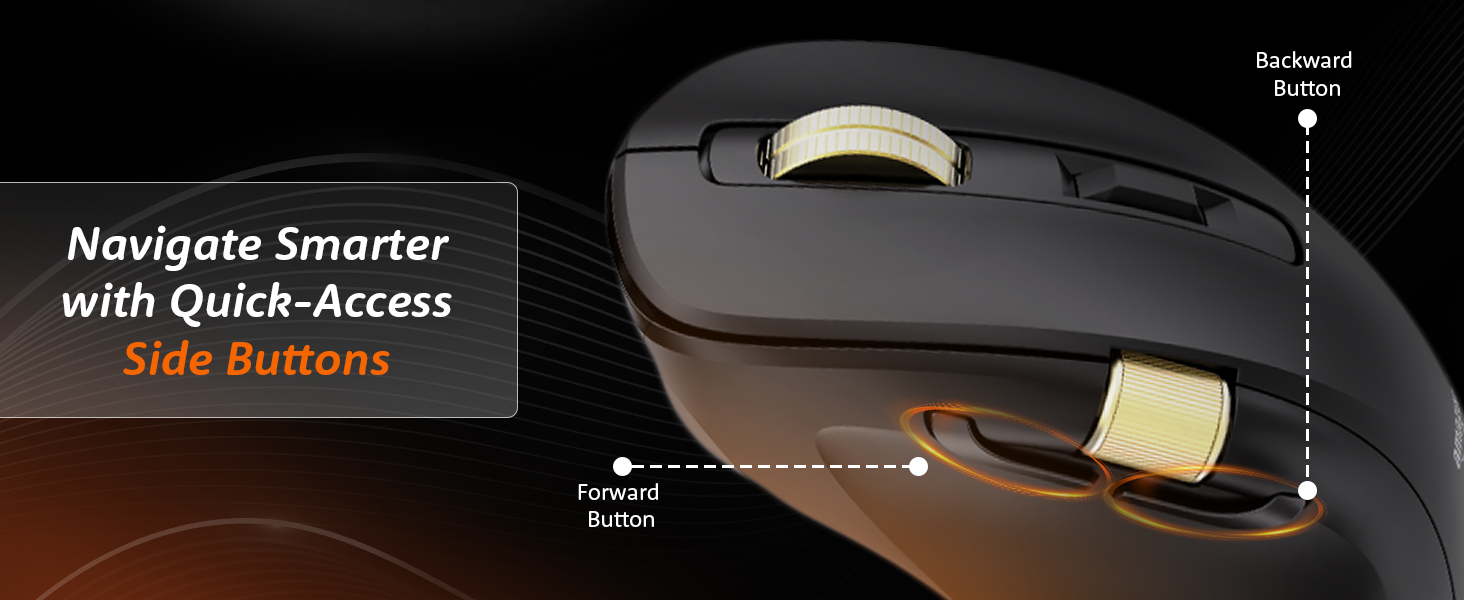
Image 5.4: Quick-access side buttons for smarter navigation.
6. Maintenance
6.1. Cleaning
To maintain optimal performance and appearance:
- Disconnect the mouse from all power sources and devices before cleaning.
- Use a soft, dry, lint-free cloth to wipe the surface of the mouse.
- For stubborn dirt, lightly dampen the cloth with water or a mild cleaning solution. Avoid harsh chemicals or abrasive materials.
- Do not allow moisture to enter any openings.
6.2. Battery Care
The mouse features a built-in rechargeable 800mAh lithium-ion battery.
- Avoid fully discharging the battery frequently to prolong its lifespan.
- Recharge the mouse when the low battery indicator appears.
- Store the mouse in a cool, dry place when not in use for extended periods.
7. Troubleshooting
If you encounter issues with your mouse, refer to the following common problems and solutions:
| Problem | Possible Cause | Solution |
|---|---|---|
| Mouse not responding | Low battery, incorrect mode, connection issue | Charge the mouse. Ensure the mode switch is set correctly (2.4G, BT1/BT2, or USB). Re-pair Bluetooth or re-insert 2.4G receiver. |
| Lag or intermittent connection | Interference, distance, low battery | Move closer to the receiver/device. Ensure no strong interference sources (e.g., Wi-Fi routers). Charge the mouse. Try a different USB port. |
| DPI adjustment not working | Button malfunction, software conflict | Ensure the mouse is powered on. Restart your computer. If using custom software, check its settings. |
| RGB lighting not working | Lighting switch off, low battery | Toggle the RGB Backlighting Switch. Charge the mouse. |
| Side scroll wheel not functioning | Application specific, driver issue | Ensure the application supports horizontal scrolling or volume control via mouse. Restart the application or computer. Check for updated mouse drivers. |
8. Specifications
Technical details for the Amazon Basics Pro Series Triple Mode Ergonomic Mouse:
| Feature | Detail |
|---|---|
| Brand | Amazon Basics |
| Model | Pro Series Triple Mode Ergonomic Mouse (DPI 8000) |
| Connectivity | 2.4G Wireless, Bluetooth (BT1/BT2), USB Wired |
| DPI Range | 800 - 5000 (up to 8000 with app) |
| Polling Rate | 1000Hz (Wired/2.4G), 125Hz (Bluetooth) |
| Programmable Keys | 7 |
| Battery Type | Built-in 800mAh Lithium-Ion |
| Charging Port | USB-C |
| Average Battery Life | 35 Hours |
| Color | Black |
| Dimensions (LxWxH) | 11.7 x 7.5 x 0.1 cm |
| Item Weight | 107 g |
| Special Features | Ergonomic Design, Portable, Rechargeable, Wireless, RGB Backlit, Side Scroll Wheel |
9. Warranty and Support
For warranty information and customer support, please refer to the documentation included with your purchase or visit the official Amazon Basics website. Keep your proof of purchase for warranty claims.
Manufacturer: YAS Co Ltd.
Importer/Packer: Your Accessories Store, B-36, 3rd Floor, Mayapuri Industrial Area, Phase 1, New Delhi - 110064, India
For further assistance, please contact Amazon customer service.


