
AVerMedia BU113G2
Contents
AVerMedia CamStream 4K BU113G2 HDMI Capture Card User Manual
Model: BU113G2
Introduction
This manual provides comprehensive instructions for setting up, operating, and maintaining your AVerMedia CamStream 4K BU113G2 HDMI Capture Card. Designed for professional streaming and video conferencing, this device allows you to capture high-quality 4K60fps video with true-to-life colors from your DSLR, camcorder, or action camera. Its plug-and-play functionality ensures ease of use across various operating systems and streaming platforms.

Figure 1: AVerMedia CamStream 4K BU113G2 HDMI Capture Card (White model).
What's in the Box
- CamStream 4K (BU113G2) Capture Card
- USB Type-C to Type-A Cable (1 m/3.28 ft.)
- 1/4” Cold/Hot Shoe Mount (Adapter)
- Quick Start Guide
Setup Guide
1. Connecting Your Device
The AVerMedia CamStream 4K is designed for plug-and-play operation, requiring no driver installation on most compatible systems.
- Connect HDMI Source: Use an HDMI cable (not included) to connect your DSLR, camcorder, action camera, or other HDMI output device to the HDMI input port on the CamStream 4K.
- Connect to Computer/Device: Use the included USB Type-C to Type-A cable to connect the CamStream 4K to a USB 3.2 Type-A port on your PC, laptop, or compatible iPad/Android phone. No external power supply is needed.

Figure 2: Connection diagram showing HDMI input from camera and USB-C output to computer.

Figure 3: Physical setup of the CamStream 4K with a camera and laptop.
2. Mounting on Camera (Optional)
The included 1/4” Cold/Hot Shoe Mount adapter allows you to conveniently attach the CamStream 4K directly to your camera's hot shoe or a compatible rig.

Figure 4: Instructions for attaching the CamStream 4K to a camera's cold/hot shoe.
Operating Instructions
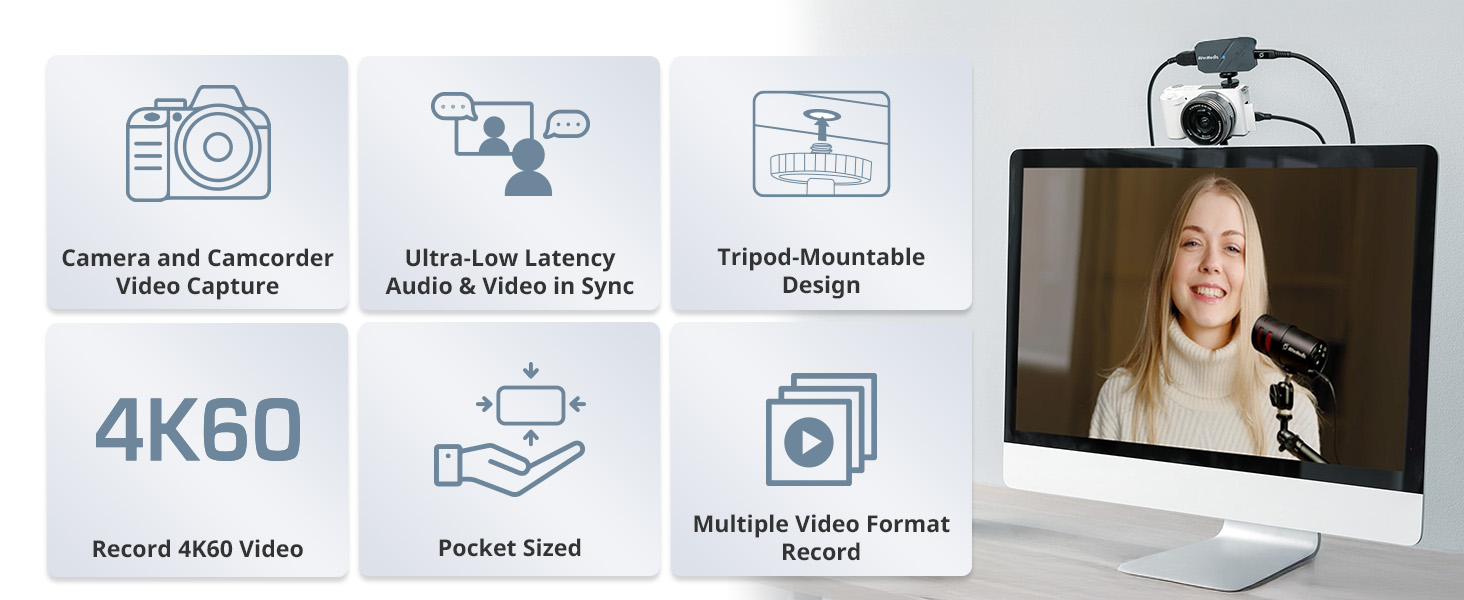
Figure 5: Overview of CamStream 4K's professional features for limitless creation.
1. Capturing Video
Once connected, your CamStream 4K will be recognized as a video input device by your computer or compatible device.
- Software Compatibility: The device works seamlessly with popular streaming and video conferencing software such as OBS Studio, Streamlabs, Zoom, Twitch, Microsoft Teams, Xsplit, and more.
- Select Input: In your chosen software, select the AVerMedia CamStream 4K as your video input source.
- Resolution and Frame Rate: The CamStream 4K supports capturing up to 4K resolution at 60 frames per second (4K60fps) with RGB24 true-to-life colors, and 1080p at 240 frames per second.
- Audio Synchronization: The device ensures zero audio lag, providing high-fidelity audio synchronized with your video.

Figure 6: Example of 4K60 video recording setup.

Figure 7: Demonstrating true-to-life color capture with RGB24 fidelity.
2. Common Applications
The CamStream 4K is versatile for various applications:
- DSLR/Mirrorless Camera as Webcam: Instantly transform your high-quality camera into a professional webcam for video conferencing or live streaming.
- Live Streaming: Ideal for YouTube, Twitch, Facebook Live, and other platforms for gaming, vlogging, educational content, and more.
- Video Conferencing: Enhance your virtual meetings on Zoom, Microsoft Teams, and similar platforms with superior video quality.
- Content Creation: Record high-resolution footage for podcasts, tutorials, and other video projects.

Figure 8: Using the capture card to turn a DSLR into a webcam for gaming or streaming.
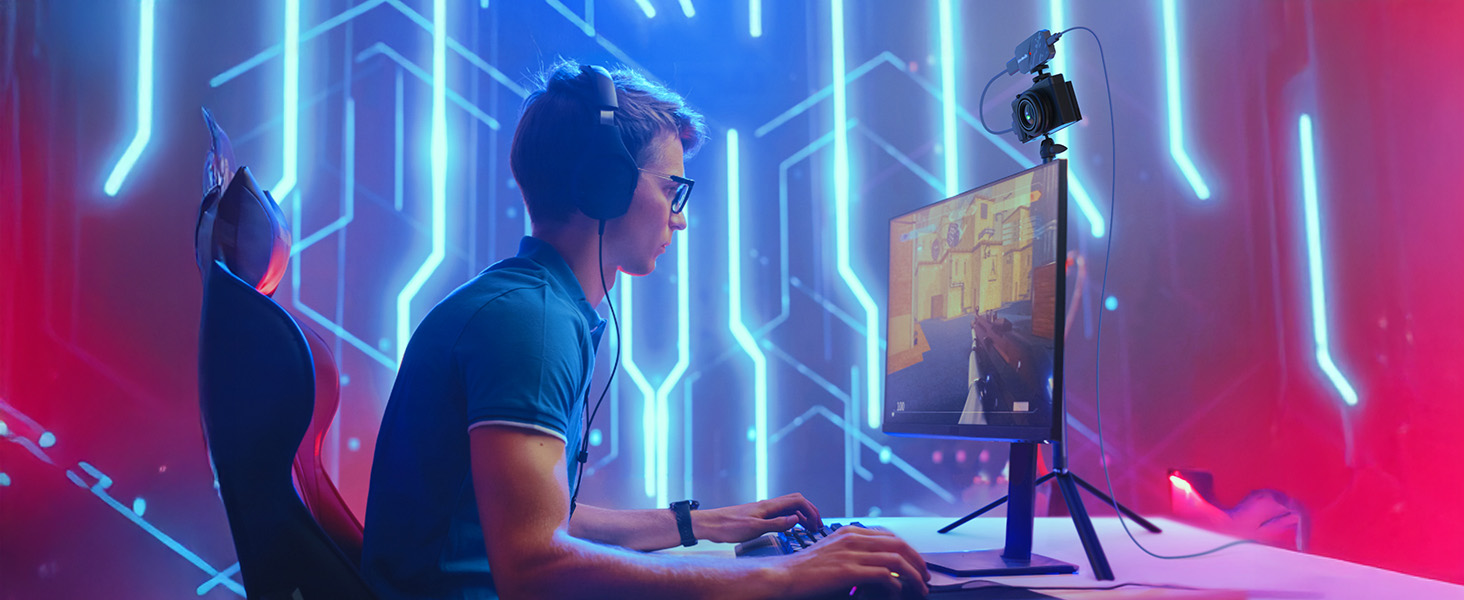
Figure 9: CamStream 4K enhancing a video conferencing setup.

Figure 10: Multiple applications including online coaching, event streaming, vlogging, e-sports, and video podcasts.

Figure 11: Wide compatibility with popular streaming and social media platforms.
Maintenance
The AVerMedia CamStream 4K is a low-maintenance device. To ensure its longevity and optimal performance:
- Keep the device clean and free from dust. Use a soft, dry cloth for cleaning.
- Avoid exposing the device to extreme temperatures, humidity, or direct sunlight.
- Handle cables and connectors with care to prevent damage.
- Store the device in a safe place when not in use.
Troubleshooting
| Problem | Possible Cause | Solution |
|---|---|---|
| No video signal detected. | Incorrect cable connection, camera not powered on, incorrect input selection in software. |
|
| Video appears choppy or has high latency. | USB port issues, system resource limitations, software settings. |
|
| No audio or audio out of sync. | Audio settings in software, camera audio output. |
|
| Device not recognized by computer. | Faulty USB cable, incompatible operating system, USB port issue. |
|
Specifications
| Feature | Detail |
|---|---|
| Brand | AVerMedia |
| Model Number | BU113G2 |
| Series | CamStream 4K |
| Hardware Interface | USB |
| Video Capture Resolution | 4K (up to 4K60fps) |
| Operating System Compatibility | iPadOS 17 or later, Android 14 or later, Windows 10 x64 or later, macOS 14/15 or later |
| Item Weight | 7.5 ounces |
| Package Dimensions | 6.81 x 4.59 x 1.89 inches |
| Color | CamStream 4K - White |
| Country of Origin | Taiwan |
Support and Warranty
For technical support, product registration, or warranty information, please visit the official AVerMedia website or contact their customer service.
Official AVerMedia Store: https://www.amazon.com/stores/AVerMedia/page/E61F6DDD-B7C8-4777-91A0-32359F0598D6
AVerMedia provides protection plans for their products. Please refer to your purchase documentation for specific warranty terms and conditions.
Documents and downloads
Ask a question about this manual
Ask about setup, troubleshooting, compatibility, parts, safety, or missing instructions. Manuals+ will review the question and use this page’s manual context to help answer it.