1. Introduction
This manual provides detailed instructions for the installation and operation of your ANKEWAY XBH-7703 Car Stereo Head Unit. This unit is designed to upgrade the in-car entertainment and navigation experience for specific Chevrolet, GMC, and Hummer H2 models.
Compatible Vehicle Models:
- Chevy: Silverado, Tahoe, Colorado, and Suburban (2003–2006)
- GMC: Yukon, Sierra, and Canyon (2003–2006)
- Hummer: H2 (2003–2007)
For a complete list of compatible models, please refer to the product images or contact technical support.

Image: Compatibility chart for Chevrolet, GMC, and Hummer H2 models, showing the head unit installed in a compatible vehicle dashboard.
2. What's in the Box
Upon opening the package, verify that all the following components are included:
- ANKEWAY XBH-7703 Car Stereo Head Unit
- Rearview Camera
- Microphone
- CANbus Protocol Decoder
- Panel Removal Tools (various orange plastic tools)
- Power Cable
- Radio Antenna Adapter
- Camera Cable
- GPS Antenna
- RCA Cable
- USB Cables (x2)
- User Manuals (Android Product Operating Manual, ZLINKS User Manual)

Image: A flat lay of all components included in the ANKEWAY XBH-7703 car stereo package, including the head unit, cables, camera, and tools.
Video: An unboxing video demonstrating the contents of the ANKEWAY car stereo package, including the head unit, various cables, camera, and installation tools.
3. Key Features
- CarPlay and Android Auto (Wireless & Wired): Seamless smartphone integration for navigation, music, and calls.
- Android System: Access to apps via Wi-Fi, split-screen mode, multi-language support.
- FM RDS Radio: Search and save favorite FM channels, adjust sound with DSP and equalizer.
- AHD Rearview Camera: High-definition image input, night vision, automatic display on reverse.
- CANbus Adapter: Preserves steering wheel control functions.
- System Updates: Regular firmware updates for optimized performance.
- Easy Installation: Pre-grouped cables and connectors for simplified setup.

Image: The ANKEWAY car stereo head unit showcasing the Apple CarPlay interface with various app icons.

Image: The ANKEWAY car stereo head unit displaying the Android Auto interface with various app icons.
4. Installation Guide
The ANKEWAY XBH-7703 car stereo is designed for straightforward installation. The included cables are pre-grouped with connectors to match your vehicle's original system.
4.1. Preparation
- Ensure the vehicle's ignition is off and the battery is disconnected before starting.
- Use the provided panel removal tools to carefully detach the original car stereo and surrounding trim.
- Refer to your vehicle's specific service manual for detailed instructions on removing the factory head unit.
4.2. Connecting Components
- Main Power Harness: Connect the main power harness from the new head unit to the vehicle's wiring harness. The included CANbus decoder ensures compatibility and retains steering wheel controls.
- CANbus Decoder: Connect the CANbus decoder to the main wiring harness as indicated in the diagram.
- Rearview Camera: Install the rearview camera at the rear of your vehicle. Connect its video output to the "CVBS-IN-1" RCA input on the head unit and the power wire to the reverse light circuit for automatic activation.
- GPS Antenna: Mount the GPS antenna in a location with a clear view of the sky, typically on the dashboard or under the windshield.
- Microphone: Connect the external microphone for improved call quality. Position it near the driver for optimal voice pickup.
- USB Cables: Connect the USB extension cables to the rear of the head unit and route them to a convenient location for connecting USB devices or for wired CarPlay/Android Auto.
- RCA Cables: Utilize the RCA cables for connecting external amplifiers or other audio/video components if desired.
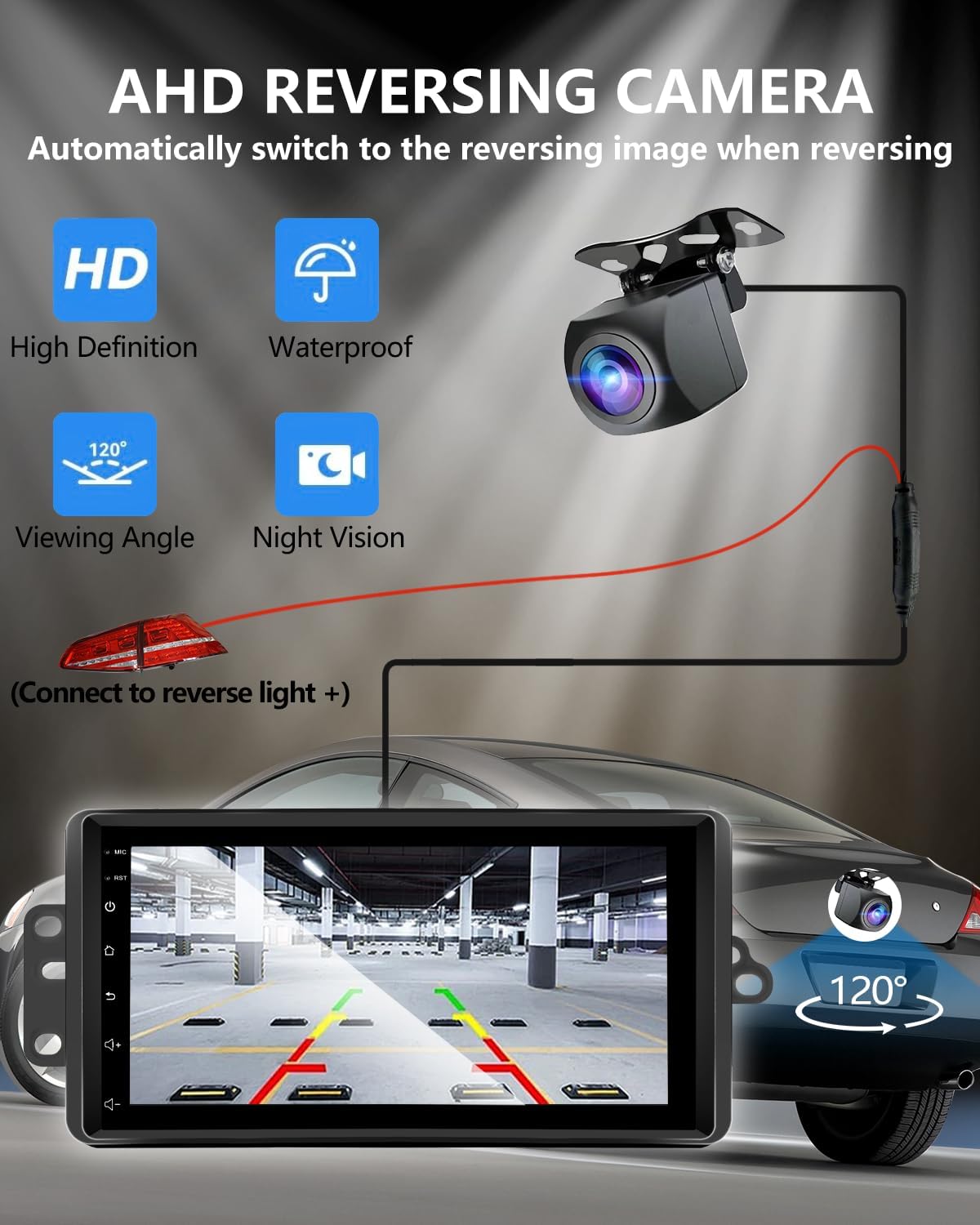
Image: A diagram illustrating the connection of the AHD rearview camera to the car stereo, showing the video input and power connection to the reverse light.
4.3. Final Steps
- Carefully slide the new head unit into the dashboard opening, ensuring all cables are not pinched.
- Secure the head unit with the original screws or mounting brackets.
- Reattach any removed trim pieces.
- Reconnect the vehicle's battery.
- Turn on the ignition and test all functions of the new car stereo.
5. Operating Instructions
5.1. Initial Setup
Upon first power-on, the system may guide you through initial setup steps, including language selection and Wi-Fi connection.
5.2. CarPlay and Android Auto
Connect your iOS or Android smartphone via USB cable or wirelessly (via Bluetooth and Wi-Fi) to activate CarPlay or Android Auto. This allows access to compatible apps like navigation, music, and messaging directly on the head unit screen.

Image: A split image showing both the Apple CarPlay and Android Auto interfaces running on the car stereo screen.
5.3. GPS Navigation
The unit supports GPS navigation. You can use pre-installed map applications or download others from the app store. Offline map support is available for navigation without an internet connection.

Image: The car stereo screen showing a GPS navigation map with icons for phone, messages, and music, alongside voice command prompts.
5.4. Voice Control
Utilize voice assistants (Siri for CarPlay, Google Assistant for Android Auto) for hands-free control of navigation, music playback, calls, and messages. This feature is active when CarPlay or Android Auto is running.

Image: The car stereo screen displaying various voice commands for Siri and Google Assistant, such as "Hey Siri, Call Tom" or "Hi Google, Play Music."
5.5. FM RDS Radio
Access the FM radio tuner to listen to local stations. The RDS (Radio Data System) feature displays station information where available. You can search for and save your favorite channels for quick access.
5.6. Steering Wheel Control
Thanks to the integrated CANbus adapter, your vehicle's original steering wheel controls will function with the new head unit, allowing you to manage audio, calls, and other features without taking your hands off the wheel.

Image: The car stereo screen showing the FM radio interface and a separate image illustrating the functionality of steering wheel controls with the unit.
5.7. Internet Connectivity (Wi-Fi)
Connect the head unit to the internet via your mobile hotspot or a Wi-Fi network. This enables access to online content, app downloads, and real-time traffic updates for navigation.

Image: The car stereo screen showing various online applications like YouTube, TikTok, and social media, indicating Wi-Fi connectivity.
6. Maintenance
To ensure the longevity and optimal performance of your ANKEWAY XBH-7703 Car Stereo Head Unit, follow these general maintenance guidelines:
- Cleaning: Use a soft, dry cloth to clean the screen and exterior surfaces. Avoid abrasive cleaners or solvents that could damage the finish.
- Software Updates: Regularly check for and install system updates provided by ANKEWAY to ensure the latest features and security patches. Contact technical support for firmware update packages.
- Environmental Conditions: Avoid exposing the unit to extreme temperatures, direct sunlight for prolonged periods, or excessive moisture.
7. Troubleshooting
If you encounter issues with your car stereo, refer to the following common troubleshooting steps:
- No Power: Check all power connections and ensure the vehicle's battery is properly connected. Verify fuses are intact.
- No Sound: Check speaker connections. Ensure the volume is not muted or set to minimum. Verify audio output settings.
- CarPlay/Android Auto Not Connecting: Ensure your phone's Bluetooth and Wi-Fi are enabled. Try connecting with a different USB cable. Restart both the head unit and your smartphone.
- Steering Wheel Controls Not Working: Verify the CANbus decoder is correctly connected. Ensure the vehicle's original wiring is intact.
- Rearview Camera Not Displaying: Check the camera's video input connection and power supply. Ensure the reverse gear is engaged.
- GPS Signal Issues: Ensure the GPS antenna has a clear view of the sky. Avoid obstructions.
If the problem persists after attempting these steps, please contact ANKEWAY technical support for further assistance.
8. Specifications
| Feature | Detail |
|---|---|
| Model Number | XBH-7703 |
| Operating System | Android |
| Memory (RAM) | 2GB |
| Storage (ROM) | 64GB |
| Connectivity | Bluetooth, USB, Wi-Fi |
| Special Features | Android Auto, Built-In Bluetooth, Built-In Wi-Fi, DSP, GPS Navigation |
| Compatible Devices | Amplifier |
| Connector Type | RCA |
| Audio Output Mode | Stereo |
| Surround Sound | 5.1 Channel Configuration |
| Video Encoding | H.264, H.265/HEVC, MPEG-4 |
| Number of Channels | 2 |
| Item Weight | 3.09 pounds |
| Package Dimensions | 11.42 x 7.28 x 3.94 inches |
9. Warranty and Support
For any questions regarding product accessories, system updates, or technical assistance, please contact ANKEWAY technical support. Our development team regularly releases firmware updates to optimize the system experience.
Please refer to your purchase documentation for specific warranty details.


