
1. Introduction
This manual provides detailed instructions for the installation, operation, and maintenance of your Y-METDRIVING TH0029 7-inch Single DIN Flip-Out Car Stereo. Please read this manual thoroughly before using the product to ensure proper function and to prevent damage. Keep this manual for future reference.

Image 1.1: Y-METDRIVING TH0029 Car Stereo and included accessories.
2. Package Contents
Verify that all items are present in the package:
- Single DIN Flip-Out Car Radio
- HD Backup Camera & Cable
- User Manual
- Wiring Harnesses
- Microphone Cable
- Remote Control
- Disassembly Tool
- Camera Power Cable

Image 2.1: Package contents and unit dimensions.
3. Features
- Wireless Apple CarPlay & Android Auto: Seamless smartphone integration for navigation, communication, and media.
- Bluetooth 5.0: Hands-free calling and wireless audio streaming.
- 7-Inch Motorized Flip-Out Touchscreen: High-definition (1024x600) display with adjustable viewing angles (60° to 100°).
- Mirror Link Function: Display content from Android phones and iPhones directly on the stereo screen.
- FM/AM Radio: Access to local radio stations for news and entertainment.
- AHD Backup Camera Support: Automatic display of rear view when reversing, includes an HD 170° wide-angle waterproof camera with 12 LED lights.
- Real USB Type-A Fast Charge: PD3.0/QC3.0 technology for rapid device charging.
- DSP Amplifier: Built-in Digital Sound Processor with 30 EQ settings for audio customization.
- Steering Wheel Control: Compatible with existing vehicle steering wheel controls for convenience.

Image 3.1: Key features of the car stereo.
4. Setup
4.1 Physical Installation
The Y-METDRIVING TH0029 is designed for single DIN openings. Ensure your vehicle's dashboard opening matches the single DIN standard (approximately 178mm x 50mm). For a secure and flush fit, a vehicle-specific installation kit may be required, as dashboard sizes vary. Professional installation is recommended.
4.2 Wiring Connections
Connect the provided wiring harnesses to the car stereo and your vehicle's wiring system. It is crucial to correctly match each wire function (e.g., power, ground, speakers, accessory). Refer to your vehicle's wiring diagram and the stereo's wiring diagram for accurate connections. Ensure a proper ground connection to prevent operational issues.
4.3 Backup Camera Connection
The included AHD backup camera connects to the stereo to provide a rear view when the vehicle is in reverse gear.
- Connect the camera's video output (RCA yellow connector) to the "R-CIN" (Reverse Video Input) port on the car stereo.
- Connect the camera's power cable (red wire) to the vehicle's reverse light power source.
- Connect the camera's ground wire (black wire) to a suitable chassis ground point.
- Connect the reverse trigger wire (usually orange+black) from the stereo's wiring harness to the vehicle's reverse light signal wire. This signal tells the stereo to switch to the camera view when reversing.

Image 4.1: Backup camera wiring diagram.
5. Operating Instructions
5.1 Power On/Off
The unit powers on automatically when the vehicle's ignition (ACC) is turned on. To power off, turn off the vehicle's ignition.
5.2 Motorized Screen Operation
When the unit powers on, the 7-inch screen will automatically flip out and extend. The screen angle can be adjusted between 60° and 100° for optimal viewing. To retract the screen, press the 'OPEN/CLOSE' button on the unit's front panel. Note: The screen may automatically retract when the ignition is turned off.

Image 5.1: Motorized screen angle adjustment.
5.3 Wireless Apple CarPlay Connection
- Turn on Wi-Fi and Bluetooth on your iPhone.
- On the car stereo, navigate to the Bluetooth settings.
- On your iPhone, search for and connect to the car stereo's Bluetooth device (e.g., "CAR-BT-9A7D").
- Once connected, a prompt may appear on your iPhone to "Use CarPlay". Confirm this.
- The stereo will automatically enter CarPlay mode.

Image 5.2: Apple CarPlay connection steps.
5.4 Wireless Android Auto Connection
- Turn on Wi-Fi and Bluetooth on your Android phone.
- On the car stereo, navigate to the Bluetooth settings.
- On your Android phone, search for and connect to the car stereo's Bluetooth device.
- After successful Bluetooth connection, Android Auto will automatically launch on the stereo.

Image 5.3: Android Auto connection steps.
5.5 Bluetooth Pairing (for calls and music)
To pair your phone for Bluetooth calls and music streaming:
- Enable Bluetooth on your mobile device.
- On the car stereo, go to the Bluetooth menu. The device name is typically "CAR-BT-9A7D" with a PIN code of "0000".
- Search for the car stereo on your phone's Bluetooth device list and select it.
- Confirm the pairing on both devices if prompted.

Image 5.4: Bluetooth hands-free calling and music interface.
5.6 FM/AM Radio
Access the FM/AM radio function from the main menu. Use the on-screen controls or physical buttons to scan for stations, save presets, and adjust frequency.

Image 5.5: FM/AM radio interface.
5.7 Mirror Link Function
The Mirror Link feature allows you to display your smartphone's screen content directly on the car stereo. Connect your phone via USB and follow the on-screen prompts to activate Mirror Link. This enables viewing videos, music, and GPS navigation from your phone on the larger stereo display.
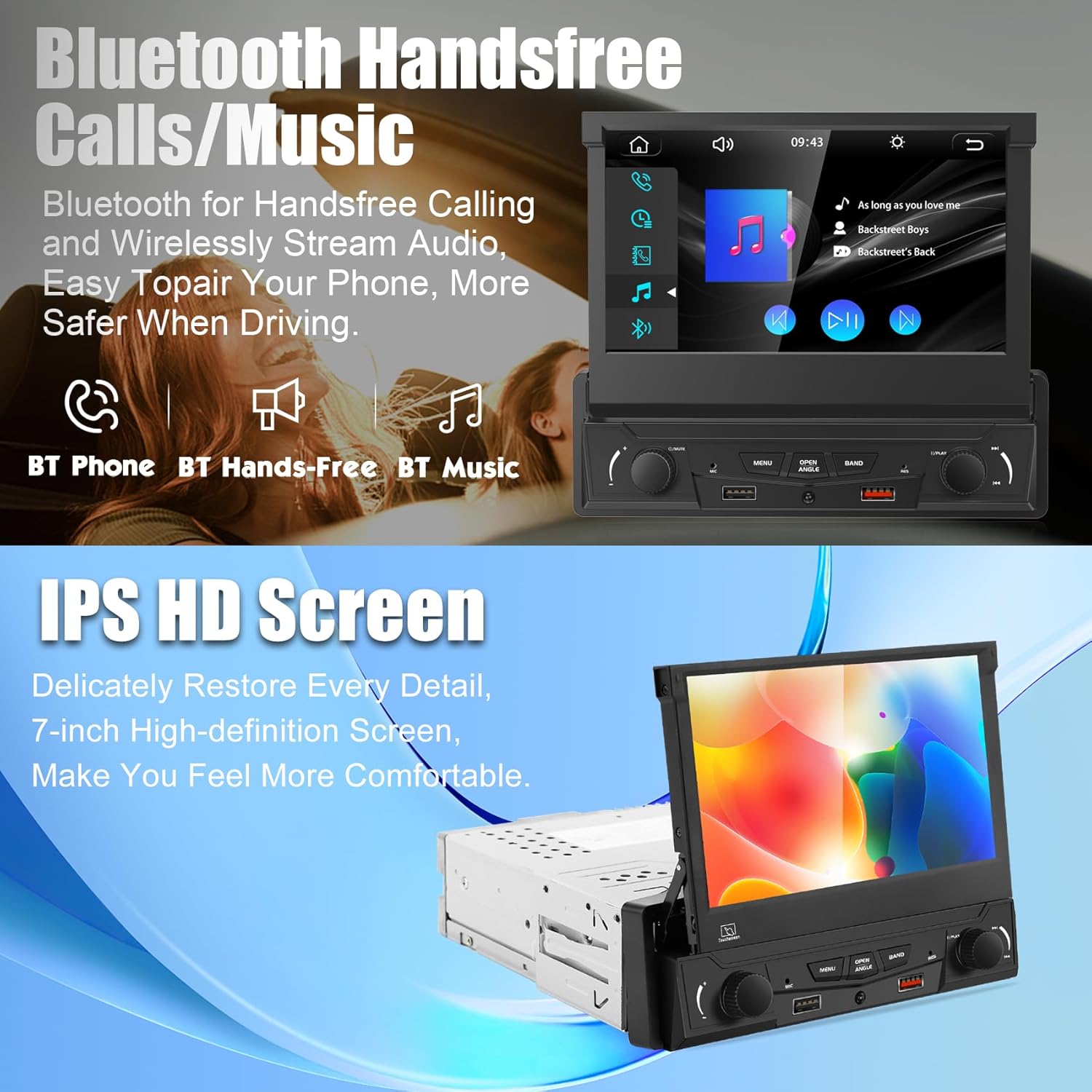
Image 5.6: Mirror Link functionality.
5.8 USB Playback/Charging
Insert a USB drive into the designated USB port for media playback. The unit also features a USB Type-A port with PD3.0/QC3.0 fast charging technology for compatible devices.
5.9 Steering Wheel Control
If your vehicle has steering wheel controls, the stereo can be configured to work with them. Refer to the wiring diagram and the stereo's settings menu for programming instructions. This allows for safe control of volume, track changes, and calls without taking your hands off the wheel.

Image 5.7: Steering wheel control interface.
5.10 DSP/EQ Settings
Access the Digital Sound Processor (DSP) and Equalizer (EQ) settings from the audio menu. The unit offers 30 EQ settings to customize the audio output to your preference.
6. Maintenance
To ensure the longevity and optimal performance of your car stereo, follow these maintenance guidelines:
- Cleaning the Screen: Use a soft, lint-free cloth to gently wipe the touchscreen. For stubborn smudges, slightly dampen the cloth with water or a screen-safe cleaner. Avoid harsh chemicals or abrasive materials.
- General Cleaning: Keep the unit free from dust and debris. Use a soft brush or compressed air to clean vents and buttons.
- Avoid Extreme Temperatures: Do not expose the unit to extreme heat or cold for extended periods, as this can affect electronic components.
- Cable Management: Ensure all cables are securely connected and not pinched or strained.
7. Troubleshooting
If you encounter issues with your Y-METDRIVING TH0029 car stereo, refer to the following common problems and solutions:
- Unit does not power on:
- Check all power connections, including the constant 12V, accessory (ACC), and ground wires. Ensure they are securely connected and receiving power.
- Verify the vehicle's fuse for the stereo is not blown.
- No sound:
- Check speaker wire connections.
- Ensure the volume is not muted or set to minimum.
- Verify audio source selection is correct.
- Bluetooth connection issues:
- Ensure Bluetooth is enabled on both the stereo and your phone.
- Delete previous pairings on both devices and attempt to re-pair.
- Move the phone closer to the stereo.
- CarPlay/Android Auto not connecting:
- Ensure Wi-Fi and Bluetooth are active on your phone.
- Confirm your phone's operating system is up to date.
- Try restarting both the phone and the car stereo.
- Backup camera not displaying:
- Check the video input (R-CIN) and reverse trigger wire connections.
- Ensure the camera is receiving power when the vehicle is in reverse.
- Screen not flipping out/retracting:
- Ensure the unit is receiving power.
- Check for any obstructions preventing the screen's movement.
If problems persist after attempting these solutions, contact customer support for further assistance.
8. Specifications
| Feature | Specification |
|---|---|
| Product Dimensions | 6.61 x 7.2 x 1.97 inches |
| Item Weight | 4.13 pounds |
| Item Model Number | TH0029 |
| Brand | Y-METDRIVING |
| Connectivity Technology | Auxiliary, Bluetooth, USB |
| Controller Type | Hand Control |
| Special Features | Android Auto, Apple CarPlay, Built-In Bluetooth |
| Compatible Devices | Smartphone |
| Connector Type | RCA |
| Audio Output Mode | Stereo |
| Surround Sound Channel Configuration | 5.1 |
| Video Encoding | H.264, H.265/HEVC |
| Color | Black |
| Manufacturer | shenzhen tonghang technology co,. ltd |
9. Warranty and Support
For warranty information and technical support, please refer to the documentation included with your product or visit the official Y-METDRIVING website. Keep your purchase receipt as proof of purchase for warranty claims.