
Introduction
This manual provides comprehensive instructions for the Mars Gaming MKPRO Mechanical Gaming Keyboard. It covers setup, operation, maintenance, and troubleshooting to ensure optimal performance and user experience. Please read this manual thoroughly before using the product.
Product Features
- Full-Size Ergonomic Design: The MKPRO offers a complete layout optimized for gaming, work, and study, featuring a compact structure.
- Advanced RGB Chroma Lighting: Customizable backlighting and side lighting effects enhance the aesthetic and user experience.
- Hot-Swappable Mechanical Switches: Equipped with a system allowing easy replacement of switches. Available with Lubricated Yellow Switches for quiet operation or Blue Click Switches for tactile and audible feedback. Includes 4 additional switches and specialized tools.
- QuietCore Technology: Integrated cushioning foam for a silent and comfortable typing experience.
- Multi-Function Control Wheel: Allows for precise adjustment of volume and management of multimedia functions.
- Advanced Software: Enables macro setup, lighting adjustments, and key function customization. (Note: Software functionality is available only on Windows operating systems.)
- Multiplatform Compatibility: Compatible with Windows, Mac, Linux, PS4, PS5, Xbox One, Xbox Series X/S, and Switch. Includes key-switching functionality for Mac and Windows modes. (Note: Some functions may vary depending on the operating system.)
- Anti-Ghosting Technology: Ensures all key presses are registered accurately, even during rapid, simultaneous inputs.
- Durable Construction: Features dual injection ABS keys and a detachable USB-C cable for enhanced durability and portability.
Setup
- Unpacking: Carefully remove the keyboard and all accessories from the packaging. Verify that all components are present: Mars Gaming MKPRO Keyboard, USB-C cable, Cap Puller, and 4 additional mechanical switches.
- Connecting the Keyboard:
- Locate the USB-C port on the keyboard and the USB-A port on your computer or compatible device.
- Connect the USB-C end of the provided cable to the keyboard.
- Connect the USB-A end of the cable to an available USB port on your device.
The keyboard is plug-and-play and should be recognized automatically by most operating systems. No additional drivers are typically required for basic functionality.
- Adjusting Height: The keyboard features three-level height adjustment. Locate the adjustable feet on the underside of the keyboard and extend them to your preferred typing angle.

Image: The Mars Gaming MKPRO keyboard in a full-size format, connected and illuminated, demonstrating its ergonomic design on a desk setup.
Operating Instructions
Basic Keyboard Usage
The MKPRO functions as a standard QWERTY (French AZERTY layout) keyboard. Simply begin typing. The anti-ghosting technology ensures accurate registration of all key presses.
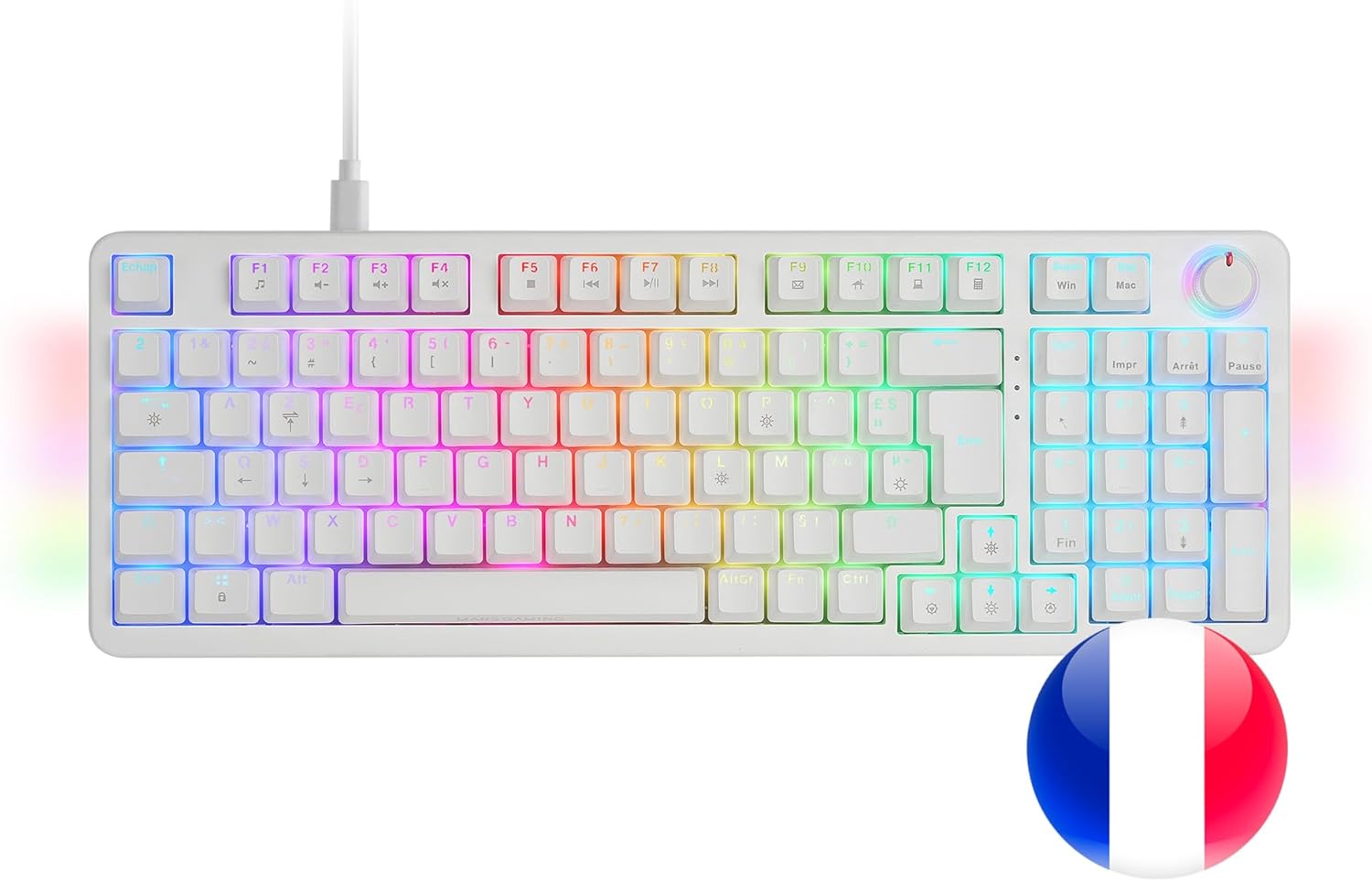
Image: A full view of the Mars Gaming MKPRO keyboard, highlighting its French AZERTY key layout and active RGB lighting.
RGB Chroma Lighting Control
The keyboard features advanced RGB Chroma backlighting and customizable side lighting effects. Specific key combinations (often involving the Function key, Fn) are used to cycle through lighting modes, adjust brightness, and change colors. Refer to the quick start guide or the advanced software for detailed instructions on lighting customization.

Image: Detail of the keyboard's keys showcasing the dynamic RGB Chroma lighting effects.
Multi-Function Control Wheel
The control wheel, located on the top right of the keyboard, provides quick access to multimedia functions:
- Volume Adjustment: Rotate the wheel clockwise to increase volume, counter-clockwise to decrease volume.
- Mute/Unmute: Press the wheel to mute or unmute audio.
- Multimedia Control: The wheel can also be configured via software to control playback (play/pause, next/previous track).

Image: The control wheel, a key feature for multimedia management and customization, illuminated by RGB light.
Advanced Software (Windows Only)
For advanced customization, including macro programming, detailed lighting effects, and remapping key functions, download the dedicated software from the Mars Gaming official website. This software is compatible only with Windows operating systems.
- Macro Setup: Create and assign complex key sequences to single keys.
- Lighting Customization: Fine-tune RGB effects, colors, and patterns beyond onboard controls.
- Key Remapping: Change the function of individual keys to suit your workflow or gaming style.
Multiplatform Compatibility
The MKPRO keyboard is designed for broad compatibility. To switch between Mac and Windows modes, use the designated key combination (often Fn + a specific key, check the keyboard's legends or quick start guide). Note that some advanced functions, particularly those requiring the dedicated software, may not be available on non-Windows operating systems.
Maintenance
Cleaning the Keyboard
- Disconnect the keyboard from your device before cleaning.
- Use a soft, lint-free cloth slightly dampened with water or a mild cleaning solution to wipe down the keycaps and chassis.
- For dust and debris between keys, use compressed air.
- Avoid using harsh chemicals, abrasive cleaners, or excessive moisture, as these can damage the keyboard.
Hot-Swap Switch Replacement
The MKPRO features hot-swappable mechanical switches, allowing for easy replacement without soldering. This is useful for customizing your typing feel or replacing a faulty switch.
- Identify the Switch: Determine which switch you wish to replace.
- Remove Keycap: Use the included cap puller tool to gently remove the keycap from the switch. Hook the puller onto the keycap and pull straight up.
- Remove Switch: Use the included switch puller tool. Position the two prongs of the switch puller onto the clips on the top and bottom (or sides) of the switch. Squeeze the prongs to release the clips and gently pull the switch straight up.
- Insert New Switch: Align the pins of the new switch with the holes on the keyboard's PCB. Gently press the switch down until it clicks into place. Ensure the pins are not bent.
- Replace Keycap: Place the keycap back onto the new switch and press down firmly until it is seated.
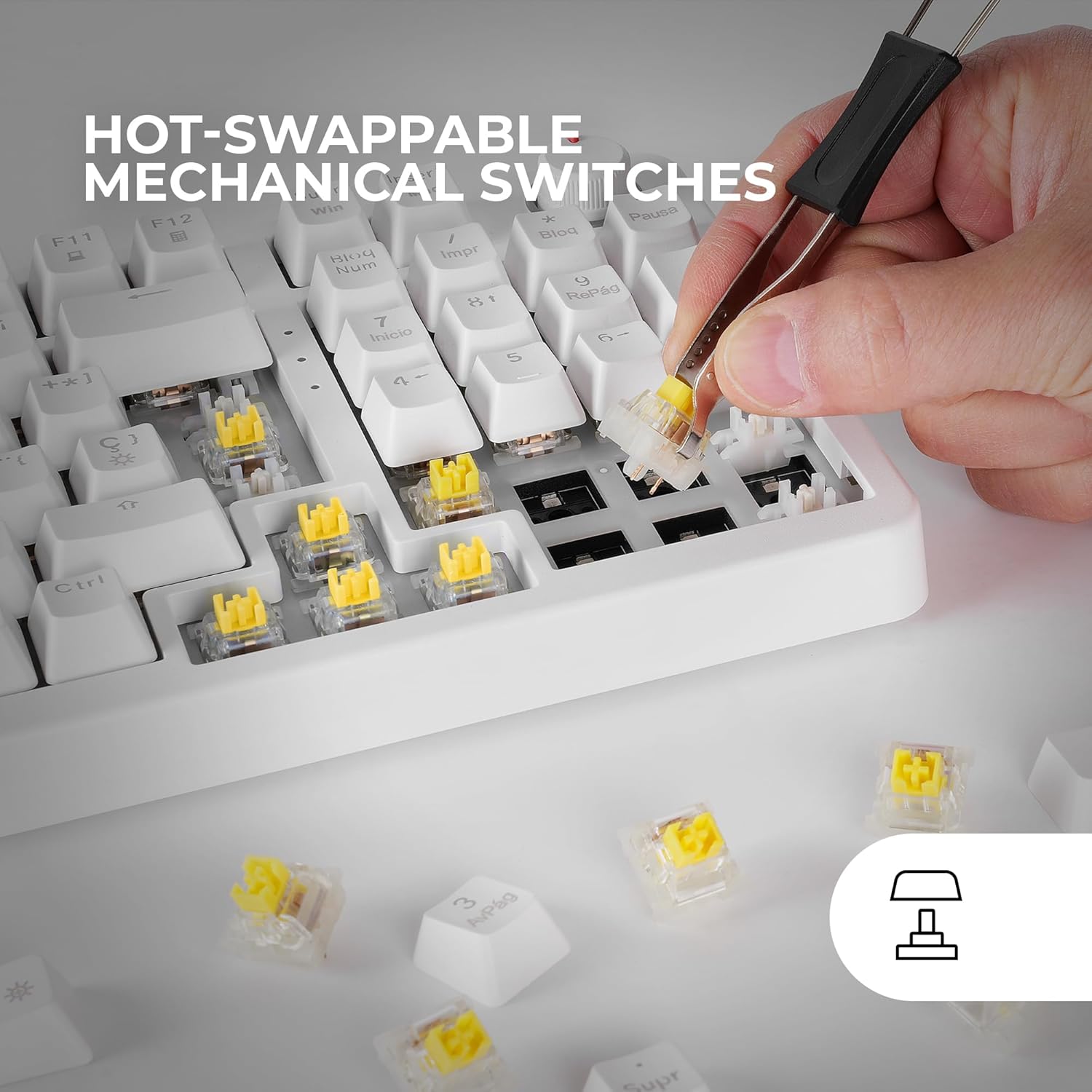
Image: Demonstrating the hot-swap feature, a mechanical switch is being removed from the keyboard using the specialized tool.
Troubleshooting
| Problem | Possible Cause | Solution |
|---|---|---|
| Keyboard not responding | Loose USB connection, faulty cable, incorrect USB port, driver issue. |
|
| Keys not registering or double-typing | Dust/debris under keycap, faulty switch, software conflict. |
|
| RGB lighting not working or incorrect | Lighting mode disabled, brightness too low, software settings. |
|
| Control wheel not functioning | Software conflict, specific application issue. |
|
Specifications
| Feature | Detail |
|---|---|
| Brand | Mars Gaming |
| Model Number | MKPROWYFR |
| Connectivity Technology | USB 2.0, USB-C (Detachable Cable) |
| Keyboard Description | Gaming, Full Mechanical |
| Switch Type | Mechanical (Hot-Swappable) |
| Number of Keys | 97 |
| Keyboard Layout | AZERTY (French) |
| Keyboard Backlighting | RGB Chroma |
| Special Features | Backlit, Custom display key, Customizable Display Keys, Ergonomic, Hot-Swappable, Lightweight, Control Wheel, Anti-Ghosting, QuietCore Cushioning Foam |
| Compatible Devices | Laptop, PC, Game console (PS4, PS5, Xbox One, Xbox Series X/S, Switch), Tablet |
| Product Dimensions (L x W x H) | 15.16" x 5.51" x 1.57" (38.5cm x 14cm x 4cm) |
| Item Weight | 750 Grams |
| Enclosure Material | Acrylonitrile Butadiene Styrene (ABS) |
| Included Components | USB Cable, Cap Puller, 4 Additional Switches |
Warranty and Support
Mars Gaming products are designed for durability and performance. For warranty information, please refer to the warranty card included with your product or visit the official Mars Gaming website. For technical support, driver downloads (including the advanced software for Windows), and frequently asked questions, please visit the Mars Gaming support page:
Please retain your proof of purchase for warranty claims.