
1. Introduction
The MARS GAMING MKPRO is a full-size mechanical gaming keyboard designed for professional performance, advanced customization, and maximum comfort. It features hot-swap switches, customizable RGB lighting, a multifunction control wheel, and advanced software for a personalized user experience. This manual provides detailed instructions for setup, operation, maintenance, and troubleshooting.

Image 1.1: The MARS GAMING MKPRO keyboard showcasing its full-size layout on a gaming desk.

Image 1.2: An overhead view of the MARS GAMING MKPRO keyboard, displaying its illuminated keys and overall design.
2. Package Contents
Please verify that all items are present in your package:
- MARS GAMING MKPRO Mechanical Gaming Keyboard
- USB-C Cable (detachable)
- Keycap Puller
- Switch Puller
- 4 Additional Switches (for hot-swapping)
- User Manual (this document)
3. Setup
3.1 Connecting the Keyboard
- Locate the detachable USB-C cable included in the package.
- Connect the USB-C end of the cable to the port on the MARS GAMING MKPRO keyboard.
- Connect the USB-A end of the cable to an available USB port on your computer or gaming console.
- The keyboard will automatically be recognized by your system.
3.2 Multiplatform Compatibility
The MKPRO keyboard is compatible with a wide range of operating systems and devices:
- Windows
- Mac*
- Linux*
- PS4, PS5
- Xbox One, Xbox Series X/S
- Nintendo Switch
*Note: Some functions may not be available on Mac or Linux due to system limitations. The keyboard allows switching between Mac and Windows modes.
3.3 Height Adjustment
The keyboard features three-level height adjustment feet located on the underside. Adjust them to your preferred typing angle for optimal comfort.
4. Operating Instructions
4.1 RGB Chroma Lighting
The MKPRO keyboard features advanced RGB Chroma backlighting and customizable side lights. Various lighting modes and effects can be cycled through directly on the keyboard using function key combinations or customized further using the advanced software (Windows only).

Image 4.1: The MARS GAMING MKPRO keyboard illuminated with its customizable RGB Chroma lighting effects.
4.2 Hot-Swap Mechanical Switches
The MKPRO supports hot-swapping, allowing you to change mechanical switches without soldering. This provides flexibility to customize your typing and gaming experience.
Two primary switch types are available:
- Silent Yellow Lubricated Switches: Offer even pressure for a smooth and quiet typing experience.
- Clicking Blue Switches: Provide audible and tactile feedback for a distinct typing feel.
Use the included switch puller to carefully remove existing switches and insert new ones. Ensure the pins align correctly before pressing the new switch into place.
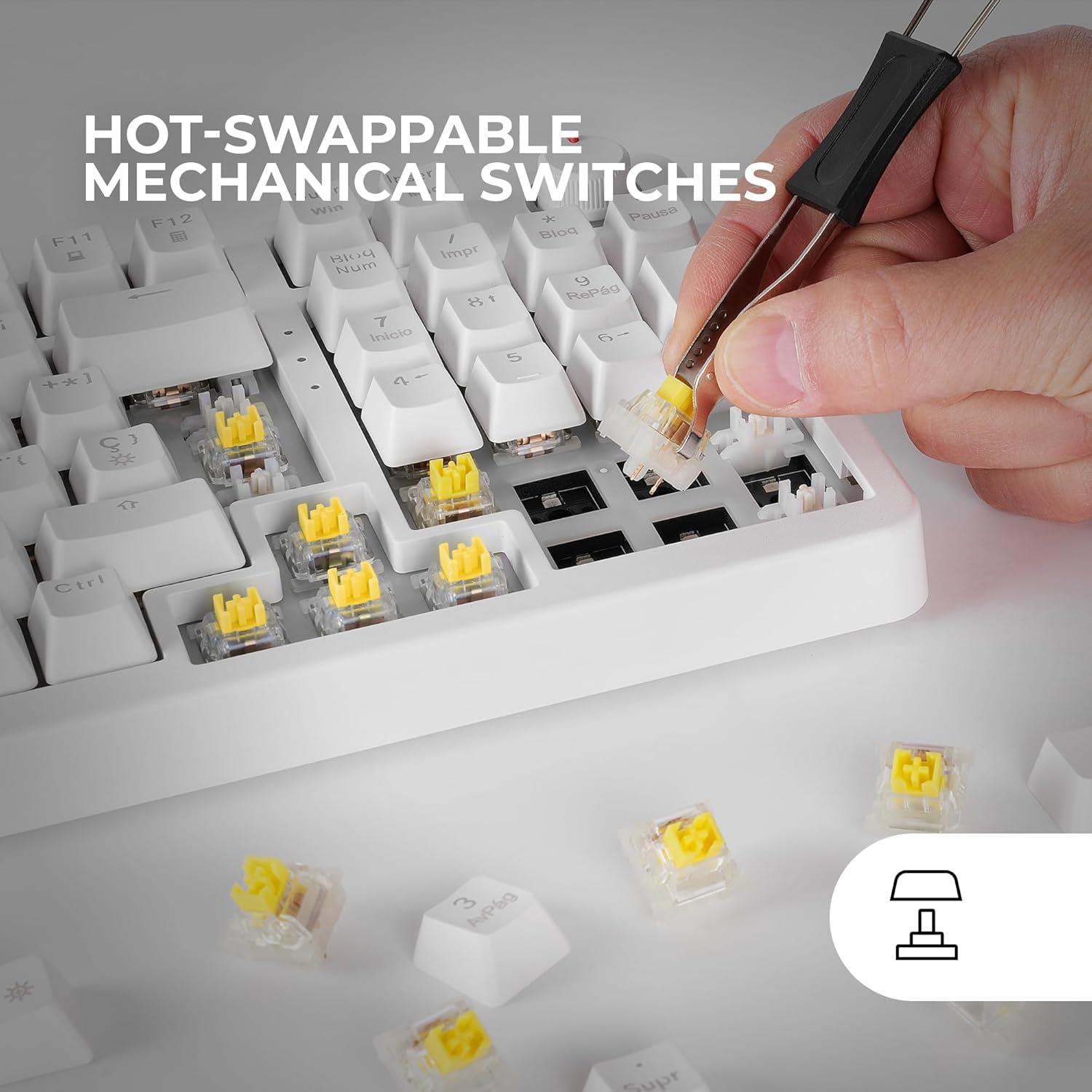
Image 4.2: Demonstrating the hot-swappable feature of the MARS GAMING MKPRO keyboard with a switch puller.
4.3 Control Wheel
The integrated multimedia control wheel provides convenient and precise control over volume and media playback. Rotate the wheel to adjust volume, and press it to mute/unmute or play/pause media, depending on the active application.

Image 4.3: A detailed view of the multimedia control wheel, which also integrates with advanced software features.
4.4 Advanced Software
For advanced customization, the MKPRO offers dedicated software (available for Windows only). This software allows you to:
- Create and assign macros to keys.
- Adjust and personalize RGB lighting effects and colors.
- Customize key assignments and profiles.
Please visit the official Mars Gaming website to download the latest version of the software.
4.5 Anti-Ghosting and QuietCore Technology
The keyboard features full anti-ghosting, ensuring that every key press is registered accurately, even during rapid, simultaneous inputs. Integrated QuietCore foam provides a quiet and comfortable typing experience by reducing switch noise.
5. Maintenance
5.1 Cleaning the Keyboard
To maintain optimal performance and appearance:
- Disconnect the keyboard from your computer before cleaning.
- Use a soft, lint-free cloth slightly dampened with water or a mild cleaning solution to wipe the keycaps and chassis.
- For dust and debris between keys, use compressed air.
- Avoid using harsh chemicals or abrasive materials.
5.2 Switch and Keycap Care
When removing keycaps or switches:
- Use the provided keycap puller to gently remove keycaps to avoid damage.
- Use the switch puller to carefully extract switches. Avoid excessive force to prevent bending switch pins or damaging the PCB.
- Ensure switches are inserted correctly and fully seated when replacing them.
6. Troubleshooting
- Keyboard Not Responding:
Ensure the USB-C cable is securely connected to both the keyboard and the computer. Try a different USB port or a different USB-C cable. Restart your computer. - Keys Not Registering:
Check if any debris is lodged under the keycap. If using hot-swap switches, ensure the switch is fully seated. If a specific switch is faulty, consider replacing it with one of the included spare switches. - RGB Lighting Not Working/Incorrect:
Verify the keyboard's lighting modes using function key combinations. If using the advanced software, ensure it is running and configured correctly. Reinstall the software if necessary. - Advanced Software Not Detecting Keyboard (Windows Only):
Ensure the keyboard is properly connected. Close and reopen the software. Reinstall the software from the official Mars Gaming website. Check for any conflicting software or drivers. - Multimedia Wheel Not Functioning:
Ensure the keyboard is properly connected. Check if any software or system settings are overriding multimedia controls.
7. Specifications
| Feature | Detail |
|---|---|
| Model Number | MKPROWYUS |
| Connectivity Technology | USB 2.0, USB-C (Detachable Cable) |
| Keyboard Description | Gaming, Full Mechanical |
| Switch Type | Hot-Swappable (Silent Yellow Lubricated, Clicking Blue) |
| Backlighting | RGB Chroma with Customizable Side Lights |
| Special Features | Backlit, Customizable Display Keys, Ergonomic, Hot-Swappable, Lightweight, Anti-Ghosting, QuietCore Foam, Multimedia Control Wheel |
| Layout | US Layout |
| Material | Acrylonitrile Butadiene Styrene (ABS) |
| Product Dimensions | 15.16"L x 5.51"W x 1.57"H (38.5 x 14 x 4 cm) |
| Item Weight | 1.65 pounds (0.75 kg) |
| Included Components | Keycap Puller, USB Cable, Switch Puller, 4 Additional Switches |
| Compatibility | Windows, Mac, Linux, PS4, PS5, Xbox One, Xbox Series X/S, Switch |
8. Warranty and Support
MARS GAMING products are designed for reliability and performance. For warranty information, technical support, or further assistance, please refer to the official MARS GAMING website or contact their customer service directly. Keep your purchase receipt as proof of purchase for warranty claims.


