
Introduction
The MAONO DM40 Wireless Microphone is designed for high-quality audio capture across various platforms, including PC, PS4, PS5, and Laptops. It features AI noise reduction, AI voice changing capabilities, and RGB lighting, making it suitable for gaming, streaming, podcasting, and online communication. This manual provides essential information for setting up, operating, and maintaining your DM40 microphone.

Image: The MAONO DM40 Wireless Microphone mounted on its boom arm, positioned in front of a computer monitor, illustrating a typical setup for gaming or streaming.
What's in the Box
Please check the package contents to ensure all items are present:
- MAONO DM40 Wireless Microphone
- Wireless USB Dongle
- Wireless USB-C Dongle
- Microphone Boom Arm BA20
- USB Charging Cable
- User Manual
Setup
1. Assembling the Boom Arm
Attach the Microphone Boom Arm BA20 to your desk using the included clamp. Ensure the clamp is securely fastened to a stable surface. Mount the DM40 microphone onto the boom arm. The boom arm offers 360-degree rotation, 270-degree and 180-degree articulation points for flexible positioning.

Image: A visual representation of the MAONO DM40 boom arm, highlighting its 360°, 270°, and 180° adjustment capabilities for optimal microphone placement.

Image: This image shows the correct method for attaching the boom arm clamp to a desk, emphasizing stability and a maximum desk thickness of 2.2 inches (5.5 cm).
2. Connecting the Microphone
The DM40 microphone offers wireless connectivity via USB and USB-C dongles. Choose the appropriate dongle for your device.
- For USB-A Ports: Insert the Wireless USB dongle into an available USB-A port on your PC, PS4, PS5, or Laptop.
- For USB-C Ports: Insert the Wireless USB-C dongle into an available USB-C port on your PC, Laptop, or compatible device.
The microphone is plug-and-play, requiring no additional drivers for basic functionality. For advanced features, install the Maono Link software.

Image: The MAONO DM40 microphone demonstrating its wireless connectivity options, showing both Wireless Type-C and Wireless USB dongles in use with a laptop and a desktop computer.

Image: A close-up of the black MAONO DM40 microphone, showcasing the included wireless USB and USB-C dongles for versatile connectivity.
3. Powering On
Once connected, the microphone should power on automatically. The RGB lighting will illuminate, indicating it is active. Ensure the microphone is charged for optimal performance. The microphone can be used while charging.
Operating Instructions
1. Microphone Controls and Ports
The DM40 features intuitive controls for easy operation:
- Volume Knob: Rotate to adjust microphone gain (Mic Gain +) and headphone volume (Headphone Gain +).
- Short Press (Volume Knob): Toggles between Mic Gain and Headphone Gain adjustment modes.
- One-tap Mute Button: Located on top of the microphone. Press to instantly mute/unmute the microphone. The RGB light will change to red when muted.
- RGB Control / Mic Power Button: Controls RGB lighting effects and powers the microphone on/off.
- 3.5mm Headphone Jack: For zero-latency monitoring of your audio.
- Monitor Switch: Toggles zero-latency monitoring on/off.
- Charging Port (USB-C): Connect the USB charging cable here.
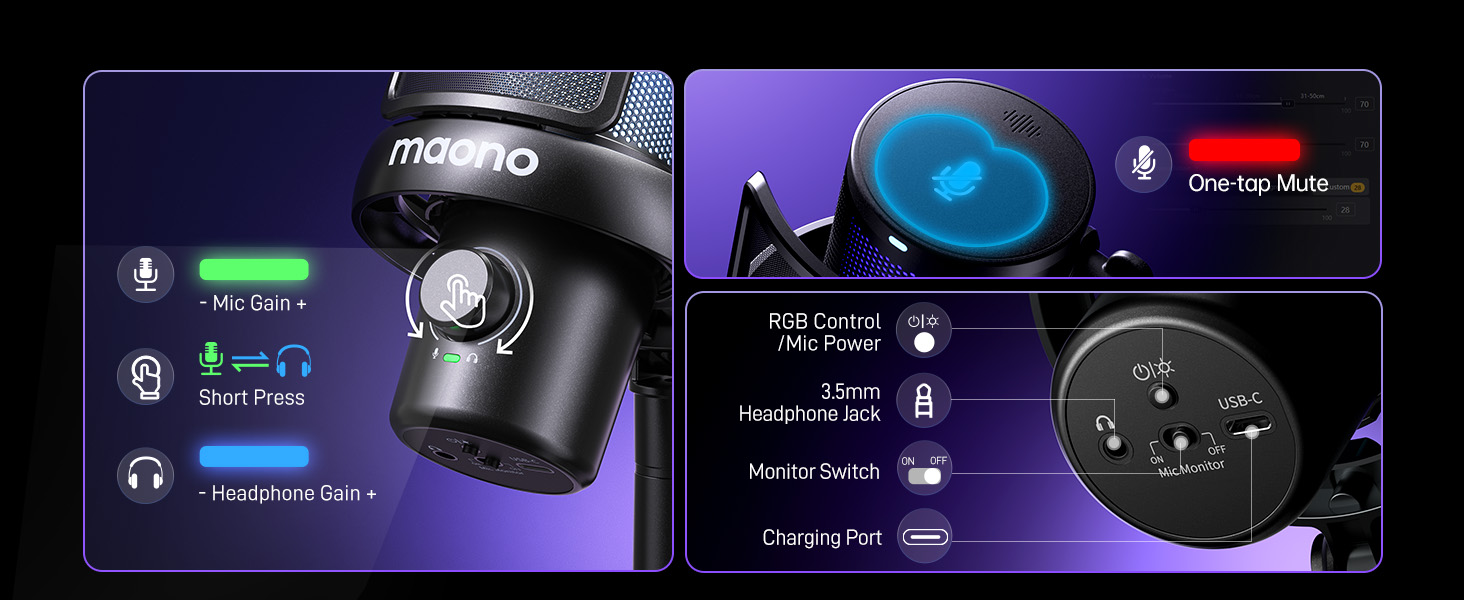
Image: An annotated diagram illustrating the various controls and ports on the MAONO DM40 microphone, including the volume knob, mute button, headphone jack, and charging port.
2. Noise Cancellation
The DM40 features one-tap noise cancellation with four preset levels: Low, Medium, High, and a customizable noise level. This can be adjusted directly on the microphone or through the Maono Link software to ensure clear audio by minimizing background noise.

Image: A visual demonstration of the DM40's noise cancellation effectiveness, showing significant reduction in common environmental sounds like fans, air conditioners, and mouse clicks.

Image: A screenshot of the Maono Link application interface, displaying the noise cancellation settings with options for 'Slight', 'Moderate', and 'Aggressive' levels, alongside a custom slider.
3. AI Voice Changer
Transform your voice with 6 exciting AI voice-changing modes. These modes can be accessed and managed via the Maono Link software, adding creativity to your streams, games, or chats.

Image: A promotional graphic highlighting the DM40's AI voice changer feature, showcasing six distinct voice options such as Paimon, Sukuna, Tifa, Deadpool, and Mr. Sponge.

Image: A screenshot of the Maono Link software interface, showing the AI Voice section where users can select from various voice transformation presets.
4. Maono Link App
The Maono Link app provides comprehensive control over your DM40 microphone. It allows you to adjust scene presets, EQ settings, AI voice changers, noise cancellation, volume, gain, mute, zero-latency monitoring, and RGB lighting. Download the software from the official MAONO website.

Image: A screenshot of the Maono Link application, illustrating the 'Scene' and 'EQ' adjustment panels for fine-tuning audio profiles.

Image: A screenshot of the Maono Link application's mixer interface, displaying individual volume faders for different audio sources and sound effects.
5. RGB Lighting
The DM40 features customizable RGB lighting. Adjust lighting effects and colors via the Maono Link software to match your setup or mood.
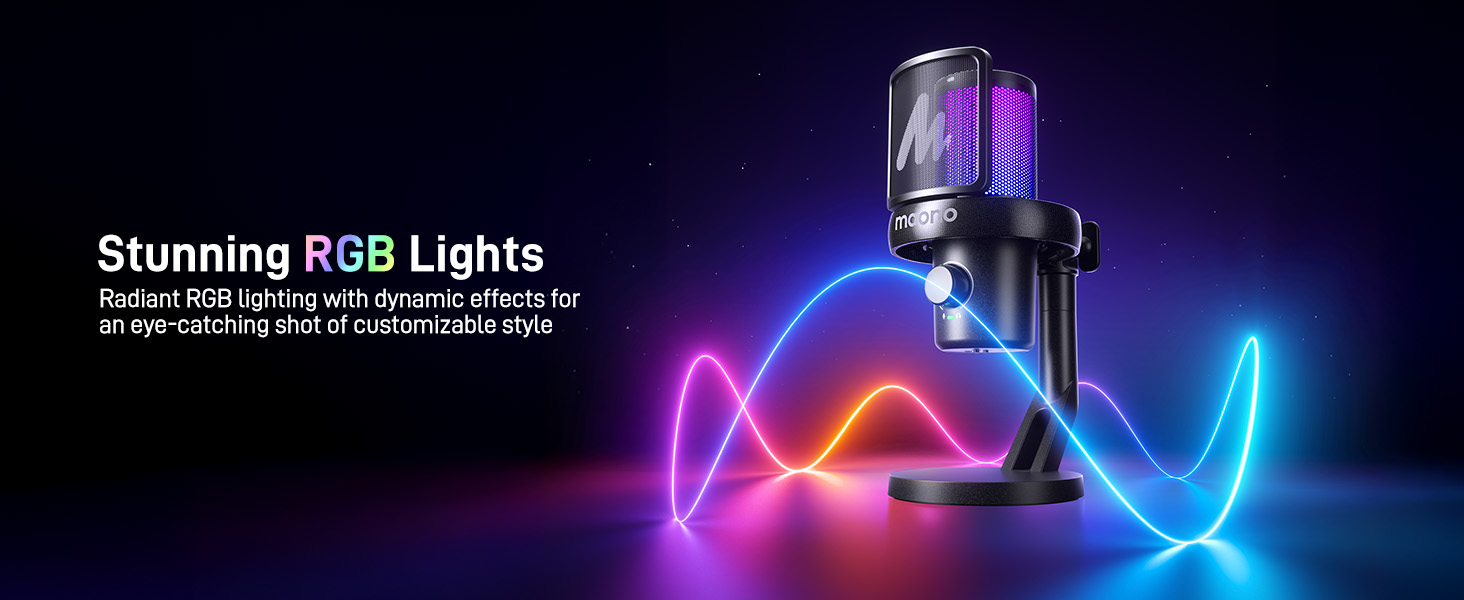
Image: The MAONO DM40 microphone illuminated with dynamic RGB lighting, showcasing its aesthetic appeal.
Features Overview
- Instant Wireless Connection: Offers freedom of movement with wireless USB and USB-C dongles.
- Extended Battery Life: Up to 75 hours of battery life (40 hours without RGB, 22 hours with RGB) for long, uninterrupted sessions.
- One-tap Noise Cancellation: Four preset levels (Low, Medium, High) and customizable options for crystal-clear audio.
- AI Voice Change: 6 distinct voice-changing modes for creative audio effects.
- Easy Control & Monitoring: Full control via the Maono Link app for EQ, gain, volume, and more. Zero-latency monitoring via 3.5mm jack.
- Plug and Play & Wide Compatibility: Seamless compatibility with PC, PS4, PS5, Laptops, and Macs via USB and USB-C.
- Low Latency Transmission: Real-time audio with a delay of less than 0.02 seconds.
- 5-Layer Noise Protection: Multi-layer physical shockproof design to minimize unwanted noise.
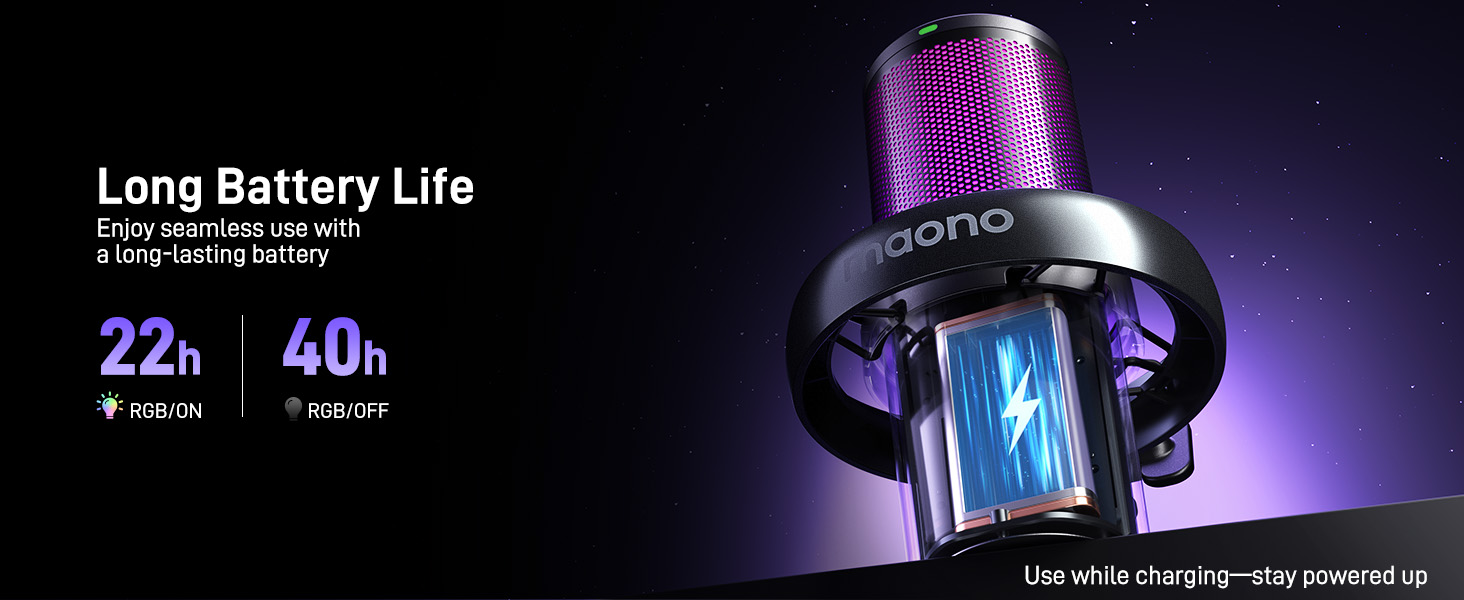
Image: A graphic illustrating the MAONO DM40's battery performance, showing 22 hours of use with RGB lighting on and 40 hours with RGB off.
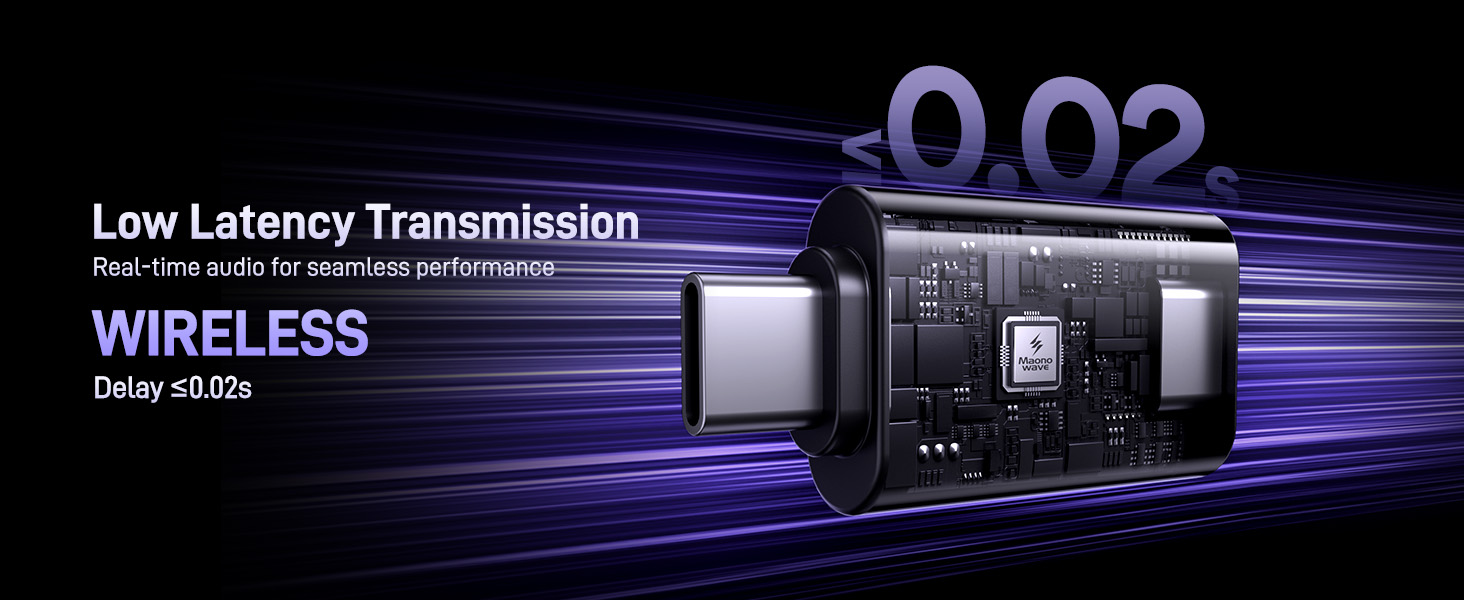
Image: A visual representation emphasizing the MAONO DM40's low latency wireless transmission, indicating a delay of less than 0.02 seconds.

Image: An exploded view diagram of the MAONO DM40 microphone, detailing its 5-layer noise protection system including the pop filter, mic capsule, sponge, shock mount, and stand.
Maintenance
To ensure the longevity and optimal performance of your MAONO DM40 Wireless Microphone, follow these maintenance guidelines:
- Cleaning: Use a soft, dry cloth to wipe the microphone body and boom arm. Avoid using liquid cleaners or abrasive materials, as they may damage the finish or internal components.
- Storage: When not in use, store the microphone in a clean, dry place away from extreme temperatures and humidity.
- Battery Care: For long-term storage, ensure the microphone is partially charged (around 50%) to preserve battery health. Avoid fully discharging the battery for extended periods.
- Cable Management: Keep charging cables and dongles organized and free from kinks or sharp bends to prevent damage.
Troubleshooting
If you encounter issues with your MAONO DM40 Wireless Microphone, refer to the following common troubleshooting steps:
- No Sound Output:
- Ensure the microphone is powered on and the RGB lights are active.
- Verify the wireless dongle is securely plugged into your device's USB/USB-C port.
- Check your device's sound settings to ensure the MAONO DM40 is selected as the input device.
- Confirm the microphone is not muted (red RGB light indicates mute).
- Adjust the microphone gain using the volume knob or Maono Link software.
- Poor Audio Quality / Background Noise:
- Activate or adjust the noise cancellation feature via the microphone button or Maono Link software.
- Ensure the microphone is positioned correctly, ideally 6-12 inches from your mouth.
- Check for environmental interference. Try moving closer to the dongle or away from other wireless devices.
- Update the Maono Link software to the latest version.
- Microphone Not Recognized:
- Try plugging the wireless dongle into a different USB/USB-C port.
- Restart your computer or gaming console.
- Ensure the microphone is sufficiently charged.
- Battery Not Charging:
- Ensure the USB charging cable is securely connected to both the microphone and a power source.
- Try a different USB charging cable or power adapter.
- Verify the charging port on the microphone is clean and free of debris.
Specifications
| Brand | MAONO |
| Model | DM40 |
| Connectivity Technology | USB, USB-C (Wireless) |
| Connector Type | USB Type-C, USB Type-A |
| Compatible Devices | Laptop, Personal Computer, Gaming Console (PS4, PS5), Mac |
| Included Components | Microphone Boom Arm BA20 |
| Microphone Form Factor | Gooseneck (with boom arm) |
| Power Source | Battery Powered |
| Number of Channels | 1 |
| Battery Life | Up to 75 hours (40h RGB off, 22h RGB on) |
| Latency | Less than 0.02s |
Warranty and Support
MAONO products typically come with a limited warranty. For specific warranty details, including coverage period and terms, please refer to the warranty card included with your product or visit the official MAONO website. For technical support, troubleshooting assistance, or service inquiries, please contact MAONO customer support through their official website or the contact information provided in your product packaging.
Official MAONO Website: www.maono.com


