
1. Setup
1.1. Unboxing and Package Contents
The Autel MaxiSYS Ultra S2 comes in a robust carrying case designed for protection and organization. Upon opening, you will find the main tablet unit, the MaxiFlash VCMI2, a docking station, and various cables and accessories.
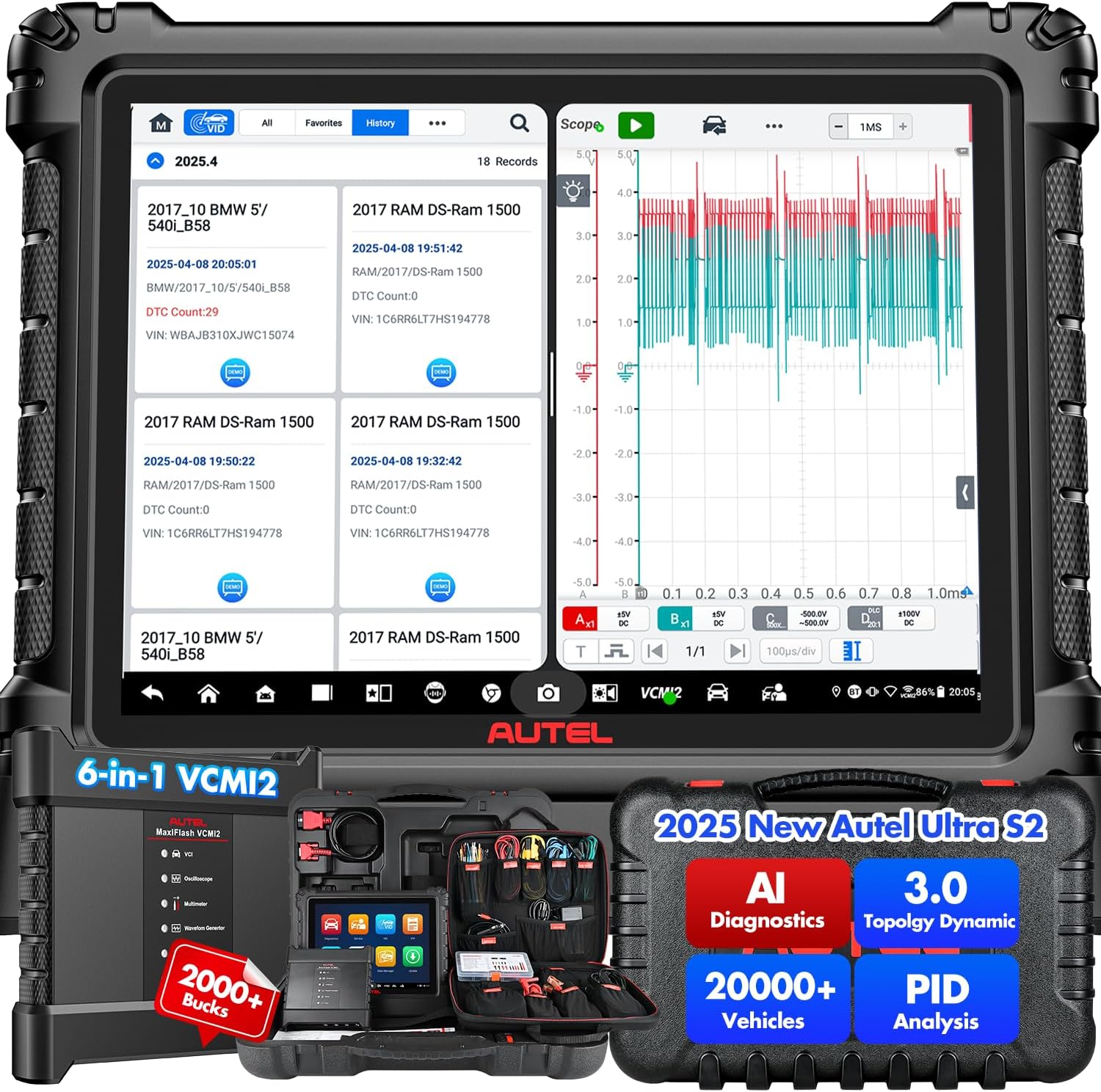
Figure 1: Autel MaxiSYS Ultra S2 AI Diagnostic Scanner with VCMI2 and screen displaying diagnostic data.
Video 1: Introduction to the Autel MaxiSYS Ultra S2, highlighting its advanced features and capabilities.
Video 2: Unboxing and explanation of the contents of the Autel MaxiSYS Ultra S2 package.
1.2. Initial Power On and Configuration
To power on the device, press and hold the power button located on the side of the tablet. Follow the on-screen prompts for initial setup, including language selection, Wi-Fi connection, and software registration. Ensure the device is fully charged before first use.
1.3. VCMI2 Connection
The MaxiFlash VCMI2 (Vehicle Communication and Measurement Interface) connects wirelessly to the Ultra S2 tablet. Plug the VCMI2 into the vehicle's OBD-II port. The VCMI2 will establish a Bluetooth or Wi-Fi connection with the tablet, indicated by status lights on the VCMI2 unit.
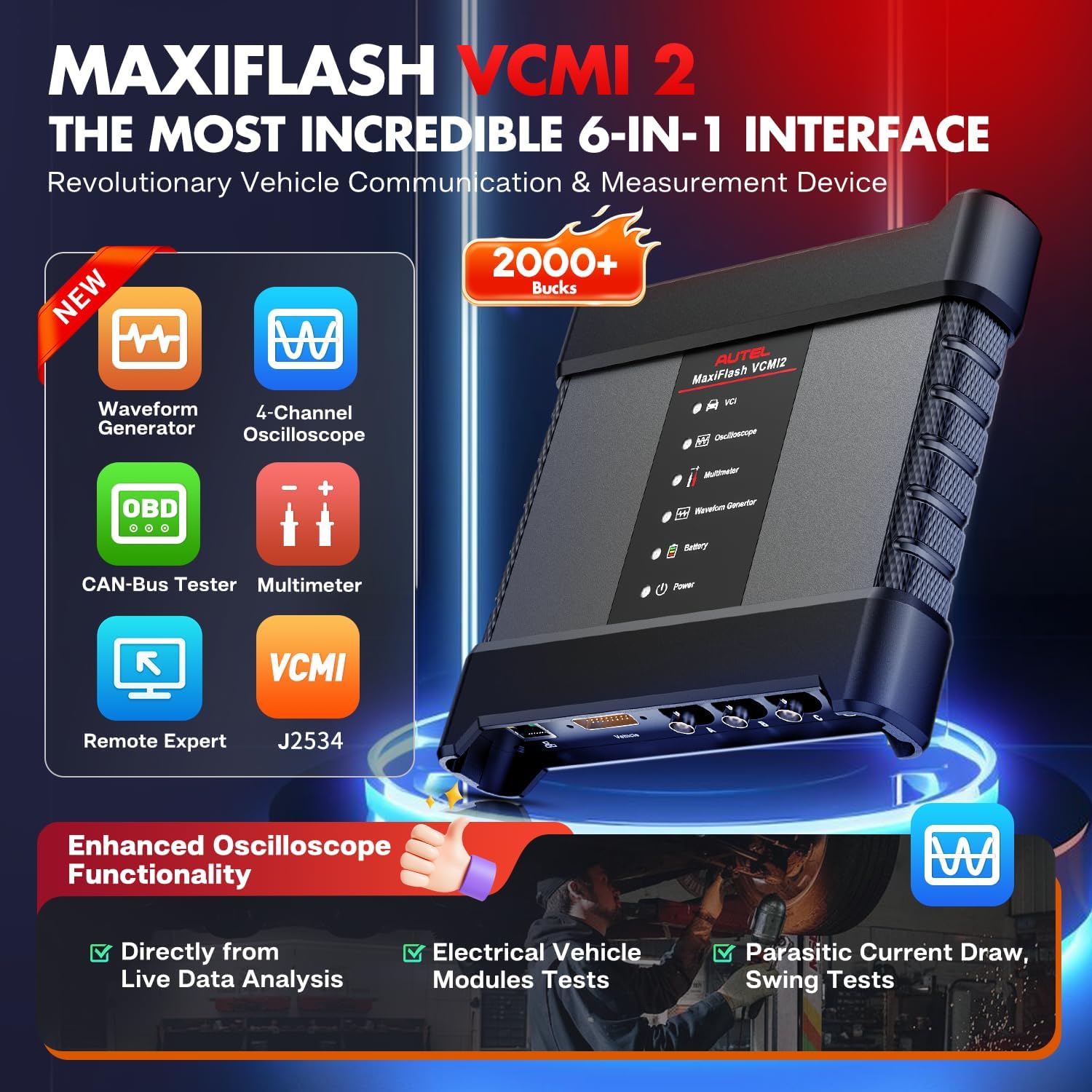
Figure 2: The MaxiFlash VCMI2, a 6-in-1 device combining VCI, oscilloscope, multimeter, waveform generator, CAN-Bus tester, and remote expert capabilities.
2. Operating the MaxiSYS Ultra S2
2.1. Main Menu Navigation
The main menu provides access to all primary functions: Diagnostics, Service, ADAS, Data Manager, Settings, VCI Manager, Support, and Update. Navigate by tapping the corresponding icons on the 13.7-inch anti-glare touchscreen.
Video 3: Overview of the 2025 Autel MaxiSYS Ultra S2 AI Diagnostic Tool's interface and key features.
2.2. Auto Scan and Topology 3.0
Initiate an Auto Scan to quickly identify all vehicle systems and their status. The Topology 3.0 feature provides a dynamic network analysis, displaying the communication status of all modules in an OE-style diagram. Faulty modules are highlighted for quick identification.

Figure 3: Examples of Topology 3.0 mapping, showing module communication and fault status within the vehicle's network.
Video 4: Demonstration of the Topology 3.0 feature, illustrating how to identify and diagnose module communication issues.
2.3. Data-Driven PID Analysis and Live Data Fusion
The Ultra S2 offers advanced data analysis capabilities. Data-Driven PID Analysis provides enhanced graphing to visualize multiple parameters and identify anomalies. Live Data Fusion allows recording and comparing value changes across systems, with options for parameter grouping and reference sampling.

Figure 4: Data visualization and live data fusion capabilities for analyzing multiple parameters simultaneously.
2.4. AI Powered Digital Vehicle Inspection (DVI)
The AI-powered Multi-Point DVI feature uses image analysis for auto-detection of dents and scratches. It can integrate with other Autel tools like TBE200 and ITS600 for detailed tire analysis and component performance assessment.
2.5. AI Assistant "MAX" and Remote Expert
Utilize the


