
Roinvou B0F37HKRMB
Roinvou Car Stereo Radio User Manual
Model: B0F37HKRMB
For Toyota GT86 / Subaru BRZ / Scion FRS (2012-2016)
Introduction
This manual provides comprehensive instructions for the installation, operation, and maintenance of your Roinvou Car Stereo Radio. This unit is designed to enhance your driving experience with features such as Wireless CarPlay, Android Auto, GPS navigation, Bluetooth 5.0, and a high-definition IPS touchscreen.
Please read this manual thoroughly before installation and use to ensure proper functionality and safety.
Vehicle Compatibility
This car stereo radio is specifically designed for the following vehicle models:
- Toyota GT86 (2012-2016)
- Subaru BRZ (2012-2016)
- Scion FRS (2012-2016)
Important Note: This unit's cable does NOT support original cars equipped with a JBL power amplifier or a large screen. If your vehicle has these features, additional adapters or modifications may be required. It is recommended to verify compatibility with your specific vehicle configuration before proceeding with installation.

Image showing the car dashboard before and after the installation of the Roinvou car stereo, highlighting the integrated appearance.
Package Contents
Please verify that all items listed below are included in your package:
- 1 x Roinvou Car Stereo for Toyota GT86/Subaru BRZ Scion FRS
- 1 x Power Cable
- 1 x RCA Harness
- 1 x GPS Antenna
- 1 x AHD Backup Camera
- 1 x External Microphone
- 1 x Rear Camera Input Cable
- 2 x USB Cables
- 1 x Installation Tool Set

Diagram illustrating the various components included in the package and a reference for their connections to the main stereo unit.
Setup and Installation
General Wiring Instructions
Carefully connect all cables according to the provided wiring diagrams. Ensure all connections are secure to prevent malfunctions.
- Connect the main power cable harness to the vehicle's wiring.
- Connect the RCA harness for audio output and auxiliary inputs.
- Attach the GPS antenna to the designated port for navigation functionality.
- Connect the USB cables for external device connectivity.
- Install the external microphone for hands-free calling and voice commands.

Diagram showing the connection of the ACC line on the power cord to the RCA power amplifier line, ensuring the original car's power amplifier functions correctly.
Backup Camera Connection
To enable the backup camera feature, follow these steps:
- Connect the AHD Backup Camera to the Rear Camera Input Cable.
- Connect the Rear Camera Input Cable to the corresponding port on the stereo unit.
- Connect the red wire (ACC) of the camera's power cable to the vehicle's reversing lamp power.
- Connect the black wire to ground (GND).
Important Tip: The reverse input cable must be plugged in even if the reverse camera is not being used. Failure to do so may affect Bluetooth and WiFi signal reception.

Detailed wiring diagram for connecting the AHD backup camera to the car stereo system.
Operating Instructions
Wireless CarPlay & Android Auto
Connect your smartphone wirelessly via Bluetooth to access CarPlay or Android Auto. This allows for seamless integration of phone calls, music playback, GPS navigation, and voice assistant control directly from the stereo screen. Note: Wired connection is not supported for these features.

Screenshot of the stereo interface displaying Wireless CarPlay and Android Auto functionalities, including app icons and voice command prompts.
Mirror Link Function
The Mirror Link function allows you to synchronize your Android or iOS smartphone screen with the stereo display via WiFi. This enables you to view content from your phone, such as videos or navigation apps, on the larger screen.
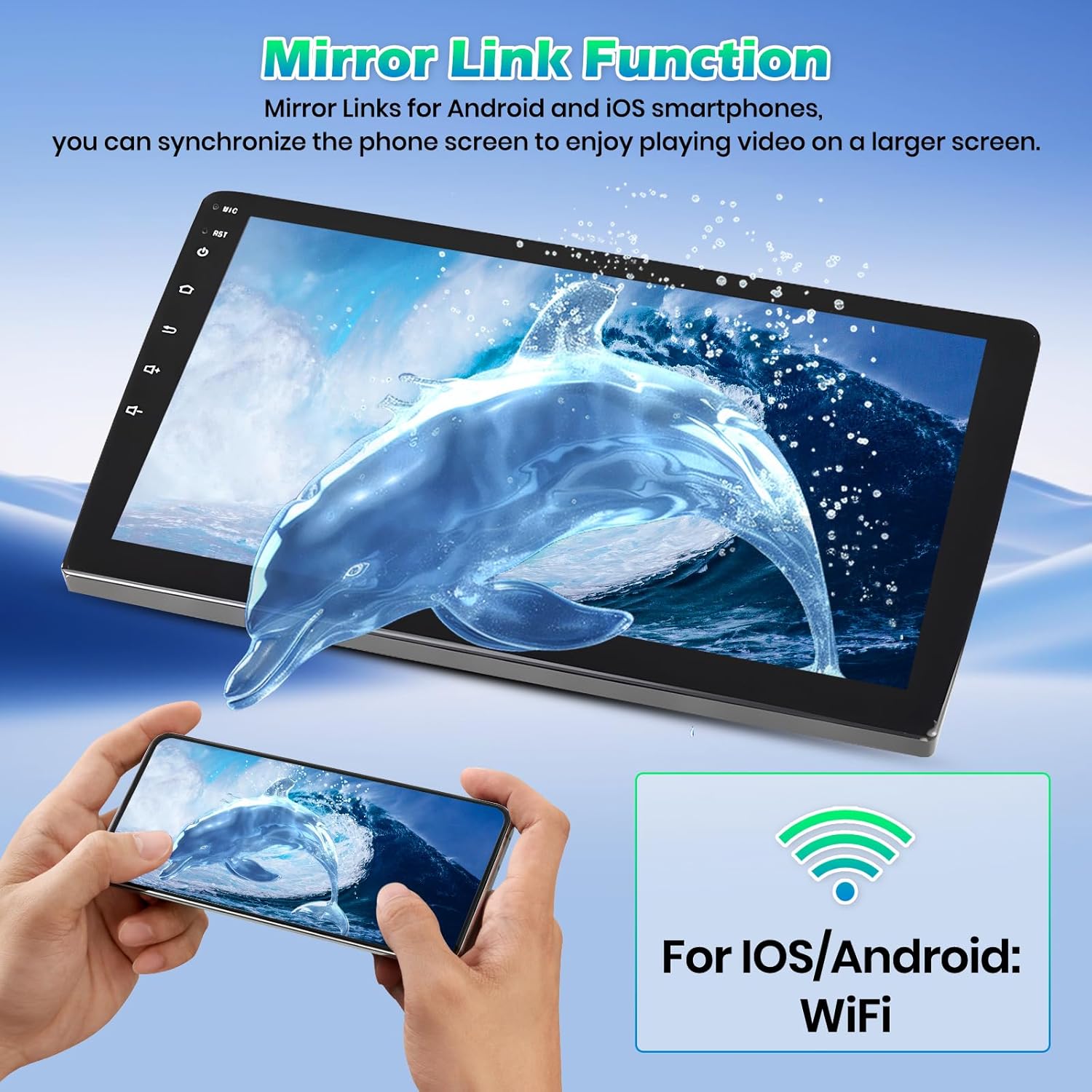
Image demonstrating the Mirror Link function, showing a smartphone screen being mirrored onto the car stereo display.
GPS Navigation & WiFi
The unit features built-in GPS navigation. You can download offline navigation maps directly from the Play Store. After connecting to a WiFi network, online maps and other internet-dependent applications can be used seamlessly.

Visual representation of the GPS navigation interface on the stereo, alongside icons for various online applications accessible via WiFi.
FM/RDS Radio & 32-Band EQ
Enjoy your favorite radio stations with the built-in FM/RDS tuner, providing access to new broadcasts, real-time traffic, and weather forecasts. The 32-band EQ allows for precise sound customization, compensating for original speaker limitations and delivering enhanced lossless sound quality.

Combined image showing the Bluetooth connection interface, FM/RDS radio tuner, and the detailed 32-band equalizer settings for audio customization.
Split Screen Function
The split-screen feature allows you to run two applications simultaneously on the display. For example, you can use navigation on one side while controlling music or viewing other information on the other side.

Screenshot demonstrating the split-screen mode, showing two applications running concurrently on the stereo display, along with various UI theme options.
Steering Wheel Control (SWC)
The unit supports steering wheel control, allowing you to quickly switch functions without taking your hands off the wheel. This enhances driving safety and convenience.
- Without CANBUS Decoder: Connect the plugs or the steering wheel control wires (Key1/Key2) in the power cable to the corresponding port or wire of your original car. Then, go to "Steering Wheel Key" manual match in settings to activate the button function.
- With CANBUS Decoder: Connect the CANBUS before powering on the machine. Follow the path: Apps -> Settings -> Factory Settings (8888/8317) -> Vehicle -> Automotive type. Select the brand of the CANBUS decoder and the matching model/year.

Image showing the on-screen interface for configuring steering wheel controls, with options for assigning functions to various buttons.
Maintenance
To ensure the longevity and optimal performance of your car stereo, follow these maintenance guidelines:
- Cleaning: Use a soft, dry cloth to clean the screen and exterior. Avoid abrasive cleaners or solvents that could damage the surface.
- Temperature: Do not expose the unit to extreme temperatures, either hot or cold, for extended periods.
- Moisture: Keep the unit dry. Avoid exposing it to water or excessive humidity.
- Software Updates: Periodically check for software updates from the manufacturer to ensure the system runs efficiently and has the latest features.
Troubleshooting
If you encounter issues with your Roinvou Car Stereo, refer to the following common problems and solutions:
| Problem | Possible Cause / Solution |
|---|---|
| Radio audio does not work |
|
| Bluetooth or WiFi signal issues |
|
| Steering Wheel Control not responding |
|
| Screen not clear or unresponsive |
|
For further assistance, please contact Roinvou customer support.
Specifications
| Feature | Detail |
|---|---|
| Brand | Roinvou |
| Model | B0F37HKRMB |
| Operating System | Android |
| Screen Size | 9 Inches |
| Display Resolution | 1280*720P HD IPS |
| Connectivity Technology | Bluetooth 5.0, Wi-Fi, USB |
| Special Features | Wireless CarPlay, Wireless Android Auto, Mirror Link, GPS Navigation, FM RDS Radio, 32-Band EQ, Support Reverse Input, Split Screen, Steering Wheel Control |
| Audio Output Mode | Stereo |
| Mounting Type | Dashboard Mount |
| Item Weight | 3.21 pounds |
| Package Dimensions | 13.39 x 6.69 x 3.94 inches |
| Country of Origin | China |
Warranty and Support
Your Roinvou Car Stereo Radio comes with a 1-Year Warranty from the date of purchase, covering manufacturing defects and malfunctions under normal use.
For technical support, warranty claims, or any inquiries, please contact Roinvou customer service through the platform where you purchased the product or visit the official Roinvou store page on Amazon: Roinvou Store.
Related documentsB0F37HKRMB


Ask a question about this manual
Ask about setup, troubleshooting, compatibility, parts, safety, or missing instructions. Manuals+ will review the question and use this page’s manual context to help answer it.