
1. Product Overview
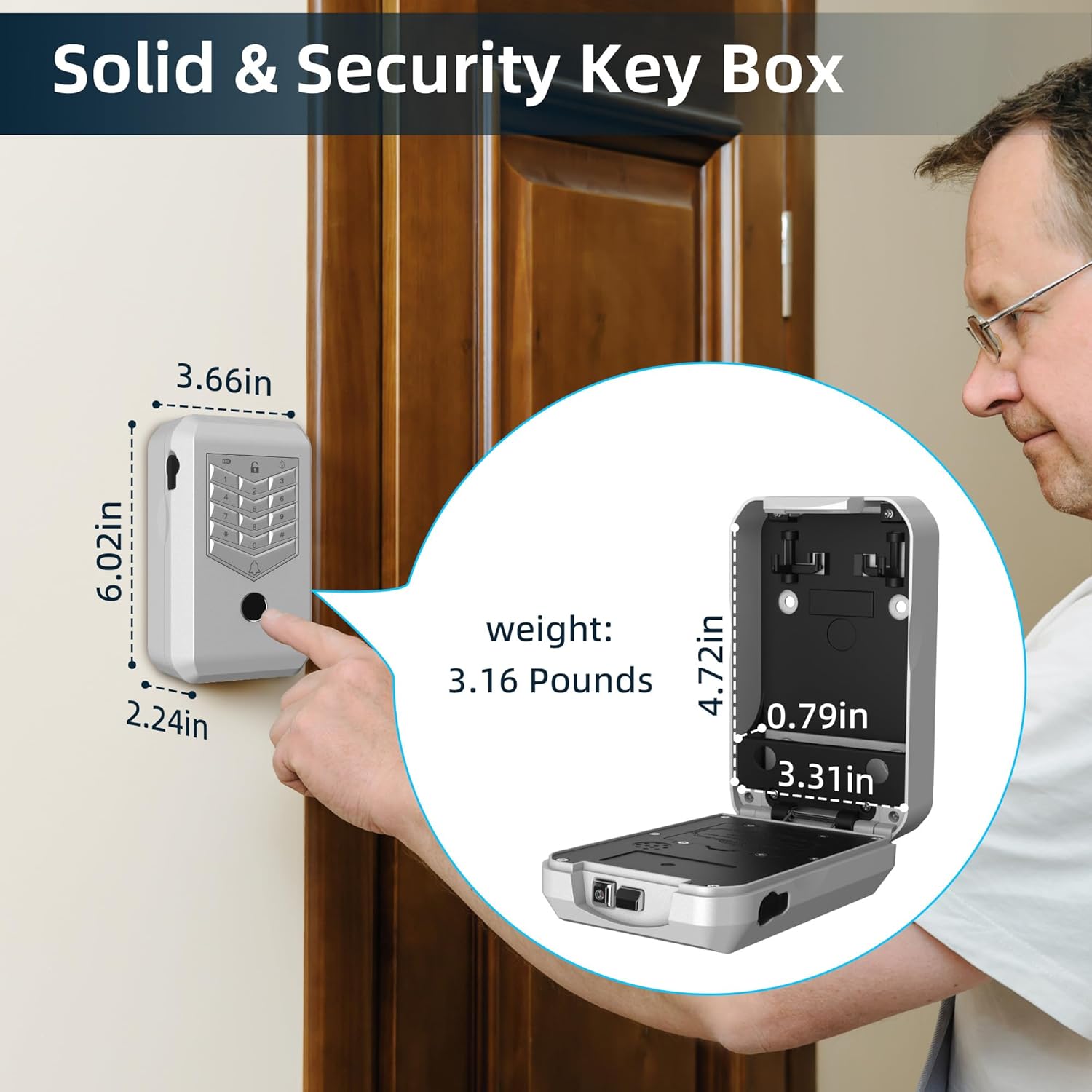
The KENRONE Smart Key Lock Box KR-KB148A provides a secure and convenient solution for key storage. Constructed from durable zinc alloy, it features an IP66 waterproof rating, ensuring reliable operation in various outdoor conditions from -20℃ to +60℃. This key box offers multiple unlocking methods, including fingerprint, password, IC card, mechanical key, and remote access via the Tuya App.
It is designed for a wide range of applications, suitable for home use, apartments, warehouses, and garages, providing secure key access for family members, friends, home services, couriers, and real estate professionals.


2. Setup Instructions
2.1 Package Contents
Before installation, ensure all components are present:
- Smart Key Lock Box
- Smart Card (x2)
- Mechanical Key (x2)
- Mounting Screws
- User Manual
2.2 Battery Installation
The key box requires batteries for operation. Open the battery compartment, typically located on the inside of the back panel. Insert the specified battery type (e.g., AA or AAA, refer to the physical manual for exact type) according to the polarity markings. Close the compartment securely.
2.3 Wall Mounting
The KENRONE Smart Key Lock Box is designed for wall-mounted installation. Choose a suitable location that is secure and accessible. Use the provided mounting screws to fix the key box firmly to the wall. Ensure the surface is stable and can support the weight of the key box and its contents.
Video 1: Wall Mounting Tutorial. This video demonstrates the process of securely mounting the key lock box onto a wall, providing visual guidance for installation.
2.4 Initial App Connection (Tuya App)
Download the Tuya App from your smartphone's app store. Follow the in-app instructions to register an account and add your KENRONE Smart Key Lock Box as a new device. Ensure Bluetooth is enabled on your phone during the initial pairing process.
3. Operating Instructions
The KENRONE Smart Key Lock Box offers five distinct methods for unlocking.

3.1 Fingerprint Unlock
- Open the Tuya App and navigate to the device settings for your key box.
- Select the option to add a new fingerprint.
- Follow the on-screen prompts to place your finger on the fingerprint sensor multiple times, adjusting its position slightly with each scan to ensure full registration.
- Once registered, simply place your registered finger on the sensor to unlock the box.
Video 2: Fingerprint and Password Entry Tutorial. This video provides a step-by-step guide on how to set up and use fingerprint and password entry methods for the key lock box.
3.2 Password Unlock
- In the Tuya App, access the device settings and select the option to add a new password.
- Enter your desired numerical password and confirm it.
- On the key box keypad, enter your set password followed by the '#' or 'OK' button to unlock.
3.3 IC Card Unlock
- Within the Tuya App, go to device settings and select to add a new IC card.
- Present one of the included Smart Cards to the designated card reader area on the key box.
- The app will confirm successful registration. To unlock, simply present the registered IC card to the reader.
3.4 Tuya App Remote Unlock
To enable remote unlocking functionality, a Tuya gateway (sold separately) is required. Pair the key box with the gateway, and connect the gateway to your home's Wi-Fi network. Once connected, you can use the Tuya App to unlock the key box from any location with internet access. The app also allows you to view access records and manage users.


Video 3: Smart Key Lock Box Easy to Use Video. This video provides a general overview of the key lock box's user-friendly features and basic operation.
Video 4: Smart Key Box Detailed Operation Video. This comprehensive video offers detailed instructions on various operational aspects of the smart key box.
Video 5: How to Set OTP Share Link. This video guides users through the process of setting up and sharing One-Time Password (OTP) links for temporary access.
3.5 Mechanical Key Unlock
In case of battery depletion or electronic malfunction, the key box can be opened using the provided mechanical keys. Insert the key into the emergency keyhole and turn to unlock.
4. Maintenance
4.1 Battery Replacement
When the battery level is low, the key box will provide an alert (e.g., indicator light, app notification). Replace all batteries with new ones of the specified type to ensure continuous operation. Refer to section 2.2 for battery installation.
4.2 Cleaning
Clean the exterior of the key box with a soft, damp cloth. Avoid using abrasive cleaners or solvents that could damage the finish or electronic components. Regularly wipe the fingerprint sensor to ensure optimal performance.
4.3 Regular Inspection
Periodically inspect the key box for any signs of wear, damage, or loose mounting screws. Ensure the locking mechanism operates smoothly. Address any issues promptly to maintain security and functionality.
5. Troubleshooting
5.1 Key Box Not Responding
- Check Batteries: Ensure batteries are correctly installed and not depleted. Replace if necessary.
- Mechanical Key: Use the mechanical key for emergency access if electronic methods fail.
5.2 Fingerprint Not Recognized
- Clean Sensor: Ensure the fingerprint sensor is clean and free of dirt or moisture.
- Proper Placement: Ensure your finger covers the sensor completely and is placed at various angles as registered.
- Re-register Fingerprint: If issues persist, delete and re-register your fingerprint in the Tuya App.
5.3 App Connectivity Issues
- Bluetooth/Wi-Fi: Ensure your phone's Bluetooth is on and the Tuya gateway (if used) is connected to a stable Wi-Fi network.
- App Update: Make sure the Tuya App is updated to the latest version.
- Restart Devices: Try restarting your smartphone, the key box (by removing and reinserting batteries), and the Tuya gateway.
5.4 Forgotten Password
- App Access: Use the Tuya App to retrieve or reset the password if you have administrator access.
- Mechanical Key: Use the mechanical key for immediate access.
6. Specifications
| Feature | Detail |
|---|---|
| Brand | KENRONE |
| Model Number | KR-KB148A |
| Material | Zinc Alloy |
| Lock Type | Biometric (Fingerprint), Combination Lock (Keypad), Identification Card, Mechanical Key |
| Unlocking Methods | Tuya App, Password, Fingerprint, IC Card, Mechanical Key |
| Connectivity | Bluetooth, Wi-Fi (via optional gateway) |
| Waterproof Rating | IP66 |
| Operating Temperature | -20℃ to +60℃ |
| Dimensions (L x W x H) | 9.3 x 5.7 x 15.3 Centimetres |
| Item Weight | 2.2 Pounds (approx. 1 kg) |
| Included Components | Key lock box, Smart Card*2, Mechanical Key*2, screws, manual |
7. Warranty and Support
7.1 Manufacturer Information
The KENRONE Smart Key Lock Box KR-KB148A is manufactured by Kerong Smart.
7.2 Customer Support
For any questions, technical assistance, or warranty inquiries, please contact Kerong Smart customer service directly. You can reach them via email at: kr@kerongsmart.com.
Please provide your product model number (KR-KB148A) and a detailed description of your issue when contacting support to ensure efficient service.