1. Introduction
Thank you for choosing the Xiaomi Mijia Smart LED Monitor Light Bar 1S. This product is designed to provide optimal lighting for your workspace, reducing eye strain and enhancing productivity. With its minimalist design, adjustable color temperature, and remote control, it offers a versatile and energy-efficient lighting solution. Please read this manual carefully before use to ensure proper installation and operation.
2. Product Overview
2.1 Features
- Easy Installation: Wall-mounted design with a USB Type-C power cord for a clutter-free, space-saving setup.
- Dimmable Brightness: Customize your workspace with adjustable brightness levels, ensuring optimal lighting for any task or mood. High color rendering index of Ra95 for true-to-life color display.
- Remote Control Convenience: Control your lighting from a distance with the included remote, enhancing your home office experience.
- Energy Efficient: At just 5W, this LED light bar offers efficient lighting without high energy consumption.
- Smart Home Integration: Compatible with smart home systems when set up with the appropriate mobile application. Region settings may be required during initial setup.
2.2 Components
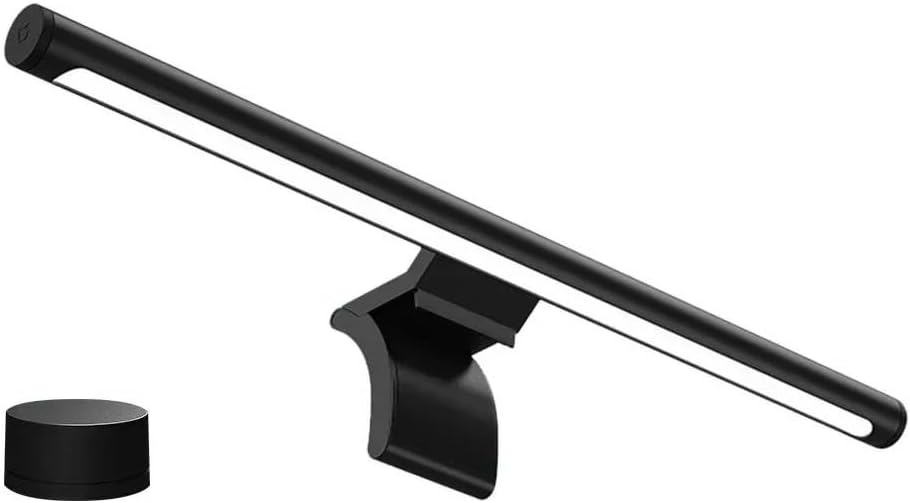
The Xiaomi Mijia Smart LED Monitor Light Bar 1S, showing the main light bar unit and the separate wireless remote control.

An overhead perspective of the light bar mounted on a monitor, demonstrating its wide illumination coverage over a keyboard, mouse, and other desk items.
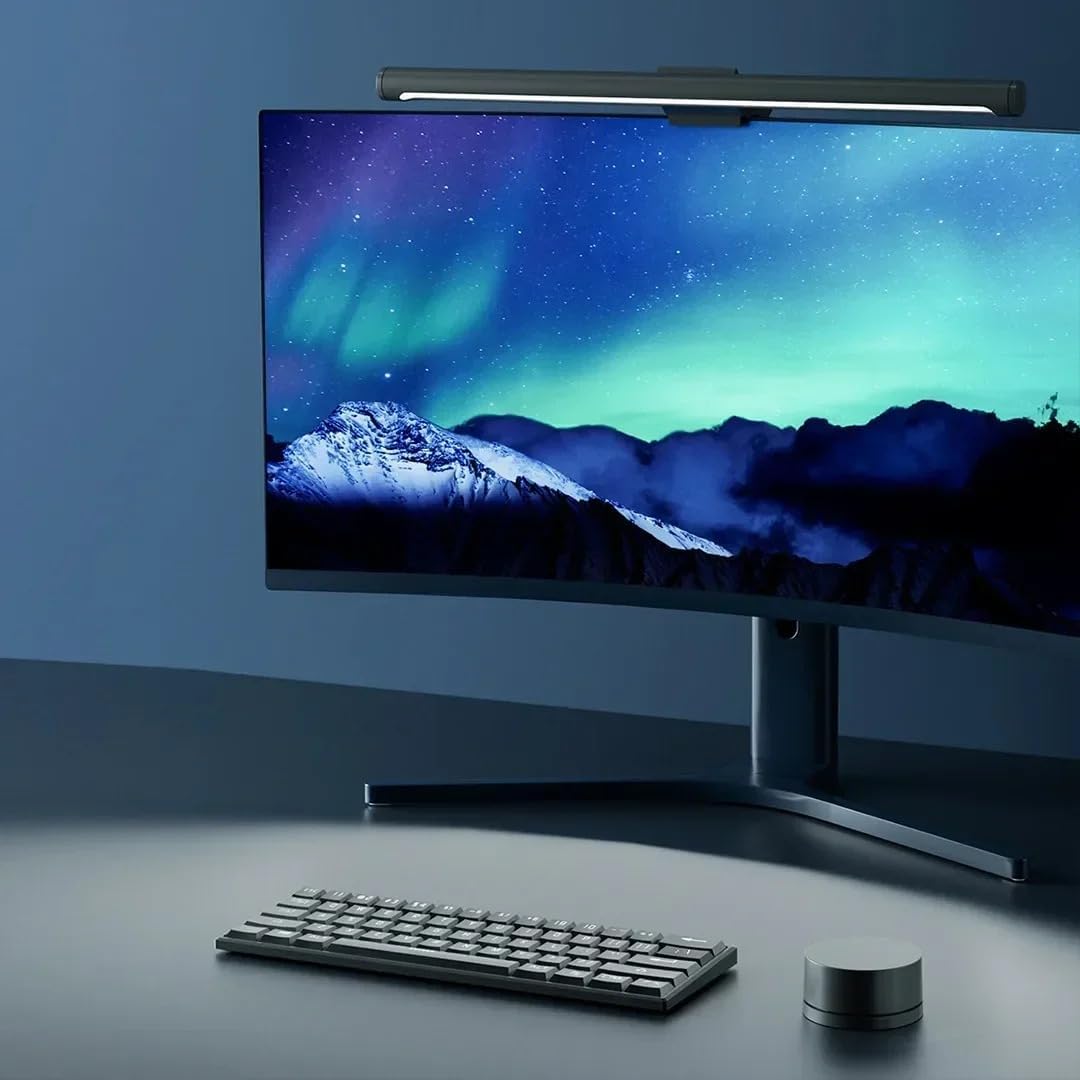
A side profile of the light bar attached to the top of a curved monitor, highlighting its sleek design and how it sits unobtrusively.

The light bar in operation, providing focused illumination on a monitor displaying data charts, suitable for an office or study environment.
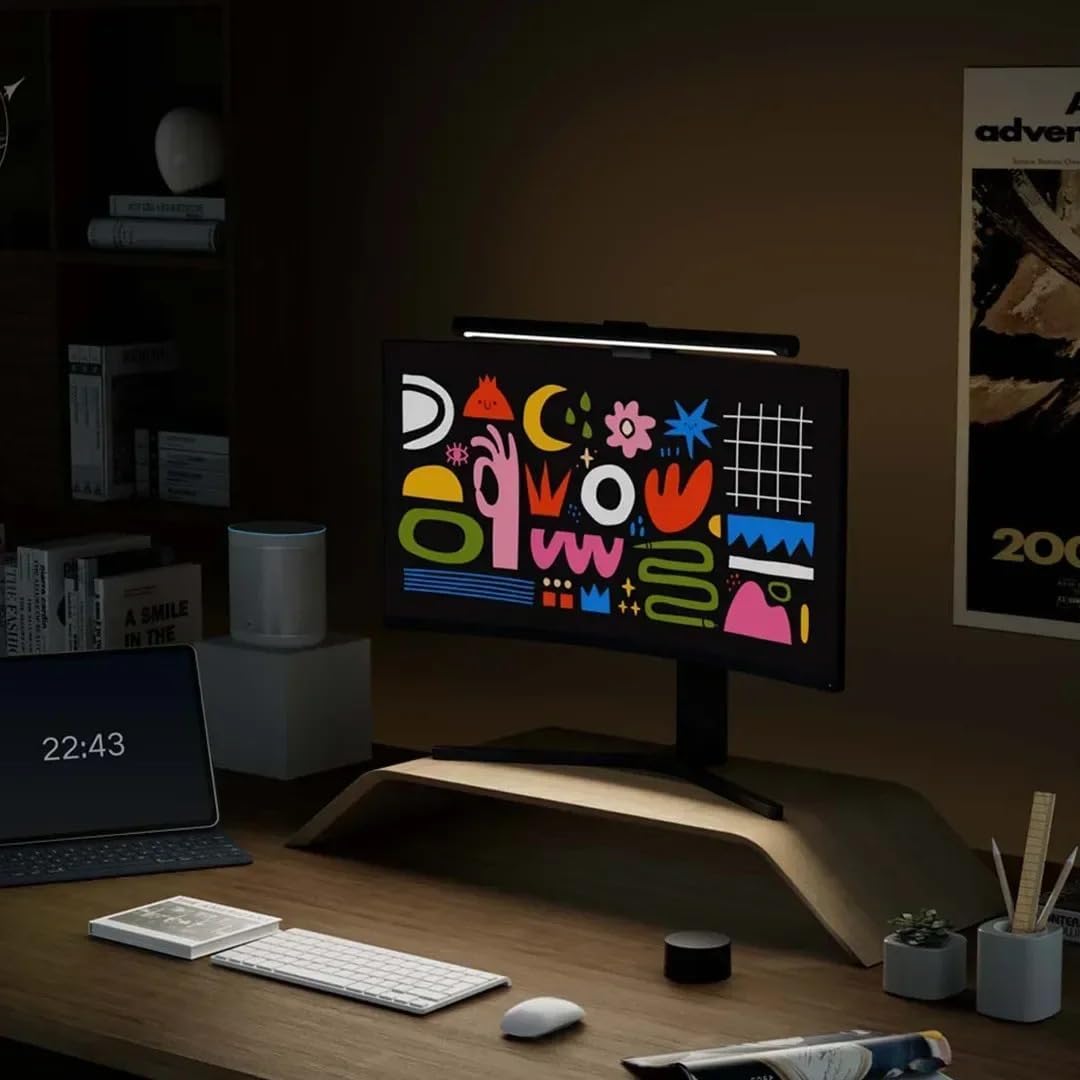
The light bar in use, casting light on a monitor screen that displays vibrant abstract artwork, demonstrating its ability to enhance visual content.

The light bar positioned above a laptop, providing direct illumination to the keyboard and screen area, ideal for laptop users.
3. Setup
3.1 Installation
- Attach the Light Bar: Gently place the light bar's mounting clip onto the top edge of your monitor. Ensure it is centered and stable. The clip is designed to fit various monitor thicknesses.
- Connect Power: Insert the USB Type-C cable into the port on the light bar. Connect the other end of the USB cable to a compatible USB power source (e.g., a monitor's USB port, a computer's USB port, or a USB wall adapter).
- Position the Remote Control: Place the wireless remote control on your desk within easy reach. Ensure there are no obstructions between the remote and the light bar for optimal signal transmission.
3.2 Initial Power On
Once connected to power, the light bar should automatically turn on. If not, press the top surface of the remote control once to power it on. The light bar will default to a balanced brightness and color temperature setting.
4. Operating Instructions
4.1 Using the Remote Control
- Power On/Off: Press the top surface of the remote control once to turn the light bar on or off.
- Adjust Brightness: Rotate the remote control clockwise to increase brightness, and counter-clockwise to decrease brightness.
- Adjust Color Temperature: Press and hold the top surface of the remote control, then rotate it to cycle through different color temperatures (from warm 2700K to cool 6500K). Release to select the desired temperature.
4.2 Smart Home Integration (Mi Home App)
For advanced control and smart home integration, download the Mi Home App on your smartphone.
- Download App: Search for "Mi Home" in your device's app store and install it.
- Create/Log In Account: Open the app and create a new account or log in with an existing one.
- Set Region: Important: When connecting to Mijia intelligent display hanging light 1S, you need to set the region to "Chinese Mainland" in the Mi Home App settings for proper functionality and device discovery.
- Add Device: Follow the in-app instructions to add the Xiaomi Mijia Smart LED Monitor Light Bar 1S. This typically involves searching for nearby devices or scanning a QR code (if available on packaging).
- Control: Once connected, you can control the light bar's brightness, color temperature, and set schedules or scenes directly from the Mi Home App.
5. Maintenance
5.1 Cleaning
To maintain the appearance and performance of your light bar, clean it regularly.
- Ensure the light bar is turned off and unplugged before cleaning.
- Use a soft, dry, lint-free cloth to wipe the surface of the light bar and remote control.
- Do not use abrasive cleaners, solvents, or harsh chemicals, as these may damage the finish.
5.2 Storage
If you need to store the light bar for an extended period, ensure it is clean and dry. Store it in a cool, dry place away from direct sunlight and extreme temperatures.
6. Troubleshooting
| Problem | Possible Cause | Solution |
|---|---|---|
| Light bar does not turn on. | No power connection or remote battery low. |
|
| Remote control is unresponsive. | Low battery or interference. |
|
| Cannot connect to Mi Home App. | Incorrect region setting or network issue. |
|
| Light flickers or dims unexpectedly. | Unstable power supply or faulty unit. |
|
7. Specifications
| Attribute | Value |
|---|---|
| Brand | Xiaomi |
| Model | MJGJD02YL |
| Power | 5W |
| Color Temperature Range | 2700K-6500K |
| Connection | USB Type-C |
| Control Options | Remote control, Mi Home App |
| Color Rendering Index (CRI) | Ra95 |
| Item Weight | 930 g |
| Package Dimensions | 48 x 15.8 x 6.5 cm |
| Batteries Required | Yes (for remote control) |
| Battery Cell Composition | Alkaline |
8. Warranty and Support
This Xiaomi Mijia Smart LED Monitor Light Bar 1S comes with a standard manufacturer's warranty. Please refer to the warranty card included in your product packaging for specific terms and conditions, including warranty period and coverage details.
For technical support, troubleshooting assistance, or warranty claims, please contact Xiaomi customer service through their official website or the contact information provided in your product documentation.
You can also visit the official Xiaomi website for FAQs and additional resources: www.mi.com