
Introduction
This manual provides essential information for setting up, operating, and maintaining your Philips Ambilight 55MLED920 'The Xtra' Mini LED 4K Smart TV. Please read these instructions carefully before using your television to ensure optimal performance and safety.
Setup
1. Unboxing and Package Contents
Carefully remove all components from the packaging. Ensure all items listed below are present:
- TV Unit
- Power Cable
- Remote Control with 2 AAA Batteries
- Stand
- User Manual and Warranty Card
Keep the packaging for future transport or storage.
2. Installing the TV Stand or Wall Mount
Follow the instructions provided in the separate stand installation guide or wall mount kit. Ensure the TV is placed on a stable, level surface or securely mounted to a wall, away from direct sunlight or heat sources.
3. Connecting Devices
Connect your external devices such as set-top boxes, gaming consoles, or sound systems to the appropriate ports on your TV.

Image: Rear and side view of the Philips Ambilight TV, illustrating the various connectivity ports available for external devices. These include HDMI, USB, Satellite, TV Antenna, Digital Audio Out, and Network connections.
- HDMI: For high-definition audio and video connections (e.g., Blu-ray players, game consoles). This TV supports HDMI 2.1.
- USB: For connecting USB storage devices to play media files or for software updates.
- Ethernet (Network): For a wired internet connection.
- Wi-Fi: For wireless internet connection.
- Bluetooth: For connecting wireless accessories like headphones or speakers.
- Antenna/Satellite: For connecting to broadcast signals.
- Digital Audio Out: For connecting to external audio systems.
4. Power Connection
Connect the power cable to the TV and then to a wall outlet. The TV will enter standby mode.
Operating Your TV
1. Remote Control
The included remote control allows you to navigate menus, adjust settings, and control your TV's functions. Insert the two AAA batteries as indicated in the battery compartment.
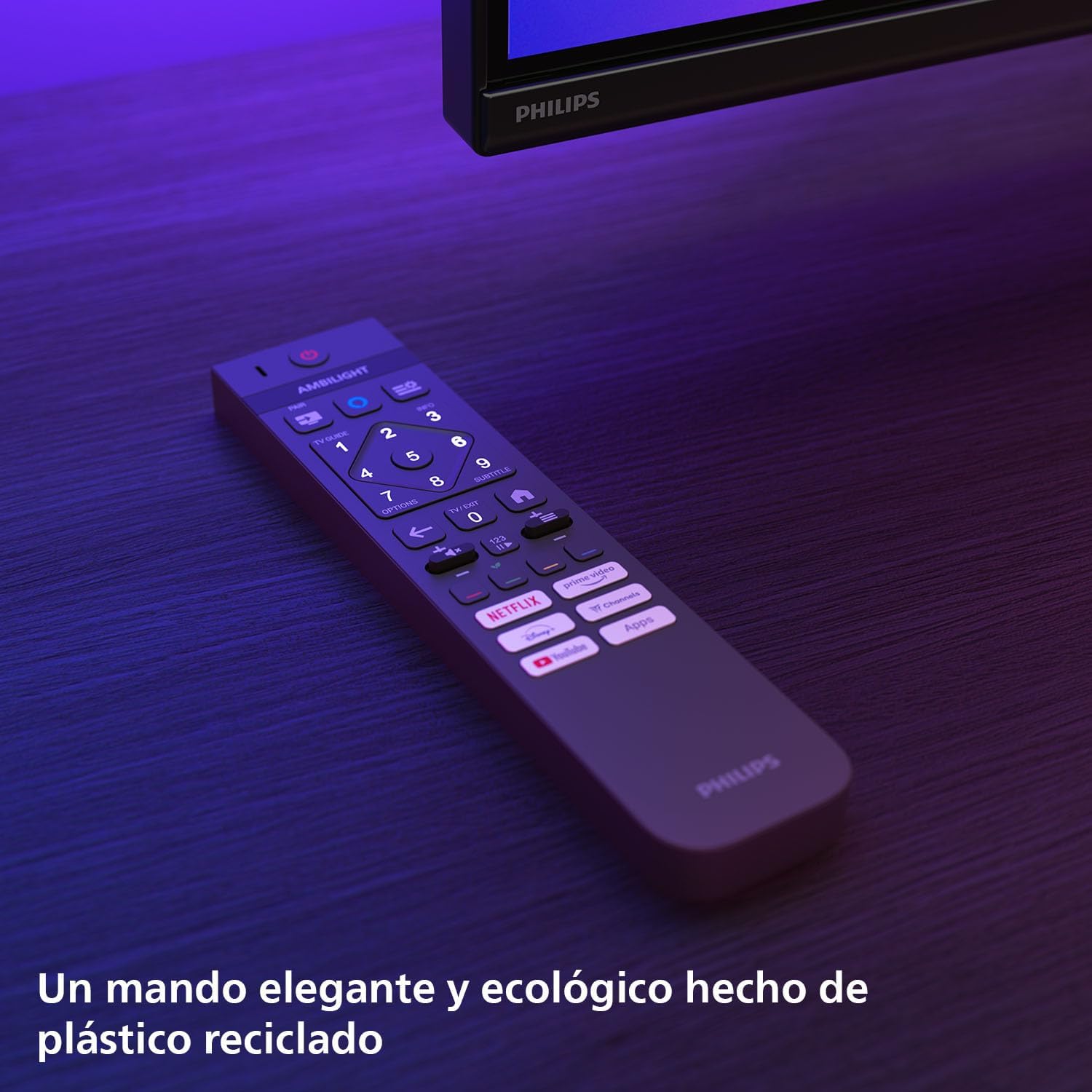
Image: The Philips TV remote control, designed for ease of use and made from recycled plastic, shown illuminated by the TV's Ambilight feature.
2. Power On/Off
Press the power button on the remote control or on the TV to turn the TV on or off. Pressing it once will put the TV into standby mode.
3. Ambilight Feature
Your Philips Ambilight TV features reactive LED lights integrated into the back of the screen. These lights project colors onto the wall behind the TV, matching the on-screen content to create an immersive viewing experience. You can customize Ambilight settings through the TV menu.

Image: The Philips Ambilight TV in a living room setting, showcasing its reactive LED lights that extend the visual experience beyond the screen by projecting matching colors onto the surrounding wall.
4. Picture Quality (P5 Picture Engine, Mini LED, Quantum Dot, HDR)
The TV utilizes the P5 Picture Engine to deliver vibrant colors, natural skin tones, and sharp contrast. Combined with Quantum Dot Mini-LED technology, it produces deeper blacks, brighter whites, and a wider color spectrum for clear, detailed images. It supports various HDR formats for enhanced depth and contrast.
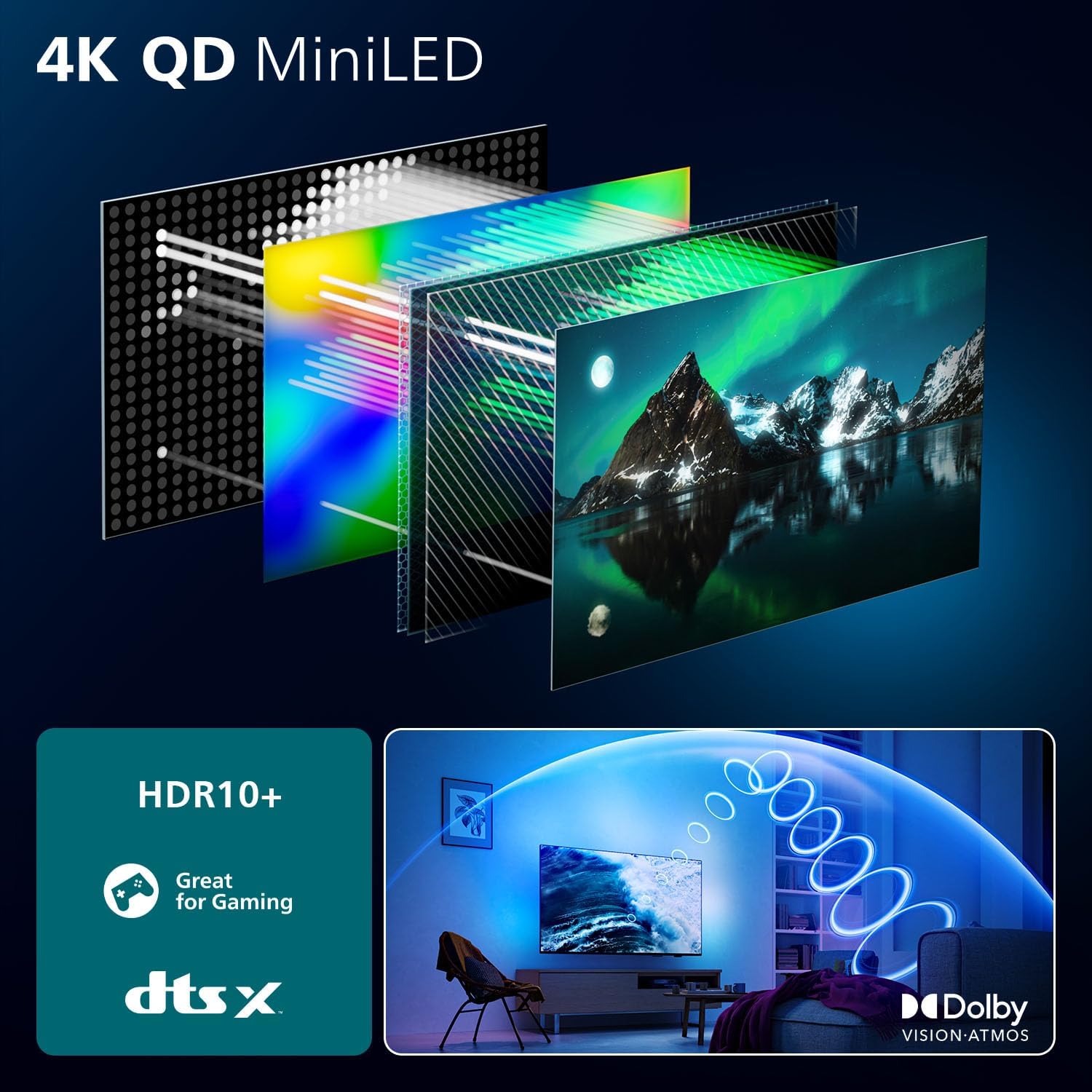
Image: A detailed diagram illustrating the internal structure of the 4K QD MiniLED display, highlighting the layers responsible for producing enhanced color and contrast.
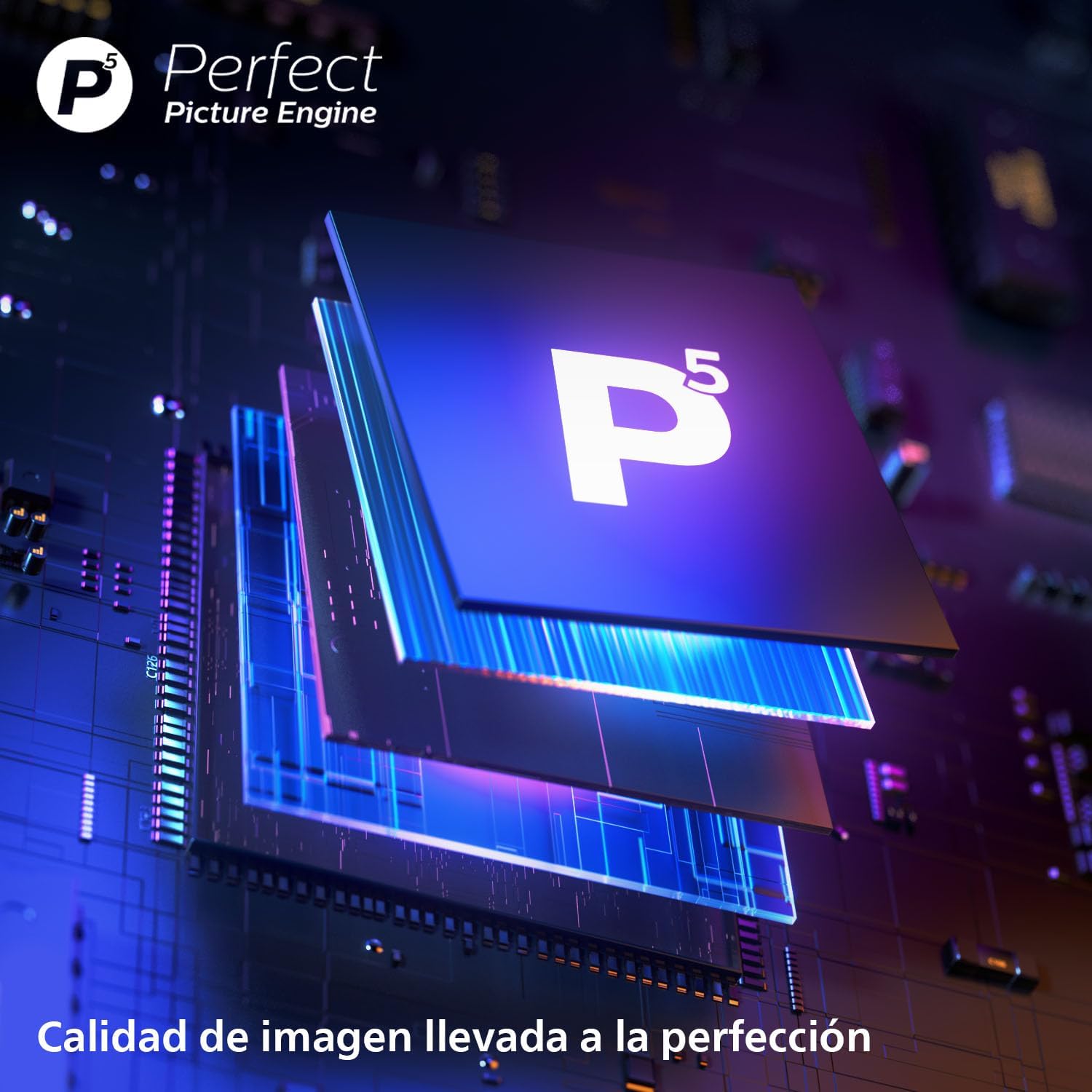
Image: A close-up view of the P5 Perfect Picture Engine microchip, symbolizing the advanced image processing capabilities that ensure brilliant and detailed visuals.
5. Sound Quality (Dolby Atmos, IntelliSound)
Experience immersive audio with Dolby Atmos, which creates a three-dimensional sound experience. The integrated IntelliSound engine uses AI to optimize audio settings automatically based on the content you are watching, whether it's news, music, or movies.
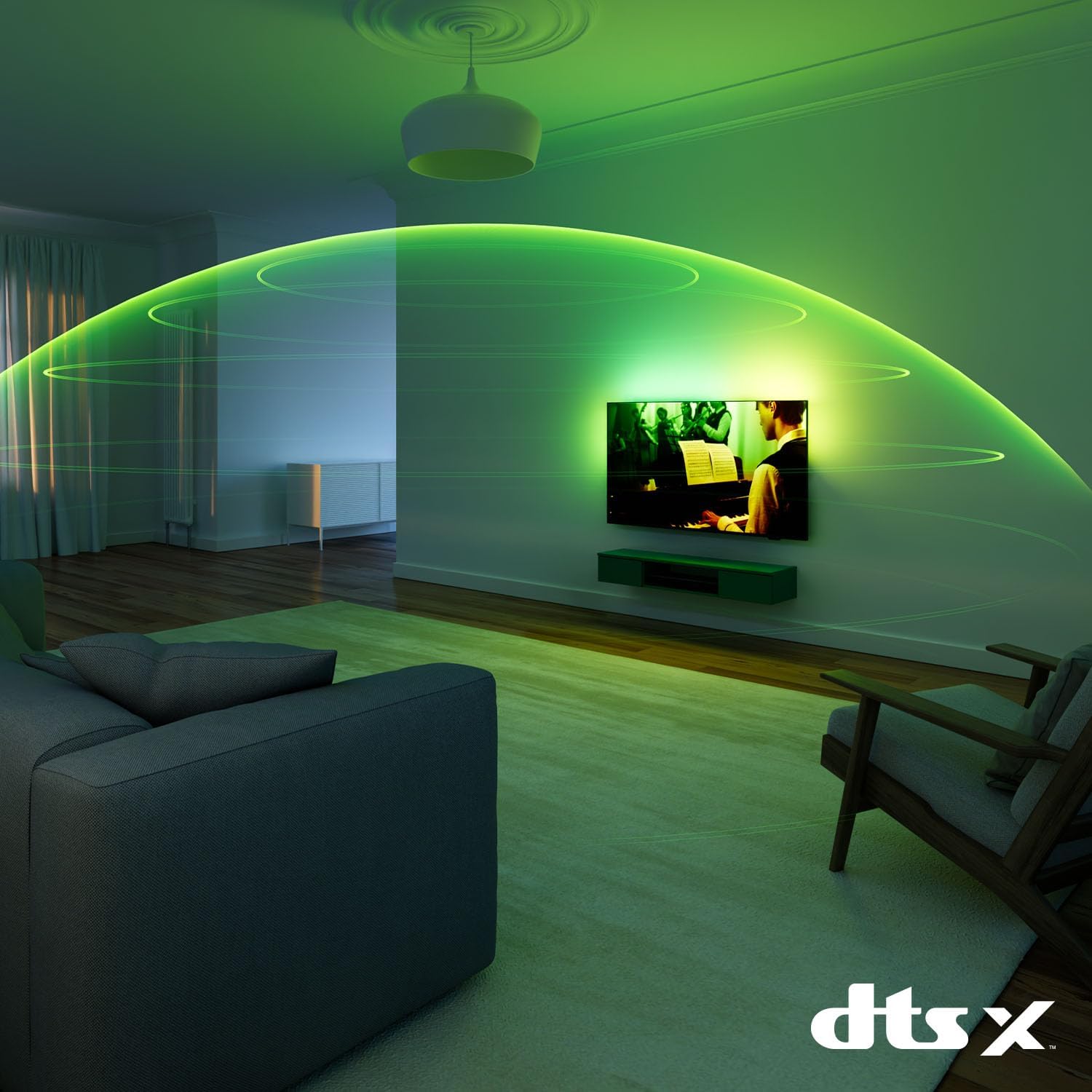
Image: A visual representation of immersive sound technology in a living room, with sound waves emanating from the Philips Ambilight TV, indicating a rich audio experience.
6. Smart TV Features (Titan OS, Voice Assistant, Matter)
Your TV runs on Titan OS, providing access to streaming services and apps. The intuitive interface allows for easy navigation and content discovery. The TV is compatible with Matter for seamless integration into your smart home network and supports voice assistants like Alexa and Google Assistant for hands-free control.

Image: The Philips TV displaying the Titan OS smart TV interface, featuring popular streaming applications and indicating compatibility with Alexa and Matter smart home systems.
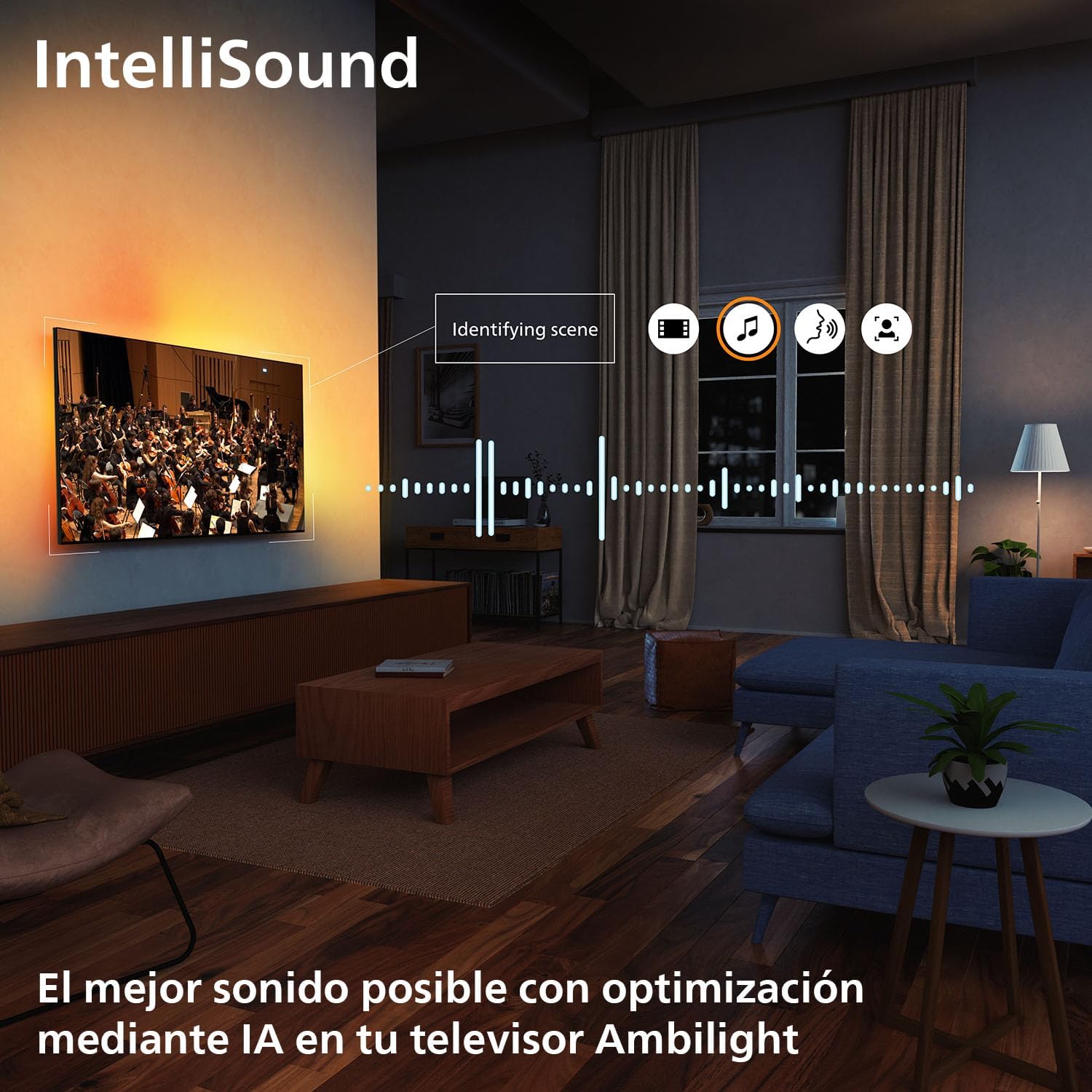
Image: Illustrations demonstrating the TV's integration with voice assistants, showing interactions with both Google Home and Alexa devices for controlling the TV and querying information.
7. Gaming Features
This TV is optimized for gaming with features like AMD FreeSync, a 120 Hz refresh rate (up to 144 Hz VRR via HDMI for PC gaming), and a dedicated Game Mode. These features ensure smooth, tear-free gameplay and ultra-low input lag.

Image: A gaming setup featuring the Philips Ambilight TV, emphasizing its high refresh rate (up to 144Hz VRR) and AMD FreeSync Premium for a smooth gaming experience.
Maintenance
- Cleaning the Screen: Gently wipe the screen with a soft, lint-free cloth. For stubborn marks, use a screen-specific cleaning solution applied to the cloth, not directly to the screen.
- Cleaning the Cabinet: Use a soft, dry cloth to clean the TV cabinet. Avoid using abrasive cleaners or solvents.
- Software Updates: Ensure your TV's software is up to date for optimal performance and new features. You can usually find this option in the TV's settings menu under "Software Update" or "About TV".
Troubleshooting
If you encounter issues with your TV, try the following common solutions before contacting support:
- No Power: Check if the power cable is securely connected to both the TV and the wall outlet. Ensure the outlet is working.
- No Picture/Sound: Verify that the correct input source is selected. Check all cable connections to external devices.
- Remote Control Not Working: Replace the batteries. Ensure there are no obstructions between the remote and the TV's IR sensor.
- Poor Picture Quality: Check the signal source. Adjust picture settings (brightness, contrast, sharpness) in the TV menu.
- No Internet Connection: For Wi-Fi, check your router and network settings. For wired connection, ensure the Ethernet cable is properly connected.
For more detailed troubleshooting, refer to the full user manual or visit the Philips support website.
Specifications
| Feature | Detail |
|---|---|
| Brand | Philips |
| Model Number | 55MLED920/12 |
| Screen Size | 55 Inches |
| Display Technology | Mini LED |
| Resolution | 4K |
| Refresh Rate | 120 Hz (up to 144 Hz VRR) |
| Special Features | AMD FreeSync, Ambilight, Game Mode, Automatic Volume Leveler, Ambient Light Sensor |
| Connectivity Technology | Bluetooth, Ethernet, HDMI, USB, Wi-Fi |
| Aspect Ratio | 16:9 |
| Product Dimensions | 28 x 122.6 x 77.8 cm; 11.7 kg |
| Operating System | Titan OS |
Warranty and Support
Your Philips Ambilight TV comes with a manufacturer's warranty. Please refer to the warranty card included in your package for details on coverage and terms. For technical support, product registration, or to download the full user manual, please visit the official Philips support website or contact their customer service.
Online Support: www.philips.com/support


