
1. Introduction
Thank you for choosing the FLYRUIT M10R7 10.1-inch Frameo Digital Picture Frame. This device allows you to display your cherished photos and videos with stunning clarity on its 1280x800 IPS HD touchscreen. Designed for ease of use, it supports instant sharing via the Frameo app and offers versatile storage options. This manual provides essential information for setting up, operating, and maintaining your digital picture frame.

Image: The FLYRUIT 10.1-inch Digital Picture Frame showcasing its 10.1" large display, Frameo app compatibility, 32GB built-in storage, and 800P HD touchscreen.
2. Package Contents
Please ensure all items are present in the package:
- FLYRUIT M10R7 10.1-inch Digital Picture Frame
- Power Adapter
- Support Stand
- User Manual
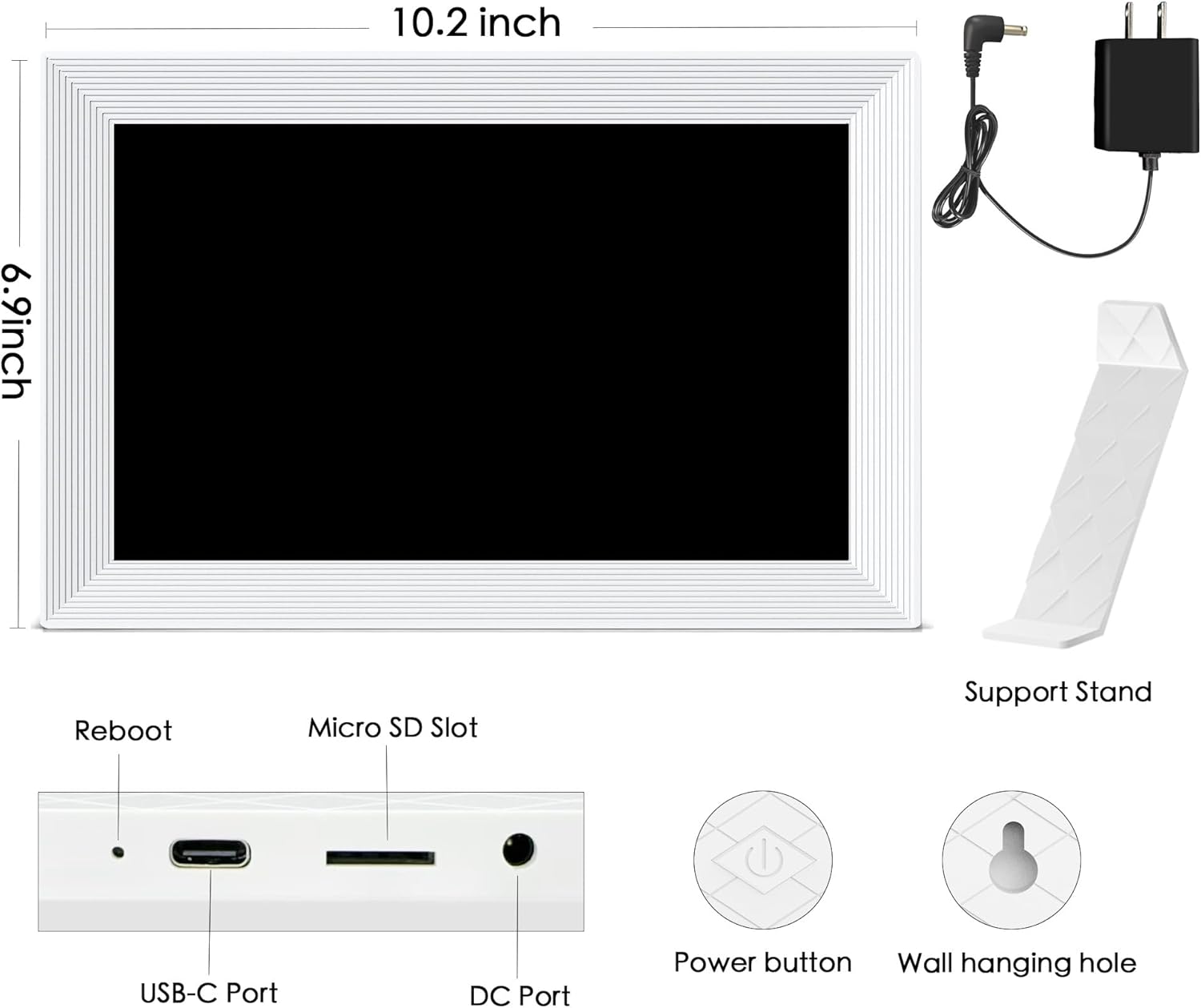
Image: Rear view of the digital picture frame, illustrating the USB-C port, Micro SD slot, DC port, power button, and wall hanging holes, along with the detachable support stand.
3. Initial Setup
3.1 Powering On
- Connect the provided power adapter to the DC port on the back of the frame.
- Plug the power adapter into a wall outlet. The frame will automatically power on.
- Attach the support stand to the back of the frame for tabletop display, or use the integrated wall-hanging holes for wall mounting.
3.2 Connecting to Wi-Fi
- Follow the on-screen prompts to select your preferred language and time zone.
- Select your 2.4GHz Wi-Fi network from the list and enter the password. (Note: Only 2.4GHz Wi-Fi is supported).
3.3 Frameo App Setup
- Download the Frameo app from your smartphone's app store (available for iOS and Android).
- Create an account or log in if you are an existing Frameo user.
- On your digital frame, tap 'Add Friend' to generate a unique code.
- In the Frameo app on your smartphone, enter this code to connect your device to the frame.
Video: An overview of the Flyruit R7 10.1 inch Digital Frame, demonstrating its features and initial setup process.
4. Operating Your Digital Picture Frame
4.1 Sending Photos and Videos (Wi-Fi)
Once connected via the Frameo app, you can instantly send photos and videos to your frame from anywhere in the world. The app allows you to select multiple items, add captions, and choose which connected frames to send them to.

Image: A smartphone screen displaying the Frameo app, with photos being sent wirelessly to the digital picture frame, emphasizing instant sharing.
4.2 Non-Wi-Fi Transmission
If Wi-Fi is not available or preferred, you can transfer photos and videos using:
- Micro SD Card: Insert a Micro SD card (FAT32 format, not included) with your media files into the designated slot.
- USB Drive: Connect a USB drive (FAT32 format, not included) to the USB port.
- USB-C Cable: Connect the frame to a computer via a USB-C cable to transfer files directly (Windows systems only).
Supported formats include JPG/JPEG/BMP/PNG for images and MP4 for videos.

Image: The digital picture frame displaying options for offline media transfer via Micro SD card, USB drive, or USB-C cable from a PC/laptop.
4.3 Key Features
- HD Touchscreen: The 1280x800 IPS HD touchscreen provides vivid colors and easy navigation.
- Auto-Rotate: The frame automatically adjusts photos between portrait and landscape modes.
- Sleep Mode: Set a schedule for the frame to automatically turn off and on to save energy or avoid brightness during sleep.
- Greeting & React: Send themed greetings or react with emojis to received photos via the Frameo app.
- Adjustable Brightness: Customize the display brightness to suit your environment.
- Image Zooming & Show/Hide Photos: Manage your photo display preferences directly on the frame.

Image: The digital picture frame highlighting various functions such as auto-rotate, image zooming, clock, weather, sleep mode, adjustable brightness, and the ability to show or hide photos.
5. Storage
The FLYRUIT M10R7 comes with 32GB of built-in storage, capable of holding over 10,000 photos (assuming 3MB per photo). For additional storage, you can expand it up to 32GB using a Micro SD card or USB drive (not included).

Image: The digital picture frame emphasizing its 32GB built-in storage capacity and the option to add up to 32GB via a Micro SD card for more space.
6. Specifications
| Feature | Detail |
|---|---|
| Product Dimensions | 7 x 10 x 0.99 inches |
| Item Weight | 1.7 pounds |
| Screen Size | 10.1 Inches |
| Resolution | 1280 x 800 IPS HD |
| Internal Storage | 32GB |
| External Storage Support | Up to 32GB (Micro SD Card, USB Drive) |
| Connectivity Technology | Micro SD Card, USB C Cable, Wi-Fi (2.4GHz only) |
| Compatible Devices | Personal Computer, Smartphone, Tablet |
7. Troubleshooting
- Frame not powering on: Ensure the power adapter is securely connected to both the frame and a working wall outlet. Use only the original power adapter.
- Unable to connect to Wi-Fi: Verify that your Wi-Fi network is 2.4GHz. Check your Wi-Fi password for accuracy. Try restarting your router and the digital frame.
- Photos/Videos not appearing: Confirm that the Frameo app is connected to your frame and that media has been successfully sent. For non-Wi-Fi transfers, ensure the Micro SD card or USB drive is in FAT32 format and contains supported file types (JPG/JPEG/BMP/PNG for images, MP4 for videos).
- Screen unresponsive: Try restarting the frame by unplugging and re-plugging the power adapter.
8. Maintenance
- Cleaning: Use a soft, dry, lint-free cloth to clean the screen and frame. Avoid using harsh chemicals or abrasive materials.
- Placement: Place the frame on a stable surface or mount it securely on a wall. Avoid direct sunlight or extreme temperatures.
- Power: The digital frame must be plugged in to power at all times for continuous operation.
9. Warranty and Support
For warranty information and technical support, please refer to the contact details provided in your product packaging or visit the official FLYRUIT website. Keep your purchase receipt for warranty claims.