
Product Overview
The Mayflash F700 Flat Elite is a high-performance leverless arcade controller designed for precision and versatility across multiple gaming platforms. It features a button-only directional input system, offering quick and accurate commands essential for fighting games and other genres. This controller supports various connection methods and includes advanced customization options.
Key Features
- Equipped with high-quality Sanwa Denshi buttons for responsive gameplay.
- Multi-platform compatibility: PS5 (fighting games only), PS4, PS3, Xbox Series S/X, Xbox One, Switch, Windows, Apple macOS/iOS/iPadOS, Android, SEGA Mega Drive Genesis mini, Astro City mini, NEOGEO mini, NEOGEO Arcade Stick PRO, PS Classic Mini, Raspberry Pi, Steam Deck.
- Multiple connection options: Bluetooth, 2.4G wireless (with included receiver), and USB wired.
- Advanced functions: Macro programming, button remapping, and Turbo function.
- Features 5 SOCD (Simultaneous Opposing Cardinal Directions) modes for competitive play.
- Supports audio output and chat via wired headset on PS5, PS4, Xbox Series X/S, Xbox One, and PC (Xinput).
- Leverless design with four dedicated directional buttons (Left, Down, Right, Up) for precise input.
- Full-size anti-slip rubber mat on the bottom ensures stability during intense gaming sessions.
- Removable clear acrylic top plate allows for custom artwork insertion.
Package Contents
- Mayflash F700 Flat Elite Leverless Arcade Controller
- USB-A to USB-C Cable
- 2.4G Wireless Receiver
- Instruction Manual (this document)
Component Identification
Familiarize yourself with the various components of your F700 Flat Elite controller.
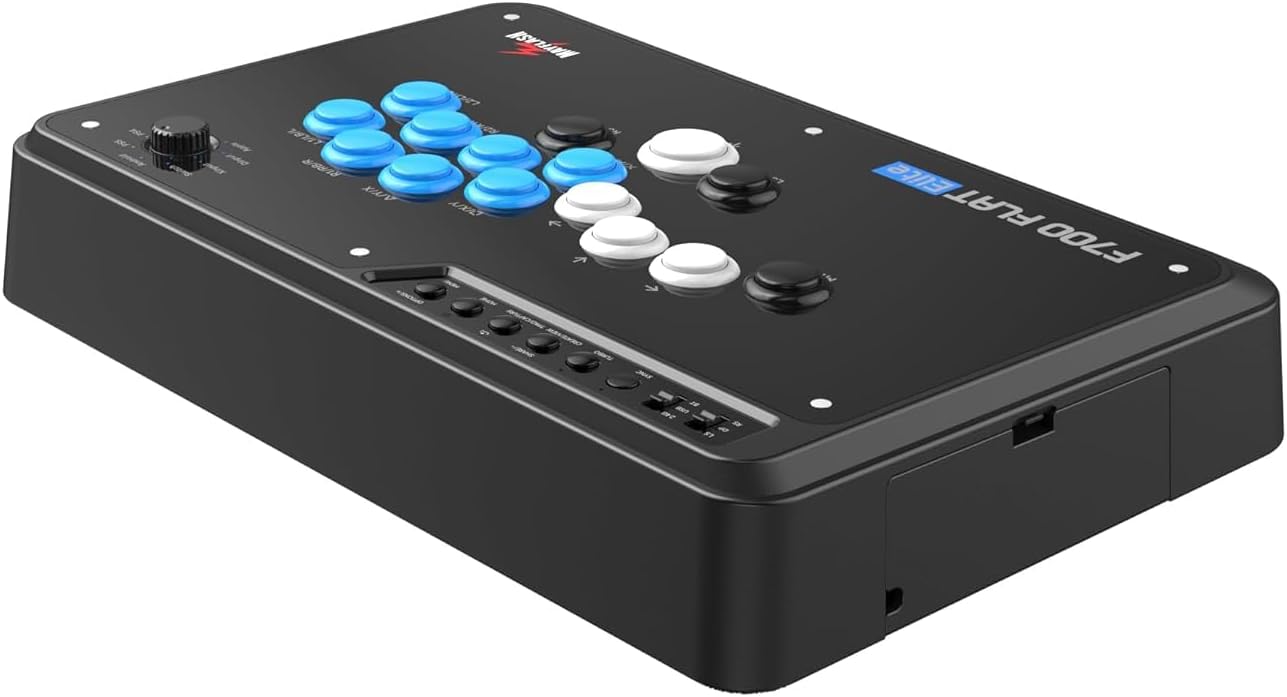
- Directional Buttons: Four large buttons (Left, Down, Right, Up) located on the left side for movement input.
- Action Buttons: Eight main action buttons (e.g., X, Y, A, B, R1, R2, L1, L2 equivalents) on the right side.
- M1 Button: A customizable button, often used for specific game functions or macros.
- L3/R3 Buttons: Analog stick click equivalents.
- System Buttons: SHARE/-, CREATE/VIEW, TPAD/CAPTURE, HOME/MENU buttons for system-level functions.
- TURBO Button: Activates or deactivates turbo functionality for selected buttons.
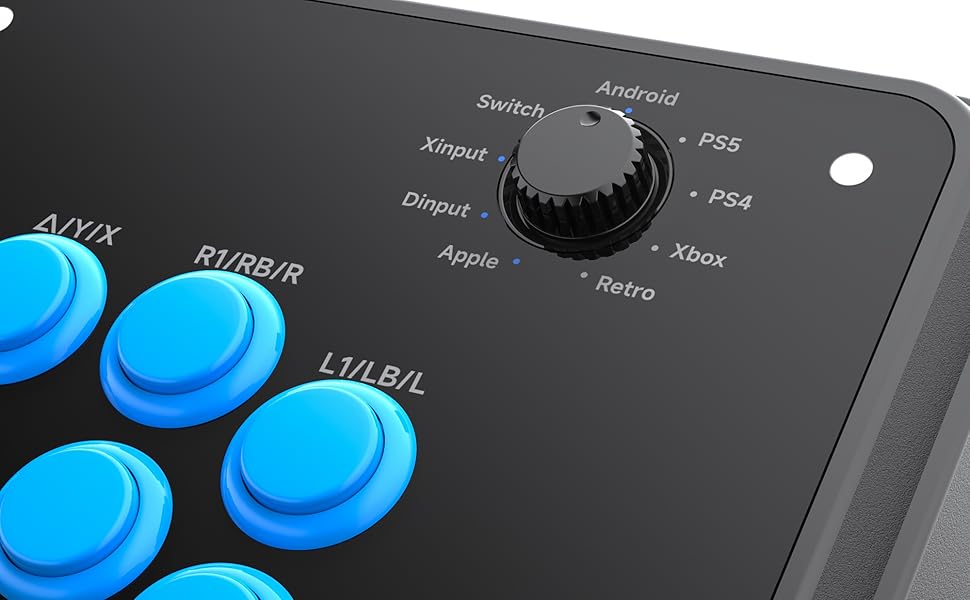
- Platform Selector Dial: A rotary switch to select the desired gaming platform (Android, Switch, Xinput, Dinput, Apple, Retro, PS5, PS4, Xbox).
- LS/DP/RS Switch: Toggles between Left Stick, D-Pad, and Right Stick input modes for directional buttons.
- USB-C Port: For wired connection and charging.
- Audio Jack: 3.5mm port for wired headsets.
- 2.4G Receiver Storage Compartment: Located on the side, for storing the wireless receiver.


Setup
Connecting to Platforms
Wired Connection (USB)
- Set the Platform Selector Dial to the desired platform (e.g., PS4, Switch, Xinput for PC).
- Connect the USB-C end of the cable to the controller and the USB-A end to your gaming console or PC.
- The controller will be automatically recognized.
Wireless Connection (2.4G Receiver)
- Retrieve the 2.4G wireless receiver from its storage compartment on the side of the controller.
- Set the Platform Selector Dial to the desired platform (e.g., PS5, PS4, Xbox Series S/X).
- Plug the 2.4G receiver into an available USB port on your gaming console or PC.
- The controller should automatically pair with the receiver. If not, press the SYNC button on the controller and the receiver simultaneously until the connection is established.

Wireless Connection (Bluetooth)
- Set the Platform Selector Dial to the desired Bluetooth-compatible platform (e.g., Android, Apple, Switch).
- On your device, navigate to Bluetooth settings and enable Bluetooth.
- Press and hold the SYNC button on the controller until the LED indicator starts flashing rapidly, indicating pairing mode.
- Select "Mayflash F700 Flat Elite" from the list of available devices on your screen to complete pairing.
Platform Compatibility Notes
- PS5: Compatible only with fighting games such as Street Fighter 6, Tekken 8, Mortal Kombat 1, Mortal Kombat 11.
- Xbox Series S/X, Xbox One, Xbox 360: Requires connection via 2.4G receiver or USB wired.
- Nintendo Switch: Supports both wired and Bluetooth connections.
- PC (Windows): Supports Xinput and Dinput modes via wired, 2.4G, or Bluetooth.
- Apple macOS/iOS/iPadOS, Android: Supports Bluetooth connection.
Operating Instructions
Mode Selection (LS/DP/RS Switch)
The LS/DP/RS switch allows you to change the input mode for the directional buttons:
- LS (Left Stick): Directional buttons emulate the left analog stick.
- DP (D-Pad): Directional buttons emulate the D-Pad.
- RS (Right Stick): Directional buttons emulate the right analog stick.

Macro Programming
The F700 Flat Elite supports macro programming, allowing you to record a sequence of button presses and assign them to a single button (e.g., M1). Refer to the official Mayflash website for detailed instructions on macro setup, as the process can vary by firmware version.
Button Mapping
You can remap buttons to customize your control scheme. This feature allows you to assign any button's function to another button, including the M1 button. Consult the Mayflash official website or the included quick start guide for specific button remapping procedures.
Turbo Function
The Turbo function allows a button to be repeatedly pressed as long as it is held down. To activate/deactivate Turbo for a specific button:
- Press and hold the TURBO button.
- While holding TURBO, press the desired action button (e.g., A, B, X, Y) once to enable Turbo for that button.
- Repeat the process to disable Turbo for the same button.

SOCD Modes
The F700 Flat Elite supports 5 different SOCD (Simultaneous Opposing Cardinal Directions) modes. These modes determine how conflicting directional inputs (e.g., Left + Right) are processed, which is crucial for competitive fighting games. The specific method for switching between SOCD modes is typically detailed in the full manual or on the Mayflash support page.
Audio and Chat
For platforms supporting it (PS5, PS4, Xbox Series X/S, Xbox One, PC Xinput), you can connect a wired headset to the 3.5mm audio jack on the controller for in-game audio and voice chat.

Maintenance
Cleaning
To maintain the appearance and functionality of your controller:
- Wipe the surface with a soft, dry cloth.
- For stubborn dirt, use a slightly damp cloth with mild soap, then wipe dry immediately.
- Avoid using harsh chemicals or abrasive cleaners, as they may damage the finish.
Customizing Artwork
The F700 Flat Elite features a removable clear acrylic top plate, allowing you to insert custom artwork. Templates for creating your own designs can be downloaded from the official Mayflash website. Carefully remove the screws holding the top plate, replace the artwork, and re-secure the plate.
Troubleshooting
- Controller not recognized: Ensure the Platform Selector Dial is set to the correct platform. Try a different USB port or cable. For wireless, ensure the receiver is properly plugged in and paired.
- Buttons not responding: Check if the controller is properly connected. Test buttons in a different game or system. Ensure no button remapping or macro is interfering.
- Wireless connection issues: Ensure the controller is charged. Reduce distance between controller and receiver/device. Avoid interference from other wireless devices. Re-pair the controller.
- Audio not working: Ensure your headset is fully plugged into the 3.5mm jack. Check system audio settings. Verify the platform supports audio output via the controller.
- Firmware Update: If experiencing persistent issues, check the official Mayflash website for the latest firmware updates and instructions.
Specifications
| Feature | Detail |
|---|---|
| Model Number | F700 Flat Elite |
| Dimensions (L x W x H) | 42.7 x 28.9 x 9.7 cm |
| Weight | 3.15 kg |
| Connectivity | USB Wired, 2.4G Wireless, Bluetooth |
| Buttons | Sanwa Denshi Buttons |
| Battery Capacity | 1000mAh (approx. 20 hours playtime) |
| Origin | China |
| Release Date | 2025/3/11 |

Warranty and Support
Mayflash products typically come with a limited warranty. For detailed warranty information, technical support, firmware updates, and additional resources, please visit the official Mayflash website. You can also find FAQs and contact customer service through their support portal.
Official Mayflash Website: www.mayflash.com


