
1. Introduction
This manual provides comprehensive instructions for the setup, operation, maintenance, and troubleshooting of your EPOMAKER EA75 75% RGB Gaming Mechanical Keyboard. Please read this manual thoroughly to ensure proper use and to maximize your keyboard's potential.
The EPOMAKER EA75 is a compact 75% layout mechanical keyboard featuring 81 keys and a rotary knob. It supports tri-mode connectivity (Bluetooth, 2.4GHz wireless, and USB-C wired), dynamic RGB backlighting, hot-swappable switches, and a gasket-mounted structure for a comfortable typing experience.
2. Package Contents
Verify that all items are present in your package:
- EPOMAKER EA75 Mechanical Keyboard
- USB-C Cable
- 2.4GHz Wireless Receiver (USB Dongle)
- Keycap Puller
- User Manual (this document)
3. Product Overview
The EPOMAKER EA75 keyboard features a compact 75% layout, integrating essential keys while maintaining a smaller footprint. It includes a multi-function rotary knob and RGB lighting for both keys and side bars.
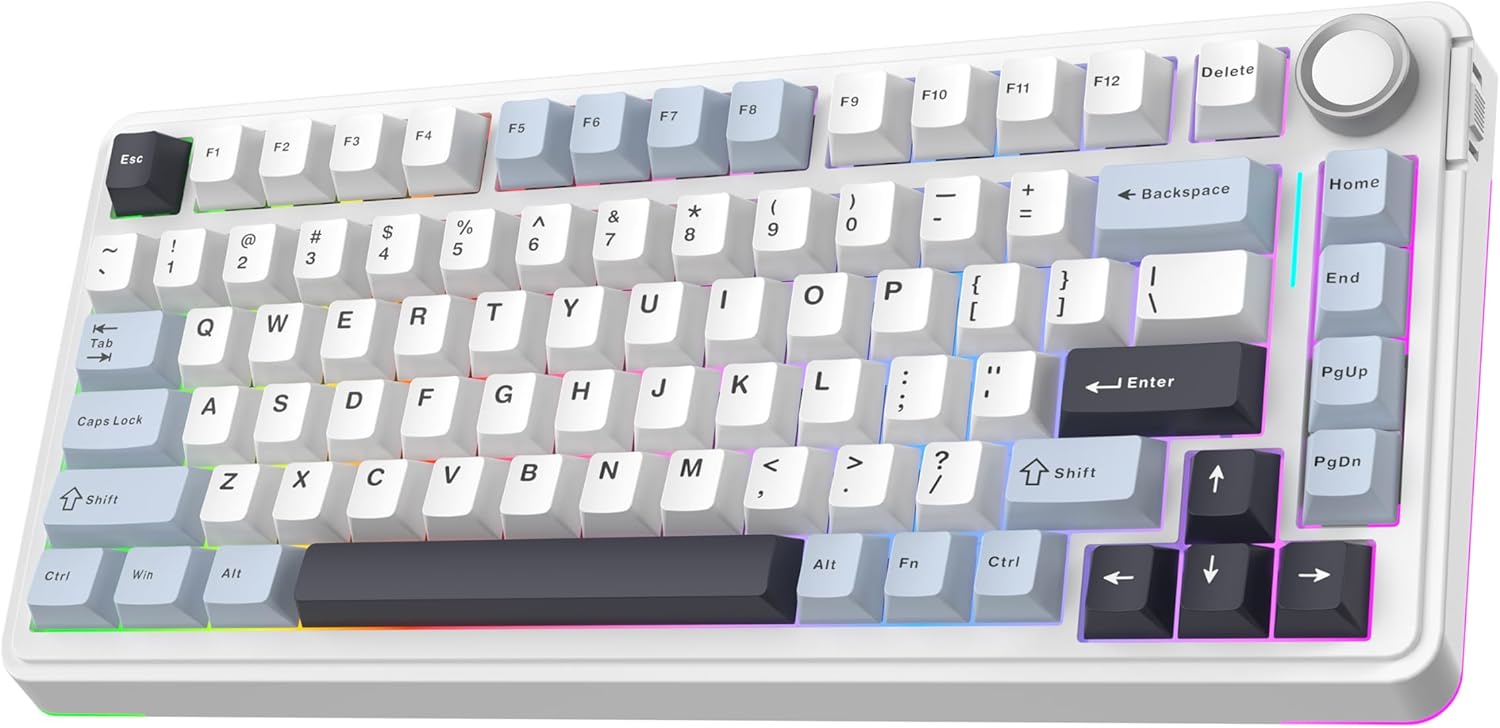
Image: Main view of the EPOMAKER EA75 mechanical keyboard, showcasing its 75% layout with white and light blue keycaps, a rotary knob, and RGB lighting.

Image: Overview highlighting key features of the EA75 keyboard, including 3 modes connection, hot-swappable switches, full RGB backlit, gasket structure, PBT keycaps, and custom software.
3.1 Key Components
- 81-Key Layout: Standard alphanumeric keys, function row, navigation cluster, and arrow keys.
- Rotary Knob: Located in the top right corner, primarily for volume and backlight control.
- Connectivity Toggle: A switch on the side to select between Bluetooth, 2.4GHz wireless, and wired modes.
- USB-C Port: For wired connection and charging.
- Adjustable Kickstands: Three-stage adjustable feet for ergonomic typing angles.

Image: Illustrates the sleek design and dimensions of the EA75 keyboard (33.3cm width, 14.7cm depth), along with close-ups of the volume/backlight control knob, RGB side light, and adjustable kickstand.
4. Setup
4.1 Charging the Keyboard
Before first use, it is recommended to fully charge the keyboard. Connect the supplied USB-C cable to the keyboard's USB-C port and the other end to a powered USB port on your computer or a wall adapter. The keyboard is equipped with a 4000mAh battery.

Image: Shows the keyboard with an overlay indicating a 4000mAh battery, offering up to 260 hours of usage in standby mode with RGB backlight off, and 20 hours with RGB backlight on.
4.2 Connecting the Keyboard
The EA75 supports three connection modes: USB-C wired, 2.4GHz wireless, and Bluetooth. Use the toggle switch on the side of the keyboard to select your desired mode.

Image: Illustrates the tri-mode wireless capabilities of the EA75 keyboard, supporting USB-C, 2.4GHz, and Bluetooth connections, compatible with tablets, laptops, PCs, and phones.
4.2.1 USB-C Wired Connection
- Set the connectivity toggle switch to the 'Wired' position.
- Connect the USB-C cable to the keyboard and your computer.
- The keyboard will be automatically recognized by your system.
4.2.2 2.4GHz Wireless Connection
- Set the connectivity toggle switch to the '2.4G' position.
- Plug the 2.4GHz wireless receiver (USB dongle) into an available USB port on your computer.
- The keyboard should connect automatically. The '~' key will act as an indicator light.
4.2.3 Bluetooth Connection
The EA75 can connect to up to three Bluetooth devices. The '1', '2', and '3' keys serve as intuitive connection indicator lights.
- Set the connectivity toggle switch to the 'BT' position.
- On your keyboard, press and hold Fn + 1 (or Fn + 2, Fn + 3) for 3-5 seconds until the corresponding key's backlight flashes rapidly, indicating pairing mode.
- On your device (PC, laptop, smartphone, tablet), enable Bluetooth and search for new devices.
- Select 'EPOMAKER EA75' from the list of available devices to pair.
- Once paired, the key's backlight will stop flashing and remain steadily lit.
- To switch between paired Bluetooth devices, simply press Fn + 1, Fn + 2, or Fn + 3.
5. Operating Instructions
5.1 Basic Keyboard Functions
- N-Key Rollover (NKRO): The keyboard supports NKRO, allowing multiple keys to be pressed simultaneously without ghosting or missed inputs. This is active in 2.4GHz and wired modes.
- Anti-Ghosting: Ensures accurate registration of every key press, even during rapid typing or gaming.

Image: Highlights the ergonomic design for a superior typing experience and the N-Key Rollover feature, ensuring accurate key registration even during heavy use.
5.2 Rotary Knob Functionality
The rotary knob on the top right corner controls multimedia and lighting settings:
- Rotate: Adjusts system volume by default.
- Press: Mutes/unmutes audio by default.
- The knob's function can be customized using the EPOMAKER software.
5.3 RGB Backlighting
The EA75 features dynamic RGB backlighting with per-key LEDs and two side light bars. You can adjust various lighting parameters:
- Brightness: Adjust the intensity of the backlight.
- Speed: Control the animation speed of dynamic lighting effects.
- Hue/Saturation: Fine-tune the color output.
- Specific key combinations (e.g., Fn + ←/→) are typically used to cycle through lighting effects and colors. Refer to the quick start guide or software for detailed key commands.
5.4 Hot-Swappable Switches
The EA75 keyboard is hot-swappable, allowing you to change mechanical switches without soldering. It supports 3-pin and 5-pin mechanical switches.

Image: Demonstrates the hot-swappable feature of the EA75 keyboard, showing a switch being removed with a switch puller. Insets show south-facing LEDs, a lubed switch, hot-swappable PCB, and fine-tuned stabilizers.
5.4.1 Replacing Switches
- Power off the keyboard or disconnect it from your device.
- Use the provided keycap puller to carefully remove the keycap from the switch you wish to replace.
- Use a switch puller (not included, but often bundled with switches or available separately) to gently grip the top and bottom clips of the switch.
- Pull the switch straight up to remove it from the PCB.
- Align the pins of the new switch with the holes on the PCB. Ensure the pins are straight to avoid bending.
- Gently press the new switch into place until it clicks securely.
- Re-attach the keycap.
5.5 Programming Software
The EPOMAKER EA75 can be customized using dedicated software. This software allows for:
- Key Remapping: Assign different functions to individual keys.
- Macro Editing: Create and assign complex sequences of key presses.
- Backlight Customization: Advanced control over RGB effects, colors, and patterns.
- Keyboard Settings: Adjust polling rate and other performance parameters.
Download the latest software from the official EPOMAKER website.
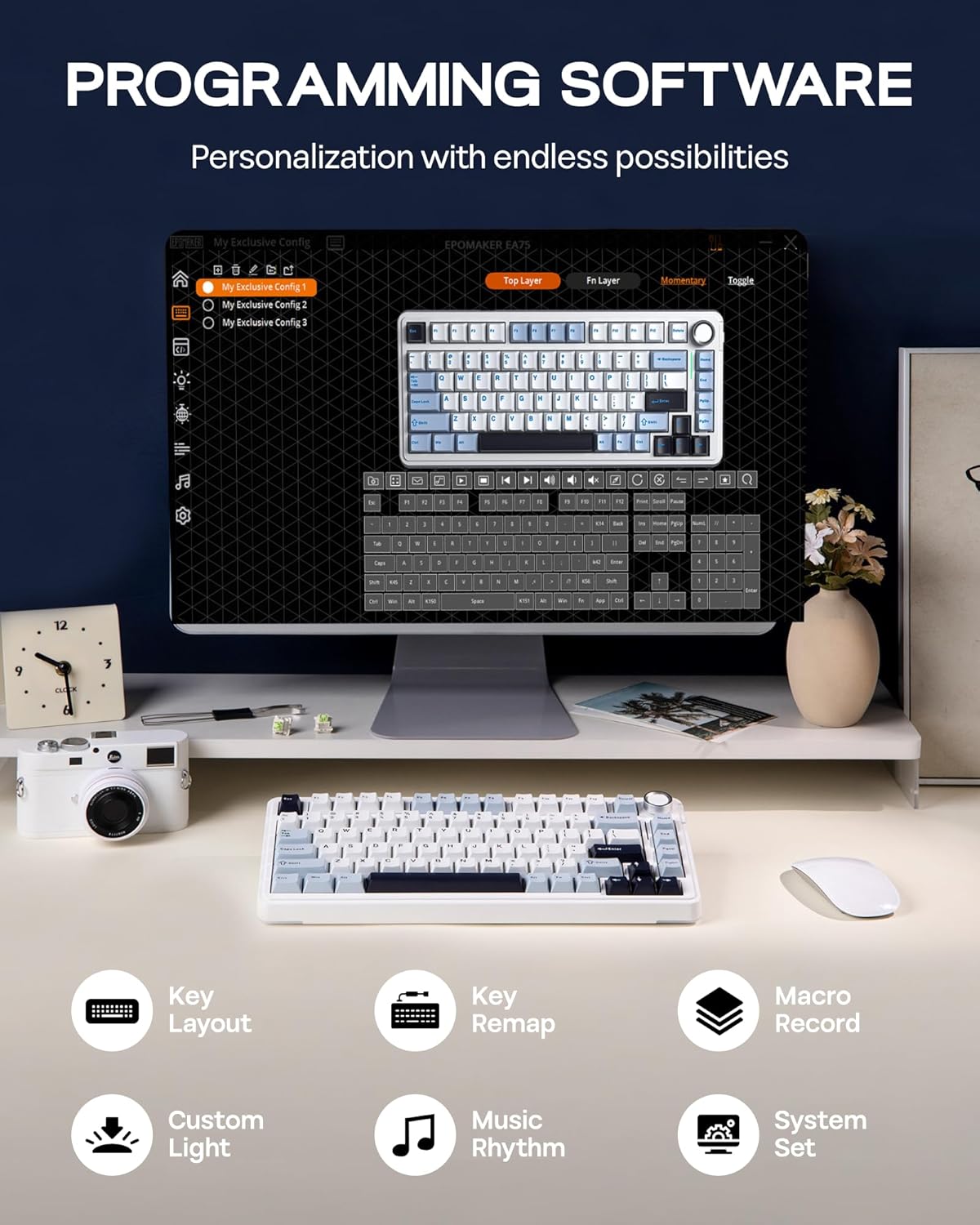
Image: Displays the user interface of the EPOMAKER programming software, showing options for key layout, key remapping, macro recording, custom light effects, music rhythm, and system settings, enabling extensive personalization.
6. Maintenance
6.1 Cleaning the Keyboard
Regular cleaning helps maintain the keyboard's performance and appearance:
- Disconnect the keyboard from all power sources.
- Use a can of compressed air to remove dust and debris from between the keycaps.
- For surface cleaning, gently wipe the keycaps and chassis with a soft, lint-free cloth dampened with a small amount of water or a mild, non-abrasive cleaning solution.
- Avoid spraying liquids directly onto the keyboard.
6.2 Keycap and Switch Care
The PBT keycaps are durable, but can be removed for deeper cleaning or replacement. Refer to section 5.4.1 for instructions on removing switches and keycaps.
7. Troubleshooting
If you encounter issues with your EPOMAKER EA75 keyboard, refer to the following common problems and solutions:
- Keyboard not responding:
- Ensure the keyboard is charged.
- Check the connectivity toggle switch is in the correct position (Wired, 2.4G, or BT).
- For wired connection, try a different USB port or cable.
- For 2.4GHz, ensure the dongle is securely plugged in and try re-pairing.
- For Bluetooth, ensure the keyboard is paired correctly (Fn + 1/2/3) and your device's Bluetooth is enabled. Try re-pairing.
- Keys not registering or double-typing:
- This could indicate a faulty switch. Since the keyboard is hot-swappable, try replacing the problematic switch (refer to section 5.4.1).
- Ensure the switch is fully seated in the PCB.
- RGB lighting not working or incorrect:
- Check the brightness settings using the rotary knob or keyboard shortcuts.
- Ensure the keyboard is not in a low-power mode that disables lighting.
- Use the programming software to reset or reconfigure lighting effects.
- 2.4GHz or Bluetooth connection unstable:
- Ensure there are no strong interferences (e.g., other wireless devices, large metal objects) between the keyboard and the receiver/device.
- Move closer to the receiver/device.
- Try updating your computer's wireless drivers.
8. Specifications
| Feature | Specification |
|---|---|
| Model Number | EA75 |
| Layout | 75% (81 Keys + 1 Knob) |
| Connectivity | 2.4GHz Wireless, Bluetooth, USB-C Wired |
| Switches | Hot-Swappable (3/5-pin mechanical switches) |
| Keycaps | PBT, Cherry Profile |
| Backlighting | Full RGB with Side Light Bars |
| Battery Capacity | 4000mAh Lithium Ion |
| Product Dimensions | 5.79 x 13.11 x 1.34 inches (14.7 x 33.3 x 3.4 cm) |
| Item Weight | 2.88 pounds (1.3 kg) |
| Compatible Devices | PC, Mac, Laptop, Smartphone, Tablet, Gaming Console |
| Manufacturer | EPOMAKER |
9. Warranty and Support
For warranty information and technical support, please refer to the official EPOMAKER website or contact their customer service directly. Keep your purchase receipt for warranty claims.
Visit the EPOMAKER Store on Amazon for more products and information.


