
1. Introduction
The JRHC 1D Laser Barcode Scanner S-7106L is a versatile device designed for efficient data collection and inventory management. It functions as a 3-in-1 tool, integrating a barcode reader, data collector, and inventory counter. This scanner supports 1D barcodes and offers both USB and 2.4G wireless connectivity options. It is suitable for various applications including warehouses, medical facilities, retail stores, and logistics.

Image: The JRHC multi-function wireless scanner in its charging cradle, emphasizing its capabilities for wireless scanning, data acquisition, and warehouse inventory, with a 'Support 1D' label.
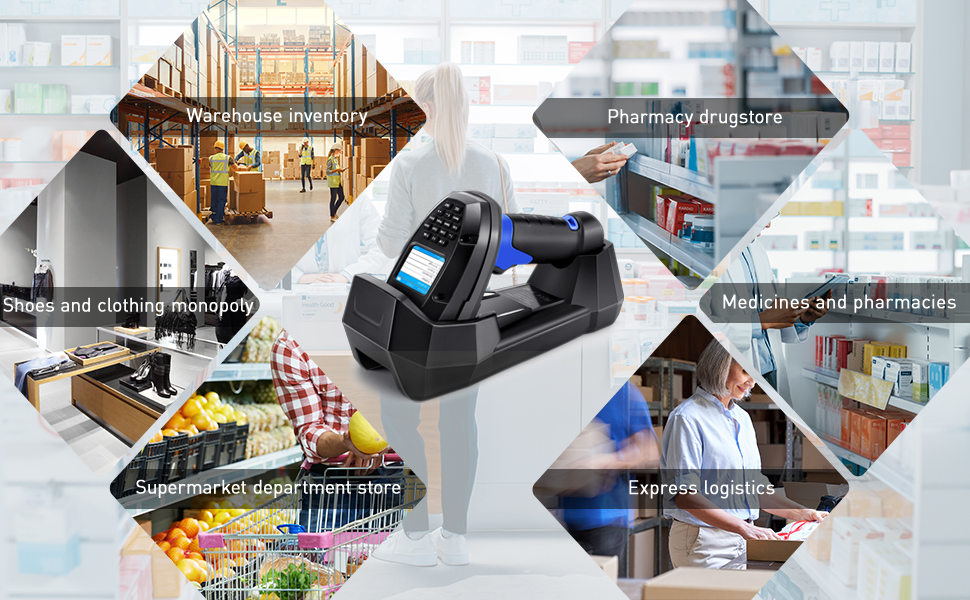
Image: Collage showing various application scenarios for the JRHC scanner, including warehouse inventory, pharmacy drugstores, shoes and clothing stores, supermarket department stores, and express logistics.
2. Package Contents
Verify that all items are present in the package before proceeding with setup.
- 1 x Handheld Barcode Scanner
- 1 x Charging Cradle
- 1 x USB Data Cable

Image: Display of the JRHC 1D Laser Barcode Scanner package contents, including the handheld scanner, charging cradle, and USB data cable.
3. Product Overview
Familiarize yourself with the components of your JRHC barcode scanner.

Image: Detailed view of the JRHC 1D Laser Barcode Scanner highlighting its key components: HD screen, Cancel key, OK key, high-performance scan head, scan job key, and ergonomic handle design.
- HD Screen: Displays scanned data, menu options, and device status.
- Cancel Key: Used to exit menus or cancel operations.
- OK Key: Confirms selections or actions.
- High-performance Scan Head: The laser module for reading barcodes.
- Scan Job Key: Initiates the barcode scanning process.
- Ergonomic Handle Design: Provides comfortable grip for extended use.
- Charging Cradle: Used for charging the scanner and establishing wireless communication.

Image: Depiction of the professional anti-shock protection feature of the JRHC scanner, illustrating its resilience against impact.
4. Setup
4.1 Charging the Scanner
- Connect the USB data cable to the charging cradle.
- Plug the other end of the USB data cable into a power source (e.g., computer USB port, USB wall adapter).
- Place the handheld scanner into the charging cradle. The scanner's screen will indicate charging status.
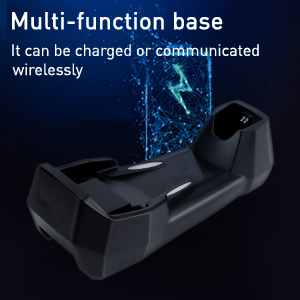
Image: The multi-function charging base for the JRHC scanner, indicating its dual capability for charging and wireless communication.
4.2 Connecting to a Device
The scanner supports both 2.4G wireless and USB wired connections.
4.2.1 2.4G Wireless Connection
- Ensure the charging cradle is connected to your computer via the USB data cable. The cradle acts as the wireless receiver.
- Turn on the scanner. It will automatically attempt to pair with the cradle.
- Once connected, the scanner will transmit data wirelessly to your computer. No additional drivers are typically required (Plug & Play).

Image: Illustration of the wireless connection setup of the JRHC 1D Laser Barcode Scanner. The scanner is shown wirelessly connected to its charging base, which is then connected via a USB cable to a laptop, displaying scanned barcode data.

Image: The JRHC scanner and its base station, indicating a plug-and-play wireless connection with a range of 50-100 meters.
4.2.2 USB Wired Connection
If wireless connection is not desired or available, the scanner can be used directly via USB.
- Connect the USB data cable directly from the scanner to your computer.
- The scanner will function as a wired barcode reader.
5. Operating Modes
The JRHC S-7106L offers three distinct operating modes to suit different data collection needs.

Image: Diagram explaining the three scan modes of the JRHC 1D Laser Barcode Scanner: Wireless Mode for instant data upload, Collect Mode for storing and exporting data when connectivity is unstable, and Inventory Mode for counting items and exporting quantity data.
5.1 Wireless Mode (Scan-Gun)
- Function: Synchronously uploads scanned barcode data instantly to your connected device.
- Usage: Ideal for real-time data entry when the scanner is within wireless range of the base station.
5.2 Collect Mode
- Function: Scans are stored locally in a library on the scanner. Data can be exported to your device later.
- Usage: Suitable for environments where connectivity may be unstable or when working away from the base station. This mode does not perform product counting.
5.3 Inventory Mode
- Function: Similar to Collect Mode, but the system counts each item, providing quantity data upon export. You can create multiple storage libraries.
- Usage: Essential for inventory management, stocktaking, and situations requiring both barcode and quantity data. The scanner can store up to 400,000 data entries.
6. Scanning Barcodes
The scanner is designed to read various conditions of 1D barcodes.

Image: The JRHC 1D Laser Barcode Scanner successfully reading various types of 1D barcodes on paper, including damaged, blurred, scratched, colorful, and folded codes. The scanner is shown held by a hand, pointing at a barcode on a cardboard box.
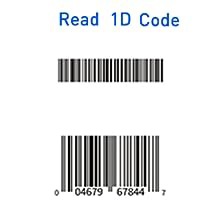
Image: Examples of 1D barcodes that the JRHC scanner can read.
6.1 How to Scan
- Point the scan head at the barcode you wish to read.
- Press the Scan Job Key. A laser line will emit from the scanner.
- Ensure the laser line crosses the entire barcode. A successful scan will typically be indicated by an audible beep and/or a visual confirmation on the screen.
6.2 Barcode Types Supported
The S-7106L is designed to read standard 1D barcodes, including those that are damaged, blurred, scratched, colorful, or folded.
7. Data Management
7.1 Data Upload
Depending on the operating mode, data is uploaded either instantly or in batches.
- Wireless Mode: Data is uploaded to your connected device in real-time as barcodes are scanned.
- Collect/Inventory Mode: After scanning, connect the scanner (or its cradle) to your computer. Use the scanner's menu options to export the stored data.

Image: Iconic representation of the two upload modes for the JRHC scanner: direct upload and folder storage.
7.2 Offline Storage
The scanner features offline storage capabilities, allowing you to collect data even when out of range or disconnected from a host device. This is primarily utilized in Collect and Inventory modes.

Image: Illustration of the offline storage capability of the JRHC scanner, showing barcodes stored even without a signal.
8. Specifications
| Model Number | S-7106L |
| Product Dimensions | 7.48 x 3.39 x 2.52 inches |
| Item Weight | 1.68 pounds |
| Connectivity Technology | USB Cable, 2.4G Wireless |
| Power Source | Battery Powered (1 Lithium Polymer battery included) |
| Battery Type | Lithium Polymer |
| Decoding Chip | 32-bit high-speed ARM series CPU |
| Wireless Transmission Range (Obstacles) | Max. 50m / 164ft |
| Wireless Transmission Range (Barrier-free) | Max. 200m / 656ft |
| Data Storage Capacity | Up to 400,000 data entries |

Image: Demonstration of the long transmission range of the JRHC 1D Laser Barcode Scanner, showing communication up to 50m (164ft) with obstacles and 200m (656ft) in a barrier-free environment.

Image: Highlighting the high-performance chip inside the JRHC scanner, described as a 32-bit high-speed ARM series CPU decoding chip.
9. Maintenance
- Cleaning: Use a soft, dry cloth to clean the scanner's exterior and scan window. Avoid abrasive cleaners or solvents.
- Battery Care: Charge the scanner regularly. If storing for an extended period, ensure the battery is partially charged (around 50%) to prolong its lifespan.
- Storage: Store the scanner in a cool, dry place away from direct sunlight and extreme temperatures.
10. Troubleshooting
| Problem | Possible Cause | Solution |
|---|---|---|
| Scanner not turning on | Low battery | Charge the scanner using the charging cradle and USB cable. |
| Cannot scan barcodes | Barcode damaged/unreadable Incorrect scanning angle Scanner malfunction | Ensure barcode is clear and flat. Adjust scanning angle. If issue persists, contact support. |
| Wireless connection issues | Out of range Cradle not connected Interference | Move closer to the cradle. Ensure cradle is properly connected to the computer. Minimize interference from other 2.4G devices. |
| Data not uploading to computer | Incorrect operating mode Connection issue Software not ready | Verify scanner is in Wireless Mode for instant upload, or use export function in Collect/Inventory Mode. Check USB connection. Ensure target application is open and ready to receive data. |
11. Warranty and Support
For warranty information and technical support, please refer to the documentation provided with your purchase or visit the official JRHC website. Keep your purchase receipt for warranty claims.
