
1. Introduction
The LILYGO T-Deck Pro is a compact and versatile development board designed for wireless communication and data processing. It integrates an ESP32-S3 dual-core LX7 microprocessor, an SX1262 LoRa transceiver for 915Mhz communication, and a GPS module. This specific version (A7682E) includes a 4G module for extended connectivity. The device features a 3.1-inch ultra-wide viewing low-power E-Paper display and a physical keyboard, making it suitable for various portable applications. This manual provides essential information for setting up, operating, maintaining, and troubleshooting your LILYGO T-Deck Pro.
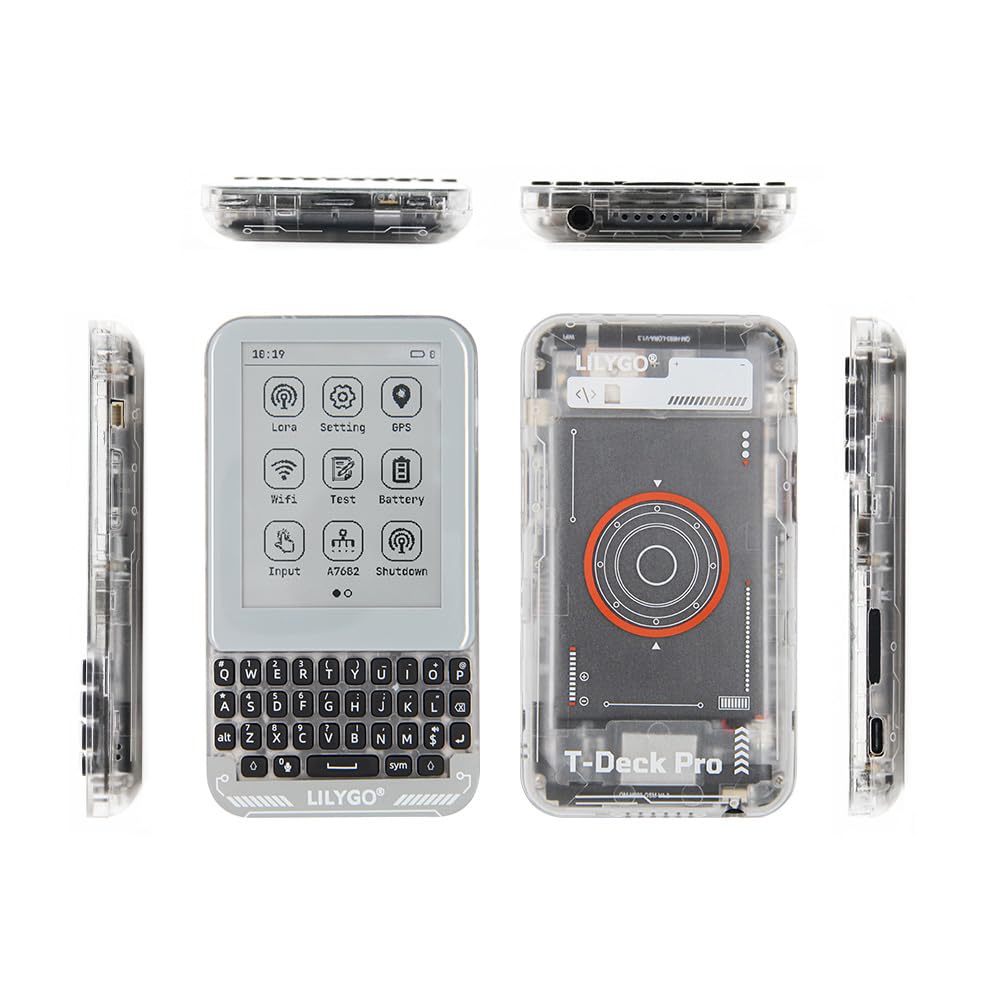
Figure 1: LILYGO T-Deck Pro device, showing the front with E-Paper display and keyboard, and the transparent back revealing internal components.
2. Key Features
- Microprocessor: ESP32-S3-FN16R8 dual-core LX7 microprocessor.
- Wireless Connectivity: 2.4 GHz Wi-Fi and Bluetooth 5 (LE).
- LoRa Transceiver: SX1262 Low Power LoRa Transceiver with +22dBm transmit power, supporting 915Mhz frequency.
- Display: 3.1-inch E-Paper Ultra Wide Viewing Low Power display (Resolution: 320 x 240, Drive Chip: GDEQ031T10).
- 4G Module: Integrated A7682E 4G module (LTE-FDD B1/B3/B5/B7/B8/B20, GSM/GPRS/EDGE 900/1800 MHz).
- GPS: Ublox MIA-M10Q GPS module for positioning.
- Memory: 16MB PSRAM, 8MB Flash.
- Input/Output: Physical QWERTY keyboard, Touch input, Microphone, Speaker, 3.5mm audio jack, Type-C USB port.
- Sensors: Gyroscope (BHI260AP), Vibration Motor.
- Storage: Supports TF Card (MicroSD) and SIM Card.
- Power: Built-in battery (JBD5070 1400mAh).

Figure 2: Detailed diagram highlighting the MCU, wireless connectivity, E-Paper display, LoRa transceiver, and various onboard functions including GPS, TF Card, Microphone, Speaker, QWIIC, Boot, RST, Vibration Motor, and Keyboard.

Figure 3: Comparison table showing features of the A7682E Modem version (this product) and the PCM5102A version, including 4G module, audio quality, earphone jack, speaker, ESP32-S3, E-Paper, LoRa, Touch, and BHI260 (Self AI).
3. Setup Guide
3.1 Initial Power On
The LILYGO T-Deck Pro does not feature a physical power switch. To power on the device for the first time or if the battery is completely depleted, connect it to a power source using the USB Type-C port. After initial power-on, the device can be woken up or reset using the volume rocker on the side.
Video 1: An overview of the LILYGO T-Deck Pro, demonstrating its physical features, including the transparent shell, keyboard, and various ports. The video also shows the device's compact size and a demonstration of its LoRa communication capabilities.
3.2 Inserting SIM and TF Cards
Locate the SIM card slot and TF card (MicroSD) slot on the side of the device. Carefully insert your SIM card for 4G connectivity and your TF card for additional storage, ensuring correct orientation as indicated on the device or in the detailed pinout diagrams.

Figure 4: Side view of the LILYGO T-Deck Pro, highlighting the USB Type-C port, SIM card slot, and TF card slot.
3.3 Connecting Audio Peripherals
The device includes a 3.5mm audio jack for connecting external headphones or speakers. A built-in microphone and speaker are also present for audio input and output.

Figure 5: Bottom view of the LILYGO T-Deck Pro, indicating the 3.5mm audio jack and the integrated microphone/speaker.
4. Operating Instructions
4.1 E-Paper Display and Keyboard
The 3.1-inch E-Paper display provides a clear, low-power visual interface. Navigate through menus and interact with applications using the touch screen functionality and the integrated QWERTY keyboard. The E-Paper display offers excellent readability in various lighting conditions, including outdoors.

Figure 6: Front view of the LILYGO T-Deck Pro, showcasing the E-Paper display with its menu icons and the full QWERTY keyboard for data input.
4.2 LoRa Communication
The integrated SX1262 LoRa module enables long-range, low-power wireless communication. Depending on the installed firmware (e.g., Meshtastic or LILYGO firmware), you can send and receive messages or data over the LoRa network. Refer to the specific firmware documentation for detailed instructions on configuring and using LoRa features.
Video 2: A demonstration of LoRa communication between two LILYGO T-Deck Pro devices, showing messages being sent and received on their E-Paper displays.
4.3 GPS and 4G Functionality
The Ublox MIA-M10Q GPS module provides accurate location data. The A7682E 4G module allows for cellular data connectivity, enabling internet access and other network-dependent applications. Configuration for these features will depend on the specific firmware and your cellular service provider.
5. Maintenance
5.1 Battery Management
The LILYGO T-Deck Pro is equipped with a built-in 1400mAh battery. Charge the device using the USB Type-C port. To prolong battery life, avoid extreme temperatures and fully discharging the battery frequently. If the device becomes unresponsive, connecting it to USB power will typically wake it up.
5.2 Firmware Updates
Firmware updates are crucial for performance improvements, bug fixes, and new features. Always refer to the official LILYGO GitHub repository or Wiki for the latest firmware versions and detailed update instructions. Incorrect firmware flashing can damage the device.
- GitHub: github.com/Xinyuan-LilyGO/T-Deck-Pro
- Wiki: wiki.lilygo.cc/
6. Troubleshooting
- Device not powering on: Connect the device to a USB Type-C power source. If it still doesn't respond, try pressing the RST (Reset) button, usually located near the QWIIC connector.
- E-Paper display issues: E-Paper displays have a refresh cycle. If the display appears ghosted or unresponsive, a full refresh cycle (often triggered by a screen update or reset) may resolve the issue.
- LoRa communication failure: Ensure both devices are within range, configured to the same frequency (915Mhz), and using compatible firmware settings. Check antenna connections.
- GPS not acquiring signal: Ensure the device has a clear view of the sky. GPS signal acquisition can take several minutes, especially during the first use or after a long period of inactivity.
- 4G connectivity problems: Verify that the SIM card is correctly inserted, active, and has a data plan. Check network coverage in your area.
- Firmware related issues: If the device behaves unexpectedly after a firmware update, try reflashing the firmware or reverting to a known stable version. Consult the official GitHub or Wiki for specific guidance.
For more detailed troubleshooting steps and community support, please visit the official LILYGO GitHub and Wiki resources.
7. Specifications
| Feature | Detail |
|---|---|
| Brand | LILYGO |
| Model Name | LILYGO T-Deck Pro |
| Item Model Number | A7682E LILYGO Firmware |
| CPU Manufacturer | Espressif |
| Processor Brand | Espressif |
| Number of Processors | 1 (Dual-core LX7) |
| Operating System | Linux (Firmware dependent) |
| RAM | LPDDR (16MB PSRAM) |
| Flash | 8MB |
| Connectivity Technology | USB, GPS, LoRa 915Mhz, Wi-Fi, Bluetooth 5 (LE), 4G (A7682E) |
| Display Type | 3.1 inch E-Paper Ultra Wide Viewing Low Power |
| LoRa Frequency | 915Mhz |
| 4G Frequency Bands | LTE-FDD B1/B3/B5/B7/B8/B20, GSM/GPRS/EDGE 900/1800 MHz |
| Battery | 1400mAh (JBD5070) |
| Dimensions (Approx.) | L:120mm, W:66mm, H:13.5mm |

Figure 7: LILYGO T-Deck Pro showing approximate dimensions: Length (L) 120mm, Width (W) 66mm, Height (H) 13.5mm.
8. Warranty and Support
LILYGO products are designed for reliability and performance. For specific warranty information, please refer to your purchase documentation or contact the retailer. For technical support, firmware updates, and community discussions, the following resources are available:
- Official GitHub Repository: github.com/Xinyuan-LilyGO/T-Deck-Pro
- Official Wiki: wiki.lilygo.cc/
- Product Service: If you have any questions or suggestions about the product, please feel free to contact us. We will answer your question as soon as possible.